> ## Documentation Index
> Fetch the complete documentation index at: https://docs.lindy.ai/llms.txt
> Use this file to discover all available pages before exploring further.
# Credits
> How credits work for custom agents: pricing, monitoring, and optimization strategies
This page covers credits for **custom agents** built in the workflow editor. If you're using Lindy Assistant and saw a usage warning, see [Understanding Your Usage](/account-billing/usage).
## How Credits Work
Credits are consumed whenever a custom agent runs a task. Costs scale with:
* **Model intelligence**: more advanced models use more credits
* **Task complexity**: processing hundreds of rows vs. updating one
* **Premium actions**: specialized integrations and features
* **Agent duration**: agents run until completion, using more credits for longer tasks
Most tasks cost `1-3 credits` on basic models and `~10 credits` on large models. **Every task is at minimum 1 credit.**
### What is a Task?
A task is everything your agent does after being triggered. This includes all subsequent steps: conditions, actions, AI agent steps, and messages.
## Monitoring Usage
### Task View
1. **Click your Lindy** in the sidebar and select "Tasks"
2. **Access a task** from the task list
3. **Hover over each step** to see credits used for that step
### Credit Gauge
The **bottom left gauge** shows credit consumption for your current billing cycle. Hover for details on when your balance resets.
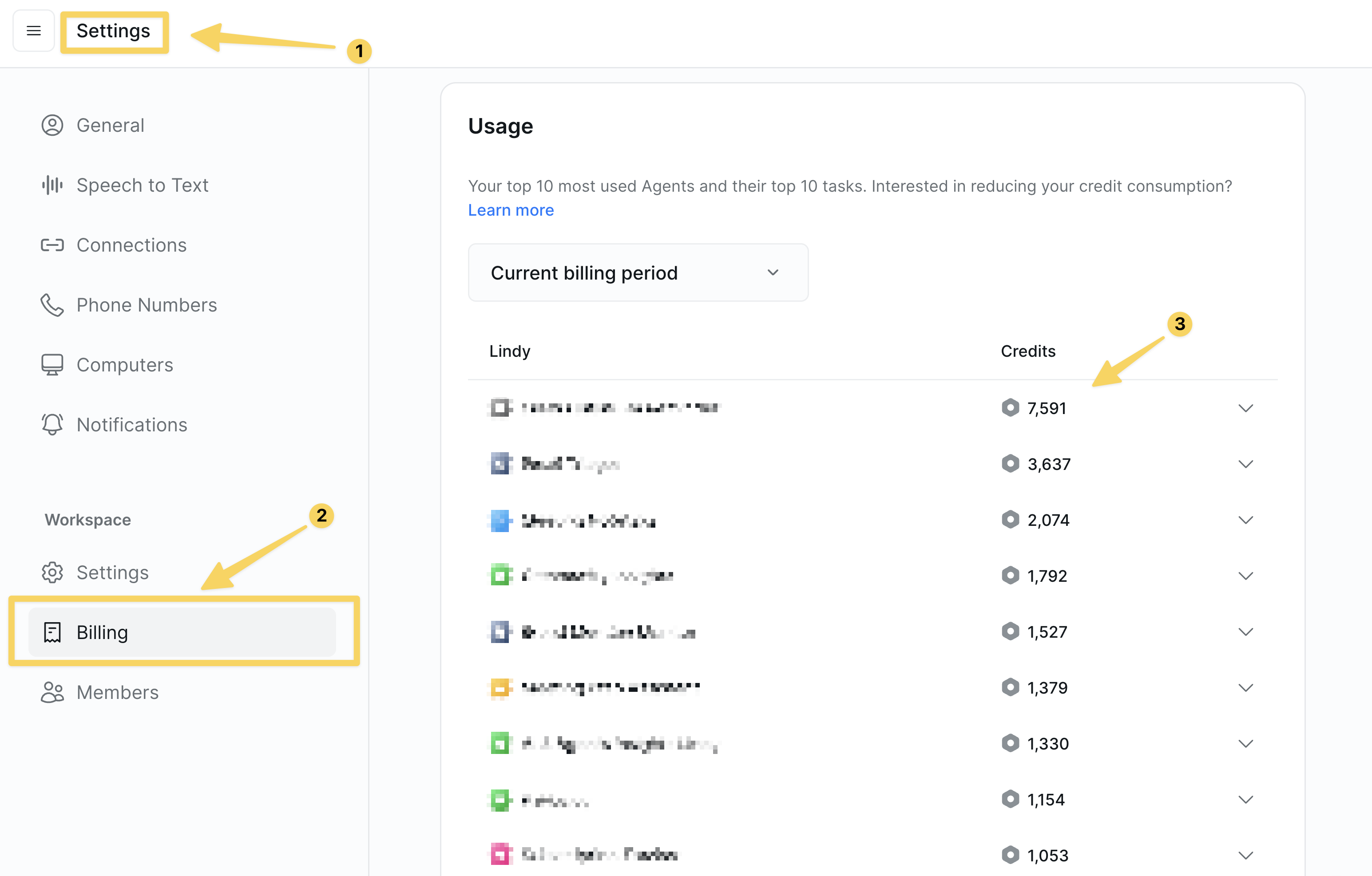 Credits do not roll over between billing cycles. When you run out, agents pause and new tasks are put on hold.
## Reducing Credit Usage
### 1. Filter High-Volume Triggers
Not every email or event needs to trigger an agent. Apply filters so agents only run on relevant events.
**Example**: To label emails from your team with "Acme," filter the trigger to only fire when the sender contains `acme.com`. This prevents unnecessary task runs on every incoming email.
### 2. Use a Cheaper Model
Basic models work well for straightforward tasks like summarization, data routing, or notifications. Start with a powerful model to get your workflow right, then gradually downgrade while monitoring results.
### 3. Clear Context Between Steps
Every time your agent processes a task, it carries forward conversation history. This increases credit usage, especially with large data like webpage contents or spreadsheets.
Add **Clear Task Context** actions after significant data processing steps to reset conversation memory and keep costs down.
### 4. Use Cheaper Actions
Some actions cost more credits than others. Compare alternatives and choose the most efficient option for your use case.
## Next Steps
Test workflows to understand their credit impact
Track credit usage in production
Advanced context and memory management
Organize projects and manage credit allocation
Credits do not roll over between billing cycles. When you run out, agents pause and new tasks are put on hold.
## Reducing Credit Usage
### 1. Filter High-Volume Triggers
Not every email or event needs to trigger an agent. Apply filters so agents only run on relevant events.
**Example**: To label emails from your team with "Acme," filter the trigger to only fire when the sender contains `acme.com`. This prevents unnecessary task runs on every incoming email.
### 2. Use a Cheaper Model
Basic models work well for straightforward tasks like summarization, data routing, or notifications. Start with a powerful model to get your workflow right, then gradually downgrade while monitoring results.
### 3. Clear Context Between Steps
Every time your agent processes a task, it carries forward conversation history. This increases credit usage, especially with large data like webpage contents or spreadsheets.
Add **Clear Task Context** actions after significant data processing steps to reset conversation memory and keep costs down.
### 4. Use Cheaper Actions
Some actions cost more credits than others. Compare alternatives and choose the most efficient option for your use case.
## Next Steps
Test workflows to understand their credit impact
Track credit usage in production
Advanced context and memory management
Organize projects and manage credit allocation