> ## Documentation Index
> Fetch the complete documentation index at: https://docs.lindy.ai/llms.txt
> Use this file to discover all available pages before exploring further.
# Multi-Account Setup
> Connect multiple Google or Outlook accounts so Lindy works across all your inboxes and calendars
Lindy supports connecting multiple Google and Outlook accounts. Once connected, Lindy manages email and meetings across all of them, not just your primary account.
## Adding an Account
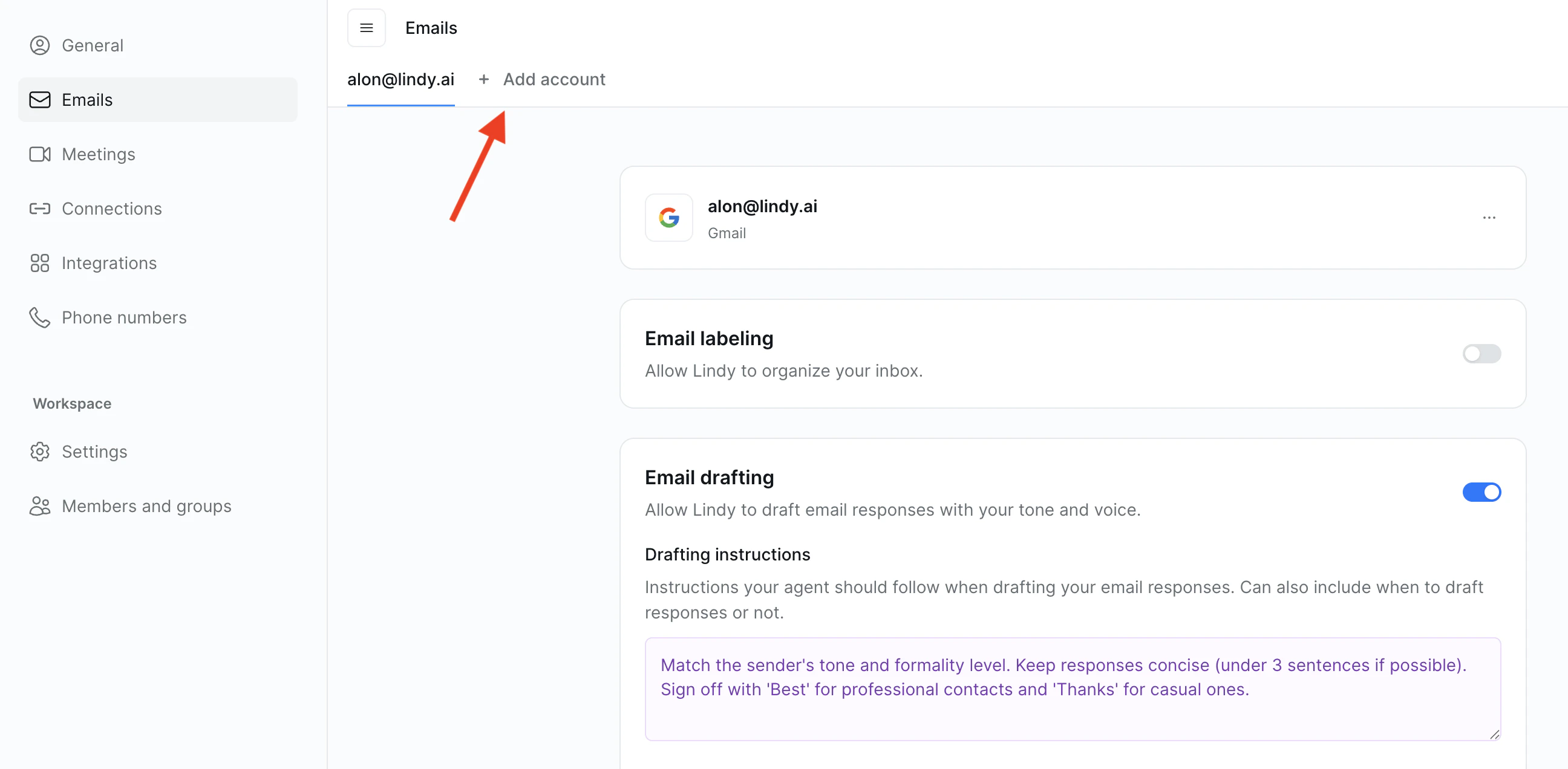
You can add additional accounts from two places in the sidebar:
### Emails
1. Go to **Settings** in the left sidebar
2. Click **Emails**
3. Click **+ Add Account**
4. Choose **Google** or **Outlook**
5. Follow the prompts to sign in and grant Lindy access
 ### Meetings
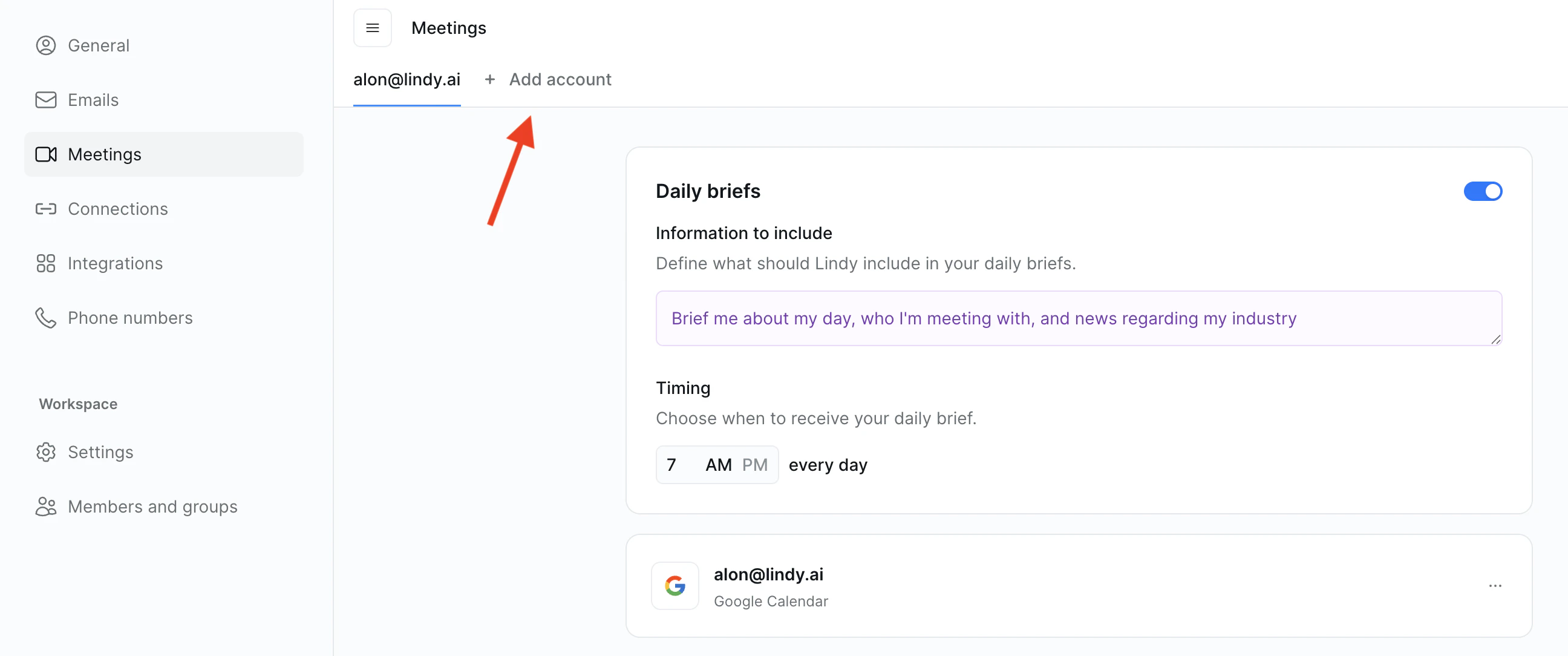
1. Go to **Settings** in the left sidebar
2. Click **Meetings**
3. Click **+ Add Account**
4. Choose **Google** or **Outlook**
5. Follow the prompts to sign in and grant Lindy access
### Meetings
1. Go to **Settings** in the left sidebar
2. Click **Meetings**
3. Click **+ Add Account**
4. Choose **Google** or **Outlook**
5. Follow the prompts to sign in and grant Lindy access
 You can connect both Google and Outlook accounts at the same time. Lindy works across both providers simultaneously.
## What Gets Connected
When you add an account, Lindy gains access to the following for that account:
| Feature | What Lindy can do |
| ------------ | -------------------------------------------------------- |
| **Email** | Read, label, triage, and draft replies across that inbox |
| **Calendar** | See upcoming events and send meeting prep and notes |
| **Contacts** | Look up attendee context for meeting prep |
## Removing an Account
To disconnect an account, go to **Settings → Integrations**, find the account you want to remove, and click **Disconnect**.
Removing an account will stop Lindy from processing emails and meetings for that account. Any in-progress tasks tied to that account may be interrupted.
## Next Steps
Set up email triage across all your connected inboxes
Get meeting prep and notes from all your calendars
You can connect both Google and Outlook accounts at the same time. Lindy works across both providers simultaneously.
## What Gets Connected
When you add an account, Lindy gains access to the following for that account:
| Feature | What Lindy can do |
| ------------ | -------------------------------------------------------- |
| **Email** | Read, label, triage, and draft replies across that inbox |
| **Calendar** | See upcoming events and send meeting prep and notes |
| **Contacts** | Look up attendee context for meeting prep |
## Removing an Account
To disconnect an account, go to **Settings → Integrations**, find the account you want to remove, and click **Disconnect**.
Removing an account will stop Lindy from processing emails and meetings for that account. Any in-progress tasks tied to that account may be interrupted.
## Next Steps
Set up email triage across all your connected inboxes
Get meeting prep and notes from all your calendars