> ## Documentation Index
> Fetch the complete documentation index at: https://docs.lindy.ai/llms.txt
> Use this file to discover all available pages before exploring further.
# Files
> Browse and manage the files Lindy uses: a versioned file system you can see into, edit, and share with your team.
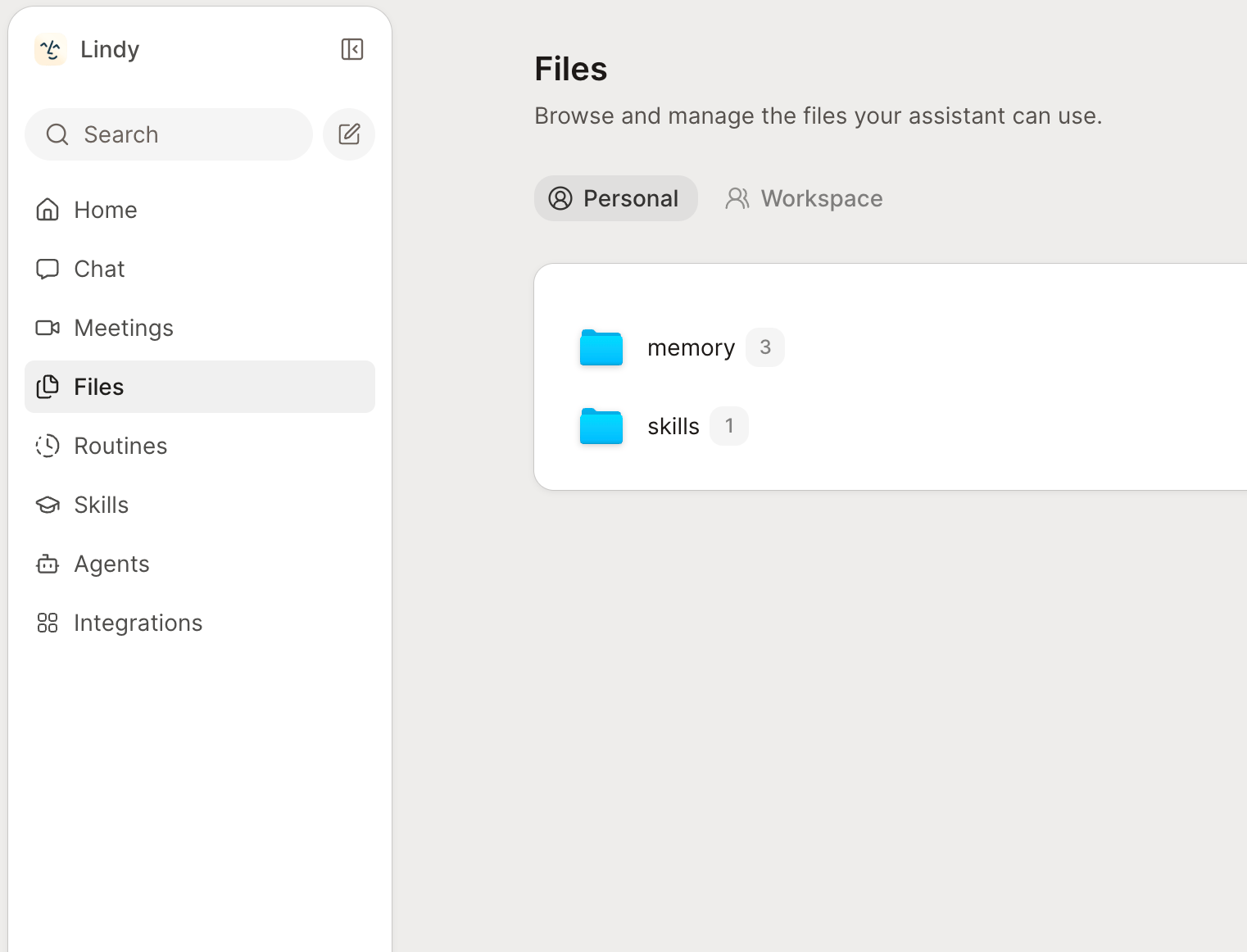 Files is a browser-based explorer for Lindy's own files, on the **Files** page in the left sidebar. Think of it as Lindy's hard drive that you can see into. Lindy saves files here as it works, and you can add, edit, and organize the files it uses.
The point is transparency. Instead of a black box, you can inspect, verify, and correct exactly what Lindy has produced or knows. Everything is versioned, so nothing is ever silently lost.
## Personal, team, and system files
A switcher at the top of the explorer flips between your scopes:
| Scope | Who can see it | Who can edit it |
| ------------ | -------------------------- | --------------------------- |
| **Personal** | Just you | You |
| **Team** | Everyone in your workspace | Workspace owners and admins |
| **System** | Everyone | No one (built in) |
**Personal** files are private and scoped per workspace, so nothing leaks between the workspaces you belong to. **Team** files are shared knowledge for the whole workspace; regular members get a read-only view with a lock banner, and owners and admins can edit. **System** files ship with Lindy and can't be changed.
## Adding files
Use **New file** or **New folder** to make something from scratch, then rename, move, or organize it however you like.
Drop files, or entire folders, onto the explorer. Folders are walked recursively, so subfolder structure is preserved. You can drop up to **100 files** at once.
Two things to know: empty folders can't be saved (Lindy tracks files, not empty directories), and on a name conflict Lindy either overwrites or keeps both by adding a numbered copy.
## Teach Lindy with files
Files aren't just storage. They can extend what Lindy can do.
* **Skills** live in a `.skills/` folder. Each skill is a folder with a `SKILL.md` (a name, description, and instructions), and the folder name is the skill name. Lindy sees the names and descriptions of enabled skills, and pulls in a skill's full instructions on demand when it's relevant. Skills layer across scopes: your Personal version overrides the Team's, which overrides the built-in System one. Browse and install ready-made skills from the [Skills](/coming-soon/skills) page and marketplace; installing one copies it into your Personal or Team files.
* **Memory** lives in a `.memory/` area, where Lindy keeps durable knowledge it can rely on across tasks.
## Editing and saving
Files open in a viewer with **Preview**, **Raw**, and **History** tabs. Editable text files open in an inline code editor.
Saving is explicit: changes only apply when you click **Save**, and Lindy warns you before discarding unsaved edits. Read-only files (Team files for non-admins, and system files) show a lock banner instead.
## Versions and syncing
* **Every save is a version.** Full history is kept, and you can restore an earlier revision any time. Even deleting a file keeps its earlier versions.
* **Changes sync live.** When Lindy writes a file mid-task, the explorer updates in near-real-time. Edits to `.skills/` refresh what Lindy knows on its next turn.
## Relevant Docs
Turn files into capabilities Lindy picks up on its own
Have Lindy produce files on a schedule
Files is a browser-based explorer for Lindy's own files, on the **Files** page in the left sidebar. Think of it as Lindy's hard drive that you can see into. Lindy saves files here as it works, and you can add, edit, and organize the files it uses.
The point is transparency. Instead of a black box, you can inspect, verify, and correct exactly what Lindy has produced or knows. Everything is versioned, so nothing is ever silently lost.
## Personal, team, and system files
A switcher at the top of the explorer flips between your scopes:
| Scope | Who can see it | Who can edit it |
| ------------ | -------------------------- | --------------------------- |
| **Personal** | Just you | You |
| **Team** | Everyone in your workspace | Workspace owners and admins |
| **System** | Everyone | No one (built in) |
**Personal** files are private and scoped per workspace, so nothing leaks between the workspaces you belong to. **Team** files are shared knowledge for the whole workspace; regular members get a read-only view with a lock banner, and owners and admins can edit. **System** files ship with Lindy and can't be changed.
## Adding files
Use **New file** or **New folder** to make something from scratch, then rename, move, or organize it however you like.
Drop files, or entire folders, onto the explorer. Folders are walked recursively, so subfolder structure is preserved. You can drop up to **100 files** at once.
Two things to know: empty folders can't be saved (Lindy tracks files, not empty directories), and on a name conflict Lindy either overwrites or keeps both by adding a numbered copy.
## Teach Lindy with files
Files aren't just storage. They can extend what Lindy can do.
* **Skills** live in a `.skills/` folder. Each skill is a folder with a `SKILL.md` (a name, description, and instructions), and the folder name is the skill name. Lindy sees the names and descriptions of enabled skills, and pulls in a skill's full instructions on demand when it's relevant. Skills layer across scopes: your Personal version overrides the Team's, which overrides the built-in System one. Browse and install ready-made skills from the [Skills](/coming-soon/skills) page and marketplace; installing one copies it into your Personal or Team files.
* **Memory** lives in a `.memory/` area, where Lindy keeps durable knowledge it can rely on across tasks.
## Editing and saving
Files open in a viewer with **Preview**, **Raw**, and **History** tabs. Editable text files open in an inline code editor.
Saving is explicit: changes only apply when you click **Save**, and Lindy warns you before discarding unsaved edits. Read-only files (Team files for non-admins, and system files) show a lock banner instead.
## Versions and syncing
* **Every save is a version.** Full history is kept, and you can restore an earlier revision any time. Even deleting a file keeps its earlier versions.
* **Changes sync live.** When Lindy writes a file mid-task, the explorer updates in near-real-time. Edits to `.skills/` refresh what Lindy knows on its next turn.
## Relevant Docs
Turn files into capabilities Lindy picks up on its own
Have Lindy produce files on a schedule