> ## Documentation Index
> Fetch the complete documentation index at: https://docs.lindy.ai/llms.txt
> Use this file to discover all available pages before exploring further.
# Meetings
> Lindy records, transcribes, and summarizes your calls, files them into shared folders, and lets you ask questions across every meeting.
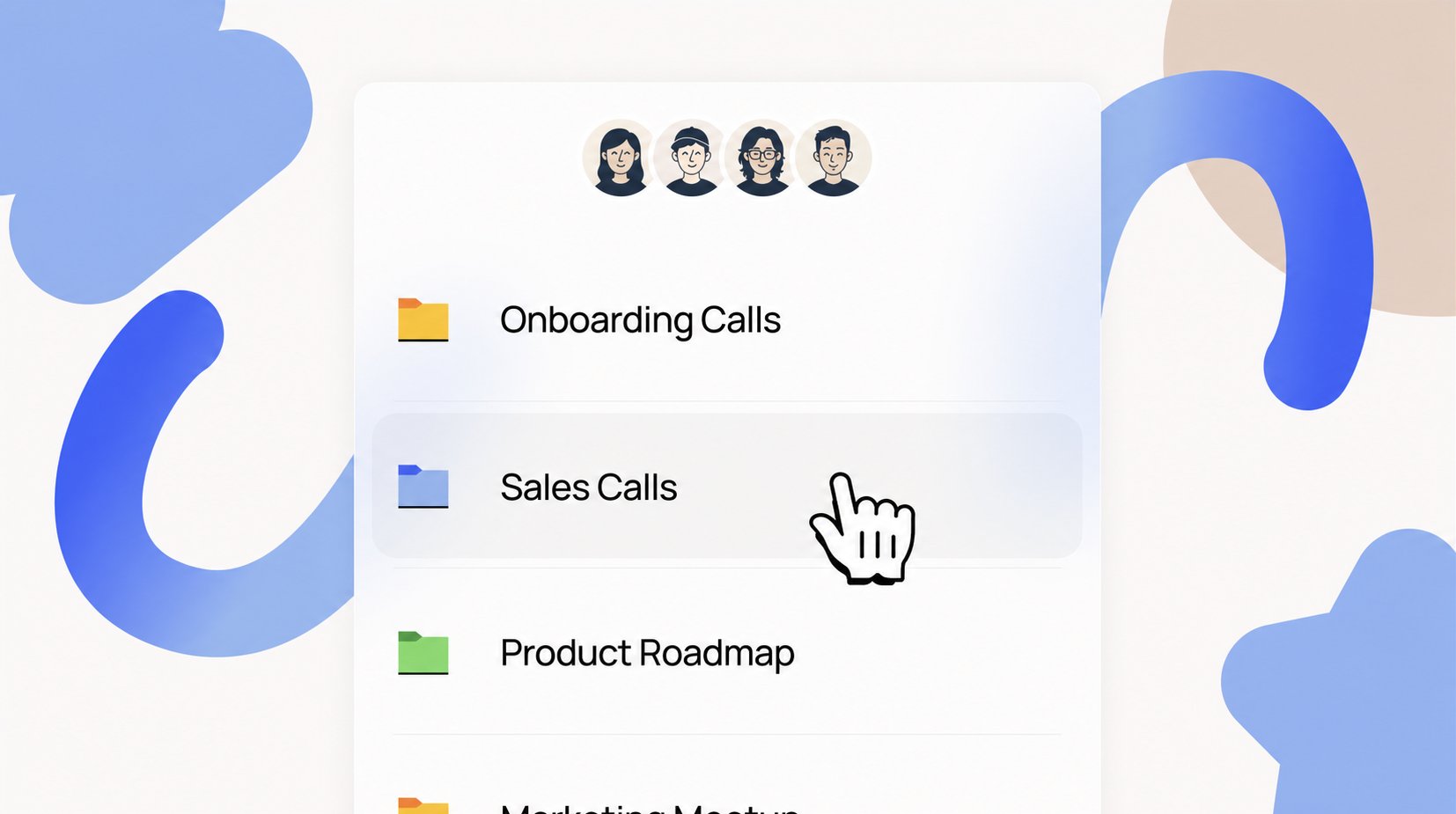 Every meeting your team has, in one place anyone can just ask. No more *"how'd the call go?"* or hunting for a recording. Lindy records, transcribes, and summarizes the meetings you attend, and files them into folders you can open up to your whole team.
## Share a folder with your team
Recording the call is the easy part. The shared folder is what pays off.
Open a folder to your team and every call inside it becomes something anyone can question. A new rep gets through last month's sales calls without watching a minute of video. Ask what customers said about pricing and the answer comes back from six meetings at once, with links to the moment in each one.
* **Anyone with access can ask:** from the Meetings page, in Lindy chat, in Slack, or by text.
* **Answers span the whole folder:** *"What objections came up this week?"* draws on every meeting in it, not one call at a time.
* **New people catch up on their own:** send them the folder instead of five recordings.
* **It stays current without upkeep:** describe what belongs once, and matching calls file themselves.
A folder set to **Only you** is an archive. A folder set to **Entire team** is how the rest of the company stops asking you what happened on the call.
## How recording works
When recording is on, Lindy sends a notetaker to your Google Meet, Zoom, or Teams calls. It joins **visibly, as a named participant** (you choose the display name), records the call, and writes a transcript and a summary with action items, decisions, and key quotes.
Because the notetaker joins visibly, everyone on the call can see it's there. Still let participants know they're being recorded, as your local laws require.
## Recording settings
Control recording from the **Meeting recording** card:
* **Turn recording on or off.** A workspace admin can turn it off for everyone.
* **Which meetings Lindy joins automatically:** all meetings, internal only, or external only.
* **The notetaker's display name.**
* **The recap email, and who gets it:** all participants, internal people only, or just you.
* **How the summary reads:** free-text instructions to shape its tone and structure.
* **Where the recap is delivered:** email, SMS, Slack DM, or Lindy chat.
* **Follow-up actions** in plain English, like *"share the action items in Slack."*
For a one-off call that isn't covered by your auto-join setting, Lindy can send a confirmation link so an attendee approves recording that specific meeting.
## Your meeting library
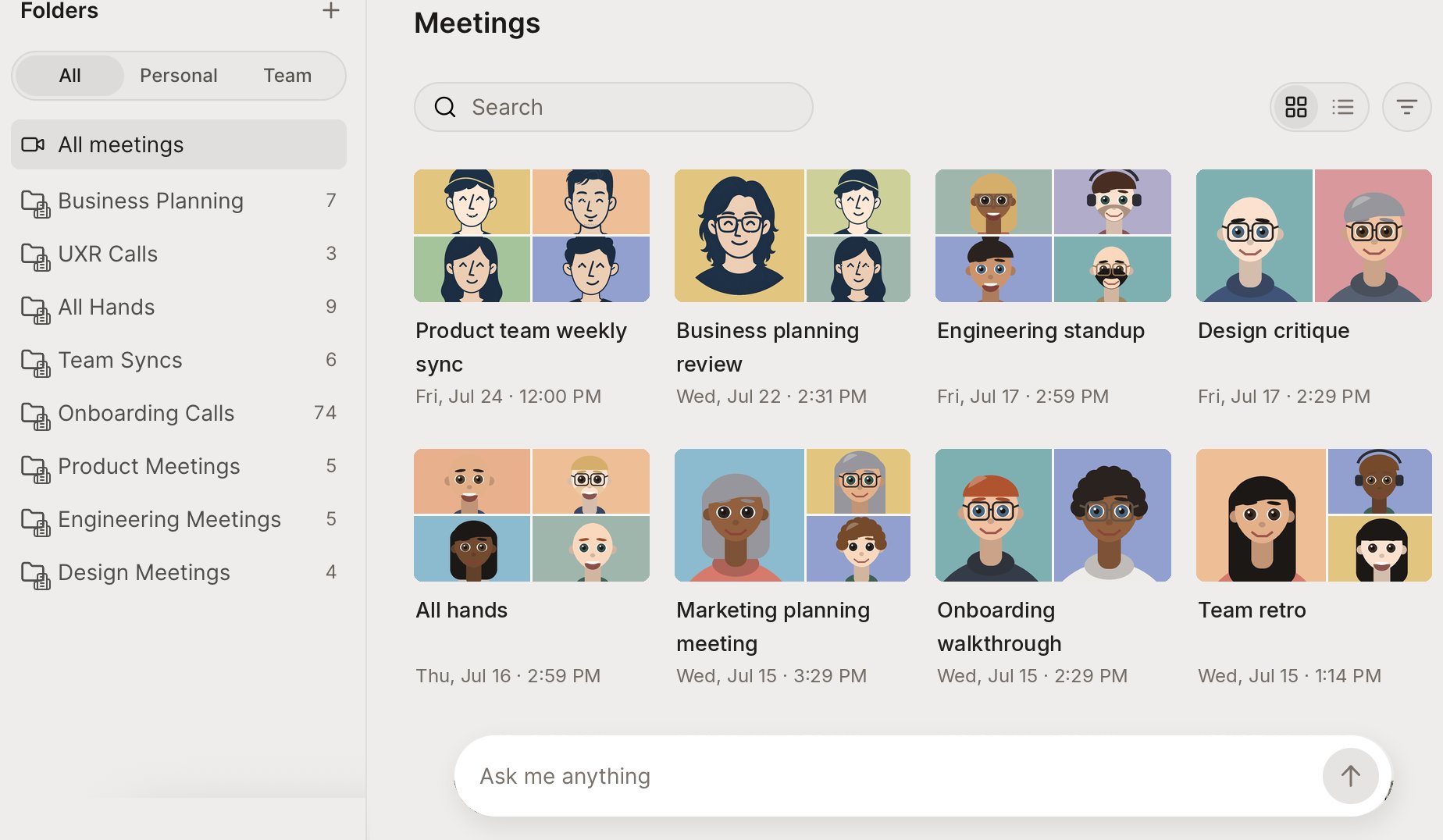
Every recorded meeting lands in the Meeting Hub at [chat.lindy.ai/meetings](https://chat.lindy.ai/meetings). Browse them as tiles or rows, search by title, participant, or date, and switch between a **Personal** and **Team** view.
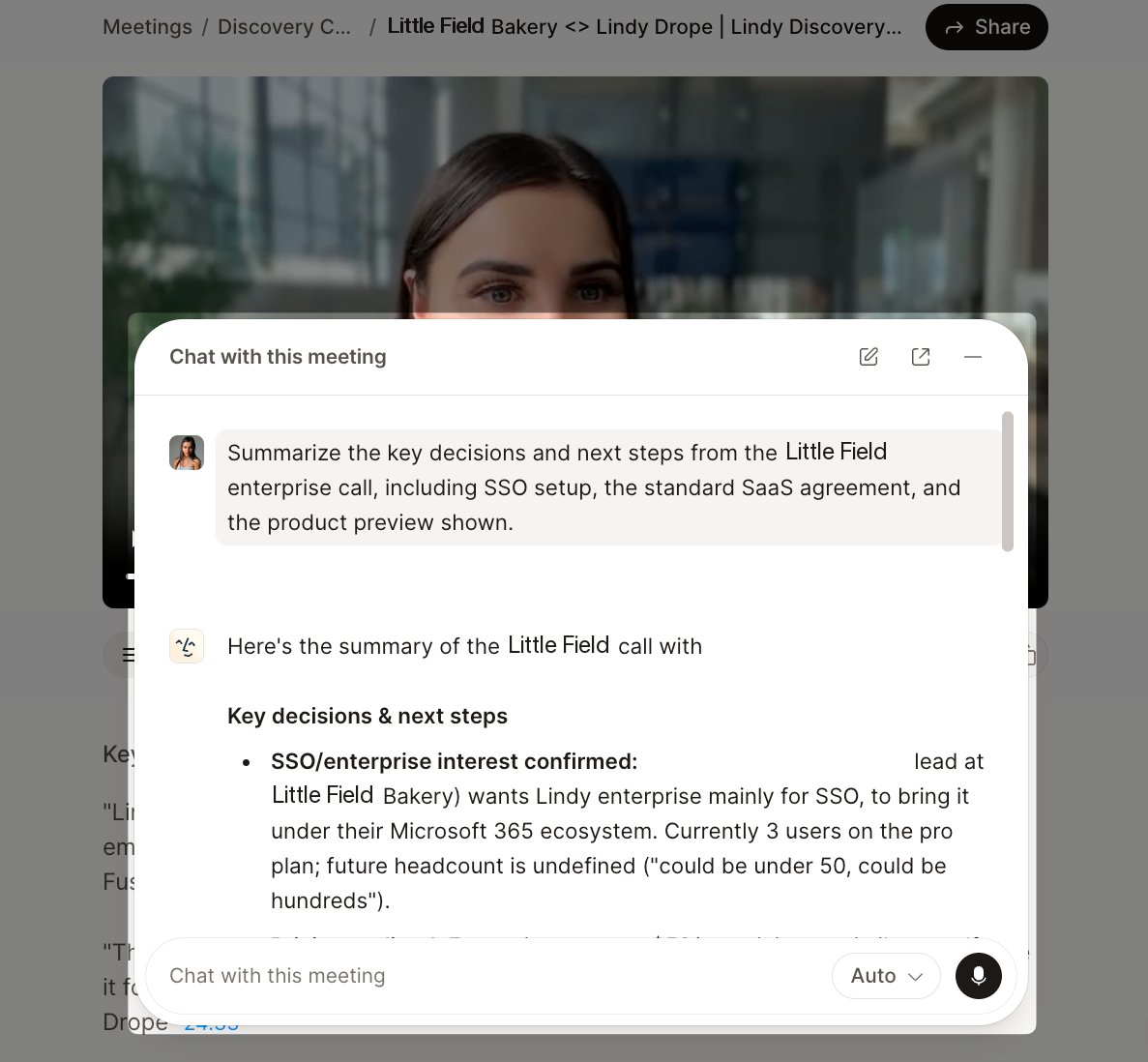
Open any meeting for its **Summary**, **Transcript**, **Video**, and a **Chat** scoped to that call, plus rename, copy, download, and share.
Every meeting your team has, in one place anyone can just ask. No more *"how'd the call go?"* or hunting for a recording. Lindy records, transcribes, and summarizes the meetings you attend, and files them into folders you can open up to your whole team.
## Share a folder with your team
Recording the call is the easy part. The shared folder is what pays off.
Open a folder to your team and every call inside it becomes something anyone can question. A new rep gets through last month's sales calls without watching a minute of video. Ask what customers said about pricing and the answer comes back from six meetings at once, with links to the moment in each one.
* **Anyone with access can ask:** from the Meetings page, in Lindy chat, in Slack, or by text.
* **Answers span the whole folder:** *"What objections came up this week?"* draws on every meeting in it, not one call at a time.
* **New people catch up on their own:** send them the folder instead of five recordings.
* **It stays current without upkeep:** describe what belongs once, and matching calls file themselves.
A folder set to **Only you** is an archive. A folder set to **Entire team** is how the rest of the company stops asking you what happened on the call.
## How recording works
When recording is on, Lindy sends a notetaker to your Google Meet, Zoom, or Teams calls. It joins **visibly, as a named participant** (you choose the display name), records the call, and writes a transcript and a summary with action items, decisions, and key quotes.
Because the notetaker joins visibly, everyone on the call can see it's there. Still let participants know they're being recorded, as your local laws require.
## Recording settings
Control recording from the **Meeting recording** card:
* **Turn recording on or off.** A workspace admin can turn it off for everyone.
* **Which meetings Lindy joins automatically:** all meetings, internal only, or external only.
* **The notetaker's display name.**
* **The recap email, and who gets it:** all participants, internal people only, or just you.
* **How the summary reads:** free-text instructions to shape its tone and structure.
* **Where the recap is delivered:** email, SMS, Slack DM, or Lindy chat.
* **Follow-up actions** in plain English, like *"share the action items in Slack."*
For a one-off call that isn't covered by your auto-join setting, Lindy can send a confirmation link so an attendee approves recording that specific meeting.
## Your meeting library
Every recorded meeting lands in the Meeting Hub at [chat.lindy.ai/meetings](https://chat.lindy.ai/meetings). Browse them as tiles or rows, search by title, participant, or date, and switch between a **Personal** and **Team** view.
Open any meeting for its **Summary**, **Transcript**, **Video**, and a **Chat** scoped to that call, plus rename, copy, download, and share.
 ## Organize with folders
A folder is a collection of meetings a group can see and query, like **Sales calls**, **Customer feedback**, or **Acme onboarding**. One meeting can live in several folders.
On the **Meetings** page, click **Create folder** and give it a name.
Choose the visibility: only you, specific people, or your entire team. Pick **Entire team** unless there's a reason not to. That's the setting that makes the folder worth having.
Turn on **Automatically add meetings to this folder** and describe the rule in plain language: *"any sales call,"* *"any meeting with customer feedback,"* or *"all calls with Acme."* Lindy files matching meetings for you, based on the transcript. No tags, no upkeep.
When you create a folder, Lindy suggests meetings to add right away, matched from your recent calls against your description.
### How auto-add respects each person
Auto-add is per person, so a shared folder never pulls in someone else's meetings without their say-so. Each member of a shared folder chooses how the rule applies to their own meetings:
* **Automatic** — matching meetings are added silently.
* **Review** — matches show up in a *"Suggested for this folder"* strip to accept or dismiss.
If the folder's rule changes, everyone is asked again before their meetings are affected.
## Talk to your meetings from anywhere
You don't have to be on the Meetings page to use what was said on a call. Ask from wherever you already are.
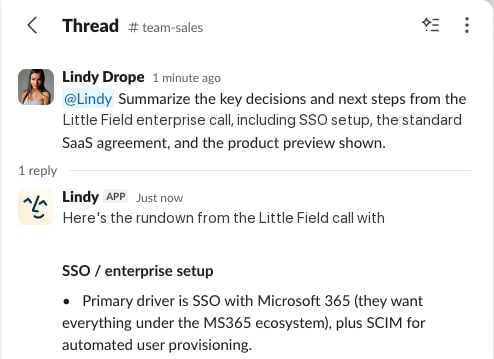
* **A public Slack channel:** @mention Lindy in #team-sales and the answer lands in the thread, where the whole channel can see it.
* **A DM:** ask one-to-one when the question is only yours.
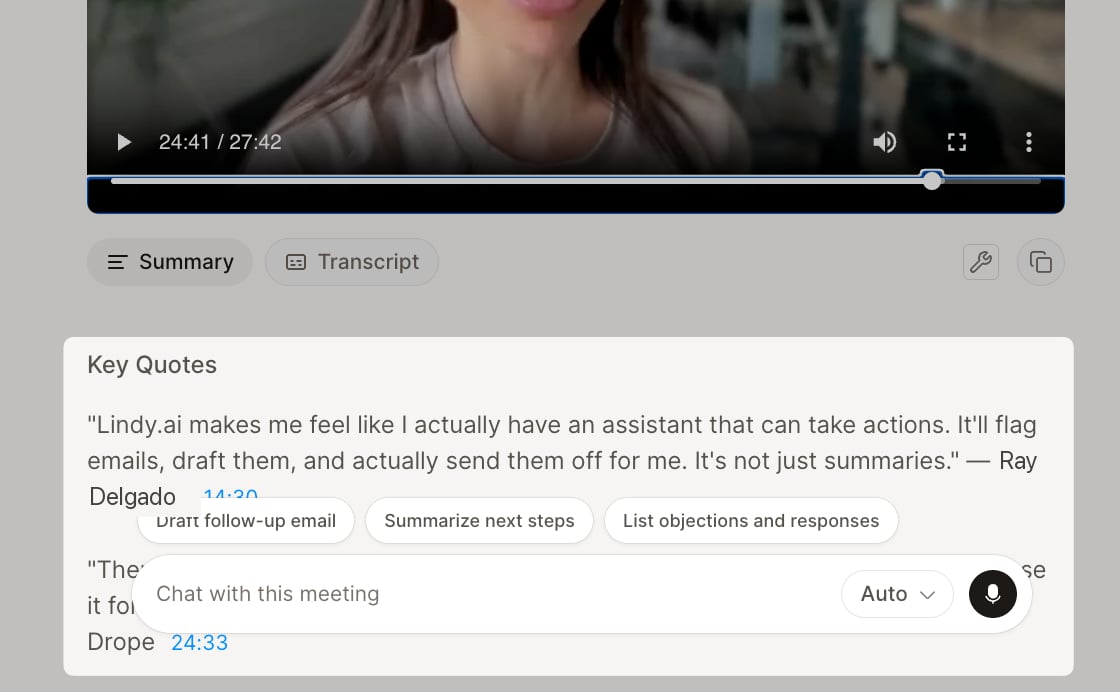
* **The Meetings page:** open a call for **Chat with this meeting**, or open a folder for one ongoing chat across every meeting in it. *"What objections came up this week?"*
* **A text:** same question, from your phone.
By default Lindy looks at your own meetings, and only widens to shared ones when a shared folder is involved.
## Organize with folders
A folder is a collection of meetings a group can see and query, like **Sales calls**, **Customer feedback**, or **Acme onboarding**. One meeting can live in several folders.
On the **Meetings** page, click **Create folder** and give it a name.
Choose the visibility: only you, specific people, or your entire team. Pick **Entire team** unless there's a reason not to. That's the setting that makes the folder worth having.
Turn on **Automatically add meetings to this folder** and describe the rule in plain language: *"any sales call,"* *"any meeting with customer feedback,"* or *"all calls with Acme."* Lindy files matching meetings for you, based on the transcript. No tags, no upkeep.
When you create a folder, Lindy suggests meetings to add right away, matched from your recent calls against your description.
### How auto-add respects each person
Auto-add is per person, so a shared folder never pulls in someone else's meetings without their say-so. Each member of a shared folder chooses how the rule applies to their own meetings:
* **Automatic** — matching meetings are added silently.
* **Review** — matches show up in a *"Suggested for this folder"* strip to accept or dismiss.
If the folder's rule changes, everyone is asked again before their meetings are affected.
## Talk to your meetings from anywhere
You don't have to be on the Meetings page to use what was said on a call. Ask from wherever you already are.
* **A public Slack channel:** @mention Lindy in #team-sales and the answer lands in the thread, where the whole channel can see it.
* **A DM:** ask one-to-one when the question is only yours.
* **The Meetings page:** open a call for **Chat with this meeting**, or open a folder for one ongoing chat across every meeting in it. *"What objections came up this week?"*
* **A text:** same question, from your phone.
By default Lindy looks at your own meetings, and only widens to shared ones when a shared folder is involved.
 Open any call and **Chat with this meeting** sits right under the recording, with a few starting points if you don't know what to ask.
 Ask for what you actually want and the answer comes back structured, drawn from the call itself.
 If answering in a public Slack channel would need private meeting context, Lindy moves that part to a DM or tells you it can only answer privately.
### It doesn't stop at answering
From the same thread or chat, hand off the work that comes out of the call:
* *"Draft a follow-up email to Sarah based on what we agreed."*
* *"Write up the handoff doc in Notion."*
* *"Update the HubSpot deal with what we heard on pricing."*
* *"Create a task for each action item."*
Write actions always ask for confirmation before they run, so nothing happens silently.
## Privacy and access
A meeting belongs to its participants first, not to the workspace admin.
* **Only you** — private to you (and system admins).
* **Specific people** — only the teammates you add.
* **Entire team** — everyone in that workspace.
Access means viewing the folder and its meetings and adding or removing meetings. Renaming, editing, or deleting a folder stays with its owner. Meetings inherit their folder's access, and everything is scoped to the workspace the folder lives in, so nothing leaks across workspaces. Your personal meetings stay private unless you share them or opt a meeting into a folder, and admins can't silently push private meetings into shared visibility.
## Relevant Docs
The file explorer for everything Lindy uses
Recurring work Lindy runs on a schedule
If answering in a public Slack channel would need private meeting context, Lindy moves that part to a DM or tells you it can only answer privately.
### It doesn't stop at answering
From the same thread or chat, hand off the work that comes out of the call:
* *"Draft a follow-up email to Sarah based on what we agreed."*
* *"Write up the handoff doc in Notion."*
* *"Update the HubSpot deal with what we heard on pricing."*
* *"Create a task for each action item."*
Write actions always ask for confirmation before they run, so nothing happens silently.
## Privacy and access
A meeting belongs to its participants first, not to the workspace admin.
* **Only you** — private to you (and system admins).
* **Specific people** — only the teammates you add.
* **Entire team** — everyone in that workspace.
Access means viewing the folder and its meetings and adding or removing meetings. Renaming, editing, or deleting a folder stays with its owner. Meetings inherit their folder's access, and everything is scoped to the workspace the folder lives in, so nothing leaks across workspaces. Your personal meetings stay private unless you share them or opt a meeting into a folder, and admins can't silently push private meetings into shared visibility.
## Relevant Docs
The file explorer for everything Lindy uses
Recurring work Lindy runs on a schedule