> ## Documentation Index
> Fetch the complete documentation index at: https://docs.lindy.ai/llms.txt
> Use this file to discover all available pages before exploring further.
# Booking links
> Create a personal booking page, choose your availability, and share a link so people can book time with you.
Booking links let people choose an available time on your calendar. Create different links for different meetings, such as a quick intro or a longer client call, and share the one that fits.
## Before you start
Connect your **Google Calendar** in [Integrations](/integrations/overview), with permission for Lindy to create events. Booking links use your own connected calendar. If you have several Google accounts, you can choose which one a link books on.
## Create and share a link
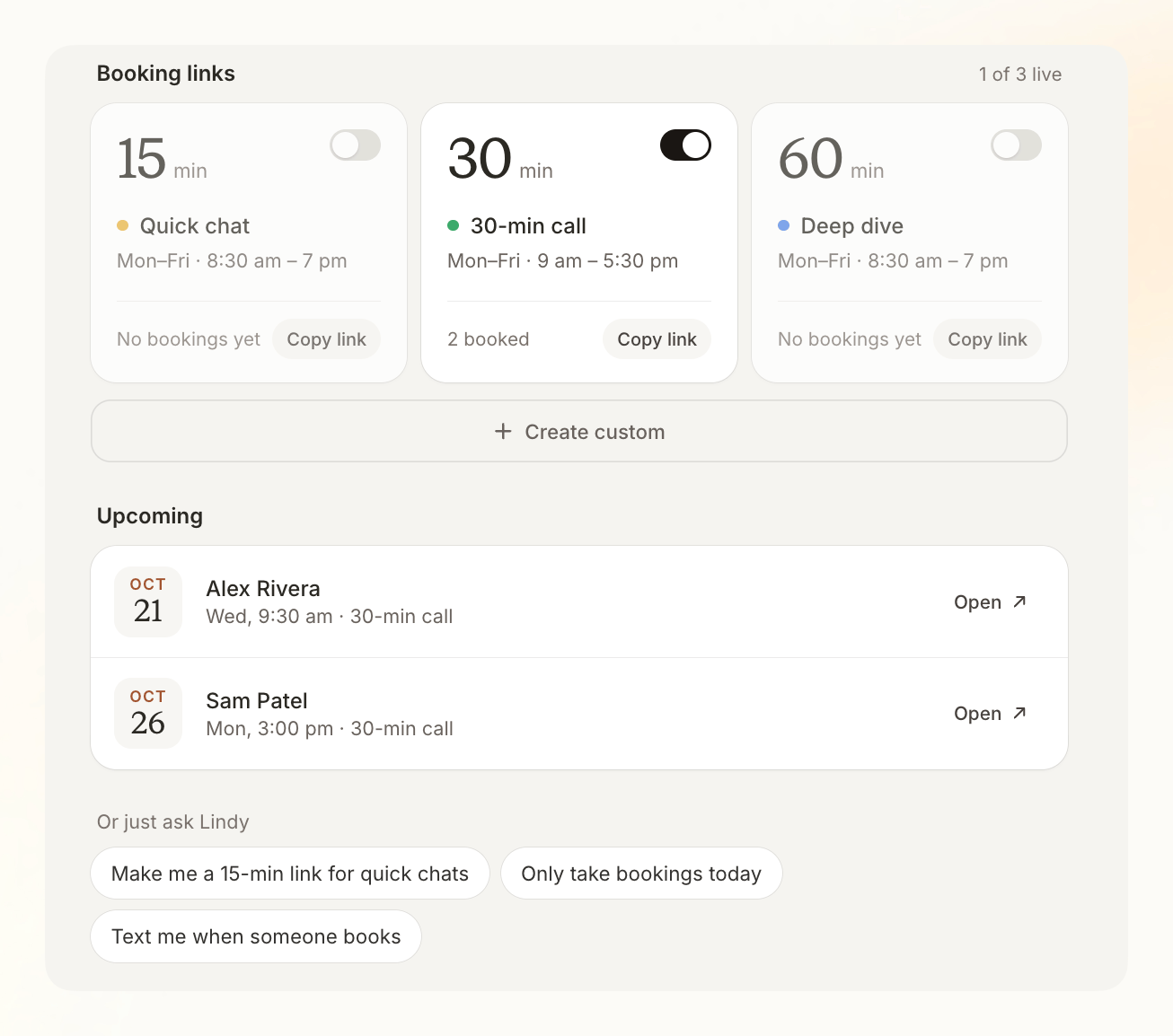
Open **Meetings**, find **Booking links**, and click **Create custom**. You can also start with one of the suggested meeting types.
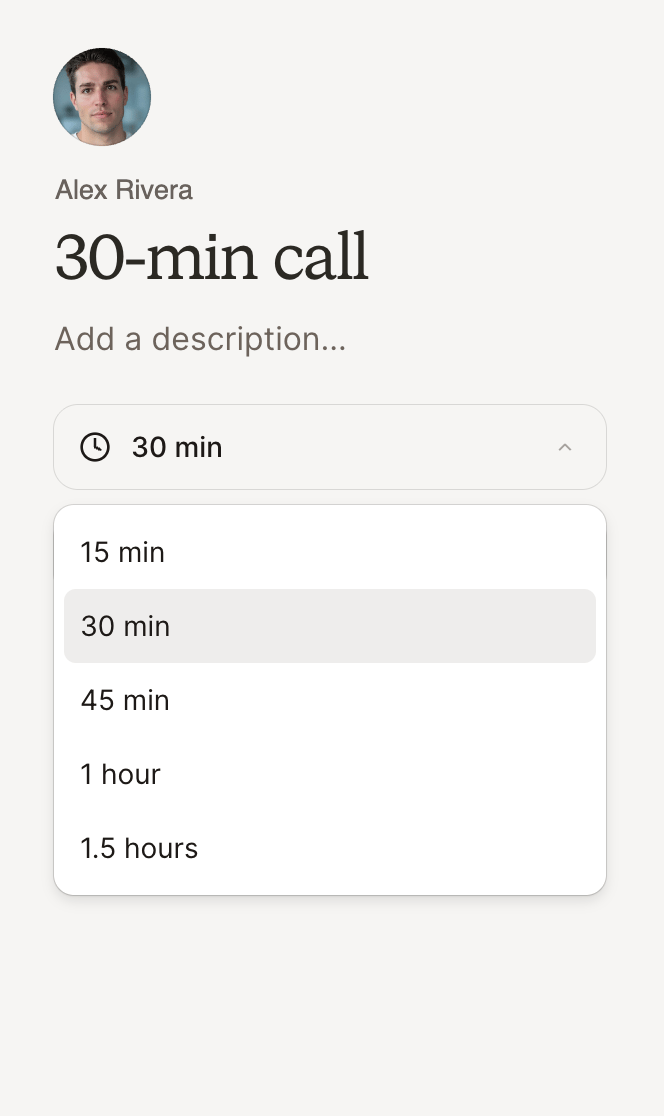
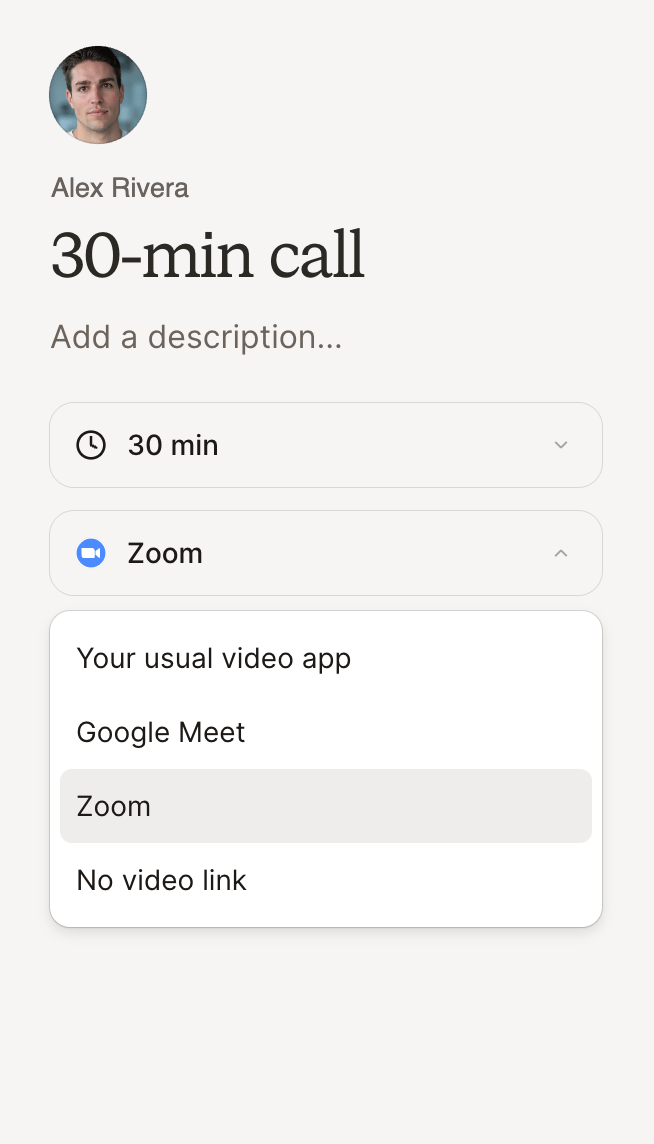
 Enter a title and description, then choose the meeting length and video app. Use your usual video app, Google Meet, connected Zoom, or no video link.
Review **Availability** and **Settings**, then click **Create link**. Each link can have its own hours and meeting length.
Click **Copy link** on the meeting card. Paste it into a message, your email signature, or your website. Open the link yourself to check what guests will see.
## Adjust availability and settings
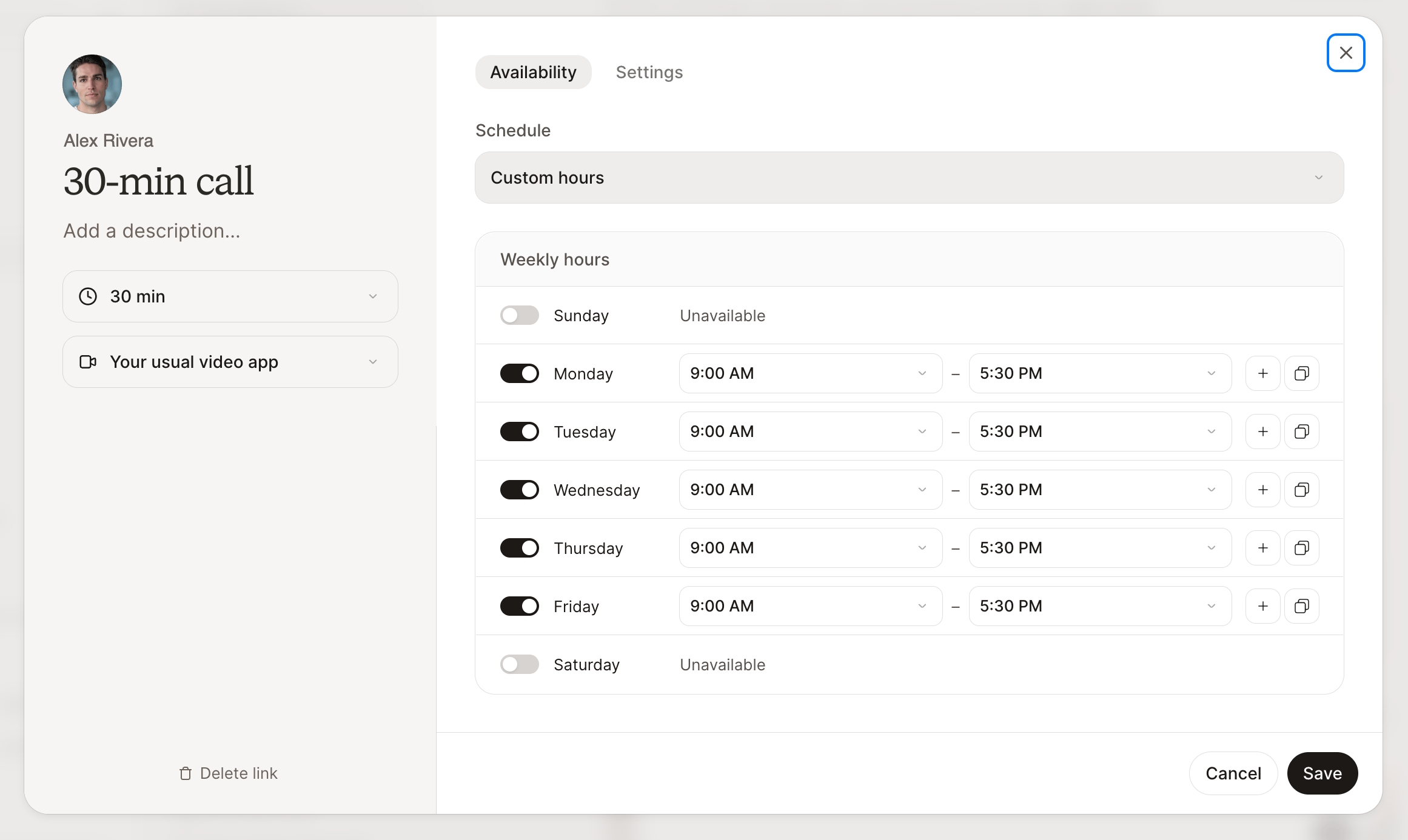
Click a meeting card to edit it. Make your changes, then click **Save**.
Enter a title and description, then choose the meeting length and video app. Use your usual video app, Google Meet, connected Zoom, or no video link.
Review **Availability** and **Settings**, then click **Create link**. Each link can have its own hours and meeting length.
Click **Copy link** on the meeting card. Paste it into a message, your email signature, or your website. Open the link yourself to check what guests will see.
## Adjust availability and settings
Click a meeting card to edit it. Make your changes, then click **Save**.
 | Option | What it does |
| - | - |
| Schedule | Select **Your usual hours** or **Custom hours** for this link. |
| Weekly hours | Set hours for each day, add multiple time ranges, or copy hours to other days. Busy calendar times are excluded. |
| Option | What it does |
| - | - |
| Schedule | Select **Your usual hours** or **Custom hours** for this link. |
| Weekly hours | Set hours for each day, add multiple time ranges, or copy hours to other days. Busy calendar times are excluded. |
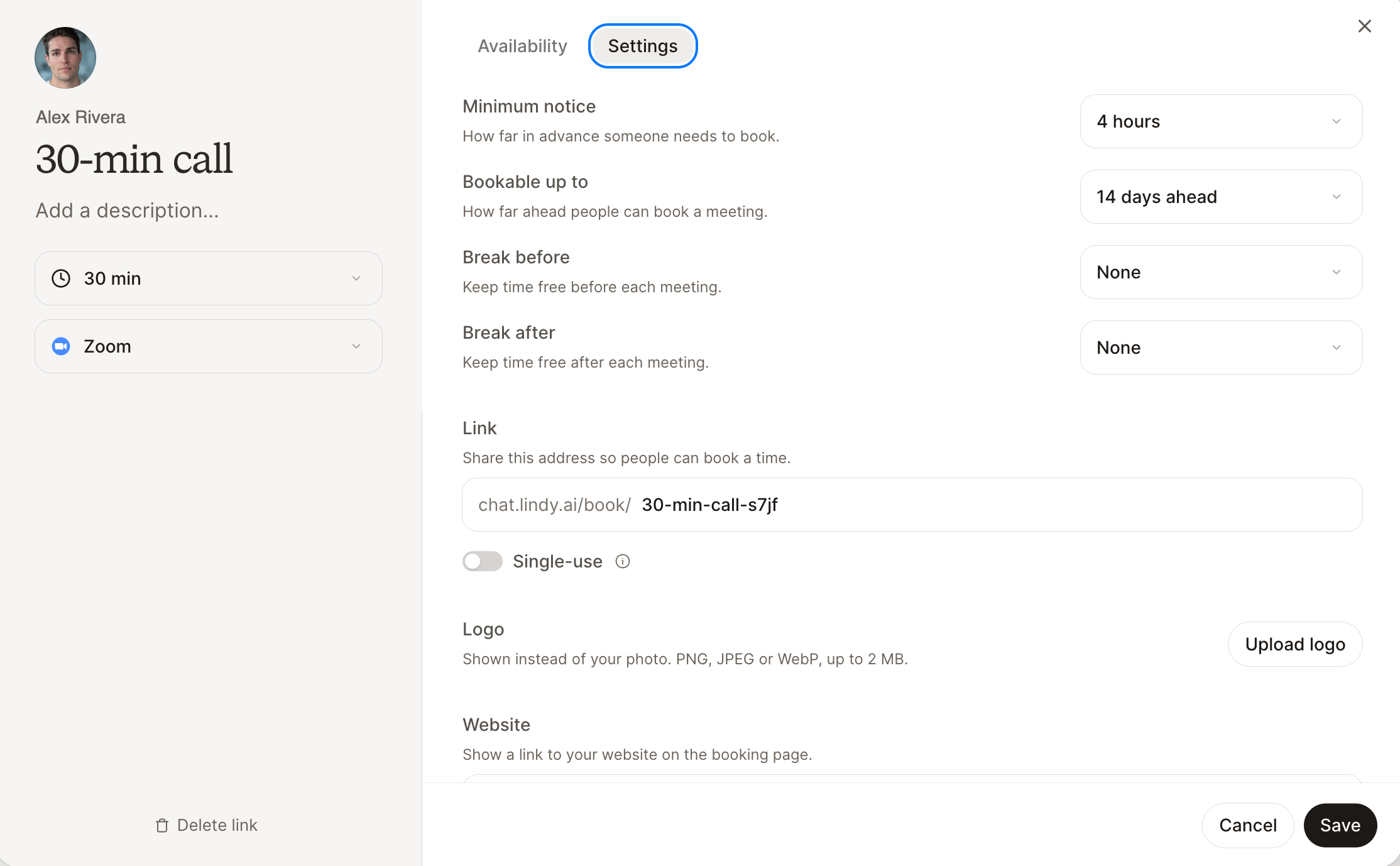 | Option | What it does |
| - | - |
| Minimum notice / Bookable up to | Set how soon and how far ahead guests can book. |
| Break before / Break after | Leave space around each booking. |
| Link | Customize the address. Renaming it stops the old address from working. |
| Calendar | Choose where new bookings go if you have several connected Google accounts. |
| Logo / Website | Add your branding and a website link. |
## What guests see
Guests choose a date and time, then enter their name and email, with an optional note. They don't need a Lindy account. Times display in their selected time zone, and the booking creates a calendar event.
Their confirmation includes a link to reschedule or cancel. Lindy checks availability again before confirming a new time.
## Pause or limit a link
Turn off the switch on a meeting card to stop new bookings. Existing meetings stay booked. Turn it back on when you're ready.
For a link that should accept one booking, enable **Single-use** in **Settings**. It turns off after the first booking.
## Ask Lindy in chat
You can also create or update links by asking:
> Create a 30-minute Intro call booking link for Tuesday and Thursday afternoons.
> Make my Intro call link single-use.
This documentation is built and hosted on [Mintlify](https://mintlify.com), a developer documentation platform.
| Option | What it does |
| - | - |
| Minimum notice / Bookable up to | Set how soon and how far ahead guests can book. |
| Break before / Break after | Leave space around each booking. |
| Link | Customize the address. Renaming it stops the old address from working. |
| Calendar | Choose where new bookings go if you have several connected Google accounts. |
| Logo / Website | Add your branding and a website link. |
## What guests see
Guests choose a date and time, then enter their name and email, with an optional note. They don't need a Lindy account. Times display in their selected time zone, and the booking creates a calendar event.
Their confirmation includes a link to reschedule or cancel. Lindy checks availability again before confirming a new time.
## Pause or limit a link
Turn off the switch on a meeting card to stop new bookings. Existing meetings stay booked. Turn it back on when you're ready.
For a link that should accept one booking, enable **Single-use** in **Settings**. It turns off after the first booking.
## Ask Lindy in chat
You can also create or update links by asking:
> Create a 30-minute Intro call booking link for Tuesday and Thursday afternoons.
> Make my Intro call link single-use.
This documentation is built and hosted on [Mintlify](https://mintlify.com), a developer documentation platform.