> ## Documentation Index
> Fetch the complete documentation index at: https://docs.lindy.ai/llms.txt
> Use this file to discover all available pages before exploring further.
# Chrome Extension (Coming Soon)
> Lindy runs inside Gmail. Triaged inbox, a morning brief, drafted replies, and a sidebar chat, all without leaving your tab.
## Lindy, Inside Gmail
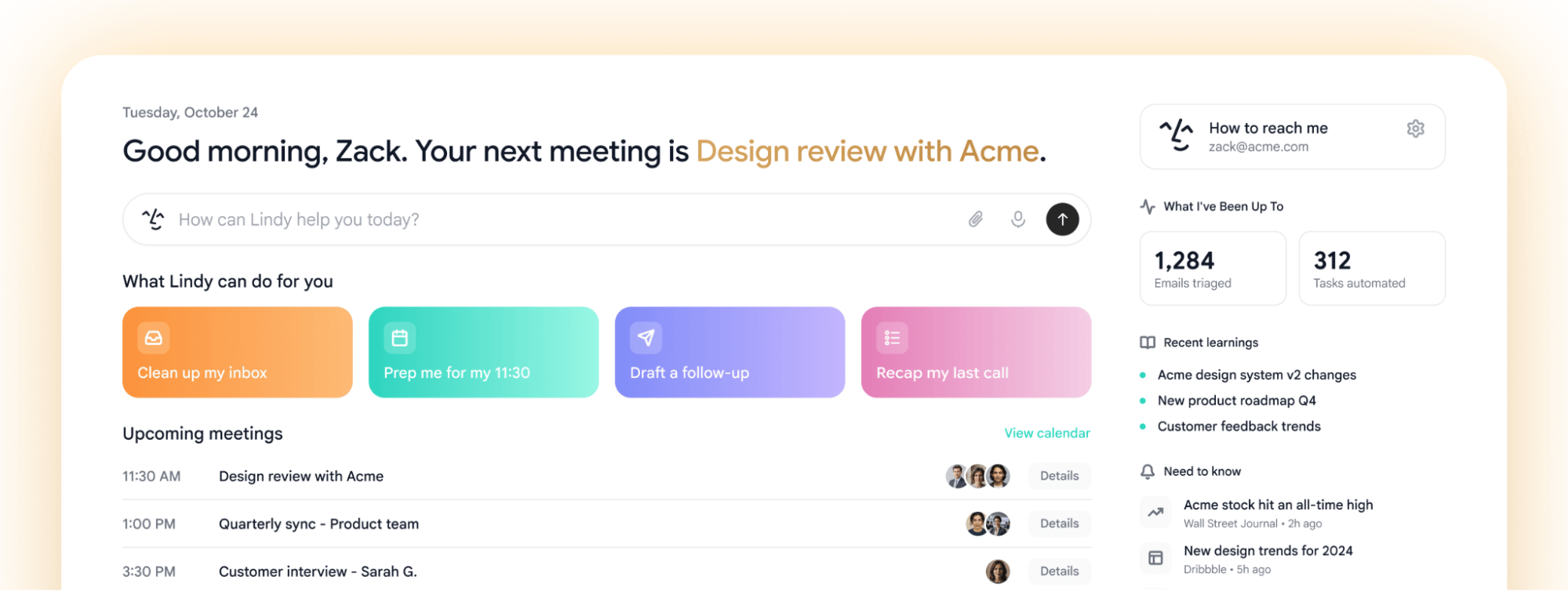
Open Gmail and Lindy is already working. Your inbox is triaged with color-coded labels, a morning brief tells you what happened overnight, and every email that needs a response has a draft waiting. Everything's written in your voice and ready to send in one click.
 The Chrome extension is currently **Gmail only**. Outlook is coming soon.
## Installing the Extension
Install the Lindy extension from the Chrome Web Store and pin it to your toolbar.
Head to your Gmail tab. Lindy loads automatically inside the inbox.
Sign in with the Lindy account you use at [chat.lindy.ai](https://chat.lindy.ai). Your settings, labels, and drafting instructions carry over.
## What You Get
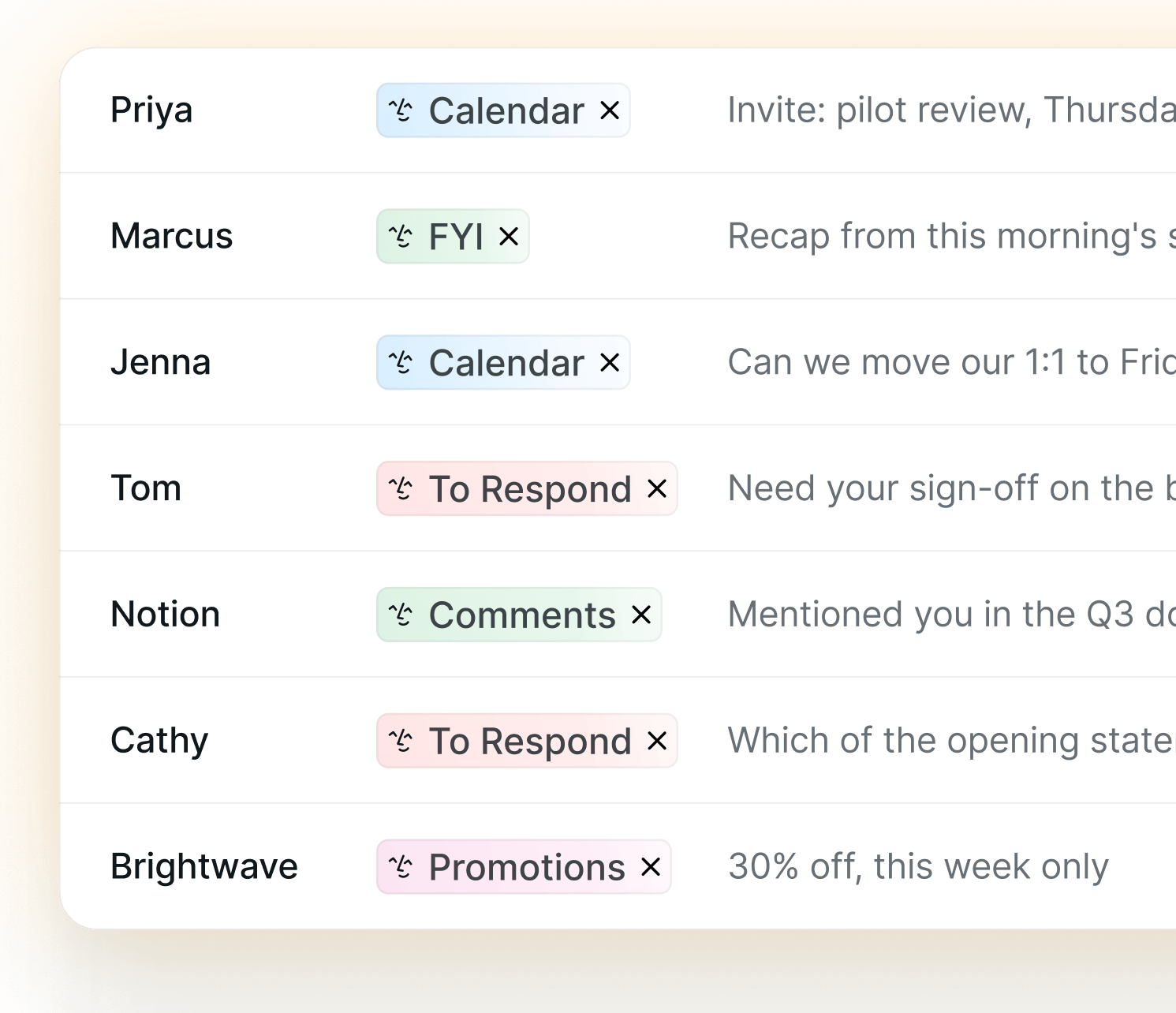
Every email is sorted and tagged with color-coded label pills before you open your inbox.
A daily card at the top of Gmail recaps what Lindy handled overnight.
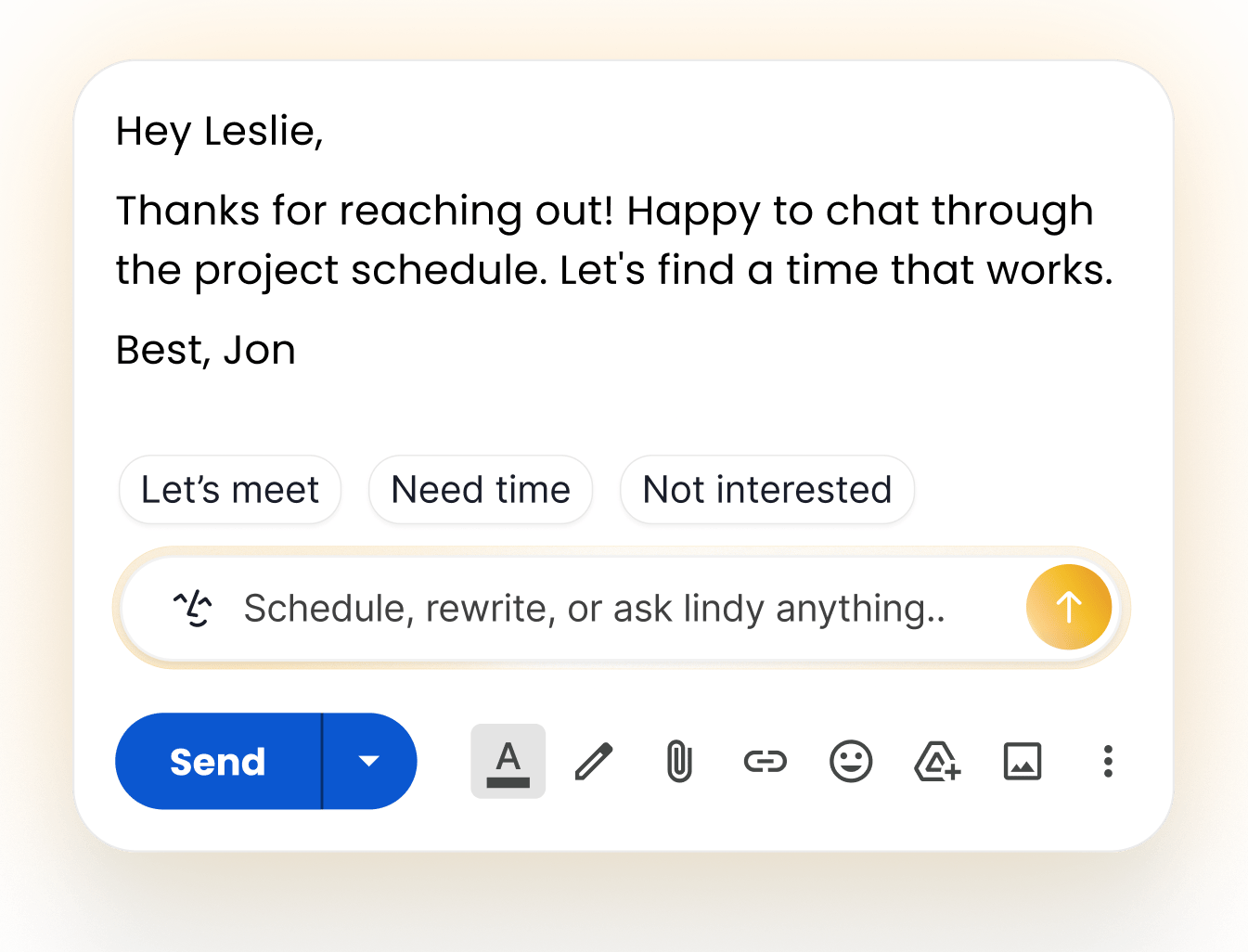
Pre-written responses in your voice, with quick-action buttons to send in one click.
Rewrite, schedule, or ask Lindy anything right from the reply window.
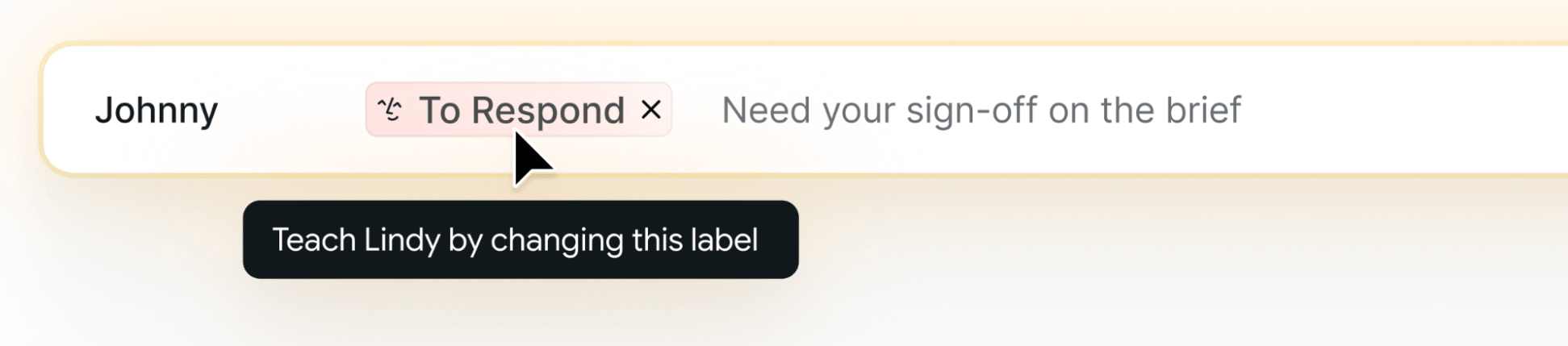
Lindy learns from how you re-label emails and gets better over time.
A floating or docked panel to chat with Lindy without leaving Gmail.
## Triage Labels
Lindy reads every incoming email and assigns it to the right category, shown as color-coded label pills right in your inbox list. Important messages stay front and center. Everything else gets filed away.
The Chrome extension is currently **Gmail only**. Outlook is coming soon.
## Installing the Extension
Install the Lindy extension from the Chrome Web Store and pin it to your toolbar.
Head to your Gmail tab. Lindy loads automatically inside the inbox.
Sign in with the Lindy account you use at [chat.lindy.ai](https://chat.lindy.ai). Your settings, labels, and drafting instructions carry over.
## What You Get
Every email is sorted and tagged with color-coded label pills before you open your inbox.
A daily card at the top of Gmail recaps what Lindy handled overnight.
Pre-written responses in your voice, with quick-action buttons to send in one click.
Rewrite, schedule, or ask Lindy anything right from the reply window.
Lindy learns from how you re-label emails and gets better over time.
A floating or docked panel to chat with Lindy without leaving Gmail.
## Triage Labels
Lindy reads every incoming email and assigns it to the right category, shown as color-coded label pills right in your inbox list. Important messages stay front and center. Everything else gets filed away.
 Your labels and categories are shared with your main Lindy settings, so anything you set up at [chat.lindy.ai](https://chat.lindy.ai) shows up in the extension too.
Want to fine-tune your categories? See [Email Triage](/features/inbox-management/email-triage) for how labeling works and how to add your own.
## Draft Replies
Lindy drafts replies automatically, even if you don't have the Chrome extension installed. Open an email that needs a response, and your draft is already there, written in your voice.
The Chrome extension lets you refine that draft without leaving Gmail.
Use **Quick actions** like **Let's meet**, **Need time**, or **Not interested**, or simply ask Lindy to make changes. The draft updates instantly, right where you're working.
Review, edit, or send - nothing is ever sent without your approval.
Drafting works with or without the Chrome extension. The extension simply makes editing faster by letting you adjust tone, choose a quick action, or request changes directly inside the draft.
Your labels and categories are shared with your main Lindy settings, so anything you set up at [chat.lindy.ai](https://chat.lindy.ai) shows up in the extension too.
Want to fine-tune your categories? See [Email Triage](/features/inbox-management/email-triage) for how labeling works and how to add your own.
## Draft Replies
Lindy drafts replies automatically, even if you don't have the Chrome extension installed. Open an email that needs a response, and your draft is already there, written in your voice.
The Chrome extension lets you refine that draft without leaving Gmail.
Use **Quick actions** like **Let's meet**, **Need time**, or **Not interested**, or simply ask Lindy to make changes. The draft updates instantly, right where you're working.
Review, edit, or send - nothing is ever sent without your approval.
Drafting works with or without the Chrome extension. The extension simply makes editing faster by letting you adjust tone, choose a quick action, or request changes directly inside the draft.
 Drafts use the same drafting instructions as the rest of Lindy. See [Email Drafting](/features/inbox-management/email-drafting) to tune your tone, length, and sign-offs.
## Compose Bar
Lindy replaces Gmail's "Help me write" compose tool with an input that actually knows your context. From the reply window you can:
* **Rewrite**: reshape a draft to be shorter, warmer, or more direct
* **Schedule**: turn an email thread into a meeting
* **Ask anything**: type a request and Lindy handles it inline
Just type into the compose bar (*"Schedule, rewrite, or ask Lindy anything..."*) and Lindy takes it from there.
Drafts use the same drafting instructions as the rest of Lindy. See [Email Drafting](/features/inbox-management/email-drafting) to tune your tone, length, and sign-offs.
## Compose Bar
Lindy replaces Gmail's "Help me write" compose tool with an input that actually knows your context. From the reply window you can:
* **Rewrite**: reshape a draft to be shorter, warmer, or more direct
* **Schedule**: turn an email thread into a meeting
* **Ask anything**: type a request and Lindy handles it inline
Just type into the compose bar (*"Schedule, rewrite, or ask Lindy anything..."*) and Lindy takes it from there.
 ## Label Learning
When you re-label an email, Lindy notices. A toast confirms it learned from the change (*"Lindy learnt from your label"*), and future emails get sorted accordingly. Teach Lindy once, and it remembers.
## Label Learning
When you re-label an email, Lindy notices. A toast confirms it learned from the change (*"Lindy learnt from your label"*), and future emails get sorted accordingly. Teach Lindy once, and it remembers.
 ## Sidebar Chat
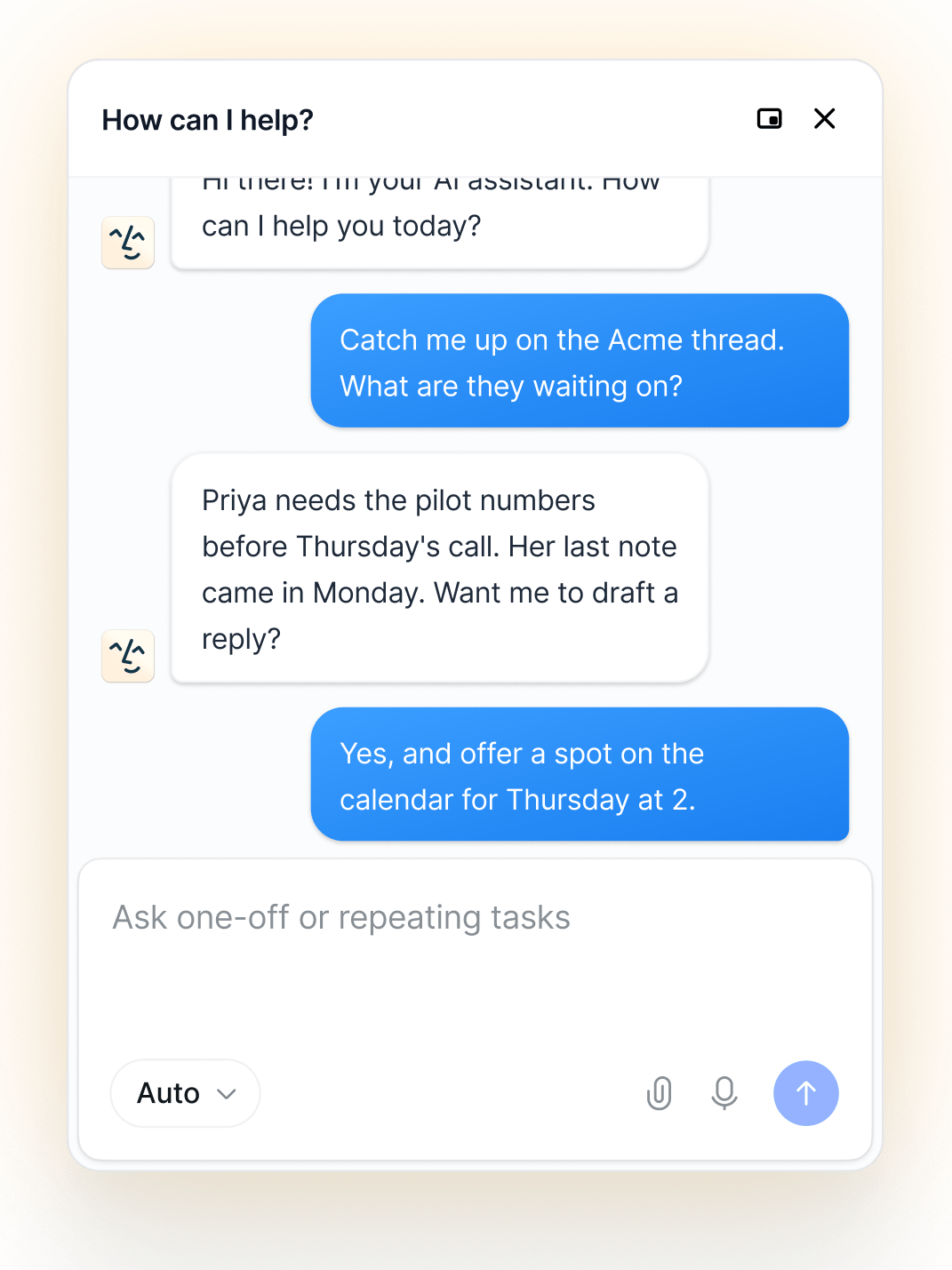
A Lindy chat panel lives inside Gmail, floating or docked to the side. Ask Lindy anything without switching tabs. The sidebar supports:
* **Voice input**: speak instead of type
* **File attachments**: bring in documents for Lindy to work with
* **Model selector**: choose the model behind your chat
## Sidebar Chat
A Lindy chat panel lives inside Gmail, floating or docked to the side. Ask Lindy anything without switching tabs. The sidebar supports:
* **Voice input**: speak instead of type
* **File attachments**: bring in documents for Lindy to work with
* **Model selector**: choose the model behind your chat
 ## Security
Lindy is **SOC 2**, **GDPR**, and **HIPAA** compliant. See [Security](/resources/security) for details on how your data is handled.
## Next Steps
How Lindy organizes and labels your inbox
How Lindy drafts replies in your voice
## Security
Lindy is **SOC 2**, **GDPR**, and **HIPAA** compliant. See [Security](/resources/security) for details on how your data is handled.
## Next Steps
How Lindy organizes and labels your inbox
How Lindy drafts replies in your voice