> ## Documentation Index
> Fetch the complete documentation index at: https://docs.lindy.ai/llms.txt
> Use this file to discover all available pages before exploring further.
# iMessage & SMS
> Text Lindy like a friend. Delegate work from your phone.
## Text Lindy, Anywhere
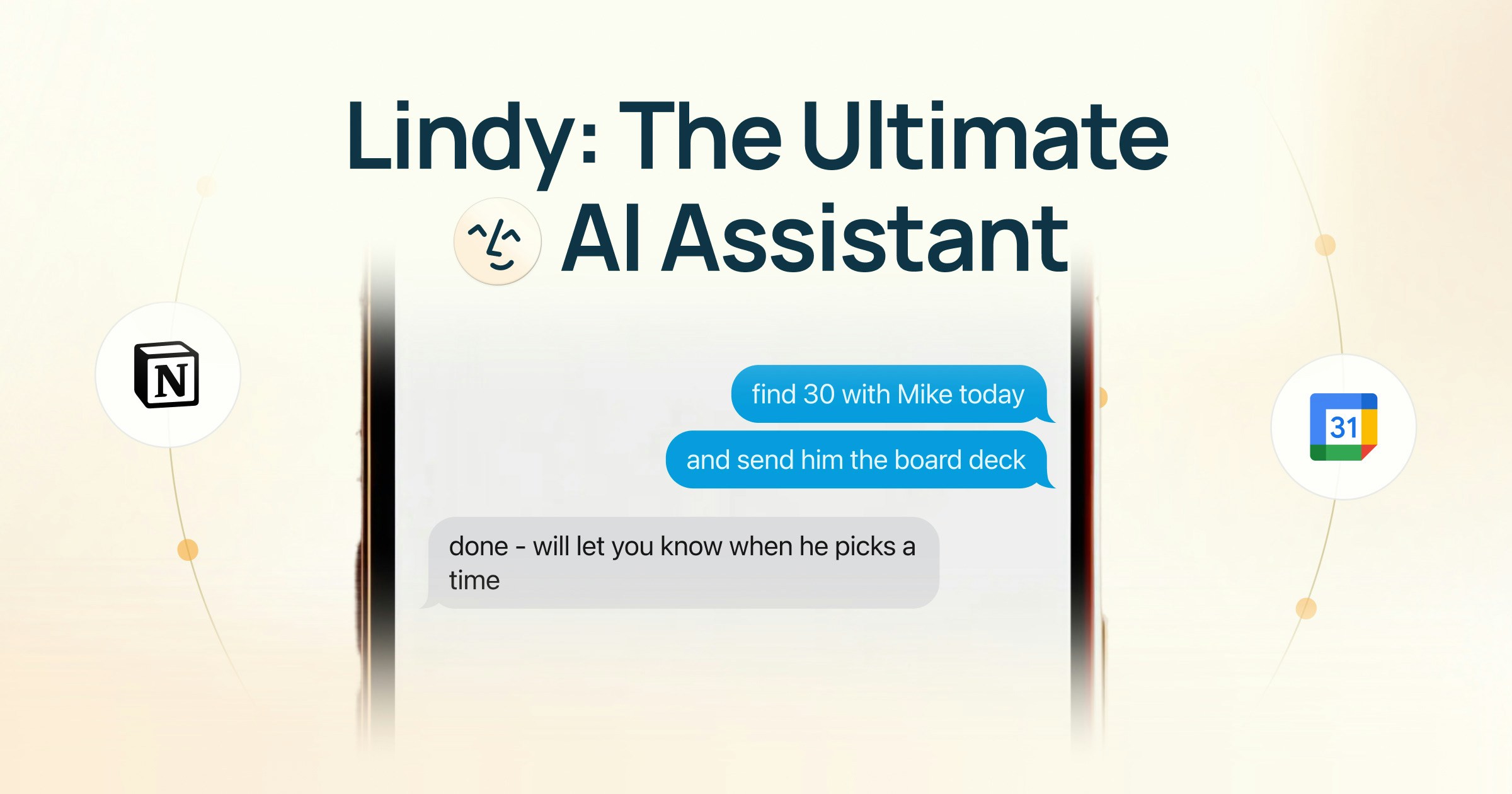 Lindy works over both **iMessage** and **SMS**, so you can delegate to your AI assistant right from your phone. No app to install. No dashboard to check. Just text it and it's done.
## Getting Set Up
Add your phone number during [signup](/start-here/quickstart) and verify with a confirmation code. That's it. Lindy sends you your first message, already personalized with context from your email and calendar. Just text back.
If you skipped the phone number step during signup, you can add it anytime: click your workspace image at the top left, select **Settings** from the dropdown, and find it on the **General** settings page.
## What You Can Delegate
### Calendar & Meetings
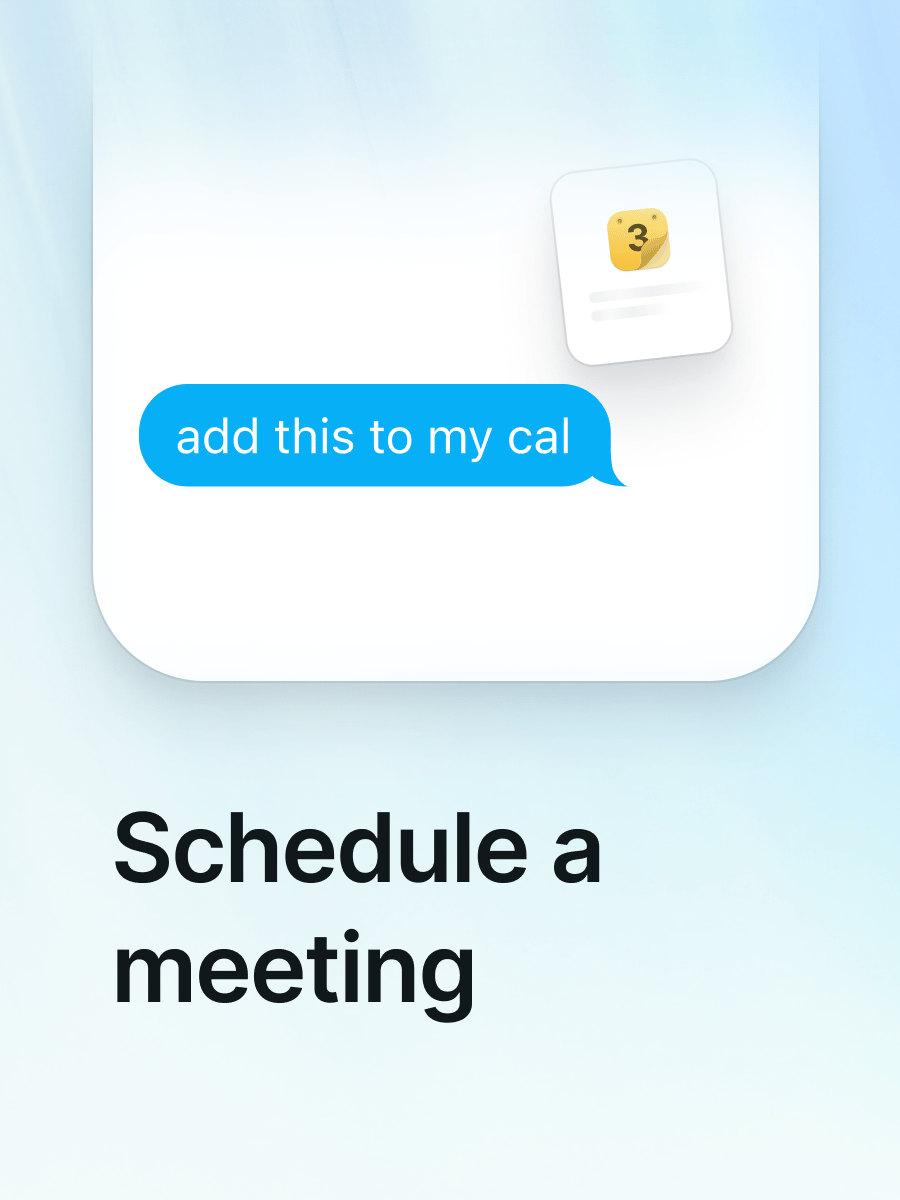
* **Schedule a meeting**: "Set up a 30-min call with Sarah next Tuesday"
* **Schedule with a screenshot**: Send a screenshot of someone's availability and Lindy will find a time that works
* **Ask about past meetings**: "What did we decide in last week's standup?"
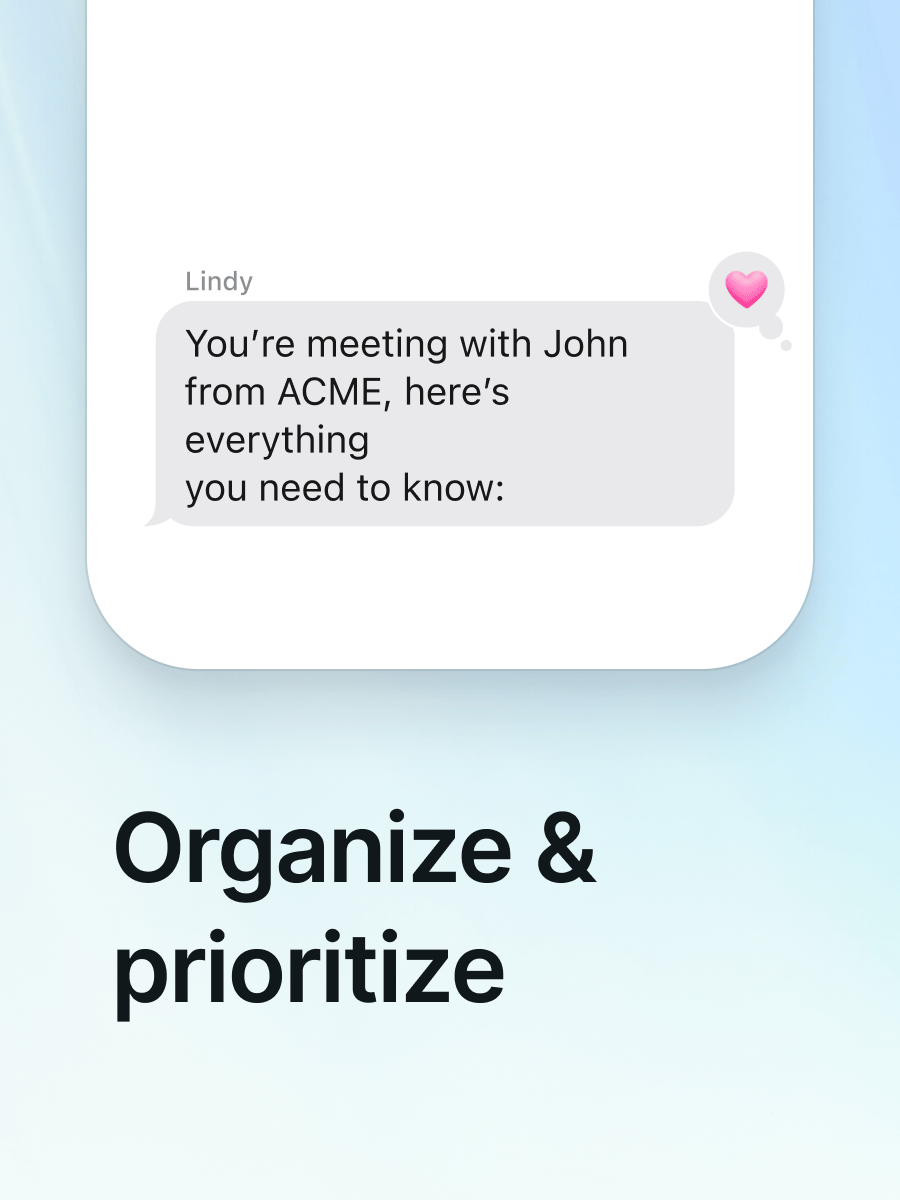
* **Prep for your next meeting**: "Brief me on my 2pm meeting"
### Email
* **Let someone know you're running late**: "Tell my next meeting I'll be 5 minutes late"
* **Set up email alerts**: "Text me when I get an email from \[name]"
* **Search your inbox**: "Find the last email from \[name] about the proposal"
### Quick Tasks
* **Summarize a YouTube video**: Send a link and Lindy gives you the key points
* **Summarize web content**: Send any URL for a quick summary
* **Find contact information**: "What's \[name]'s email?"
* **Work with your CRM**: "Add \[name] to my CRM" or "Pull up \[name]'s deal"
* **Voice notes**: Send a voice note and Lindy transcribes and acts on it. You can also turn voice notes into Notion pages (requires Notion to be connected via text)
### Time & Priorities
* **Audit your time**: "How did I spend my time this week?"
* **Prioritize your day**: "What should I focus on today?"
* **React to changes**: "My 3pm cancelled, what should I do with that time?"
### Recurring Tasks
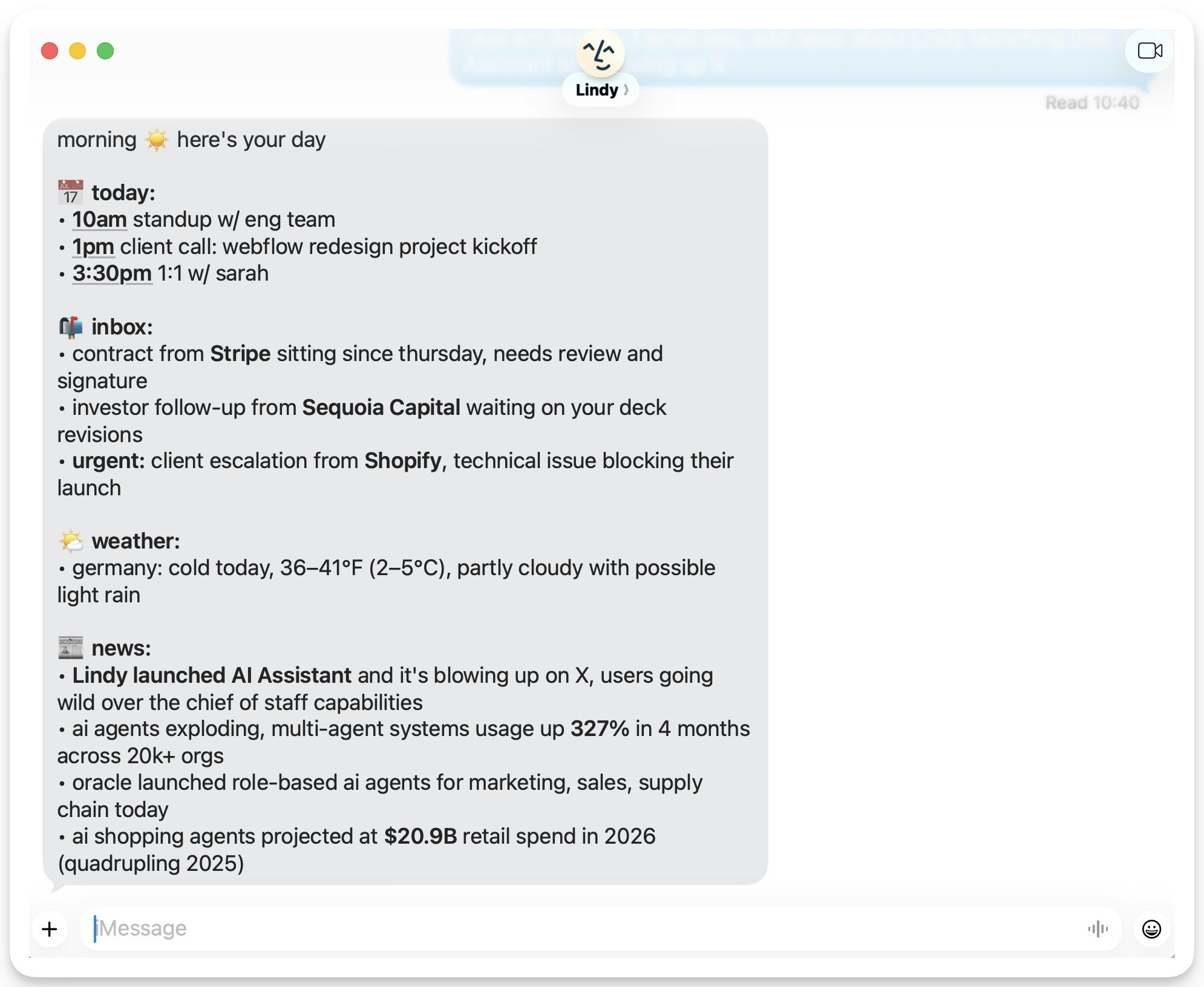
* **Daily briefings**: "Send me a briefing every morning at 7am" (includes your calendar, important emails, weather, and news)
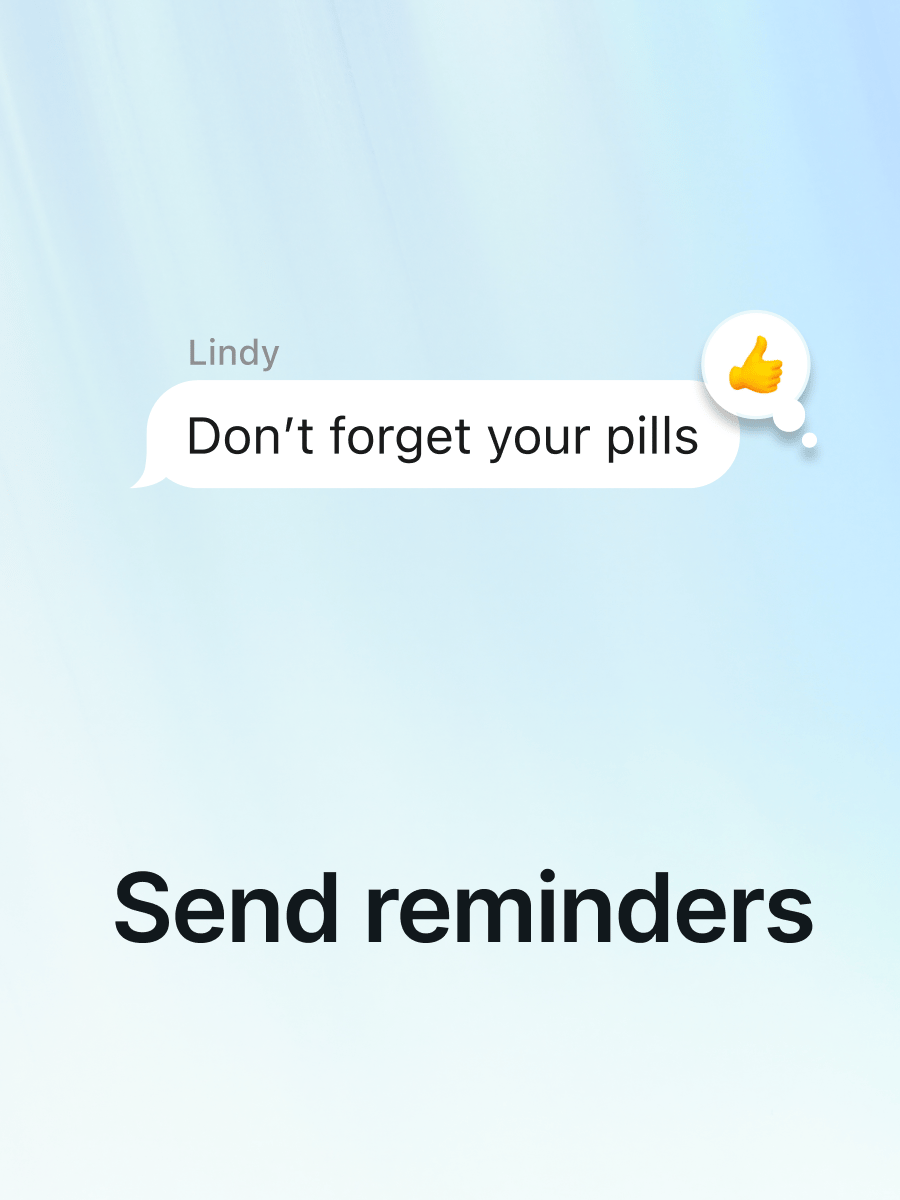
* **Reminders**: "Remind me to follow up with \[name] on Friday"
* **Standing instructions**: "Every time I finish a meeting, send the notes to Slack"
* **Weekly recaps**: "Send me a summary of my week every Friday at 5pm"
* **CRM updates after meetings**: "Update the CRM after every sales call"
You can customize recurring tasks like briefings in your settings at [chat.lindy.ai](https://chat.lindy.ai). Daily briefings default to **7:00 AM**.
Lindy works over both **iMessage** and **SMS**, so you can delegate to your AI assistant right from your phone. No app to install. No dashboard to check. Just text it and it's done.
## Getting Set Up
Add your phone number during [signup](/start-here/quickstart) and verify with a confirmation code. That's it. Lindy sends you your first message, already personalized with context from your email and calendar. Just text back.
If you skipped the phone number step during signup, you can add it anytime: click your workspace image at the top left, select **Settings** from the dropdown, and find it on the **General** settings page.
## What You Can Delegate
### Calendar & Meetings
* **Schedule a meeting**: "Set up a 30-min call with Sarah next Tuesday"
* **Schedule with a screenshot**: Send a screenshot of someone's availability and Lindy will find a time that works
* **Ask about past meetings**: "What did we decide in last week's standup?"
* **Prep for your next meeting**: "Brief me on my 2pm meeting"
### Email
* **Let someone know you're running late**: "Tell my next meeting I'll be 5 minutes late"
* **Set up email alerts**: "Text me when I get an email from \[name]"
* **Search your inbox**: "Find the last email from \[name] about the proposal"
### Quick Tasks
* **Summarize a YouTube video**: Send a link and Lindy gives you the key points
* **Summarize web content**: Send any URL for a quick summary
* **Find contact information**: "What's \[name]'s email?"
* **Work with your CRM**: "Add \[name] to my CRM" or "Pull up \[name]'s deal"
* **Voice notes**: Send a voice note and Lindy transcribes and acts on it. You can also turn voice notes into Notion pages (requires Notion to be connected via text)
### Time & Priorities
* **Audit your time**: "How did I spend my time this week?"
* **Prioritize your day**: "What should I focus on today?"
* **React to changes**: "My 3pm cancelled, what should I do with that time?"
### Recurring Tasks
* **Daily briefings**: "Send me a briefing every morning at 7am" (includes your calendar, important emails, weather, and news)
* **Reminders**: "Remind me to follow up with \[name] on Friday"
* **Standing instructions**: "Every time I finish a meeting, send the notes to Slack"
* **Weekly recaps**: "Send me a summary of my week every Friday at 5pm"
* **CRM updates after meetings**: "Update the CRM after every sales call"
You can customize recurring tasks like briefings in your settings at [chat.lindy.ai](https://chat.lindy.ai). Daily briefings default to **7:00 AM**.
 ## Good to Know
The more you use Lindy, the better it understands your preferences, priorities, and communication style. Give feedback directly: "That draft was too formal" or "Always CC Becky on those."
iMessage works on iPhone. SMS works on any phone. Lindy adapts to whichever you're using.
## Troubleshooting
### Lindy stopped responding
If Lindy stops replying to your texts, try these two steps in order:
1. **Re-verify your phone number.** Go to [chat.lindy.ai](https://chat.lindy.ai), click your username in the top-left, select **Settings → General**, and delete the phone number shown there. Then re-enter your number and verify with the code Lindy sends you.
2. **Wake the assistant from your phone.** Open [chat.lindy.ai](https://chat.lindy.ai) in your mobile browser, find your Lindy Assistant's contact card, and tap **"Start a conversation"** to send a quick hello. That refreshes the contact and wakes the assistant back up.
### Not receiving texts
If you're not receiving text messages, ensure your **Preferred Messaging Service** is aligned with your device settings. To update this, in Lindy's web UI, go to **Settings → General → Preferred Messaging Service**.
## Good to Know
The more you use Lindy, the better it understands your preferences, priorities, and communication style. Give feedback directly: "That draft was too formal" or "Always CC Becky on those."
iMessage works on iPhone. SMS works on any phone. Lindy adapts to whichever you're using.
## Troubleshooting
### Lindy stopped responding
If Lindy stops replying to your texts, try these two steps in order:
1. **Re-verify your phone number.** Go to [chat.lindy.ai](https://chat.lindy.ai), click your username in the top-left, select **Settings → General**, and delete the phone number shown there. Then re-enter your number and verify with the code Lindy sends you.
2. **Wake the assistant from your phone.** Open [chat.lindy.ai](https://chat.lindy.ai) in your mobile browser, find your Lindy Assistant's contact card, and tap **"Start a conversation"** to send a quick hello. That refreshes the contact and wakes the assistant back up.
### Not receiving texts
If you're not receiving text messages, ensure your **Preferred Messaging Service** is aligned with your device settings. To update this, in Lindy's web UI, go to **Settings → General → Preferred Messaging Service**.
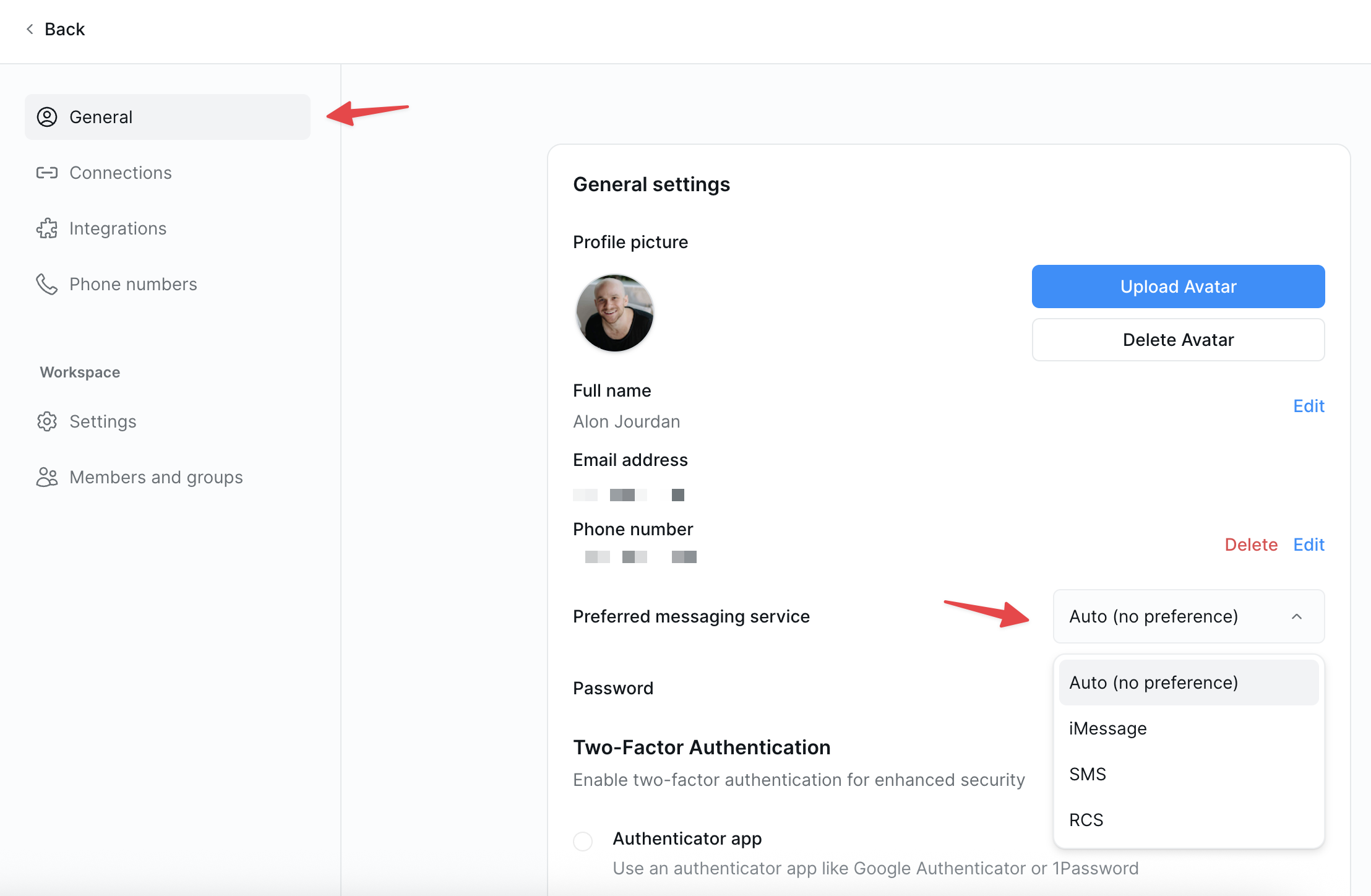 The setting defaults to **auto**, but you can override it to match your mobile device. If you're on Android and want to use RCS, open the **Google Messages** app, tap your profile picture, go to **Settings → RCS chats**, and turn on **"Turn on RCS chats"**.
## Next Steps
Research, knowledge bank, and on-demand tasks
How Lindy runs your inbox autonomously
Meeting prep, notes, and follow-ups
The setting defaults to **auto**, but you can override it to match your mobile device. If you're on Android and want to use RCS, open the **Google Messages** app, tap your profile picture, go to **Settings → RCS chats**, and turn on **"Turn on RCS chats"**.
## Next Steps
Research, knowledge bank, and on-demand tasks
How Lindy runs your inbox autonomously
Meeting prep, notes, and follow-ups