> ## Documentation Index
> Fetch the complete documentation index at: https://docs.lindy.ai/llms.txt
> Use this file to discover all available pages before exploring further.
# Meeting Notes
> Lindy joins, records, and transcribes your meetings on Google Meet, Zoom, and Microsoft Teams, delivers structured summaries, and saves everything to a searchable library you can query in plain language
 ## How to Set It Up
Open Lindy, click your **workspace name** in the top-left, and choose **Settings**. In the left sidebar, click **Meetings** to toggle recording and adjust your notetaker and summary settings.
## Supported Platforms
Lindy records meetings on **Google Meet**, **Zoom**, and **Microsoft Teams**.
## How It Works
1. **Lindy joins automatically**: no need to invite a bot or share a link. Lindy shows up to your meetings based on your calendar.
2. **Records and transcribes**: Lindy captures the full conversation.
3. **Summarizes and delivers**: after the meeting, Lindy generates a structured summary and sends it to your inbox with a link to the full recording and transcript.
## Which Meetings Lindy Joins
You control which meetings Lindy records:
* **All meetings**: Lindy joins everything on your calendar
* **External only**: record client and prospect calls, skip internal syncs
* **Specific meetings**: choose exactly which meetings to record
## Your Meeting Library
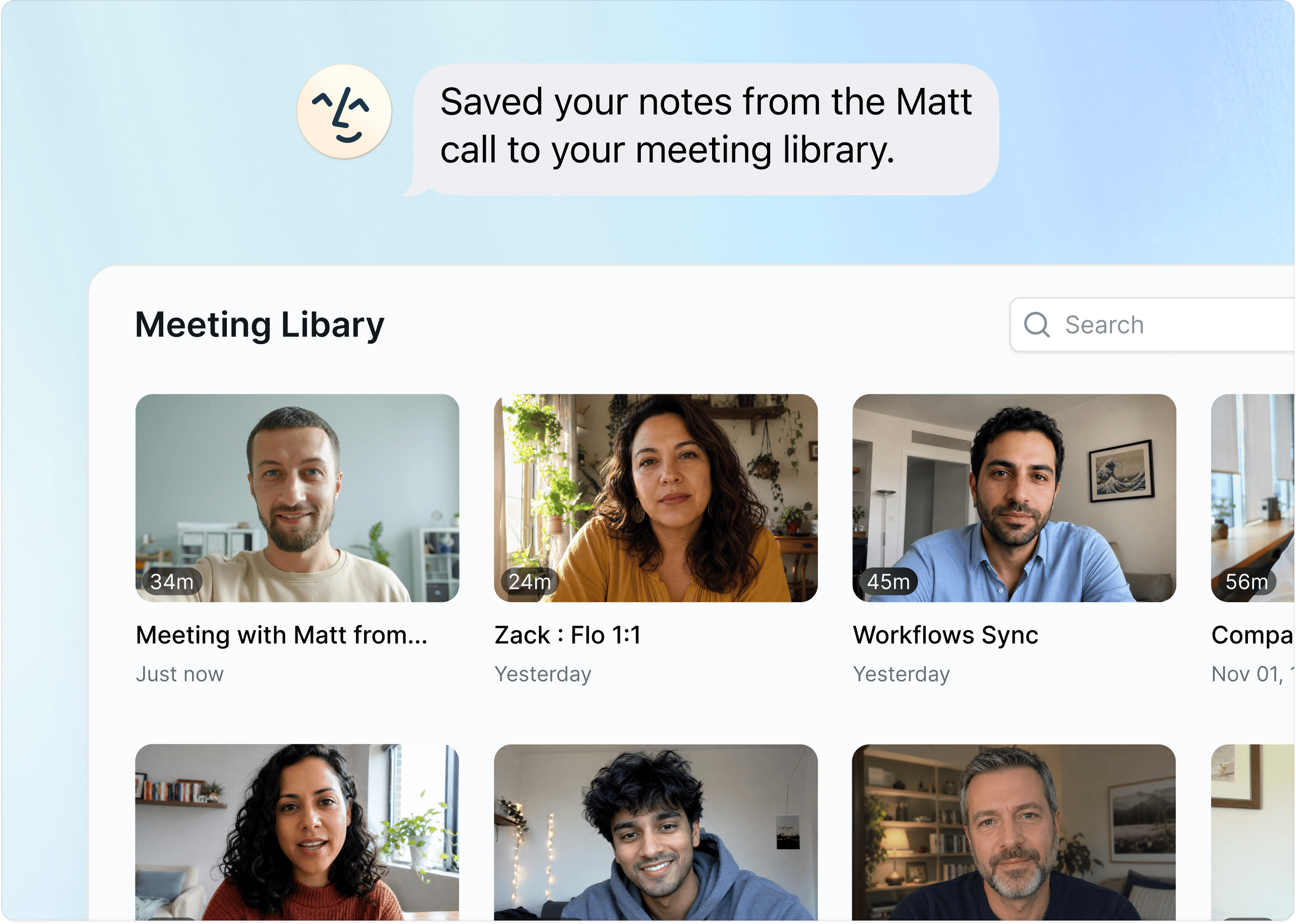
Find all your past recordings under **Home → Meetings** in the left nav. Click any meeting to open the full recording, summary, and transcript.
## How to Set It Up
Open Lindy, click your **workspace name** in the top-left, and choose **Settings**. In the left sidebar, click **Meetings** to toggle recording and adjust your notetaker and summary settings.
## Supported Platforms
Lindy records meetings on **Google Meet**, **Zoom**, and **Microsoft Teams**.
## How It Works
1. **Lindy joins automatically**: no need to invite a bot or share a link. Lindy shows up to your meetings based on your calendar.
2. **Records and transcribes**: Lindy captures the full conversation.
3. **Summarizes and delivers**: after the meeting, Lindy generates a structured summary and sends it to your inbox with a link to the full recording and transcript.
## Which Meetings Lindy Joins
You control which meetings Lindy records:
* **All meetings**: Lindy joins everything on your calendar
* **External only**: record client and prospect calls, skip internal syncs
* **Specific meetings**: choose exactly which meetings to record
## Your Meeting Library
Find all your past recordings under **Home → Meetings** in the left nav. Click any meeting to open the full recording, summary, and transcript.
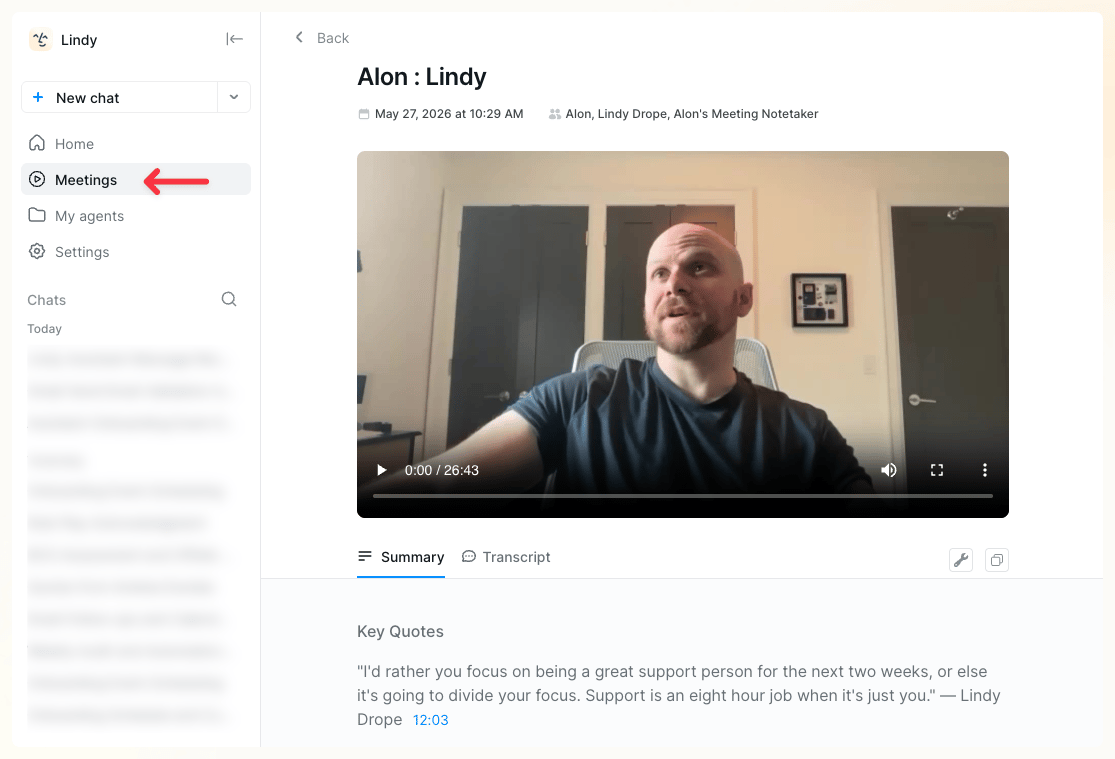 Inside a meeting you can:
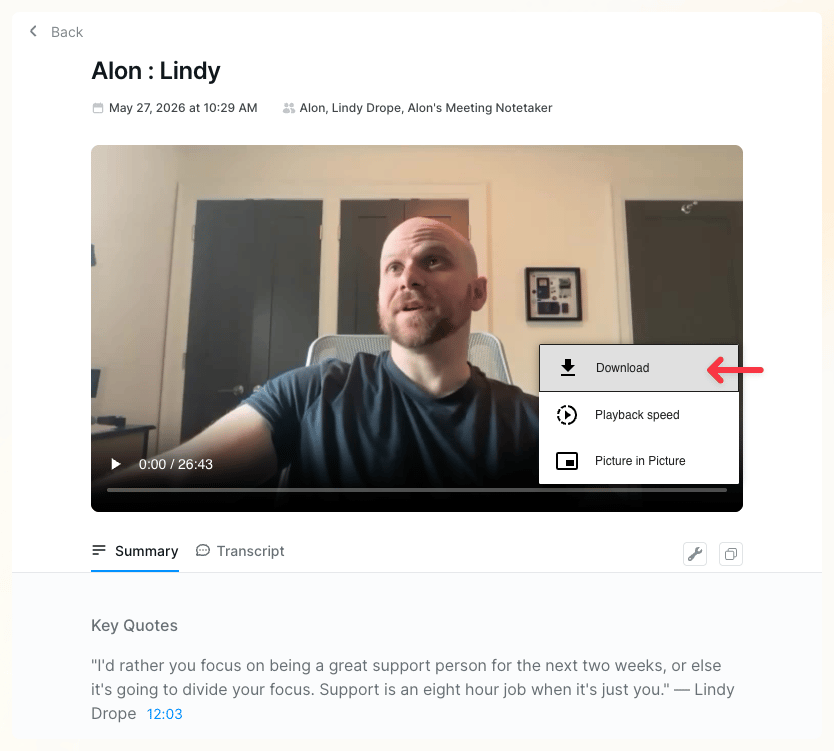
* **Watch the recording** — adjust playback speed (up to 2x), enter picture-in-picture, or **download** the file
* **Read the summary** — Key Quotes, Action Items, and a high-level summary
* **Browse the transcript** — searchable, timestamped, and clickable to jump to that point in the recording
Inside a meeting you can:
* **Watch the recording** — adjust playback speed (up to 2x), enter picture-in-picture, or **download** the file
* **Read the summary** — Key Quotes, Action Items, and a high-level summary
* **Browse the transcript** — searchable, timestamped, and clickable to jump to that point in the recording
 ## Updating Your Meeting Settings
To change any meeting recording settings, click your **workspace name in the top-left → Settings → Meetings**.
## Updating Your Meeting Settings
To change any meeting recording settings, click your **workspace name in the top-left → Settings → Meetings**.
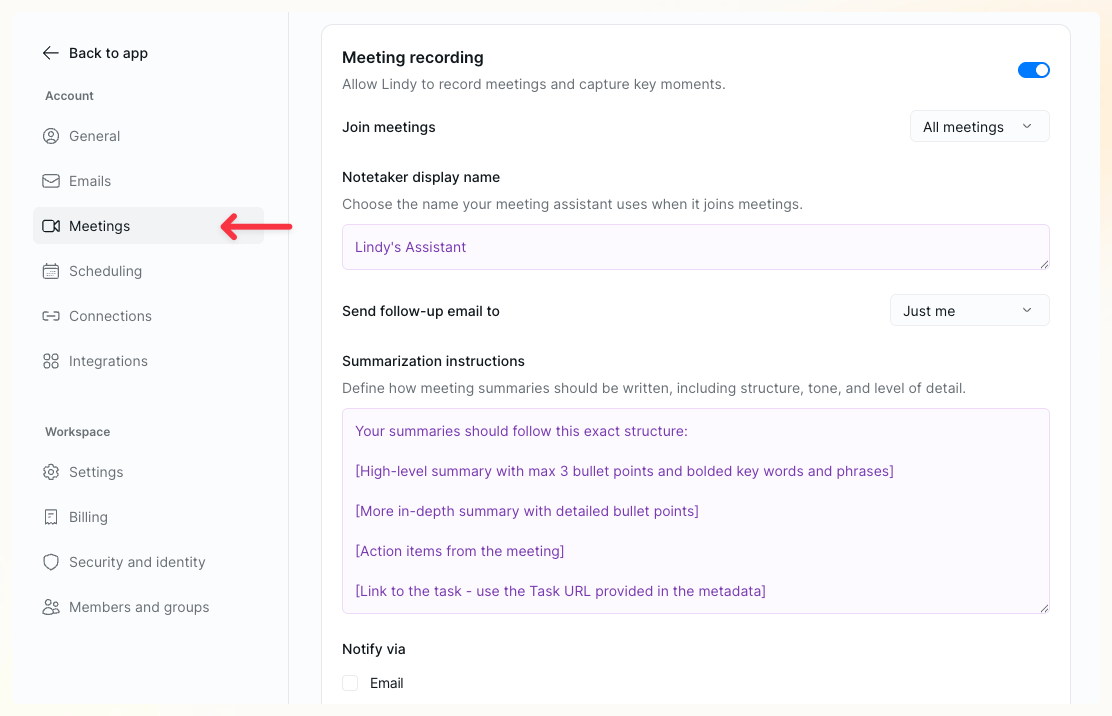 From here you can:
* Toggle **Meeting recording** on or off
* Set which meetings Lindy joins (**All meetings**, external only, or specific ones)
* Set your **Notetaker display name** — what Lindy is called when it joins
* Choose who receives the **post-meeting follow-up email**
* Define your **Summarization instructions** — structure, tone, and level of detail
* Choose where you're notified (email, Slack, etc.)
## Chat With Your Meetings
Your meeting library becomes a knowledge base you can query in plain language — via iMessage, SMS, or directly in the dashboard.
* "What did we decide in last week's meeting with Sarah?"
* "What were the action items from Tuesday's standup?"
* "What did \[name] say about pricing in our last call?"
* "What did I commit to sending \[name]?"
From here you can:
* Toggle **Meeting recording** on or off
* Set which meetings Lindy joins (**All meetings**, external only, or specific ones)
* Set your **Notetaker display name** — what Lindy is called when it joins
* Choose who receives the **post-meeting follow-up email**
* Define your **Summarization instructions** — structure, tone, and level of detail
* Choose where you're notified (email, Slack, etc.)
## Chat With Your Meetings
Your meeting library becomes a knowledge base you can query in plain language — via iMessage, SMS, or directly in the dashboard.
* "What did we decide in last week's meeting with Sarah?"
* "What were the action items from Tuesday's standup?"
* "What did \[name] say about pricing in our last call?"
* "What did I commit to sending \[name]?"
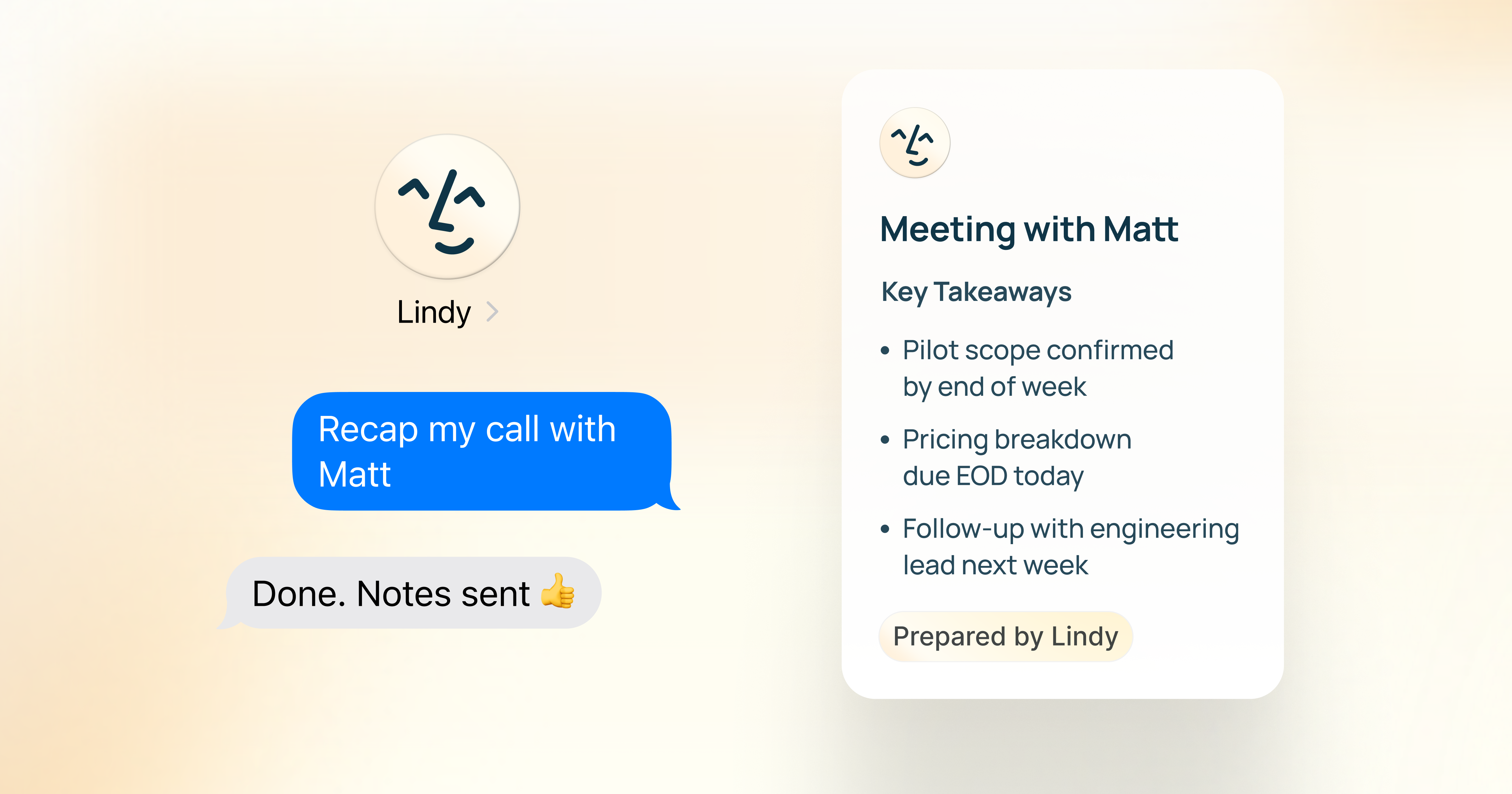 The more meetings you record, the richer the context Lindy can draw on.
## Quick Setup
1. Go to [chat.lindy.ai](https://chat.lindy.ai), click your **workspace name** in the top-left → **Settings → Meetings**
2. Toggle on **Meeting recording**
3. Connect your Google Calendar or Microsoft Outlook calendar
4. Set your notetaker display name and summarization instructions
5. Lindy joins and records from your next scheduled meeting on Google Meet, Zoom, or Microsoft Teams
## Relevant Docs
Automatic follow-up emails after meetings
Get context before every meeting
Lindy proposes times and books meetings for you
Text Lindy to query your meeting history
The more meetings you record, the richer the context Lindy can draw on.
## Quick Setup
1. Go to [chat.lindy.ai](https://chat.lindy.ai), click your **workspace name** in the top-left → **Settings → Meetings**
2. Toggle on **Meeting recording**
3. Connect your Google Calendar or Microsoft Outlook calendar
4. Set your notetaker display name and summarization instructions
5. Lindy joins and records from your next scheduled meeting on Google Meet, Zoom, or Microsoft Teams
## Relevant Docs
Automatic follow-up emails after meetings
Get context before every meeting
Lindy proposes times and books meetings for you
Text Lindy to query your meeting history