> ## Documentation Index
> Fetch the complete documentation index at: https://docs.lindy.ai/llms.txt
> Use this file to discover all available pages before exploring further.
# Smart Scheduling
> Find times, send invites, and lock in meetings. No more back-and-forth.
## Let Lindy Handle Scheduling
You say who and when. Lindy finds the time, sends the invite, and puts it on your calendar. No scheduling links, no back-and-forth emails.
## Auto Drafting
When someone emails you about scheduling a meeting, Lindy detects the request and offers times in a draft reply on your behalf. Your recipient picks one in a single click and the meeting drops onto both calendars.
* When someone emails to schedule, Lindy offers times in a draft reply
* Recipients book a slot in one click — no back-and-forth
* Save \~3 minutes per invite
Lindy detects the scheduling request and takes over — no action needed from you.
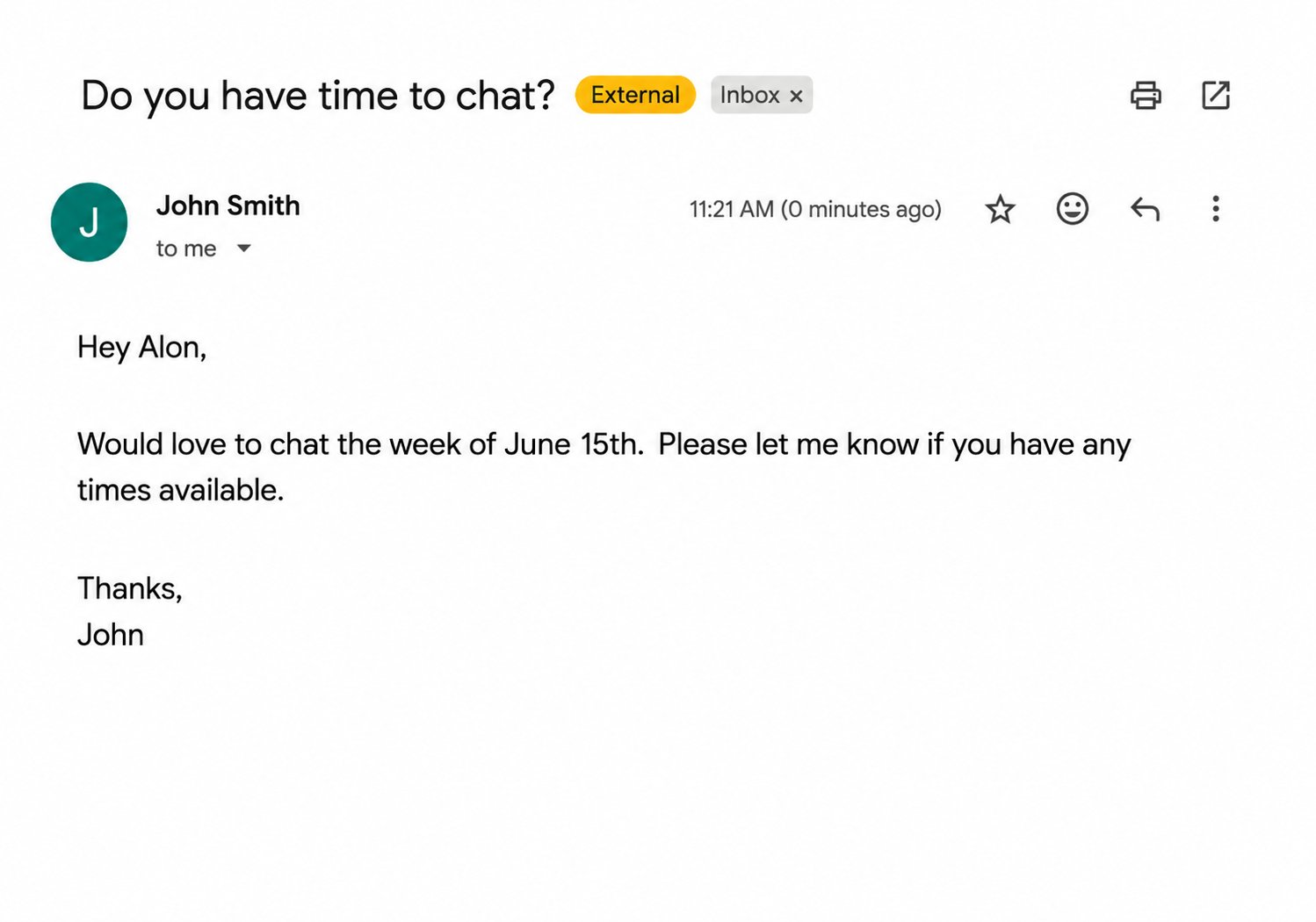 Based on your preferred hours, buffer time, meeting length, and calendar availability, Lindy drafts a reply with three open slots as clickable links.
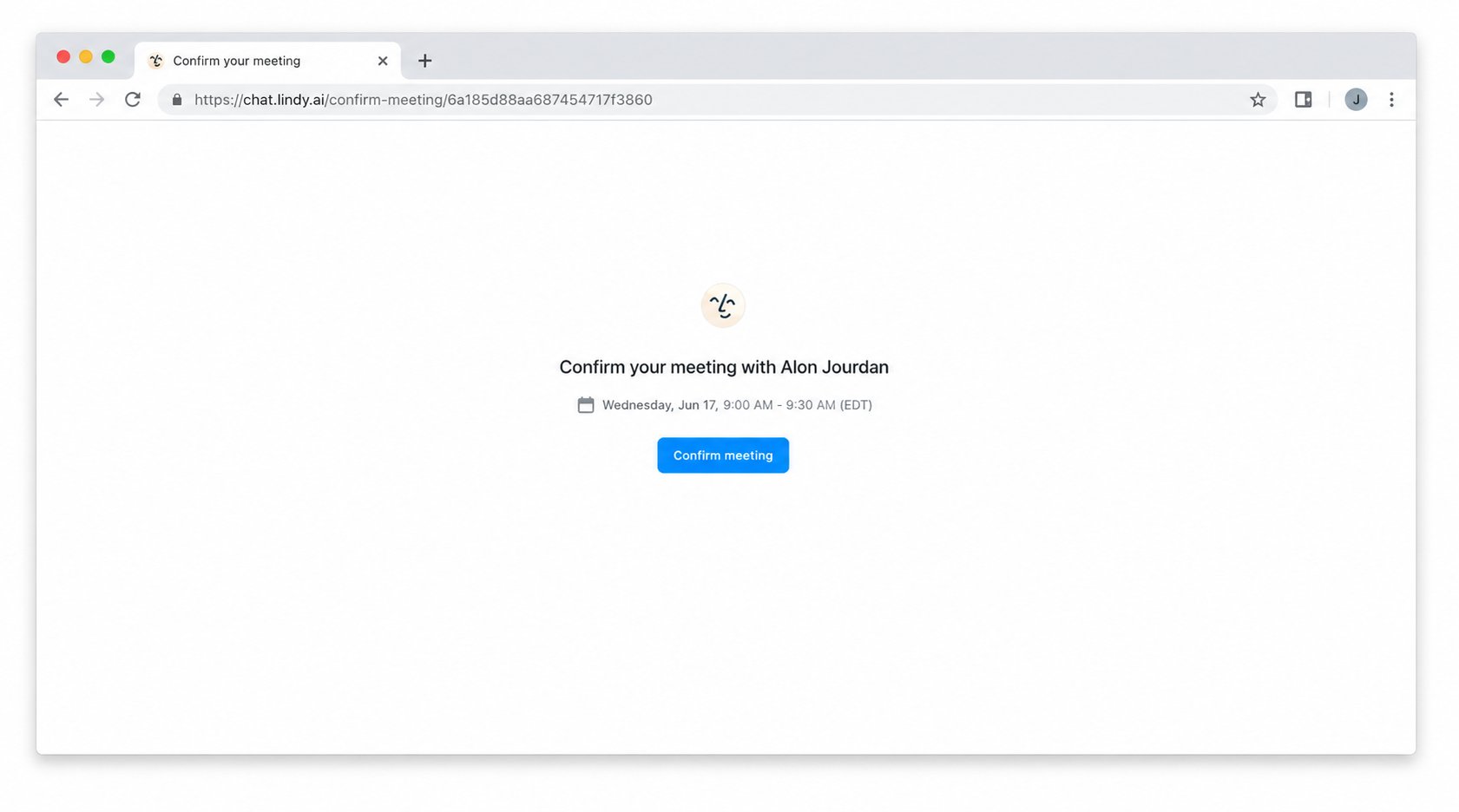
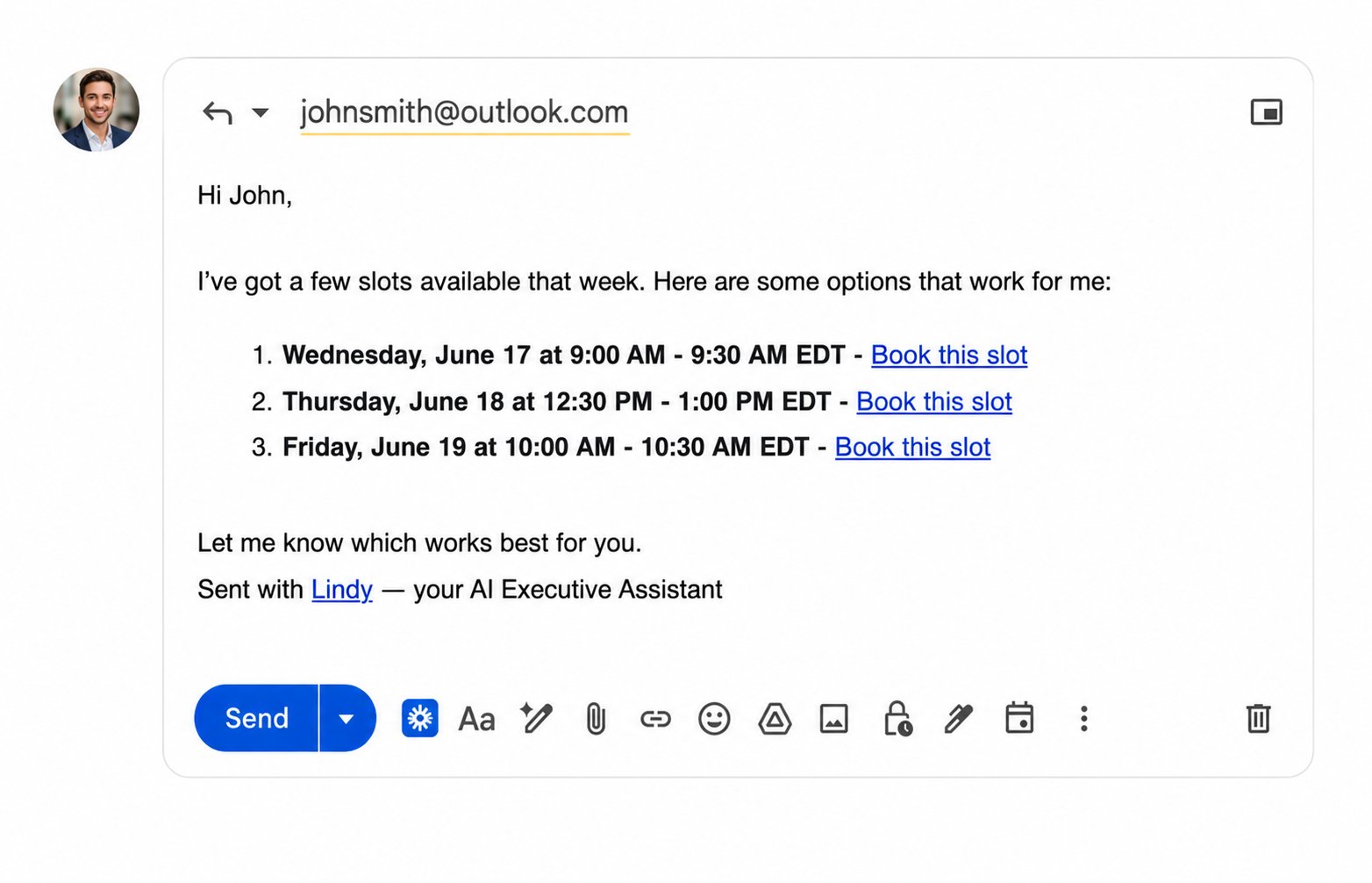 When the other person clicks a link, the meeting is automatically added to both calendars. No back-and-forth, no scheduling tools, no manual entry.
 ### Custom Scheduling Rules
Set your scheduling rules in **Settings → Scheduling** in natural language — preferred hours, buffers, blocked times, meeting types, anything that should apply to every auto-drafted reply.
## Ad Hoc Scheduling
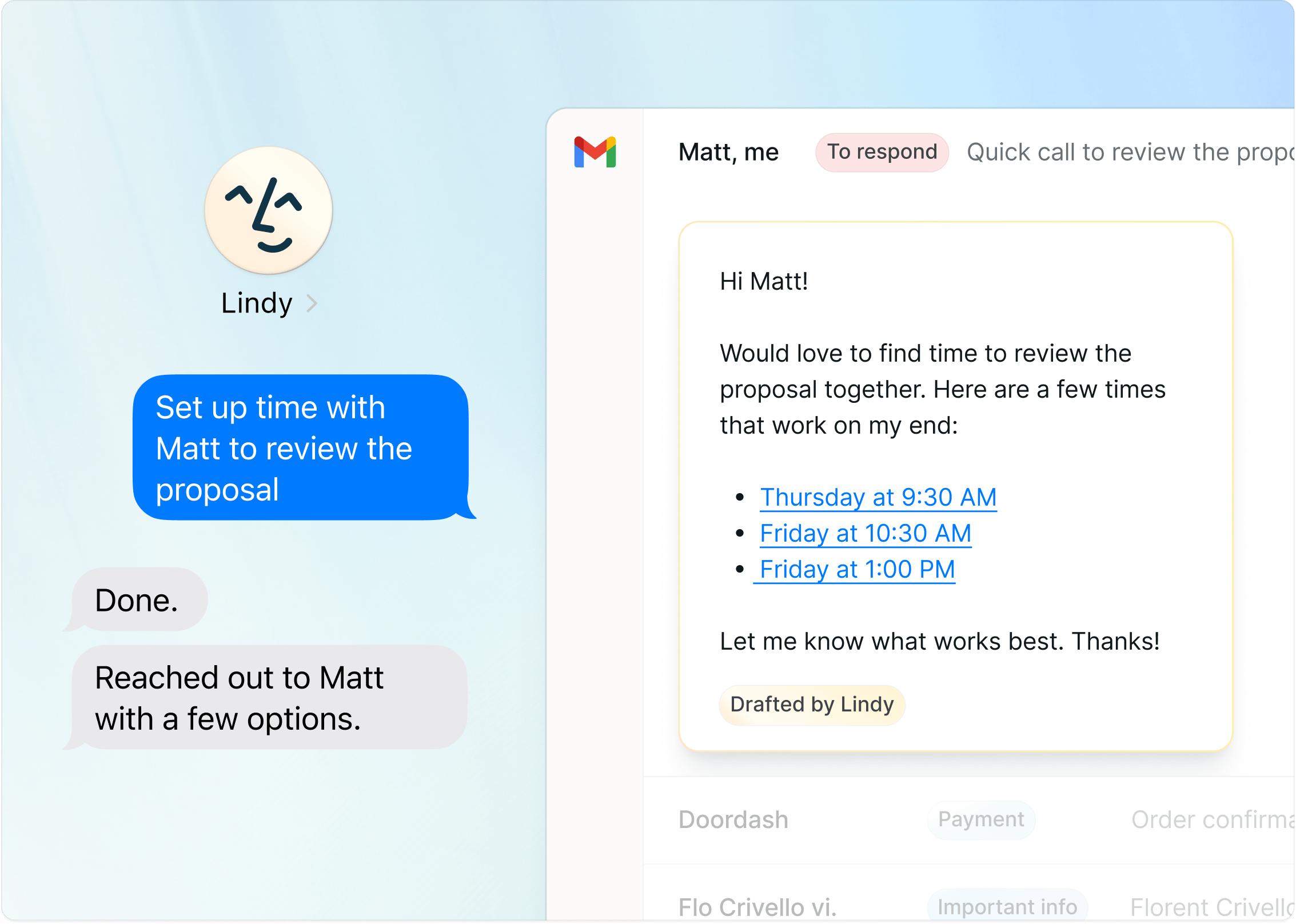
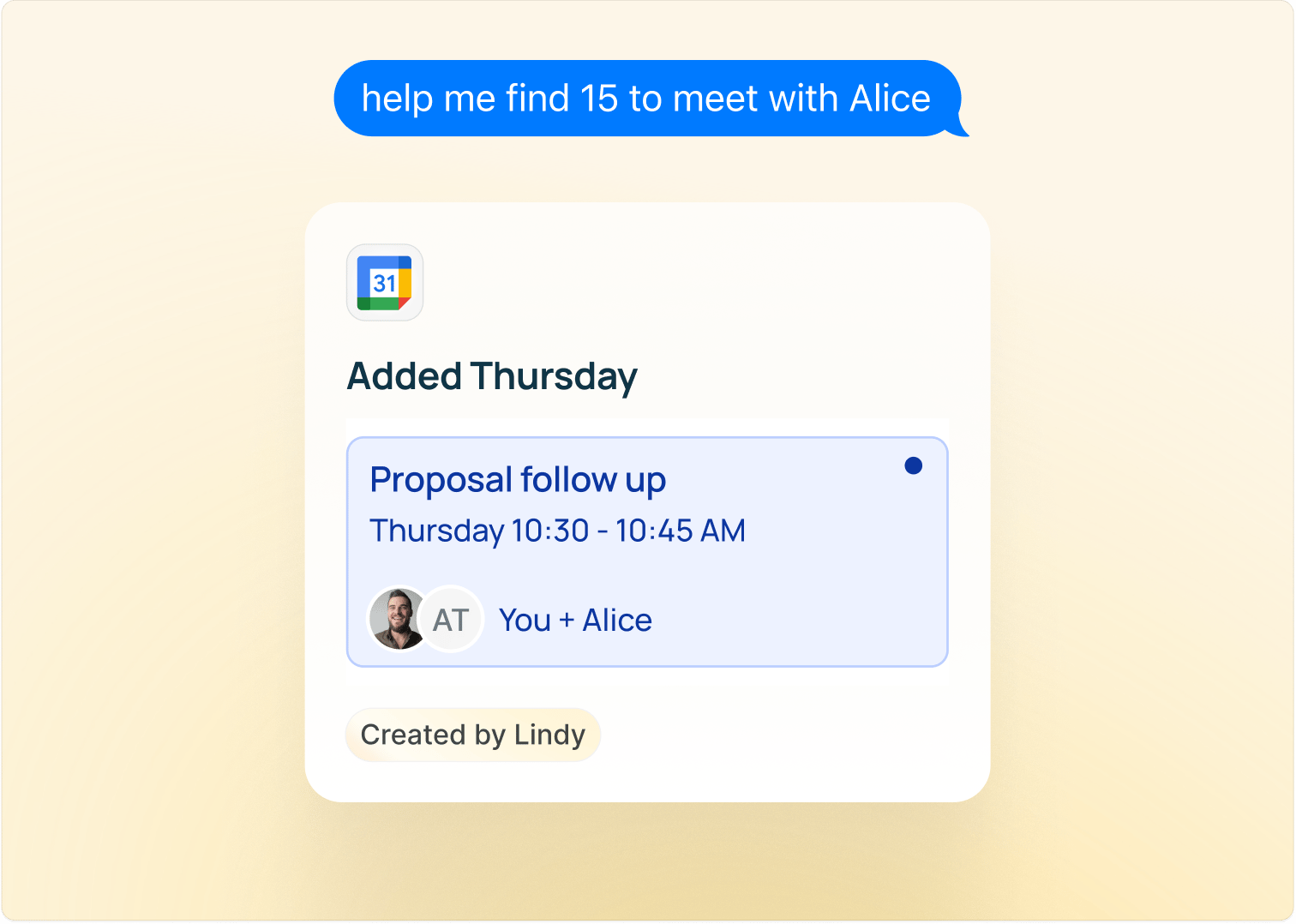
When you want Lindy to handle scheduling on your behalf, just ask. Text or message her and she'll find the time, reach out, and lock it in.
### Custom Scheduling Rules
Set your scheduling rules in **Settings → Scheduling** in natural language — preferred hours, buffers, blocked times, meeting types, anything that should apply to every auto-drafted reply.
## Ad Hoc Scheduling
When you want Lindy to handle scheduling on your behalf, just ask. Text or message her and she'll find the time, reach out, and lock it in.
 ### Add or Update Events on the Fly
Use Lindy to add events to your calendar or change them with one line of text:
* "Add a meeting location"
* "Pick a restaurant for the client dinner"
* "Swap the venue and notify attendees"
* "Move my 2pm to Thursday"
* "Cancel my call with \[name]"
Send Lindy a screenshot of a text conversation and she'll pull the meeting details onto the right day.
### End-to-End Outreach
Or send Lindy on a mission and let her run the whole loop:
> "Find time with Bob on Saturday"
She'll reach out, propose times, lock the meeting in, and add it to your calendar.
### Recurring Routines
Set up recurring workflows with one text:
> "Every week, audit my calendar and make sure I have a 45-min walk break at least once a day"
### Internal Calendars
Lindy can check any teammate's calendar that's shared with your workspace, so you can ask her to find time between people on your team without any back-and-forth.
### Add or Update Events on the Fly
Use Lindy to add events to your calendar or change them with one line of text:
* "Add a meeting location"
* "Pick a restaurant for the client dinner"
* "Swap the venue and notify attendees"
* "Move my 2pm to Thursday"
* "Cancel my call with \[name]"
Send Lindy a screenshot of a text conversation and she'll pull the meeting details onto the right day.
### End-to-End Outreach
Or send Lindy on a mission and let her run the whole loop:
> "Find time with Bob on Saturday"
She'll reach out, propose times, lock the meeting in, and add it to your calendar.
### Recurring Routines
Set up recurring workflows with one text:
> "Every week, audit my calendar and make sure I have a 45-min walk break at least once a day"
### Internal Calendars
Lindy can check any teammate's calendar that's shared with your workspace, so you can ask her to find time between people on your team without any back-and-forth.
 ## How to Delegate
* **iMessage / SMS**: "Book a call with Sarah next Tuesday afternoon"
* **Web app**: chat at [chat.lindy.ai](https://chat.lindy.ai)
Scheduling over text is the fastest option. Lindy already knows your calendar and preferences, so a simple text is all it takes.
## Next Steps
Get context before every meeting
Everything you can delegate by texting Lindy
## How to Delegate
* **iMessage / SMS**: "Book a call with Sarah next Tuesday afternoon"
* **Web app**: chat at [chat.lindy.ai](https://chat.lindy.ai)
Scheduling over text is the fastest option. Lindy already knows your calendar and preferences, so a simple text is all it takes.
## Next Steps
Get context before every meeting
Everything you can delegate by texting Lindy