> ## Documentation Index
> Fetch the complete documentation index at: https://docs.lindy.ai/llms.txt
> Use this file to discover all available pages before exploring further.
# Actions
## Quick Overview
Actions are the specific operations your AI agent performs to complete tasks. Think of them as the building blocks of your workflows — each one handles a particular job like sending an email, updating a spreadsheet, or processing data.
Your workflows can combine multiple actions that run one after another or at the same time. Actions range from simple operations that take one step to complete, to complex AI-powered processes that can reason through problems and adapt based on what they find.
## How to add an action
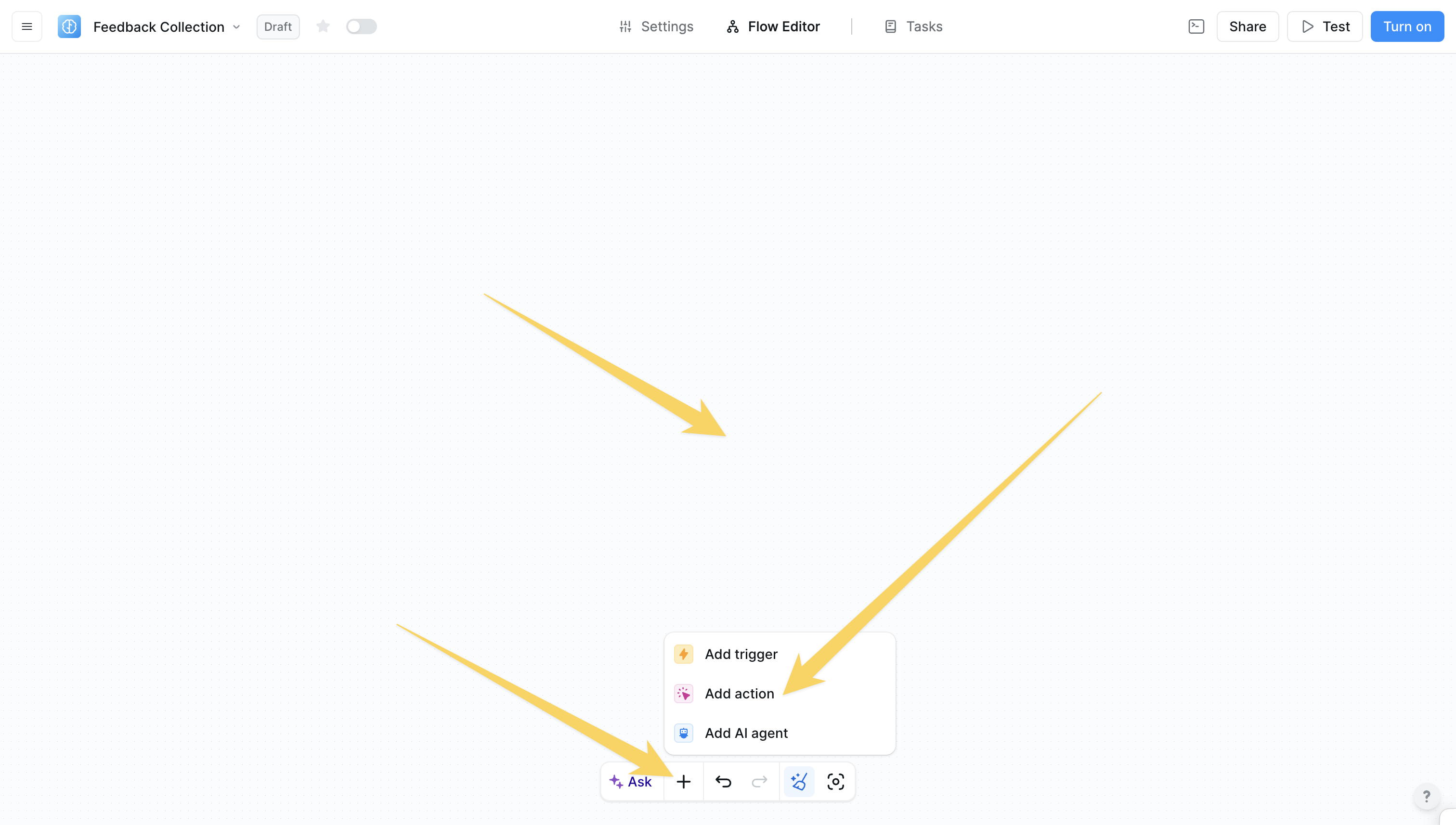
Click on the `+` sign at the bottom or right-click anywhere on the canvas and select "Add action" from the pop-up menu
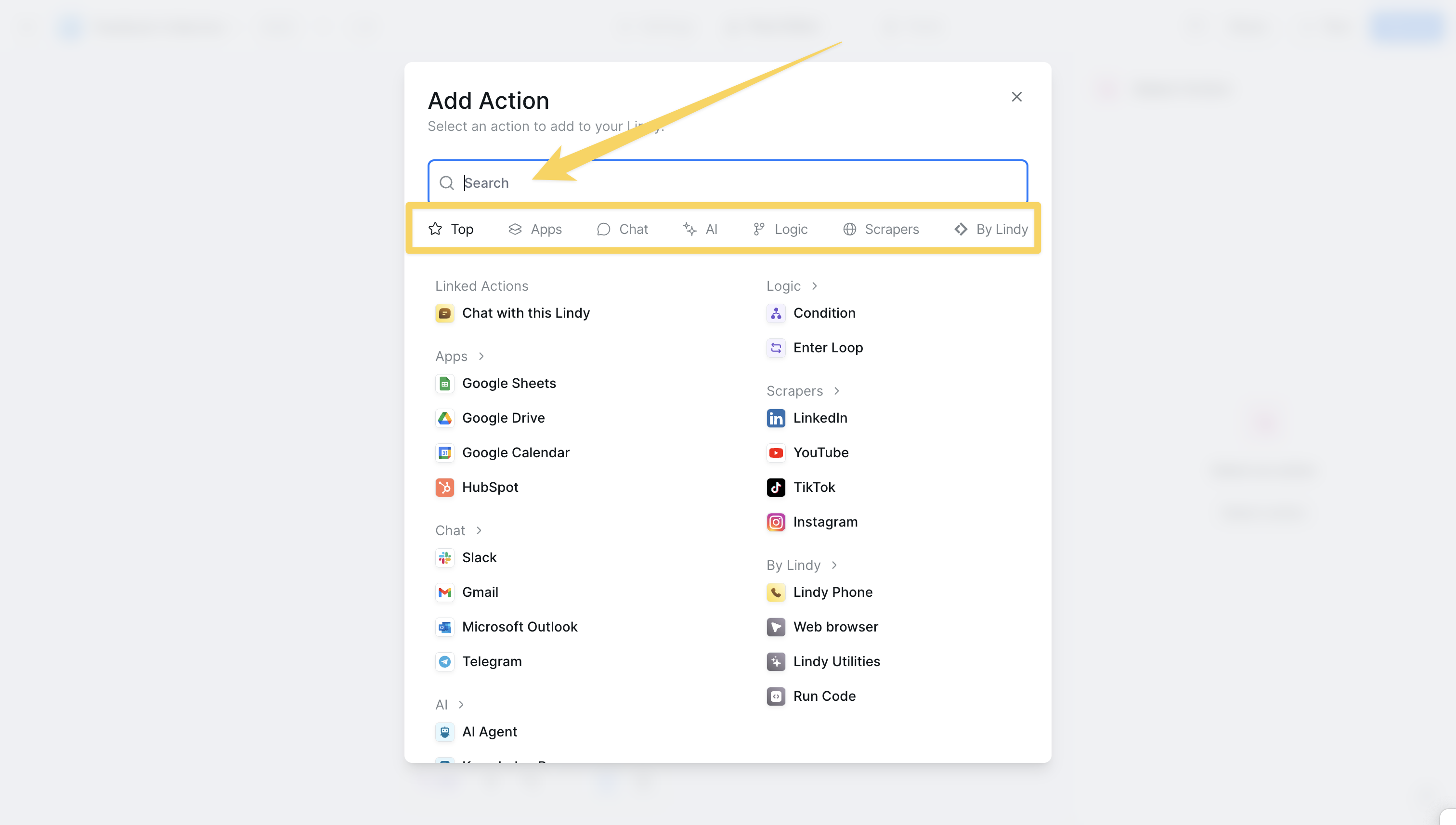
 Search for and select the action you want to add from the comprehensive library of first-party and third-party integrations
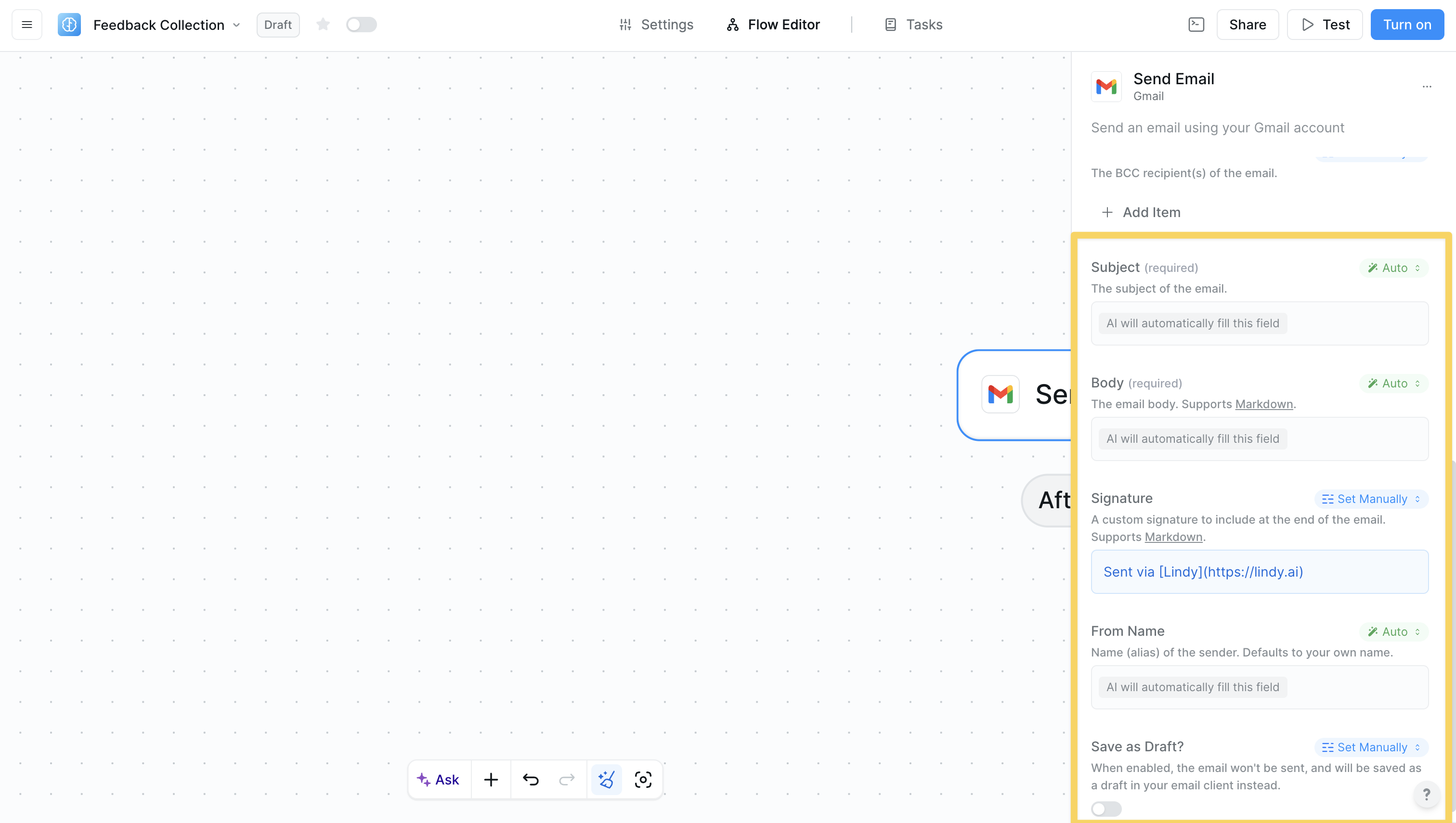
 Set up the action parameters, account connections, and AI instructions to customize the behavior for your specific use case
 ## Types of actions
### Basic actions
Basic actions provide straightforward, single-purpose operations that are quick to set up and easy to use. They consume fewer credits (minimum 1 credit per task) and are perfect for common automation tasks. These actions still use AI and integrations but focus on simpler, more direct operations. Examples include:
* Send Email
* Create Calendar Event
* Update Spreadsheet
* Send Slack Message
### Linked actions
## Types of actions
### Basic actions
Basic actions provide straightforward, single-purpose operations that are quick to set up and easy to use. They consume fewer credits (minimum 1 credit per task) and are perfect for common automation tasks. These actions still use AI and integrations but focus on simpler, more direct operations. Examples include:
* Send Email
* Create Calendar Event
* Update Spreadsheet
* Send Slack Message
### Linked actions
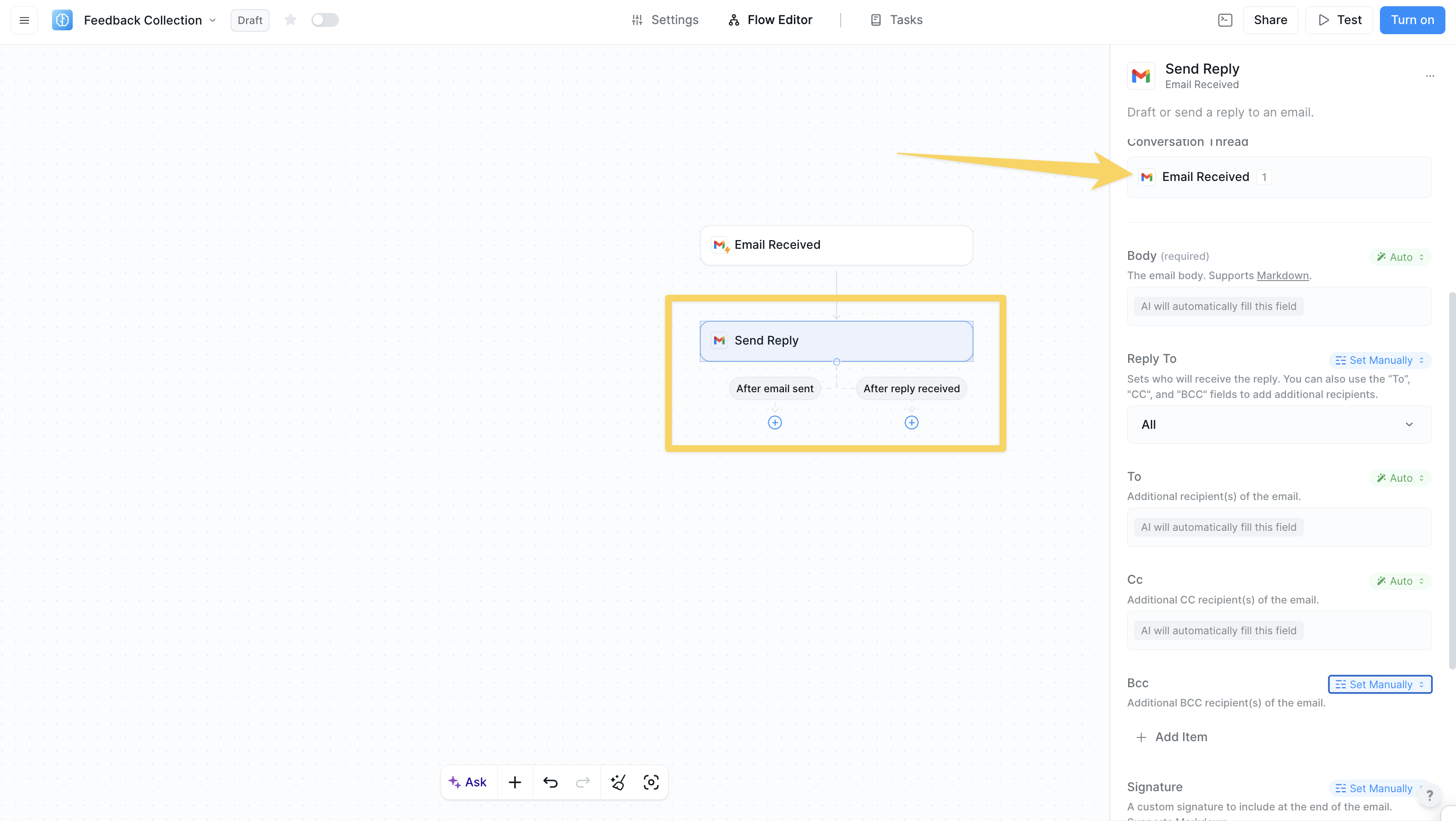 Linked actions create additional actions that are connected to the original action. They show different execution paths that you can choose from based on your workflow needs.
**Two types of linked actions:**
* **Standard linked actions**: Create downstream actions for continued operations
* **Channels**: Listen for future events like email replies, Slack messages, or Telegram messages
**How linked actions work:**
* **Choose your paths**: Select which execution paths you need - you can choose one or both
* **Execute normally**: "After email sent" path continues your workflow immediately after sending
* **Listen for events** (channels only): "After reply received" path adds listening capability to wake up your agent when replies arrive
* **Maintain context**: When the agent wakes up from listening, it has full context of the original interaction
**Key example: Email Actions**
* Send an email and choose your paths
* "After email sent" → workflow continues normally
* "After reply received" → agent listens and wakes up when replies arrive with full thread context
* You'll see linked actions available in your action selector for these operations
This enables reactive workflows where agents can handle both proactive tasks and responsive interactions seamlessly.
### Using multiple channels
Linked actions create additional actions that are connected to the original action. They show different execution paths that you can choose from based on your workflow needs.
**Two types of linked actions:**
* **Standard linked actions**: Create downstream actions for continued operations
* **Channels**: Listen for future events like email replies, Slack messages, or Telegram messages
**How linked actions work:**
* **Choose your paths**: Select which execution paths you need - you can choose one or both
* **Execute normally**: "After email sent" path continues your workflow immediately after sending
* **Listen for events** (channels only): "After reply received" path adds listening capability to wake up your agent when replies arrive
* **Maintain context**: When the agent wakes up from listening, it has full context of the original interaction
**Key example: Email Actions**
* Send an email and choose your paths
* "After email sent" → workflow continues normally
* "After reply received" → agent listens and wakes up when replies arrive with full thread context
* You'll see linked actions available in your action selector for these operations
This enables reactive workflows where agents can handle both proactive tasks and responsive interactions seamlessly.
### Using multiple channels
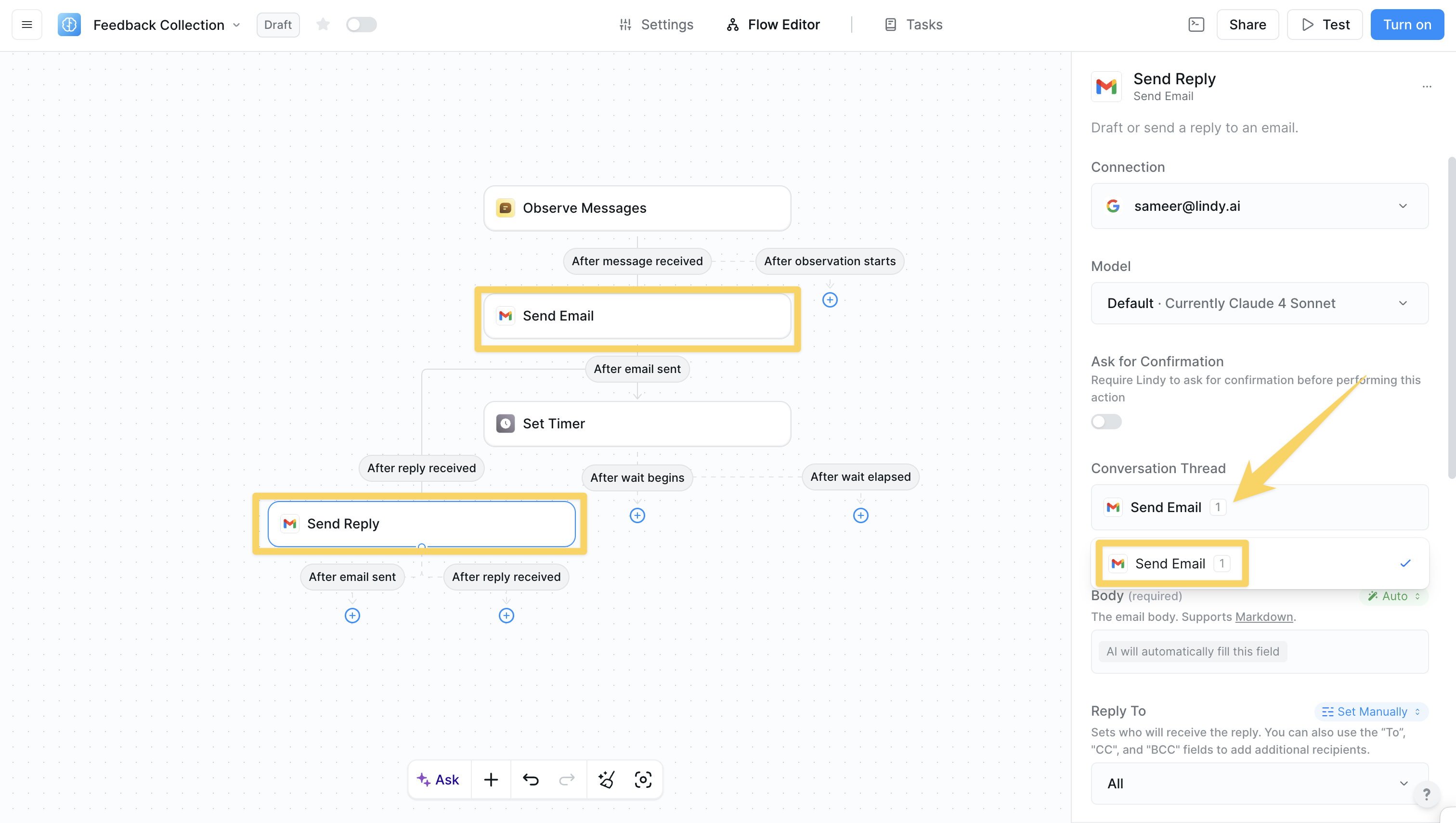 When you use multiple channels in a single agent, each channel maintains its own conversation thread for listening and responding to future events.
**How multiple channels work:**
* **Multiple conversations**: If you send two emails that both use channels, you now have two separate listening threads
* **Thread selection**: When responding, you must choose which specific conversation thread you're replying to
* **Parallel processing**: Multiple channels can listen and respond independently
**Example scenario:**
* Send Email A to Customer 1 (with channel)
* Send Email B to Customer 2 (with channel)
* Both customers reply
* Agent wakes up twice with separate contexts
* Each response is handled within its specific conversation thread
This enables sophisticated multi-conversation management where a single agent can handle numerous ongoing interactions simultaneously.
## Action configuration
Every action in Lindy offers several configuration options to customize its behavior and ensure it works perfectly within your workflow.
### Account selection
When you use multiple channels in a single agent, each channel maintains its own conversation thread for listening and responding to future events.
**How multiple channels work:**
* **Multiple conversations**: If you send two emails that both use channels, you now have two separate listening threads
* **Thread selection**: When responding, you must choose which specific conversation thread you're replying to
* **Parallel processing**: Multiple channels can listen and respond independently
**Example scenario:**
* Send Email A to Customer 1 (with channel)
* Send Email B to Customer 2 (with channel)
* Both customers reply
* Agent wakes up twice with separate contexts
* Each response is handled within its specific conversation thread
This enables sophisticated multi-conversation management where a single agent can handle numerous ongoing interactions simultaneously.
## Action configuration
Every action in Lindy offers several configuration options to customize its behavior and ensure it works perfectly within your workflow.
### Account selection
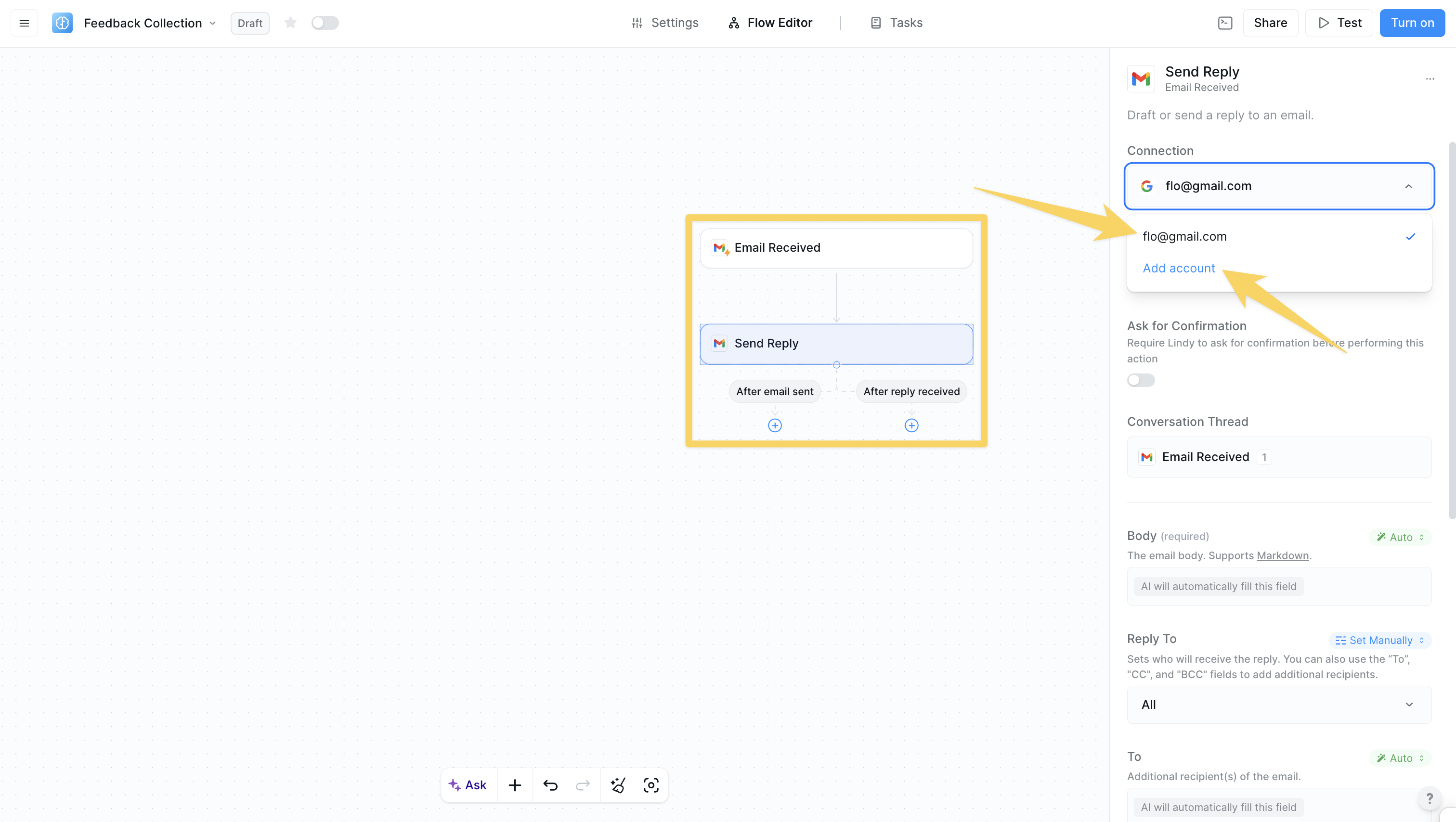 Choose which connected account the action should use. If you authorize your company Gmail account, Lindy will only access your company email. You can authorize multiple accounts for a given application, but each action will only use one account.
### Model labels
Choose which connected account the action should use. If you authorize your company Gmail account, Lindy will only access your company email. You can authorize multiple accounts for a given application, but each action will only use one account.
### Model labels
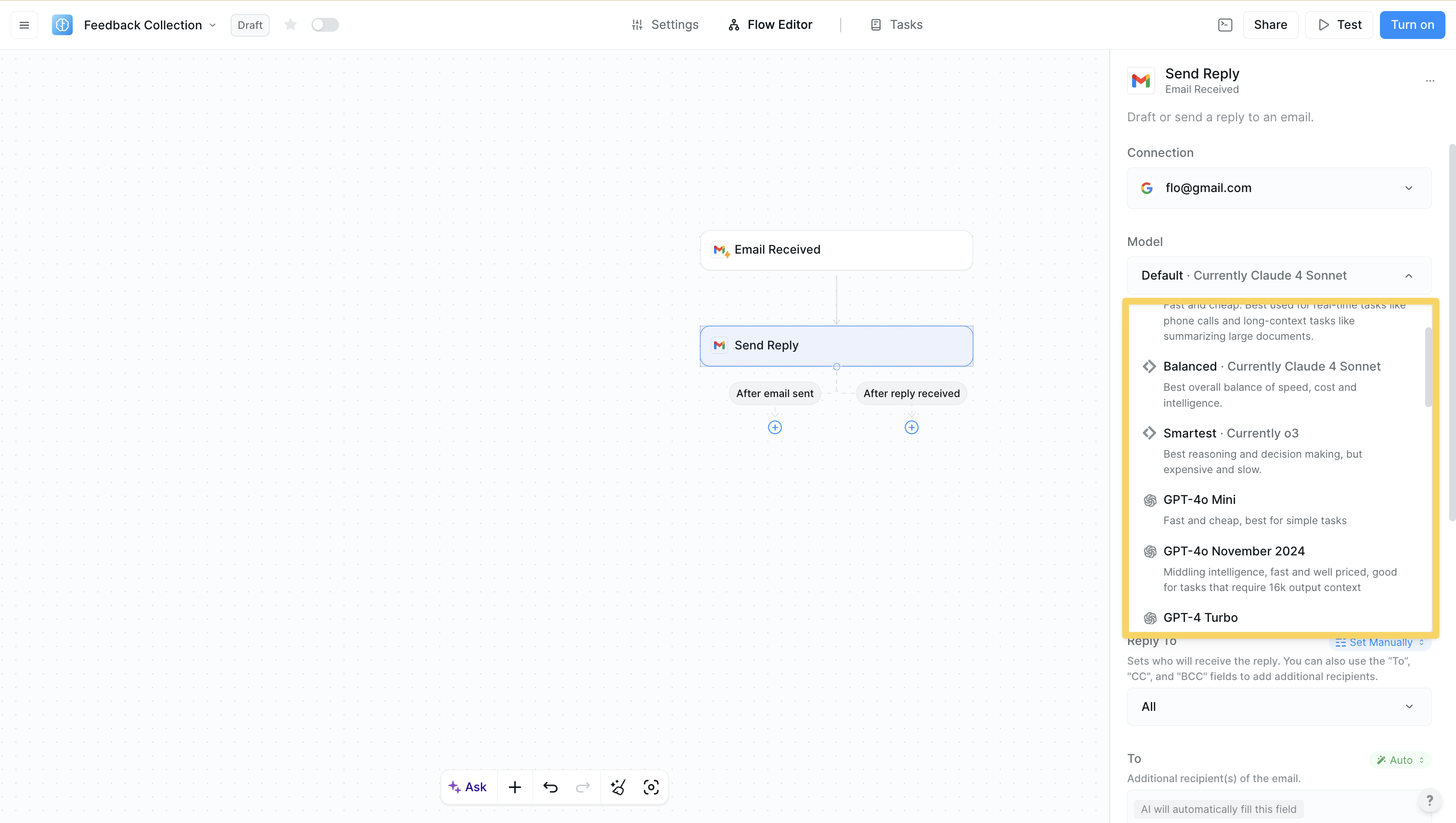 Select the AI model to be used for the action. The model completes the parameters using context from the workflow and data from prior steps. Bigger models are smarter but more expensive — Lindy provides top AI models ready to use out of the box.
## Next steps
Learn how to start workflows automatically
Add decision logic to your workflows
Verify your actions behave as expected
Jump-start with pre-built workflows
Select the AI model to be used for the action. The model completes the parameters using context from the workflow and data from prior steps. Bigger models are smarter but more expensive — Lindy provides top AI models ready to use out of the box.
## Next steps
Learn how to start workflows automatically
Add decision logic to your workflows
Verify your actions behave as expected
Jump-start with pre-built workflows