> ## Documentation Index
> Fetch the complete documentation index at: https://docs.lindy.ai/llms.txt
> Use this file to discover all available pages before exploring further.
# Computer Use
In this guide, you'll learn how to enable your agents to use computers. This is helpful when you have a process that can't be automated with APIs or integrations.
## Start Computer
Enable your agents to use a computer by adding a Start Computer action to your agent.
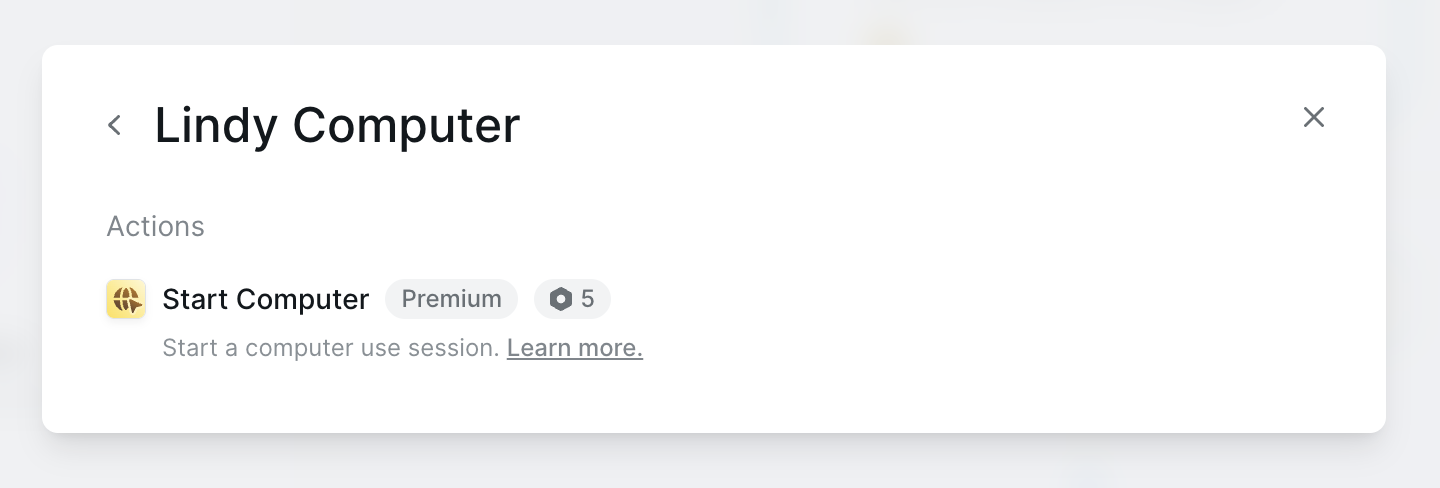 When this action is added, you will automatically get an AI Agent step with a Use Computer skill. You can instruct your agent on what to do with the computer in the AI Agent step's prompt.
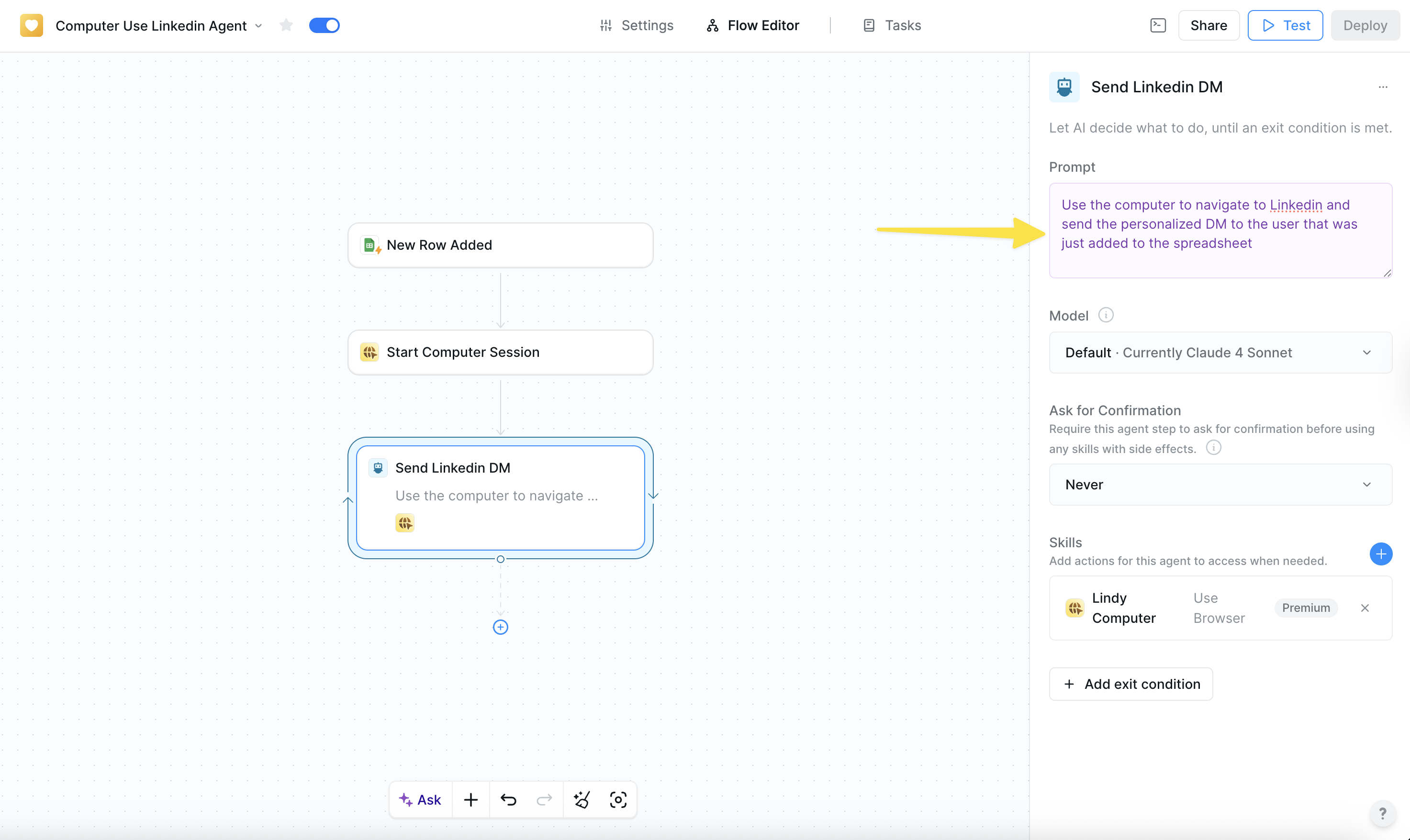 In the Start Computer action, you are able to pick which computer you want your agent to use. A Computer saves the data (website sessions, cache, files) that was generated during the computer's session.
For example, if you log into a website on a specific computer, the computer will save the website session data and remember your login. This enables your agents to do tasks on a computer without requiring you to take control every time you need to log into a specific website.
The computer is automatically set to \[User]'s Computer. This means that computer session data will be saved across all your agents and tasks that use this computer. You can create a new computer for this agent if you wish to do so. Assigning a dedicated computer to each agent limits access to only the credentials and websites required for their task, minimizing security risks.
You can also choose to use an Incognito Computer, which saves no data from the session.
## Configuring a computer
Configuring your computer allows you to set up your computer with the credentials and data needed for it to run its task. For example, if you want your computer to reach out to users on Linkedin for you, you need to provide the computer with your login.
In the Start Computer action, you are able to pick which computer you want your agent to use. A Computer saves the data (website sessions, cache, files) that was generated during the computer's session.
For example, if you log into a website on a specific computer, the computer will save the website session data and remember your login. This enables your agents to do tasks on a computer without requiring you to take control every time you need to log into a specific website.
The computer is automatically set to \[User]'s Computer. This means that computer session data will be saved across all your agents and tasks that use this computer. You can create a new computer for this agent if you wish to do so. Assigning a dedicated computer to each agent limits access to only the credentials and websites required for their task, minimizing security risks.
You can also choose to use an Incognito Computer, which saves no data from the session.
## Configuring a computer
Configuring your computer allows you to set up your computer with the credentials and data needed for it to run its task. For example, if you want your computer to reach out to users on Linkedin for you, you need to provide the computer with your login.
 ## Running a task with Computer Use
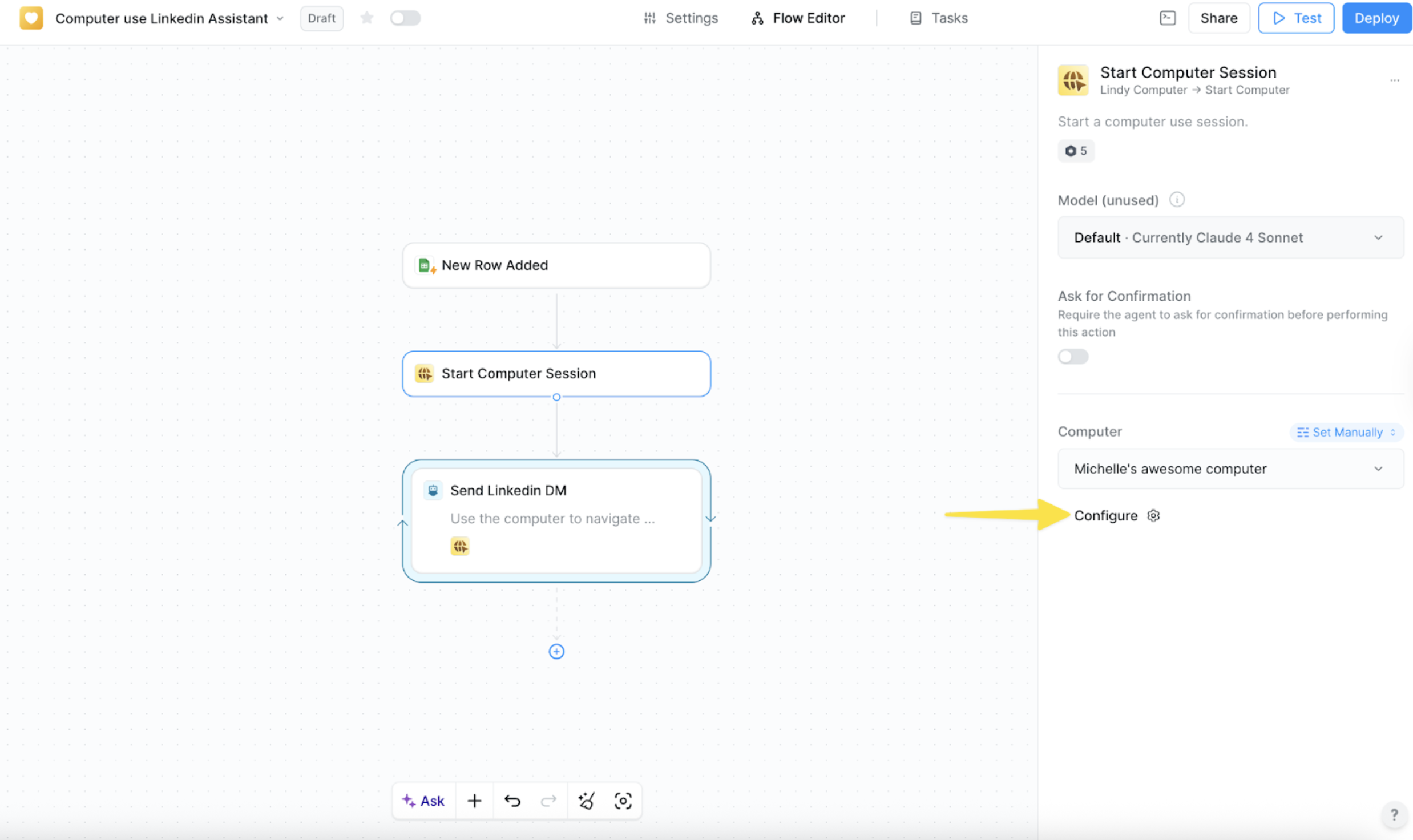
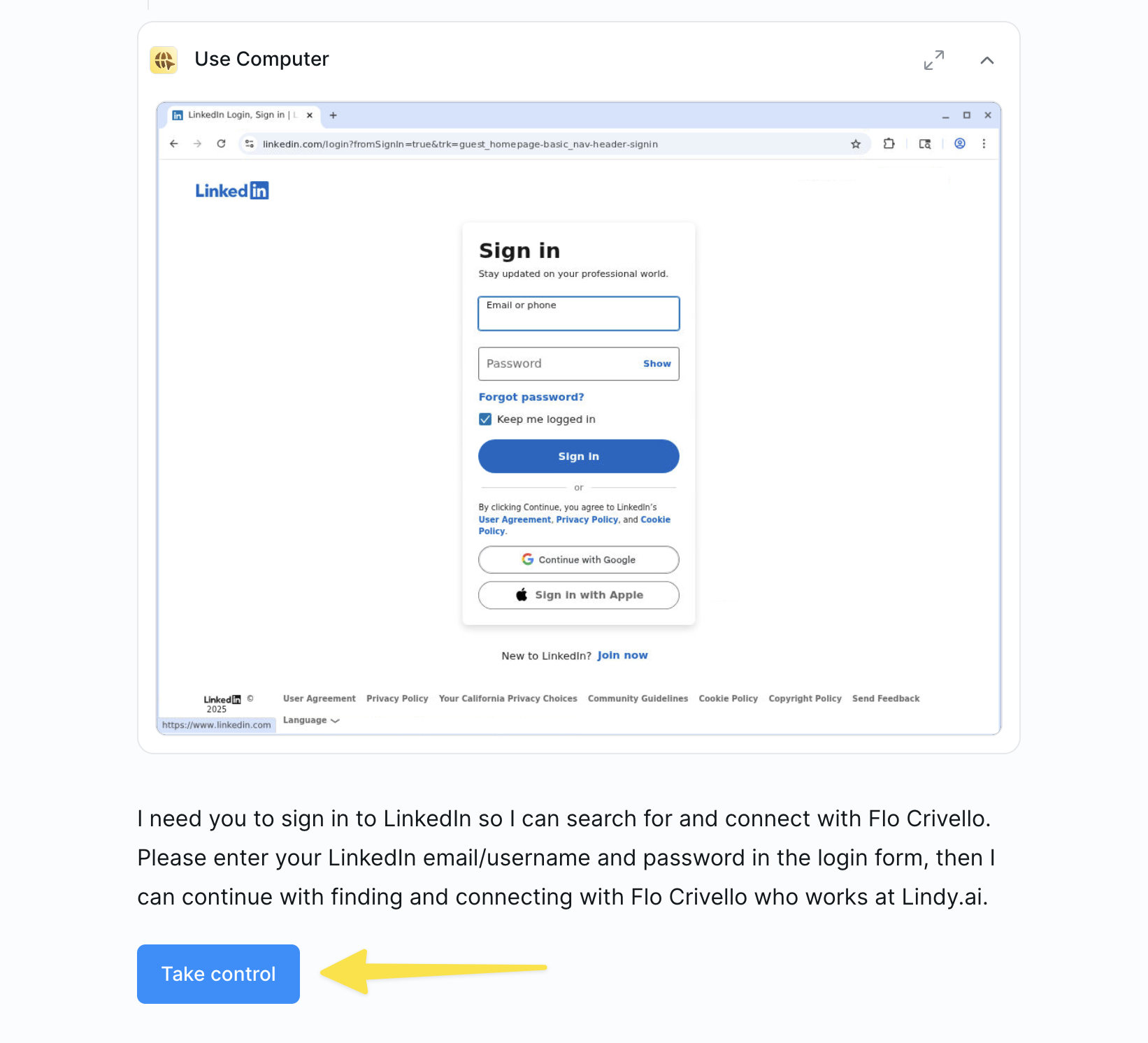
You can expand a computer by clicking on the arrows in the right corner of the Use Computer card.
## Running a task with Computer Use
You can expand a computer by clicking on the arrows in the right corner of the Use Computer card.
 You can take control of your computer by clicking on the browser screen, or by clicking the 'Take Control' button when the agent requires you to take control.
 You can see a screenshot of what the computer was doing by clicking any given step:
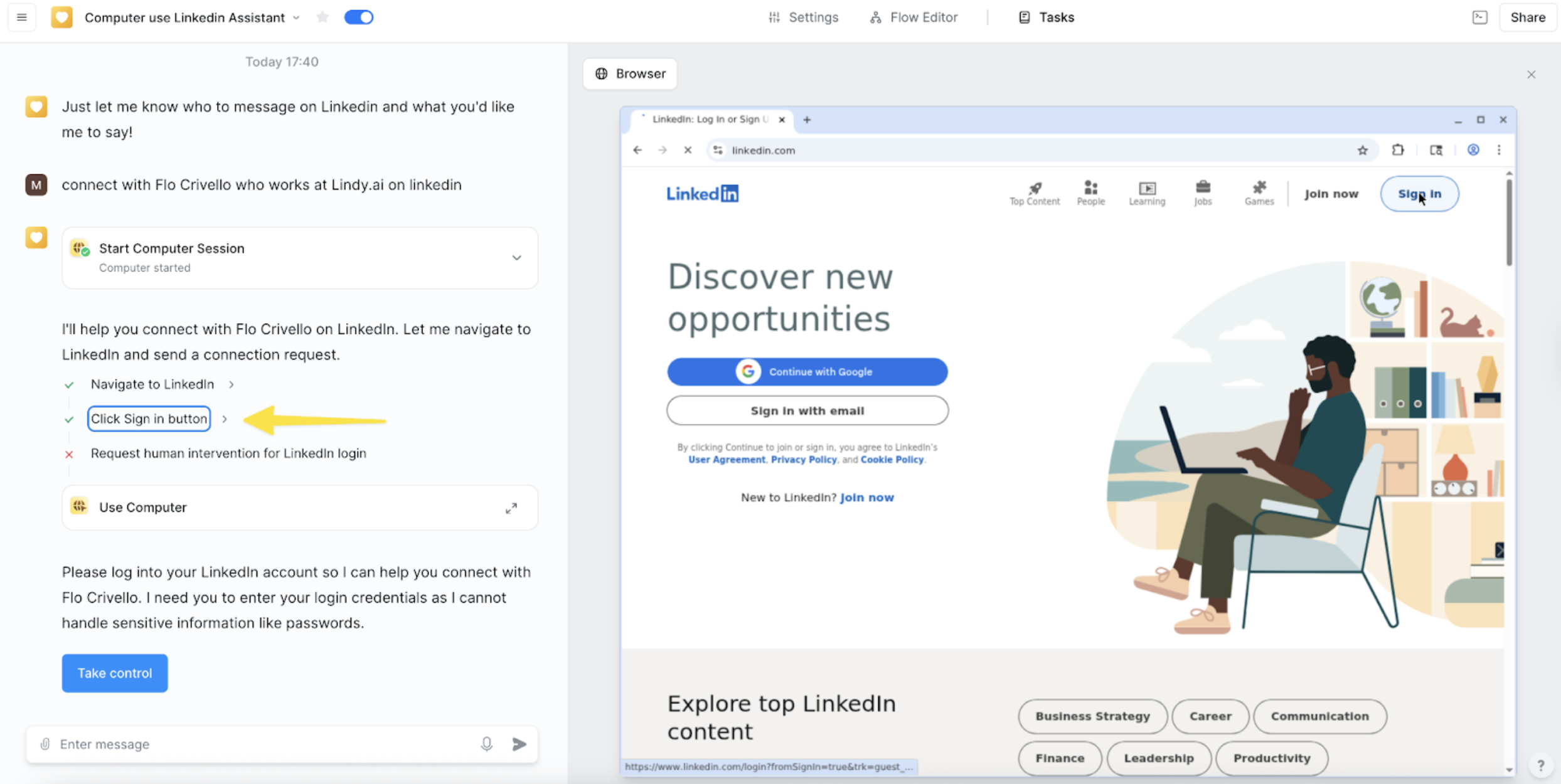 Conversely, you can minimize it and go back to your agent's Tasks by clicking the x in the upper right corner.
Computer sessions persist for 30 days after the last action. So, if you last ran a Computer action as part of a task 30 days ago, you will not be able to connect to that computer session and continue using the computer, but you will still be able to see the screenshots from the task.
## Using the computer in loops
When you attempt to use a computer inside a loop, we'll automatically insert a Start Computer step outside the loop. This ensures that each loop iteration doesn't compete to use the same computer at the same time, and allows multiple computer instances to run in parallel.
Another way of preventing the agent from using the same computer for every loop cycle is to set the Max Concurrency of the loop to 1. This guarantees that each cycle completes before the next one starts, but it also means your tasks will run sequentially rather than in parallel.
### Automation detection by websites
When using Computer Use within the looping action, a website may detect and block automated behavior. To enable computer automation in these cases, set the max concurrency to a low value between 1 and 5.
## Computer Settings
You can manage and configure your Computers in Settings under the Computers tab. Here you can:
* Create a new computer
* View all your computers
* Configure your computers
## Example: LinkedIn Outreach
This example uses Lindy Computer to connect with and reach out via LinkedIn to leads added to a spreadsheet.
Start by adding the Google Sheets New Row Added trigger. This is what will trigger your computer agent. Configure your trigger by adding the spreadsheet you want to observe.
Conversely, you can minimize it and go back to your agent's Tasks by clicking the x in the upper right corner.
Computer sessions persist for 30 days after the last action. So, if you last ran a Computer action as part of a task 30 days ago, you will not be able to connect to that computer session and continue using the computer, but you will still be able to see the screenshots from the task.
## Using the computer in loops
When you attempt to use a computer inside a loop, we'll automatically insert a Start Computer step outside the loop. This ensures that each loop iteration doesn't compete to use the same computer at the same time, and allows multiple computer instances to run in parallel.
Another way of preventing the agent from using the same computer for every loop cycle is to set the Max Concurrency of the loop to 1. This guarantees that each cycle completes before the next one starts, but it also means your tasks will run sequentially rather than in parallel.
### Automation detection by websites
When using Computer Use within the looping action, a website may detect and block automated behavior. To enable computer automation in these cases, set the max concurrency to a low value between 1 and 5.
## Computer Settings
You can manage and configure your Computers in Settings under the Computers tab. Here you can:
* Create a new computer
* View all your computers
* Configure your computers
## Example: LinkedIn Outreach
This example uses Lindy Computer to connect with and reach out via LinkedIn to leads added to a spreadsheet.
Start by adding the Google Sheets New Row Added trigger. This is what will trigger your computer agent. Configure your trigger by adding the spreadsheet you want to observe.
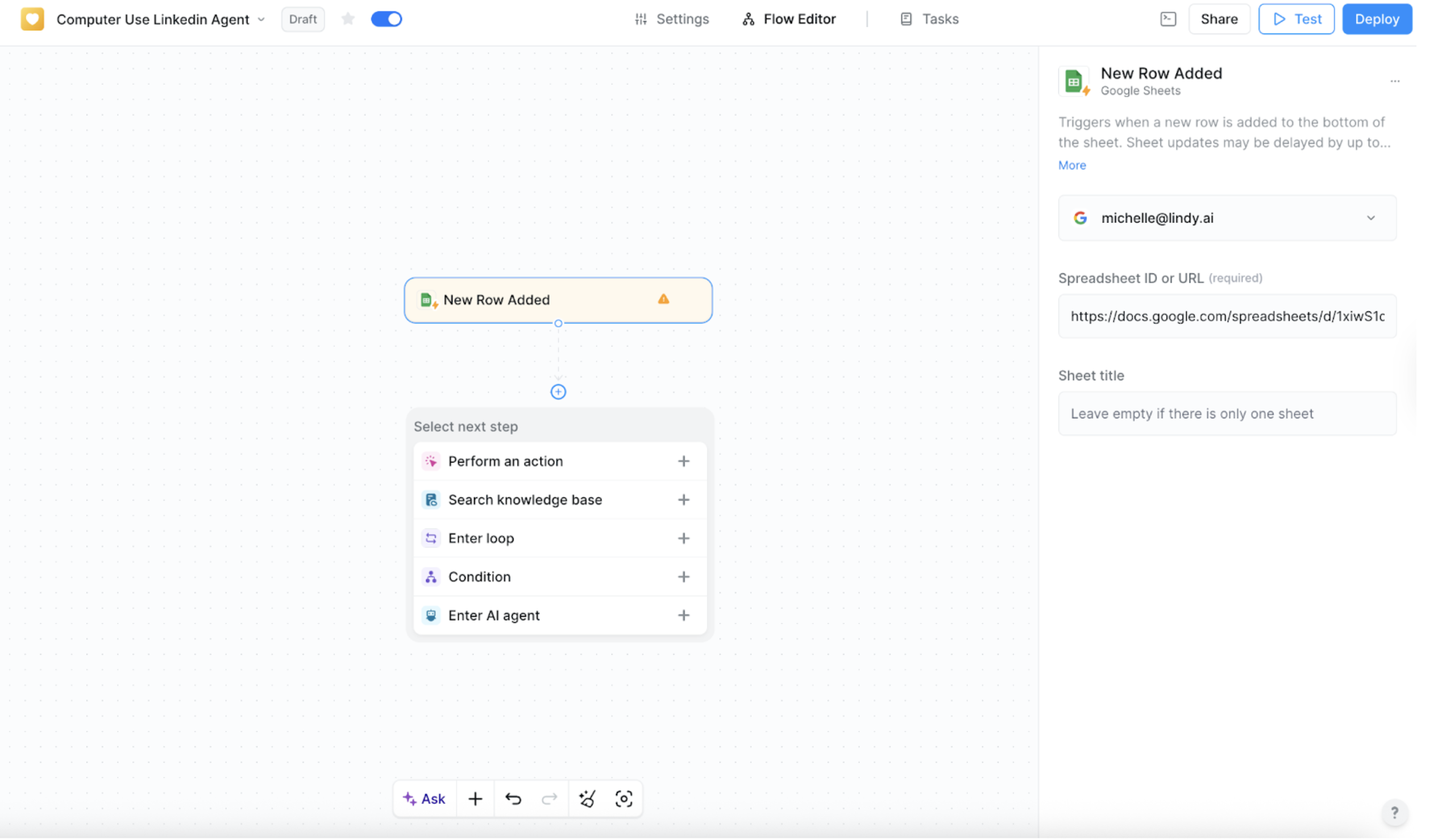 Provide your agent with a computer by adding the Start Computer Action. The computer will automatically be set to \[User]'s Computer.
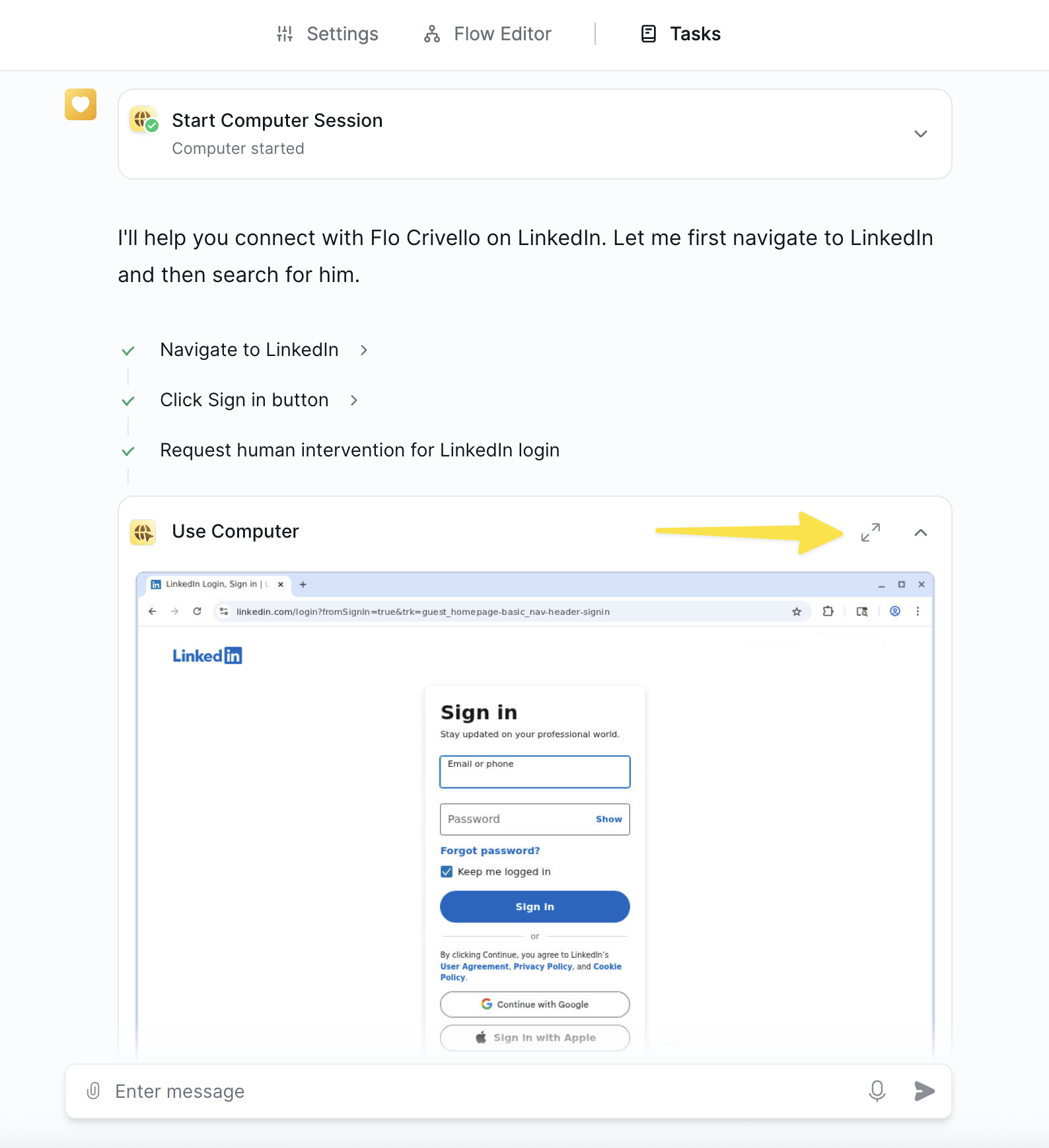
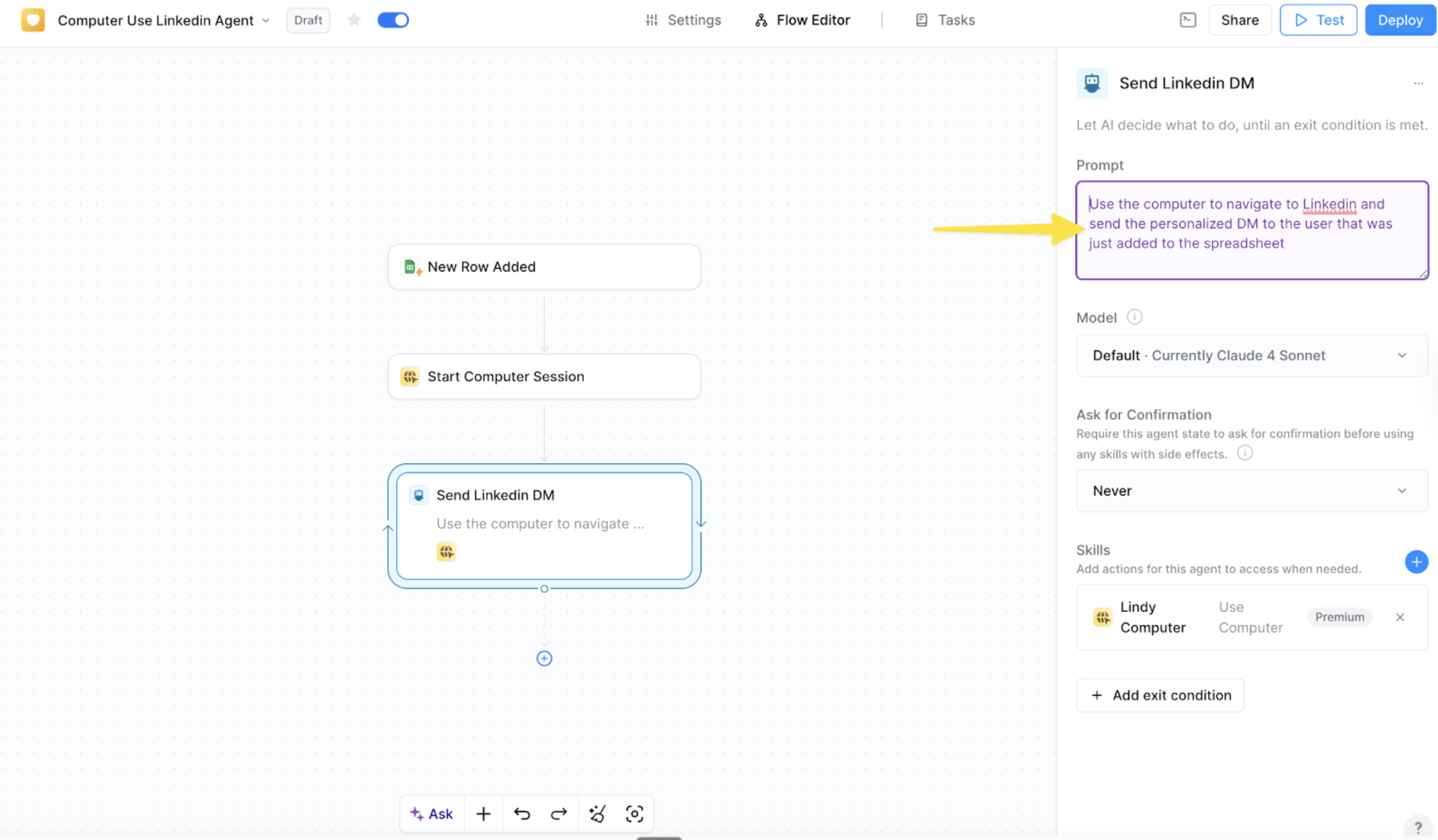
Prompt the AI Agent to navigate to LinkedIn and send a personalized DM to the user that was just added to the spreadsheet.
Provide your agent with a computer by adding the Start Computer Action. The computer will automatically be set to \[User]'s Computer.
Prompt the AI Agent to navigate to LinkedIn and send a personalized DM to the user that was just added to the spreadsheet.
 Save your agent, and start a task by adding a new lead to your sheet.
If you have not logged into LinkedIn on your computer previously, you will be asked to take control and log in. You can also configure your computer in the action configuration by logging into LinkedIn to skip this step.
Save your agent, and start a task by adding a new lead to your sheet.
If you have not logged into LinkedIn on your computer previously, you will be asked to take control and log in. You can also configure your computer in the action configuration by logging into LinkedIn to skip this step.
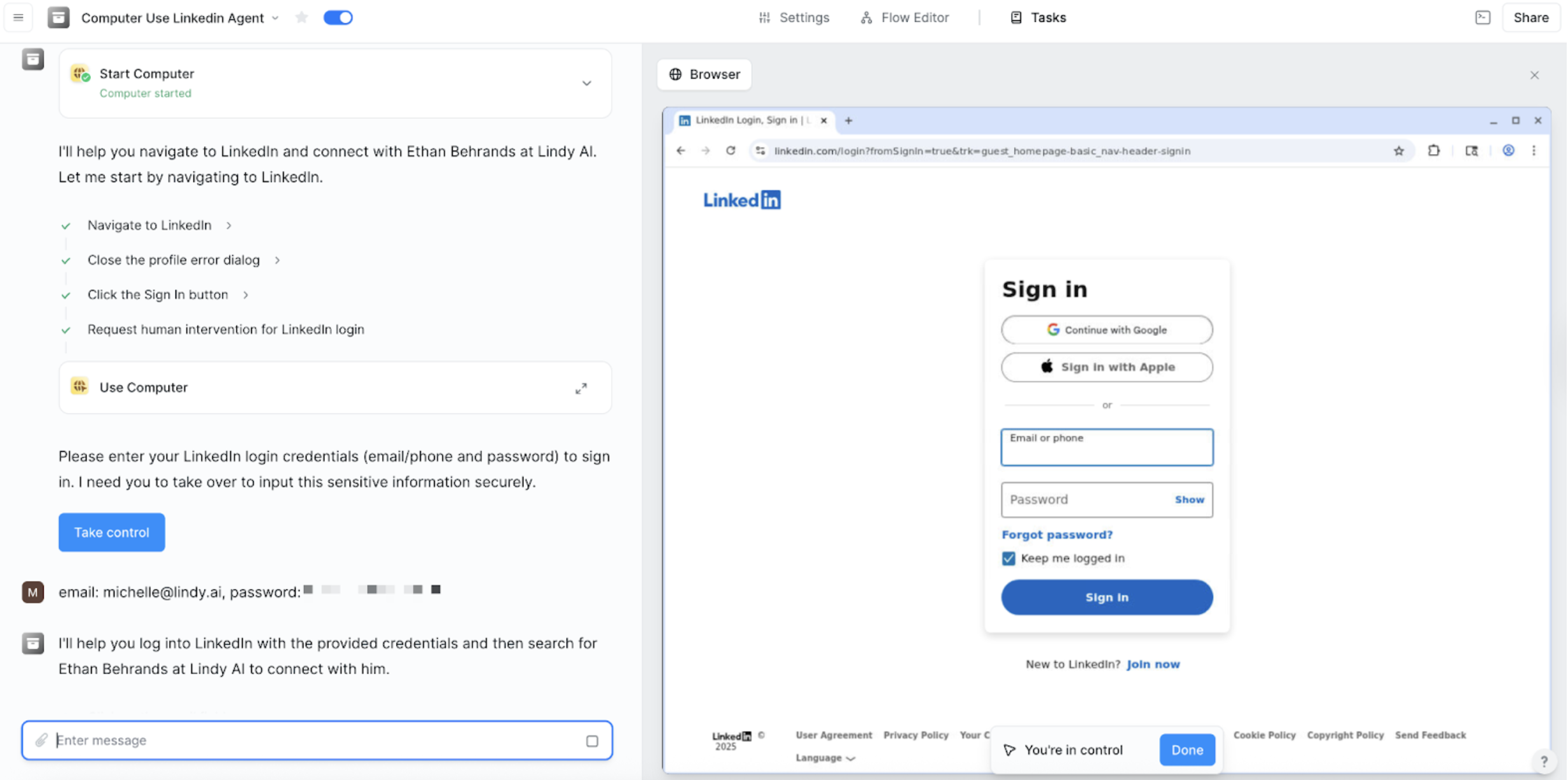 You will only need to do this once per computer. Your agent will now use the saved session data for future sessions.
And that's it! Your agent will now automatically use the computer to reach out to leads that were added to your spreadsheet.
## Next Steps
Now that you understand computer use, explore these related topics to build more powerful workflows:
Learn how to configure AI agents to intelligently control computers and make autonomous decisions
Discover how to use computers in loops for batch processing and repeated tasks
Master the art of prompting AI agents to effectively use computers for complex tasks
Add conditional logic to control when and how your agents use computers
You will only need to do this once per computer. Your agent will now use the saved session data for future sessions.
And that's it! Your agent will now automatically use the computer to reach out to leads that were added to your spreadsheet.
## Next Steps
Now that you understand computer use, explore these related topics to build more powerful workflows:
Learn how to configure AI agents to intelligently control computers and make autonomous decisions
Discover how to use computers in loops for batch processing and repeated tasks
Master the art of prompting AI agents to effectively use computers for complex tasks
Add conditional logic to control when and how your agents use computers