> ## Documentation Index
> Fetch the complete documentation index at: https://docs.lindy.ai/llms.txt
> Use this file to discover all available pages before exploring further.
# Conditions
## Quick Overview
Conditions let your agent make smart decisions about which path to take in a workflow. Instead of rigid rules like "if field equals X", you write natural language prompts like "if the customer seems angry" or "if this email needs a response".
Your AI agent evaluates these conditions by understanding context, sentiment, and meaning, not just exact matches. This lets you handle more nuanced scenarios without hard-coding every rule.
Use conditions to route different types of requests, filter content intelligently, or handle multiple scenarios within a single workflow. Your agent chooses the best path based on what it actually understands from the data.
## Creating Your First Condition
To add a condition to your workflow, click the plus button (Add step) below any action or between two actions, then select "Condition".
 ### Setting Up the Condition
Once you've added a condition, you'll see the condition configuration panel.
### Setting Up the Condition
Once you've added a condition, you'll see the condition configuration panel.
 Every condition prompt starts with **"Go down this path if..."** followed by your criteria. For example:
* `the email received was asking a question and needs a response`
* `the email contains a 6 digit user ID number`
* `the user asked for a refund or seems angry`
For best results, include examples in each condition prompt.
### Adding Multiple Condition Paths
You can create multiple branches to handle different scenarios. Click "+ Add Condition" to create alternate paths.
Every condition prompt starts with **"Go down this path if..."** followed by your criteria. For example:
* `the email received was asking a question and needs a response`
* `the email contains a 6 digit user ID number`
* `the user asked for a refund or seems angry`
For best results, include examples in each condition prompt.
### Adding Multiple Condition Paths
You can create multiple branches to handle different scenarios. Click "+ Add Condition" to create alternate paths.
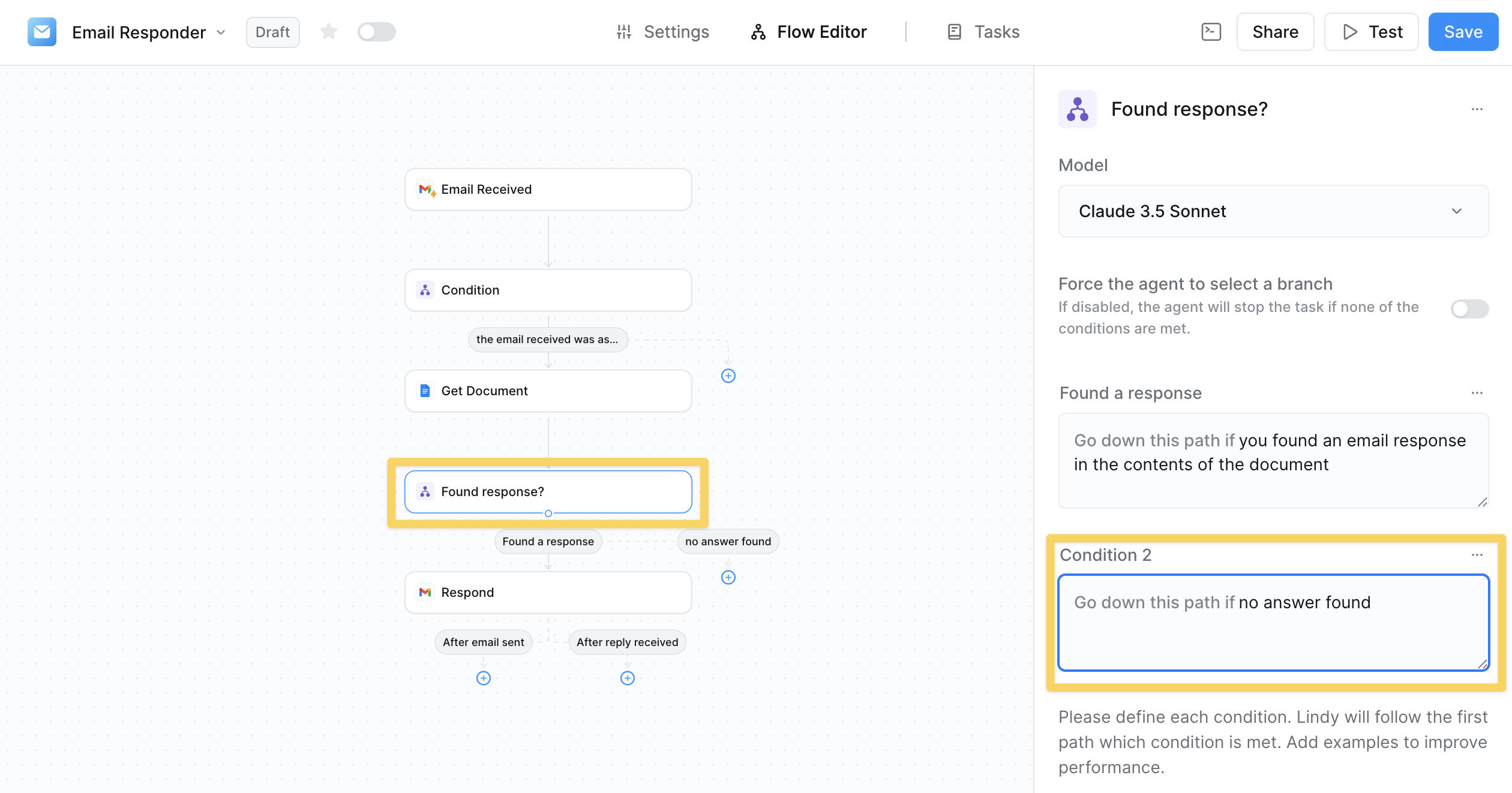 Each condition branch should have a clear, distinct criteria. Your agent will evaluate all conditions and follow the path the model deems "most true".
## Advanced Configuration
### Force Agent to Select a Branch
By default, if no conditions are met, your agent will stop the task. You can change this behavior by enabling "Force the agent to select a branch".
Each condition branch should have a clear, distinct criteria. Your agent will evaluate all conditions and follow the path the model deems "most true".
## Advanced Configuration
### Force Agent to Select a Branch
By default, if no conditions are met, your agent will stop the task. You can change this behavior by enabling "Force the agent to select a branch".
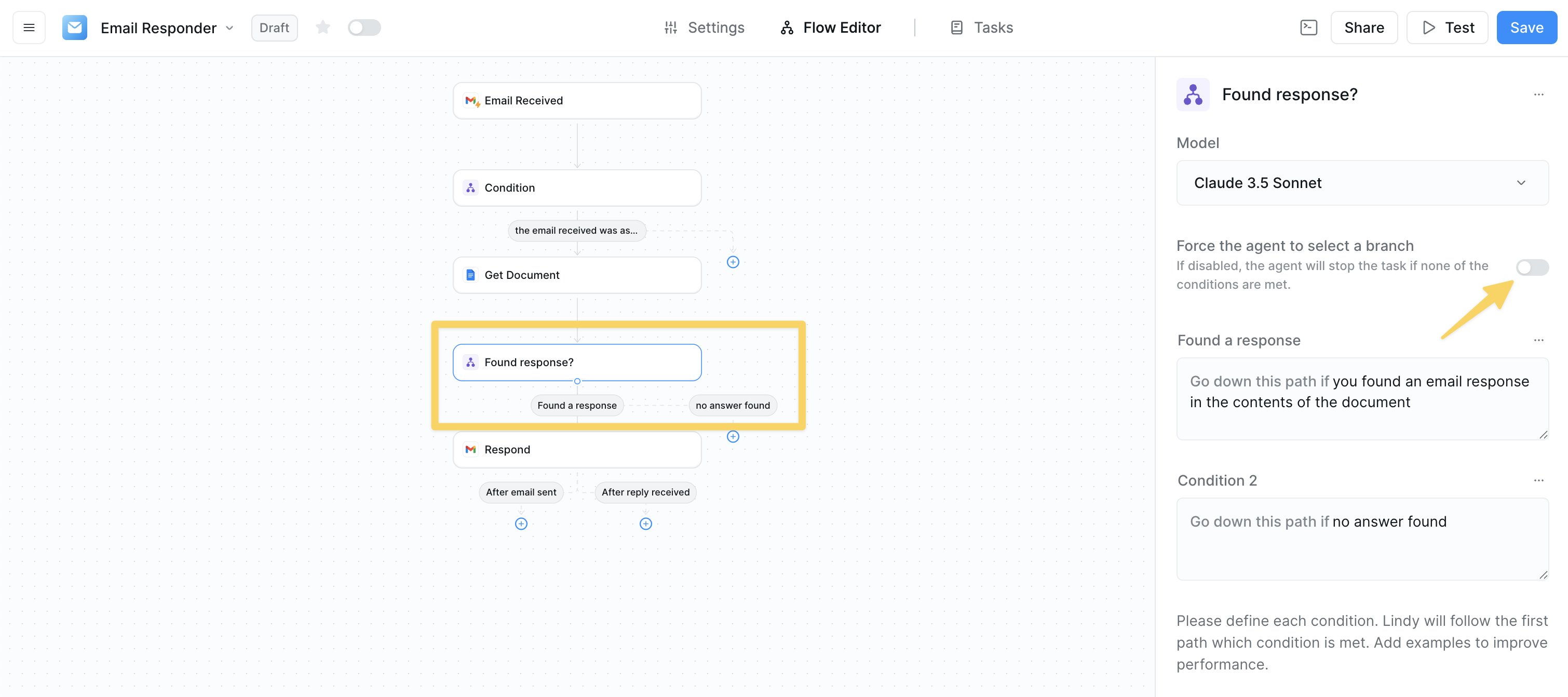 When enabled, your agent must choose one of the defined paths even if none of the conditions perfectly match. This is useful when you want to ensure the workflow always continues.
### Renaming Conditions
For better organization, especially in complex workflows, rename your conditions with descriptive titles.
When enabled, your agent must choose one of the defined paths even if none of the conditions perfectly match. This is useful when you want to ensure the workflow always continues.
### Renaming Conditions
For better organization, especially in complex workflows, rename your conditions with descriptive titles.
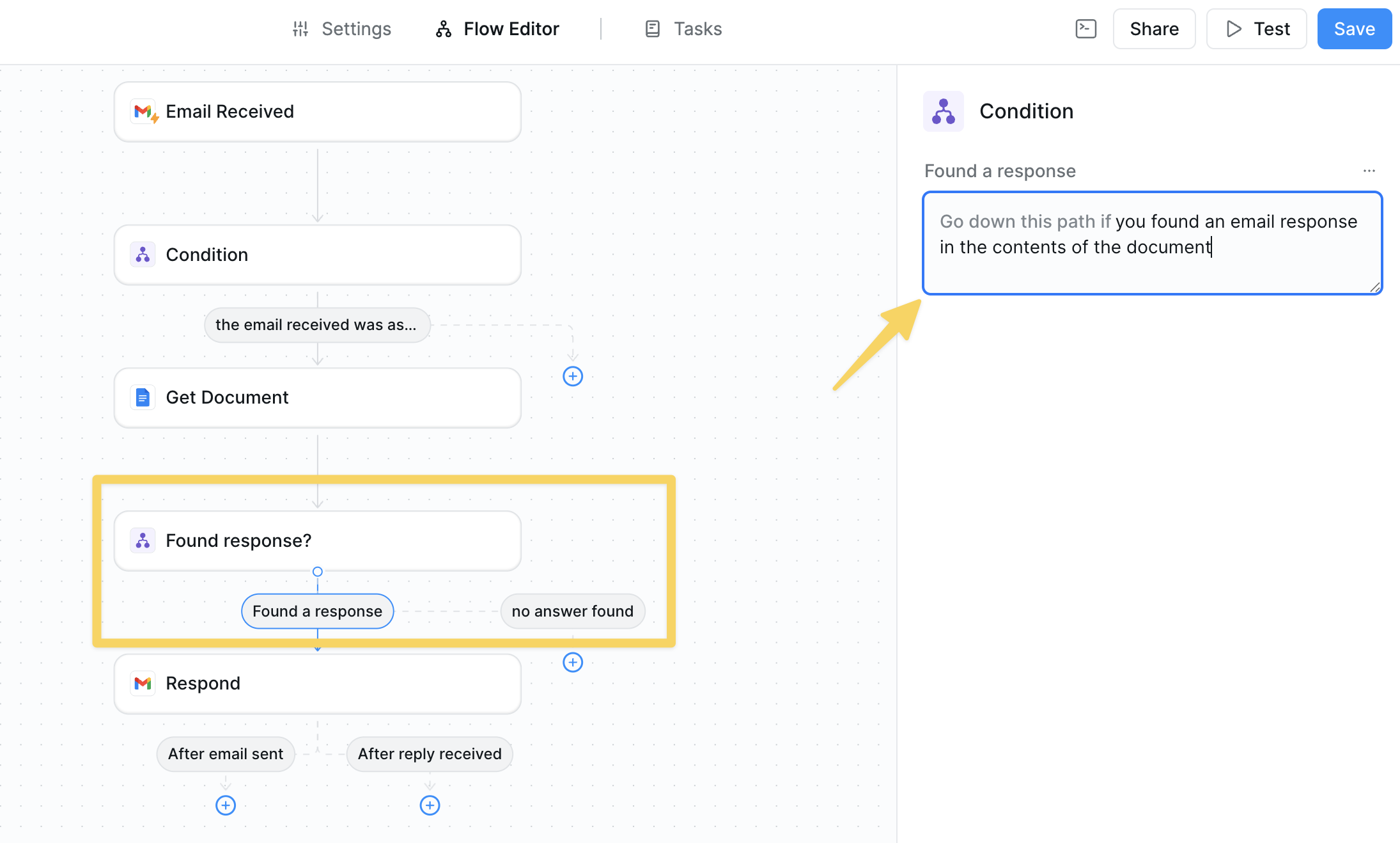 Click on the condition title (e.g., "Condition 1") and replace it with a meaningful name like "Found a response" or "Customer is angry".
## Best Practices
Be explicit about what you're looking for. Instead of "important email", use "email from a C-level executive or marked as high priority".
Consider what happens when conditions overlap or when none match. Use the test panel to verify behavior.
Include examples in your condition prompts to improve accuracy: "the email asks about pricing (e.g., 'how much does it cost', 'what are your rates')".
For conditions that require understanding context, sentiment, or complex logic, use more advanced models. For simple keyword matching or basic categorization, faster models work well.
## Troubleshooting
#### Common Issues
1. **Workflow stops when no conditions match**
* Enable "Force agent to select branch" or add a catch-all condition
2. **Wrong path is chosen**
* Review and refine your condition prompts
* Add more specific examples
3. **Conditions overlap**
* Make each condition mutually exclusive
* Order from most specific to least specific
If your workflow stops unexpectedly, check that each condition branch has at least one action following it. Empty branches will cause the execution to end.
## Next Steps
Now that you understand conditions, explore these related concepts:
Repeat actions for multiple items using conditions as filters
Combine conditions with knowledge search for intelligent routing
Use conditions to determine when human review is needed
Test your conditions with different scenarios
Click on the condition title (e.g., "Condition 1") and replace it with a meaningful name like "Found a response" or "Customer is angry".
## Best Practices
Be explicit about what you're looking for. Instead of "important email", use "email from a C-level executive or marked as high priority".
Consider what happens when conditions overlap or when none match. Use the test panel to verify behavior.
Include examples in your condition prompts to improve accuracy: "the email asks about pricing (e.g., 'how much does it cost', 'what are your rates')".
For conditions that require understanding context, sentiment, or complex logic, use more advanced models. For simple keyword matching or basic categorization, faster models work well.
## Troubleshooting
#### Common Issues
1. **Workflow stops when no conditions match**
* Enable "Force agent to select branch" or add a catch-all condition
2. **Wrong path is chosen**
* Review and refine your condition prompts
* Add more specific examples
3. **Conditions overlap**
* Make each condition mutually exclusive
* Order from most specific to least specific
If your workflow stops unexpectedly, check that each condition branch has at least one action following it. Empty branches will cause the execution to end.
## Next Steps
Now that you understand conditions, explore these related concepts:
Repeat actions for multiple items using conditions as filters
Combine conditions with knowledge search for intelligent routing
Use conditions to determine when human review is needed
Test your conditions with different scenarios