> ## Documentation Index
> Fetch the complete documentation index at: https://docs.lindy.ai/llms.txt
> Use this file to discover all available pages before exploring further.
# Field Configuration
> Choose how each action field should be filled: Auto, AI Prompt, or Set Manually.
## Quick Overview
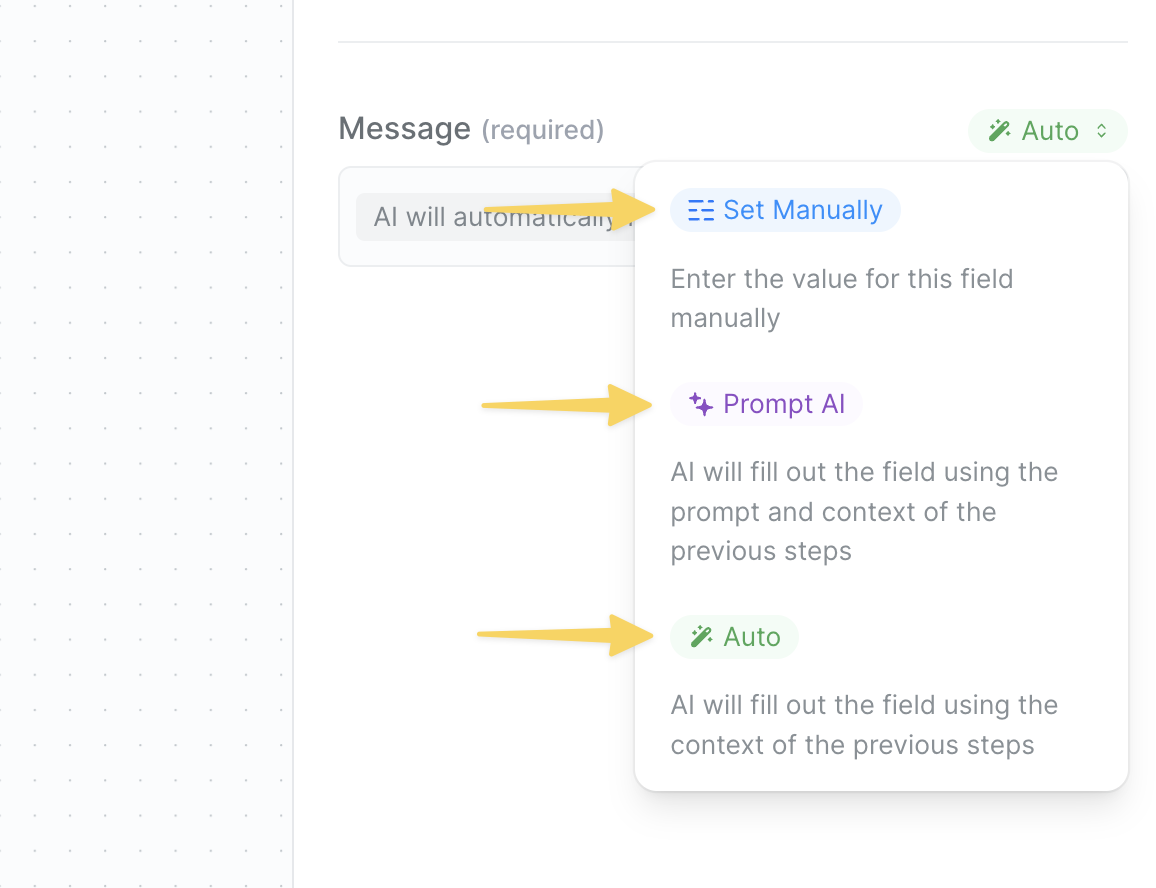
When you add an action, you'll see fields to configure. Lindy gives you three ways to fill each field depending on how much control you want and how dynamic the value should be.
* **Auto**: Let your agent intelligently determine the best value based on all previous data
* **AI Prompt**: Give natural language instructions for dynamic content generation
* **Set Manually**: Enter exact values or reference specific data from previous steps
Each mode serves different purposes and choosing the right one makes your workflows more efficient and reliable.
 ## Auto Mode
Auto mode is Lindy's intelligent field completion system. It analyzes all previous steps in your workflow and automatically determines the most appropriate value for each field.
### How It Works
When set to Auto, your agent:
1. Examines all data from previous triggers and actions
2. Matches field names with available data intelligently
3. Infers the best value based on context and field type
Lindy's Auto mode can pull from form submissions, API responses, search results, and other data from earlier steps. It's useful when the right value depends on context.
### When to Use Auto Mode
Auto mode excels in scenarios where:
* **Data mapping is predictable**: Moving form data to spreadsheets
* **Field names align**: "Customer Name" automatically maps to "Name" column
* **Context is clear**: Updating CRM records with email data
* **You want flexibility**: Let Lindy adapt to varying data structures
### Example Use Case
```
Scenario: Responding to customer emails
Auto mode automatically:
- Sets "To" field → Original sender's email
- Keeps "From Name" → Your default sender name
No configuration needed!
```
## Auto Mode
Auto mode is Lindy's intelligent field completion system. It analyzes all previous steps in your workflow and automatically determines the most appropriate value for each field.
### How It Works
When set to Auto, your agent:
1. Examines all data from previous triggers and actions
2. Matches field names with available data intelligently
3. Infers the best value based on context and field type
Lindy's Auto mode can pull from form submissions, API responses, search results, and other data from earlier steps. It's useful when the right value depends on context.
### When to Use Auto Mode
Auto mode excels in scenarios where:
* **Data mapping is predictable**: Moving form data to spreadsheets
* **Field names align**: "Customer Name" automatically maps to "Name" column
* **Context is clear**: Updating CRM records with email data
* **You want flexibility**: Let Lindy adapt to varying data structures
### Example Use Case
```
Scenario: Responding to customer emails
Auto mode automatically:
- Sets "To" field → Original sender's email
- Keeps "From Name" → Your default sender name
No configuration needed!
```
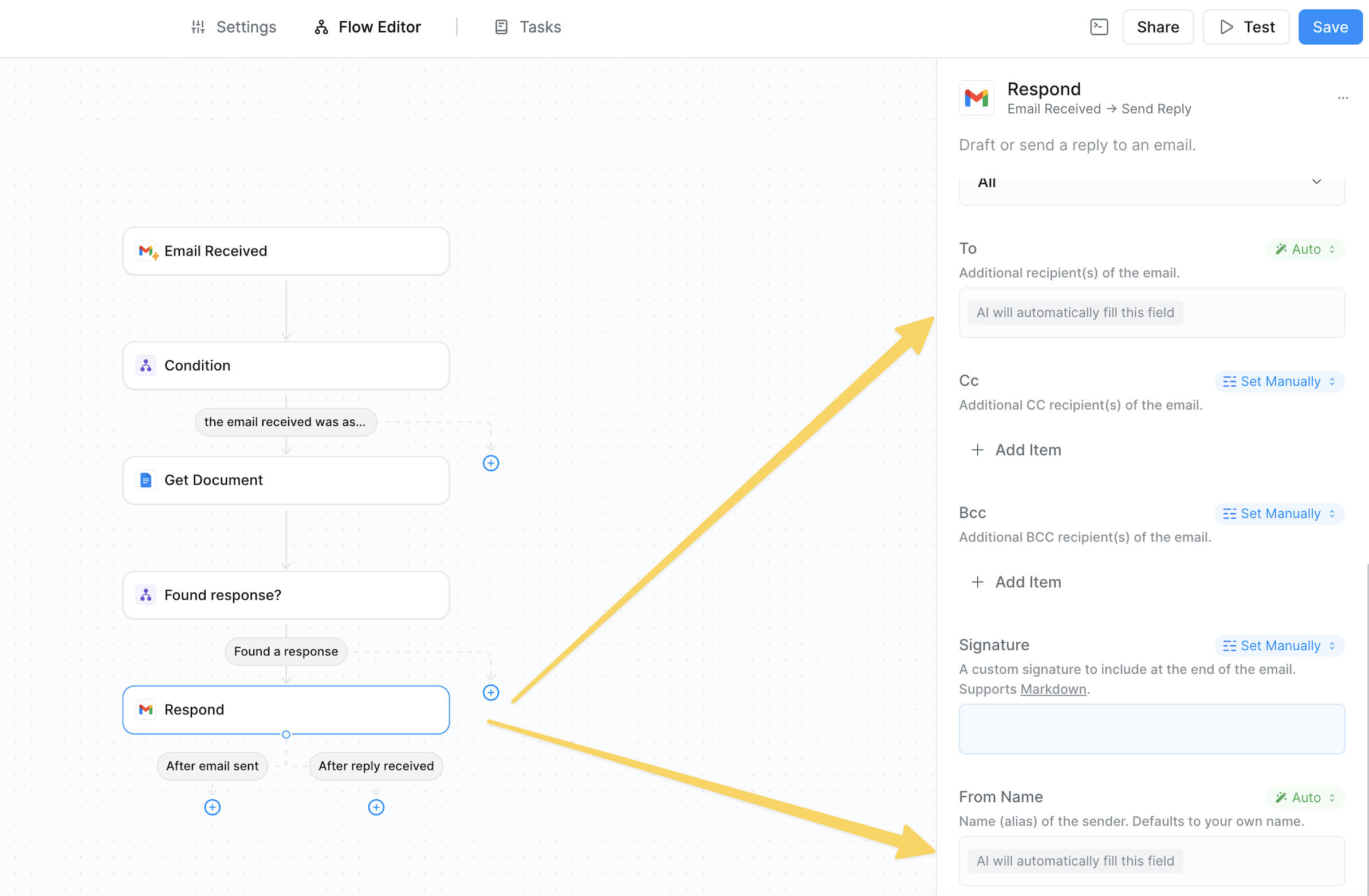 The image above shows Auto mode in action - notice how the "To" field is set to Auto and displays "AI will automatically fill this field" based on context from previous steps.
## AI Prompt Mode
AI Prompt mode lets you give your agent natural language instructions to generate dynamic content. It'll create text based on your directions and all available workflow data.
The image above shows Auto mode in action - notice how the "To" field is set to Auto and displays "AI will automatically fill this field" based on context from previous steps.
## AI Prompt Mode
AI Prompt mode lets you give your agent natural language instructions to generate dynamic content. It'll create text based on your directions and all available workflow data.
 ### Writing Effective Prompts
The key to AI Prompt mode is clear, specific instructions:
### Writing Effective Prompts
The key to AI Prompt mode is clear, specific instructions:
 ```
✅ Good: "Write a friendly 2-line thank you mentioning the product name"
❌ Avoid: "Write something nice"
```
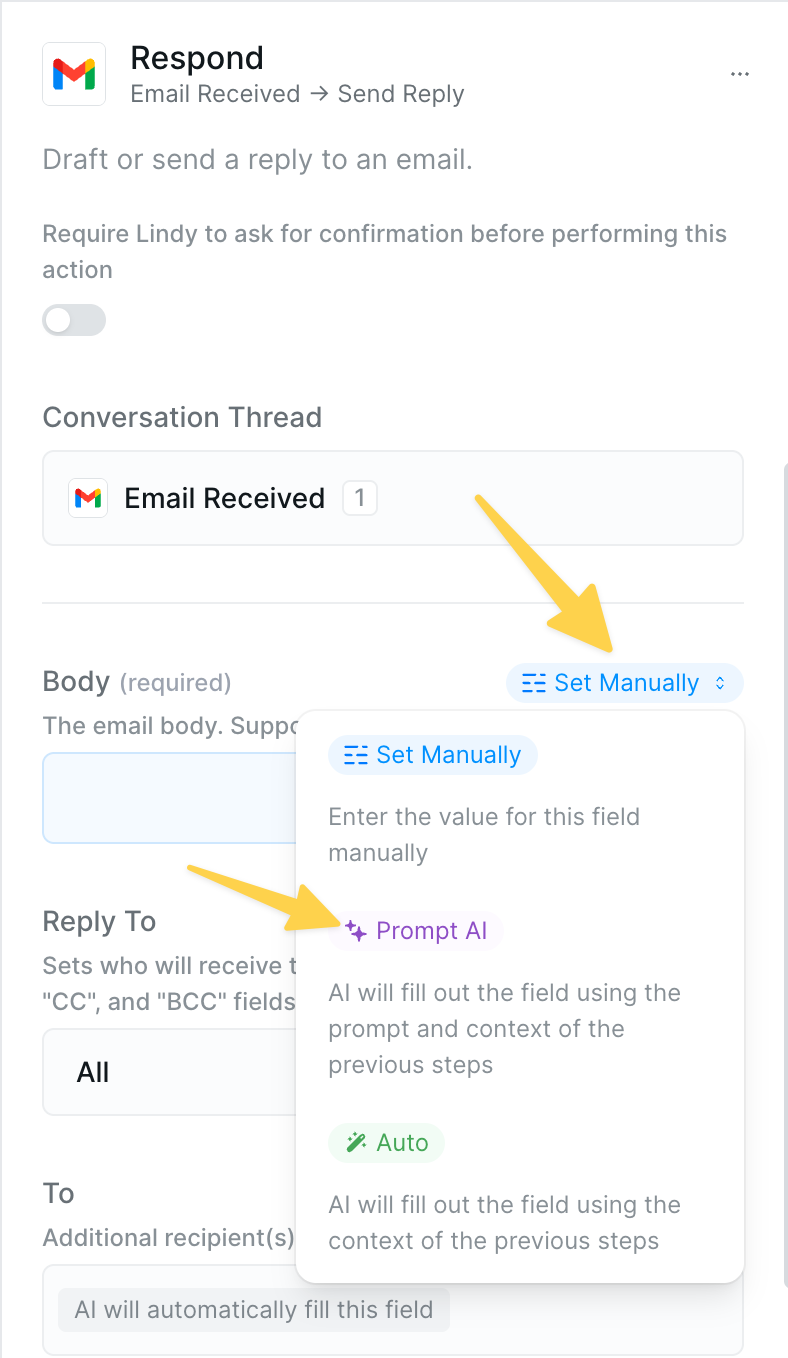
To reference data from previous steps, click the dropdown button and select from available outputs. The video below shows how this works - no need to type brackets manually!
### When to Use AI Prompt Mode
Choose AI Prompt for:
* **Email composition**: Subject lines, body content, personalized messages
* **Content generation**: Summaries, descriptions, social posts
* **Data transformation**: Reformatting dates, combining fields creatively
* **Conditional text**: Different messages based on context
```
✅ Good: "Write a friendly 2-line thank you mentioning the product name"
❌ Avoid: "Write something nice"
```
To reference data from previous steps, click the dropdown button and select from available outputs. The video below shows how this works - no need to type brackets manually!
### When to Use AI Prompt Mode
Choose AI Prompt for:
* **Email composition**: Subject lines, body content, personalized messages
* **Content generation**: Summaries, descriptions, social posts
* **Data transformation**: Reformatting dates, combining fields creatively
* **Conditional text**: Different messages based on context
💡 Learn more about [writing effective prompts](/fundamentals/lindy-101/prompt-guide)
### Using References in AI Prompts
The dropdown shows all available data from previous steps. In AI Prompt mode, these references become part of your instructions to generate dynamic content.
### Advanced Example
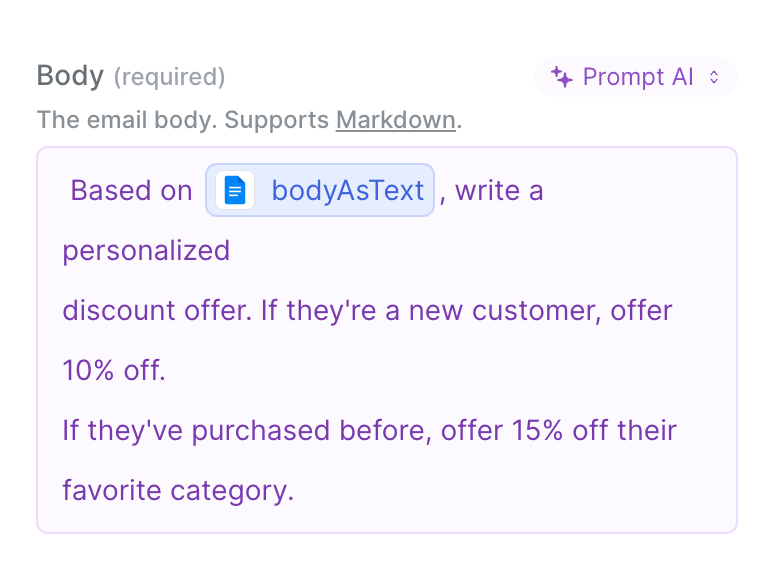
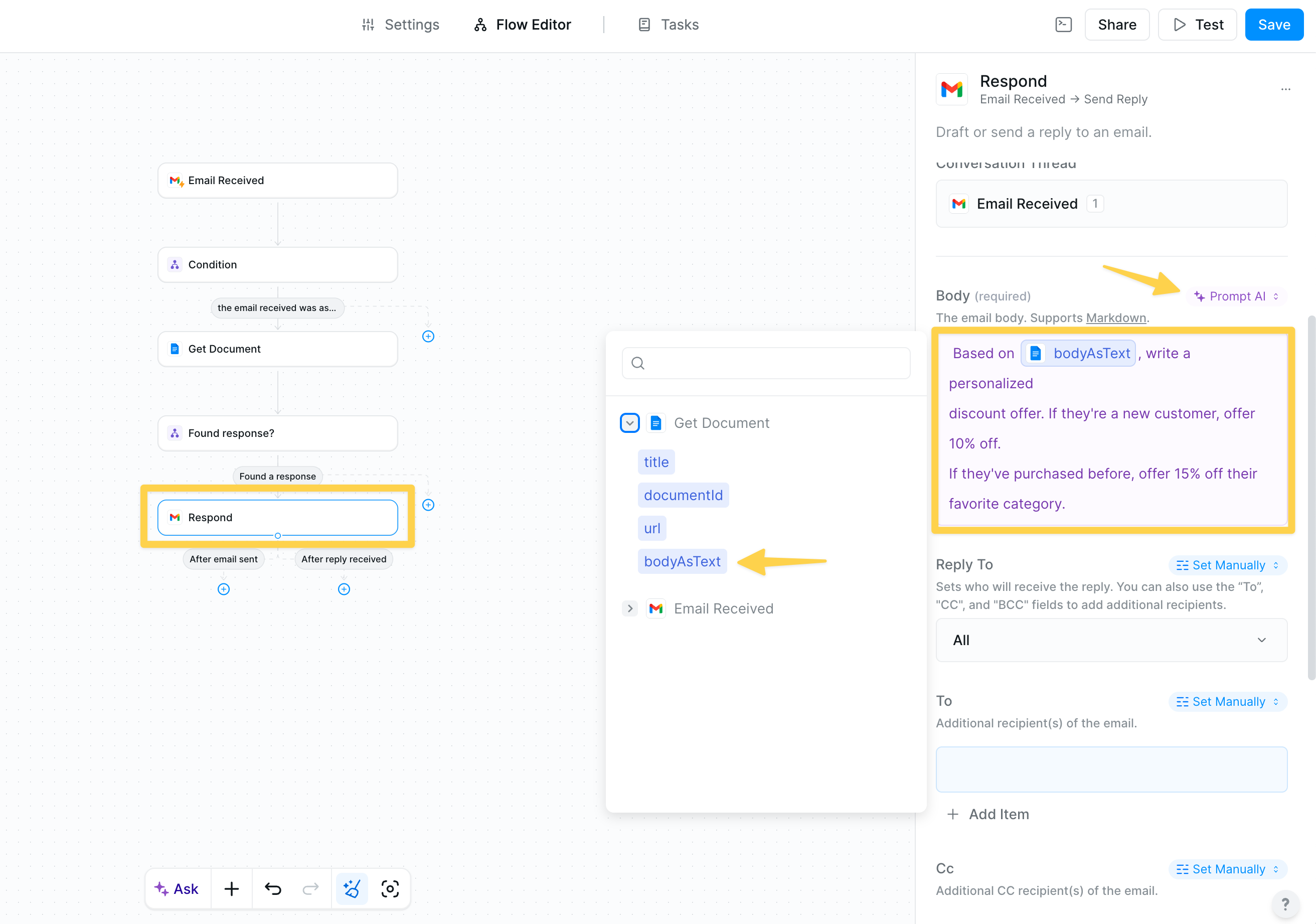 In this example, the AI Prompt intelligently combines:
* **Reference to previous data**: `bodyAsText` pulls in the actual content from a previous step (like an email or document)
* **Contextual analysis**: Your agent reads and understands the referenced content to determine if the person is new or returning
* **Dynamic decision-making**: Based on what it finds in the data, it generates different personalized offers
This showcases the power of AI Prompt mode. Instead of rigid rules, your agent analyzes the actual context from previous steps to generate the most appropriate response. The reference acts as a variable that gets replaced with real data at runtime, which your agent then uses to make intelligent decisions.
## "Set Manually" Mode
Set Manually mode gives you complete control: what you type is exactly what appears. Perfect for fixed values and precise data references.
### Direct Value Entry
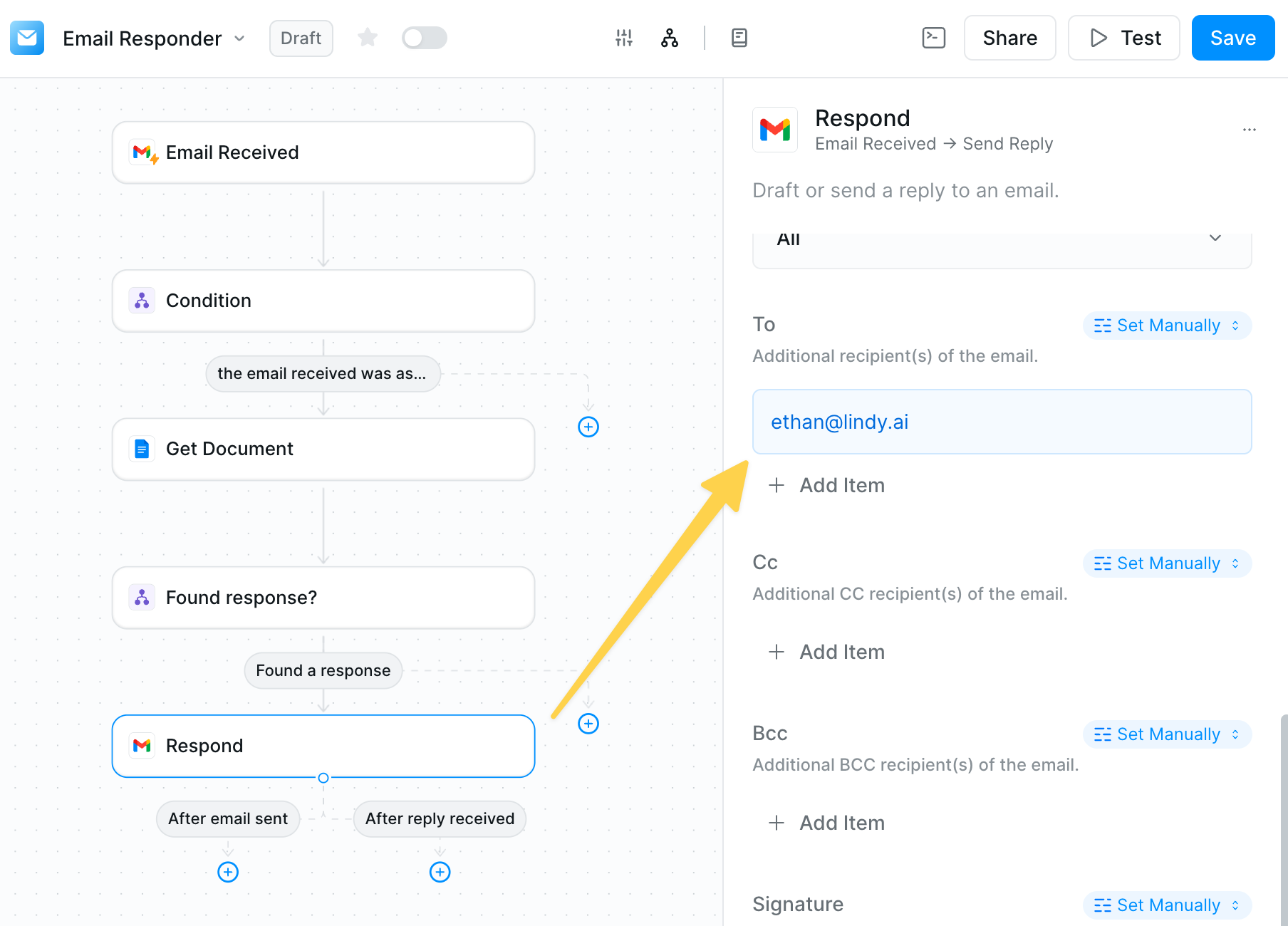
Two ways to use Set Manually:
1. **Fixed text**: Type exactly what should appear
In this example, the AI Prompt intelligently combines:
* **Reference to previous data**: `bodyAsText` pulls in the actual content from a previous step (like an email or document)
* **Contextual analysis**: Your agent reads and understands the referenced content to determine if the person is new or returning
* **Dynamic decision-making**: Based on what it finds in the data, it generates different personalized offers
This showcases the power of AI Prompt mode. Instead of rigid rules, your agent analyzes the actual context from previous steps to generate the most appropriate response. The reference acts as a variable that gets replaced with real data at runtime, which your agent then uses to make intelligent decisions.
## "Set Manually" Mode
Set Manually mode gives you complete control: what you type is exactly what appears. Perfect for fixed values and precise data references.
### Direct Value Entry
Two ways to use Set Manually:
1. **Fixed text**: Type exactly what should appear
 2. **Data references**: Insert exact values from previous steps
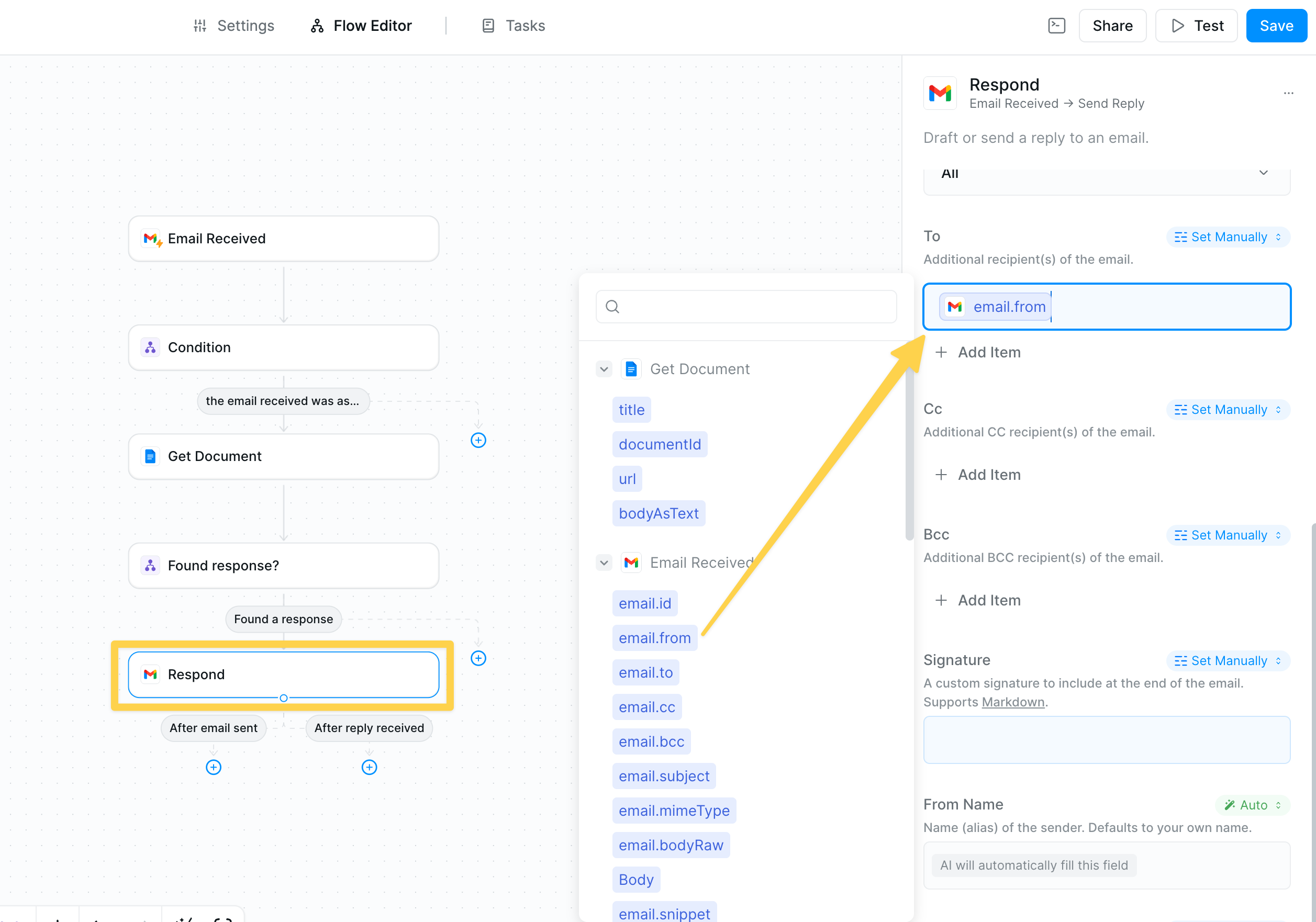 Set Manually mode uses no AI processing = fewer credits consumed. It's the most efficient option for fixed values.
### When to Use Set Manually
Perfect for:
* **Fixed values**: Email addresses, signatures, webhook URLs, API keys
* **Exact references**: Order IDs, customer names, timestamps
* **Skip fields**: Leave empty to skip a field entirely
* **Combined text**: Mix static text with data references
## Using Output References
The field configuration dropdown gives you instant access to data from previous steps: forms, API responses, search results, and more. This lets you connect information across your workflow without retyping it.
### Reference Behavior by Mode
References behave differently in each mode:
| Mode | Reference Behavior | Example |
| ---------------- | --------------------- | ------------------------------------------ |
| **Auto** | Considers all context | Lindy intelligently uses available data |
| **AI Prompt** | Part of instructions | `Summarize [Search: Results]` → AI summary |
| **Set Manually** | Exact value insertion | `Order #[Form: ID]` → `Order #12345` |
## Best Practices
When unsure, try Auto first. Your agent often correctly infers what you need, saving configuration time.
Instead of "write an email", use "write a 3-paragraph follow-up email thanking them for \[Meeting: Topic] and proposing next steps"
Use the test panel to see how each mode handles your actual data before going live.
Use Set Manually for email addresses, AI Prompt for subject/body, and Auto for updating your CRM.
## Common Pitfalls & Solutions
### Troubleshooting Guide
1. **Field shows as empty**
* Check if Set Manually has content (empty = skip)
* Verify referenced data exists in previous steps
* Ensure Auto mode has clear context
2. **Wrong data appears**
* Review your mode selection
* Check reference syntax in Set Manually
* Refine AI Prompt instructions
3. **Too many credits used**
* Switch fixed values from AI Prompt to Set Manually
* Use Auto instead of AI Prompt for simple mapping
4. **Inconsistent results**
* Add examples to AI Prompts
* Use Set Manually for values that shouldn't change
* Ensure field names are clear for Auto mode
## Next Steps
Master these related concepts to build even more powerful workflows:
Explore all available actions and their field requirements
Write better AI prompts for dynamic content generation
Test your field configurations with real data
Combine field references with knowledge base searches
Set Manually mode uses no AI processing = fewer credits consumed. It's the most efficient option for fixed values.
### When to Use Set Manually
Perfect for:
* **Fixed values**: Email addresses, signatures, webhook URLs, API keys
* **Exact references**: Order IDs, customer names, timestamps
* **Skip fields**: Leave empty to skip a field entirely
* **Combined text**: Mix static text with data references
## Using Output References
The field configuration dropdown gives you instant access to data from previous steps: forms, API responses, search results, and more. This lets you connect information across your workflow without retyping it.
### Reference Behavior by Mode
References behave differently in each mode:
| Mode | Reference Behavior | Example |
| ---------------- | --------------------- | ------------------------------------------ |
| **Auto** | Considers all context | Lindy intelligently uses available data |
| **AI Prompt** | Part of instructions | `Summarize [Search: Results]` → AI summary |
| **Set Manually** | Exact value insertion | `Order #[Form: ID]` → `Order #12345` |
## Best Practices
When unsure, try Auto first. Your agent often correctly infers what you need, saving configuration time.
Instead of "write an email", use "write a 3-paragraph follow-up email thanking them for \[Meeting: Topic] and proposing next steps"
Use the test panel to see how each mode handles your actual data before going live.
Use Set Manually for email addresses, AI Prompt for subject/body, and Auto for updating your CRM.
## Common Pitfalls & Solutions
### Troubleshooting Guide
1. **Field shows as empty**
* Check if Set Manually has content (empty = skip)
* Verify referenced data exists in previous steps
* Ensure Auto mode has clear context
2. **Wrong data appears**
* Review your mode selection
* Check reference syntax in Set Manually
* Refine AI Prompt instructions
3. **Too many credits used**
* Switch fixed values from AI Prompt to Set Manually
* Use Auto instead of AI Prompt for simple mapping
4. **Inconsistent results**
* Add examples to AI Prompts
* Use Set Manually for values that shouldn't change
* Ensure field names are clear for Auto mode
## Next Steps
Master these related concepts to build even more powerful workflows:
Explore all available actions and their field requirements
Write better AI prompts for dynamic content generation
Test your field configurations with real data
Combine field references with knowledge base searches