> ## Documentation Index
> Fetch the complete documentation index at: https://docs.lindy.ai/llms.txt
> Use this file to discover all available pages before exploring further.
# Knowledge Base
## Quick Overview
Knowledge bases let your agents access information from multiple sources like files, websites, and cloud storage. When your agent needs information, it searches through all your content using both semantic understanding and keyword matching to find relevant answers.
This is perfect for customer support bots that need to reference documentation, or any workflow where your agent needs to pull information from a large collection of content.
For small datasets (single Google Doc or Sheet), use direct actions like Get Document or Get Spreadsheet for better performance.
## How Search Works
### Semantic Search
Matches meaning rather than exact words. Understands context and finds related concepts.
* Query: "dark colored jeans"
* Finds: "black and navy denim pants"
### Keyword Search
Matches exact words in your query. Useful for precise matching of specific terms.
* Query: "invoice #12345"
* Finds: Exact invoice number
## Adding a Knowledge Base
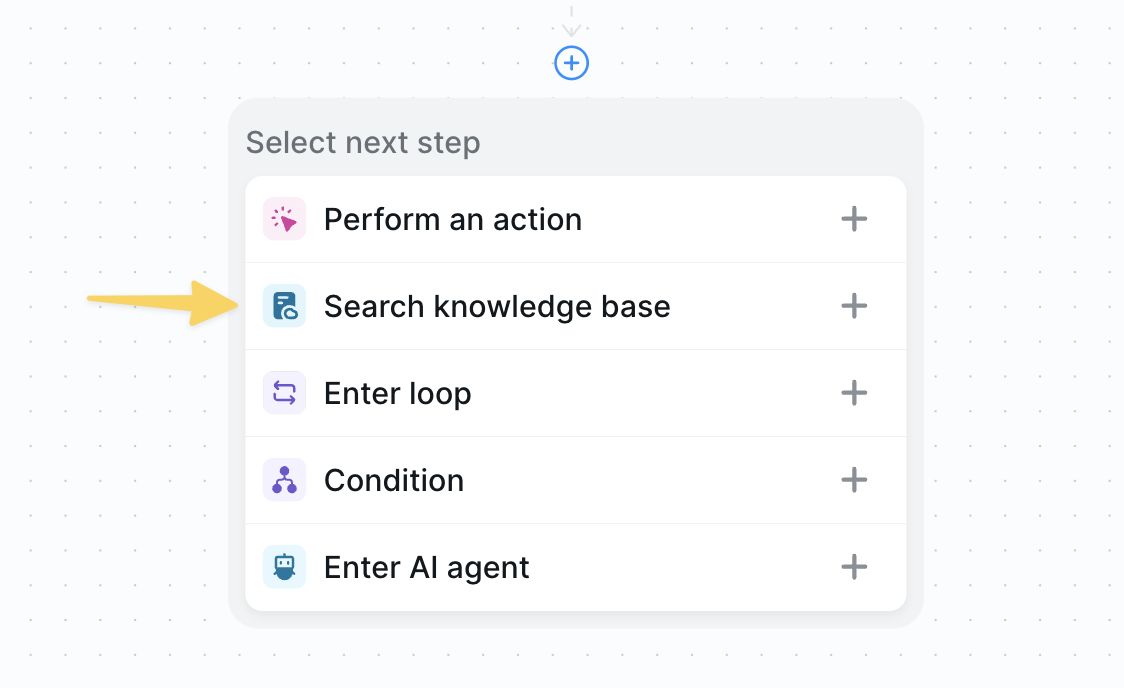
Click the plus button in your workflow and select "Search knowledge base".
 ### Selecting Content Sources
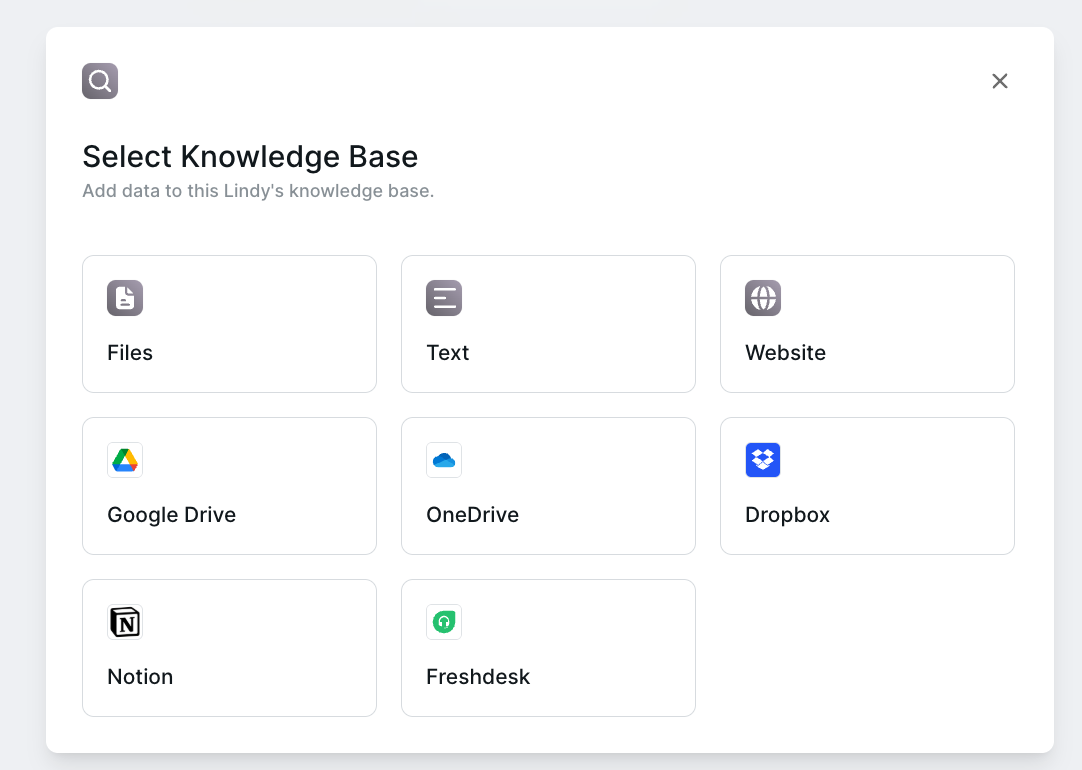 Choose from multiple content types:
**Files**
* Supports: PDF, XLSX, CSV, DOCX, TXT, HTML
* Maximum: 20MB per file
* Audio files supported
**Text**
* Free-form text input
* Ideal for FAQs and reference content
* No formatting requirements
**Websites**
* Single page or full site crawling
* Selective page removal
* Automatic link following
**Cloud Storage**
* Google Drive, OneDrive, Dropbox
* Notion databases
* Freshdesk tickets
## Configuring Search
Choose from multiple content types:
**Files**
* Supports: PDF, XLSX, CSV, DOCX, TXT, HTML
* Maximum: 20MB per file
* Audio files supported
**Text**
* Free-form text input
* Ideal for FAQs and reference content
* No formatting requirements
**Websites**
* Single page or full site crawling
* Selective page removal
* Automatic link following
**Cloud Storage**
* Google Drive, OneDrive, Dropbox
* Notion databases
* Freshdesk tickets
## Configuring Search
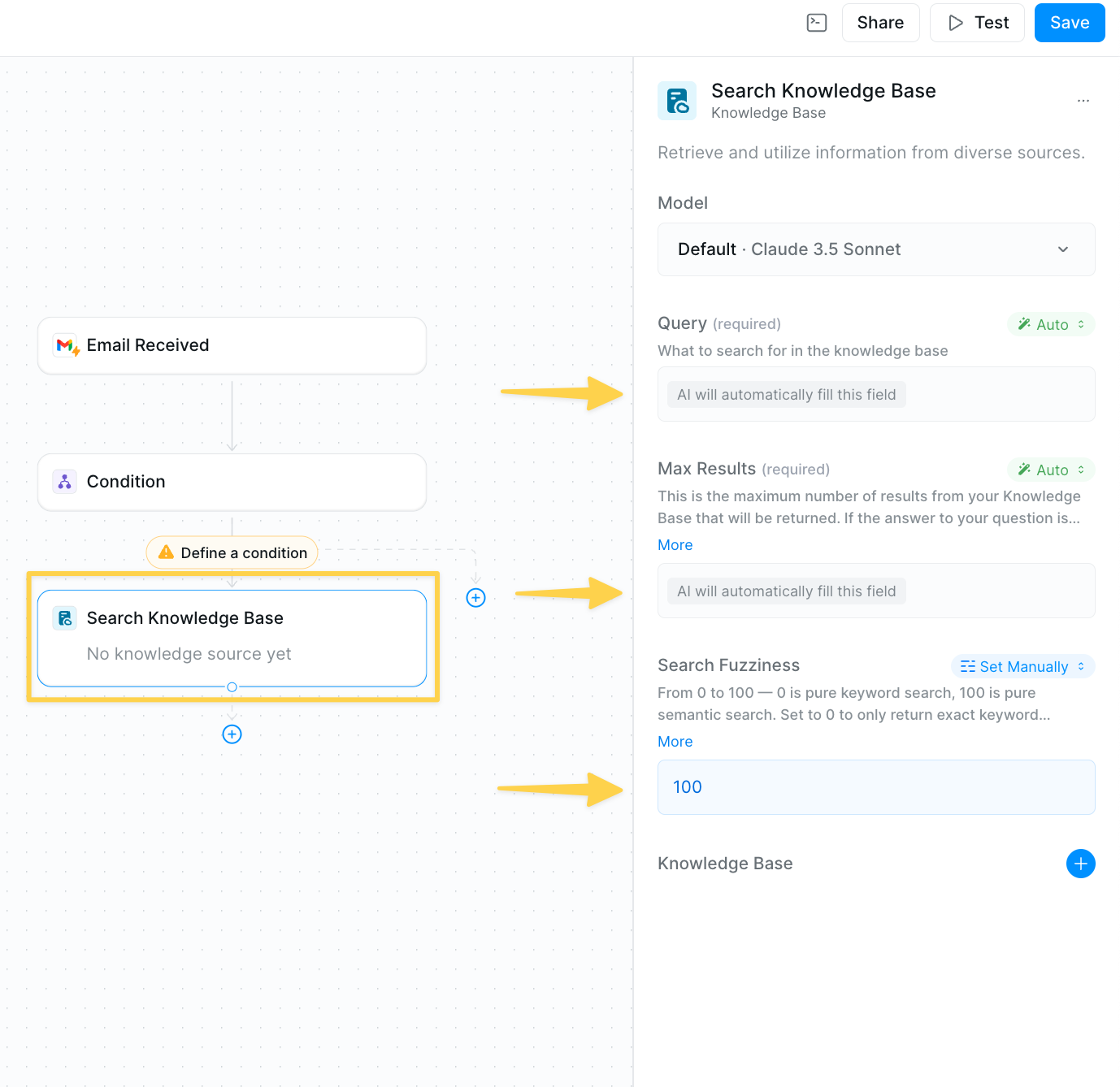 ### Query Field
Instructions for what to search in the knowledge base.
**Mode options:**
* **Auto** — Your agent determines the optimal query
* **Prompt AI** - Custom search instructions
* **Set Manually** - Use exact search query (no AI)
Example: `Search for the answer to the user's question in the email`
### Max Results
Number of results returned per query.
* Default: 4 results
* Maximum: 10 results
* Increase for frequently mentioned topics
### Search Fuzziness
Balance between semantic and keyword search (0-100 scale).
* **0** - Pure keyword matching
* **100** - Pure semantic search (default)
* Lower values emphasize exact matches
Keep fuzziness at 100 to avoid the 1,500 file limit. Lower values restrict search to first 1,500 files only.
## Managing Your Knowledge Base
Your knowledge base stays current through automatic and manual updates:
* **Automatic updates**: Content refreshes every 24 hours automatically
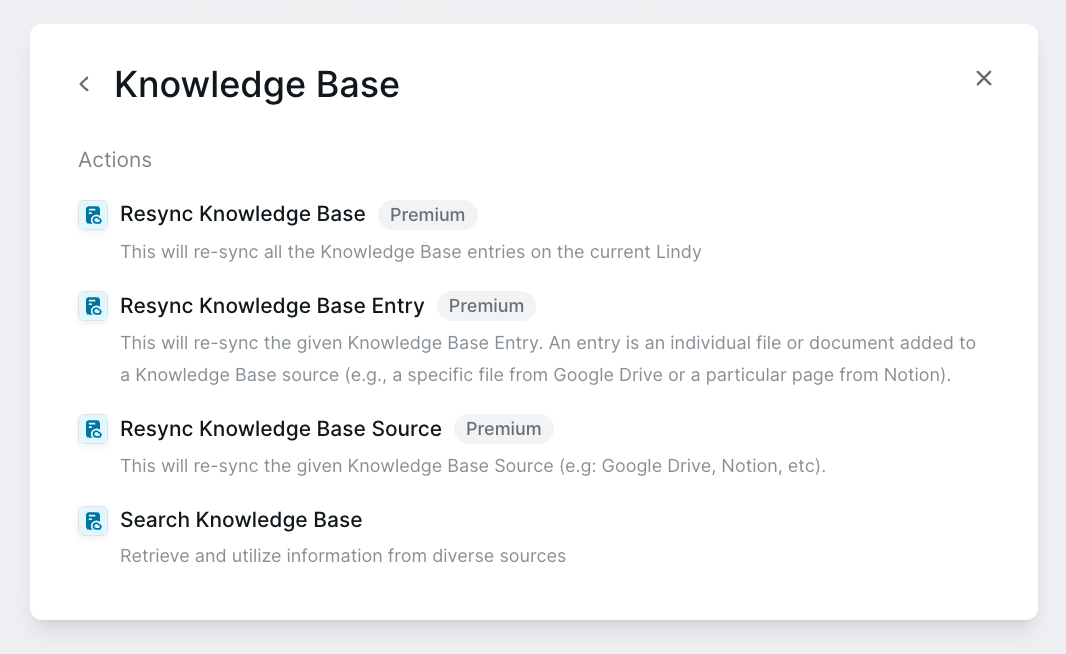
* **Manual updates**: For immediate updates, use Resync Knowledge Base actions to update the entire knowledge base or specific entries when needed
### Query Field
Instructions for what to search in the knowledge base.
**Mode options:**
* **Auto** — Your agent determines the optimal query
* **Prompt AI** - Custom search instructions
* **Set Manually** - Use exact search query (no AI)
Example: `Search for the answer to the user's question in the email`
### Max Results
Number of results returned per query.
* Default: 4 results
* Maximum: 10 results
* Increase for frequently mentioned topics
### Search Fuzziness
Balance between semantic and keyword search (0-100 scale).
* **0** - Pure keyword matching
* **100** - Pure semantic search (default)
* Lower values emphasize exact matches
Keep fuzziness at 100 to avoid the 1,500 file limit. Lower values restrict search to first 1,500 files only.
## Managing Your Knowledge Base
Your knowledge base stays current through automatic and manual updates:
* **Automatic updates**: Content refreshes every 24 hours automatically
* **Manual updates**: For immediate updates, use Resync Knowledge Base actions to update the entire knowledge base or specific entries when needed
 ## Best Practices
* **Organize content** - Group similar information and remove duplicates
* **Test queries** - Try different searches and adjust fuzziness for accuracy
* **Update regularly** - Keep content current with manual resyncs when needed
* **Start simple** - Begin with fewer sources and expand as needed
## Common Use Cases
* **Content**: FAQs, product docs, support articles
* **Settings**: High semantic search (100)
* **Results**: 4-6 max results
* **Content**: Templates, documentation, policies
* **Settings**: Balanced search (70-80)
* **Results**: 4 max results
* **Content**: Transcripts, project docs, resources
* **Settings**: High semantic search (100)
* **Results**: 6-8 max results
* **Content**: Mixed files, cloud storage, websites
* **Settings**: Flexible based on content
* **Results**: 10 max results
## Troubleshooting
* Lower search fuzziness for more exact matching
* Organize content into clearer categories
* Use more specific search queries
* Check sync status of your sources
* Try exact keyword search (fuzziness near 0)
* Verify content is in supported formats
* Reduce number of content sources
* Use direct actions for single documents
* Lower max results if not needed
Pro users have 20M character limit. Monitor usage to avoid hitting storage limits.
## Next Steps
Enhance your knowledge base workflows with these concepts:
Combine knowledge search with other actions
Route workflows based on search results
Store important findings for future use
Let agents intelligently use knowledge bases
## Best Practices
* **Organize content** - Group similar information and remove duplicates
* **Test queries** - Try different searches and adjust fuzziness for accuracy
* **Update regularly** - Keep content current with manual resyncs when needed
* **Start simple** - Begin with fewer sources and expand as needed
## Common Use Cases
* **Content**: FAQs, product docs, support articles
* **Settings**: High semantic search (100)
* **Results**: 4-6 max results
* **Content**: Templates, documentation, policies
* **Settings**: Balanced search (70-80)
* **Results**: 4 max results
* **Content**: Transcripts, project docs, resources
* **Settings**: High semantic search (100)
* **Results**: 6-8 max results
* **Content**: Mixed files, cloud storage, websites
* **Settings**: Flexible based on content
* **Results**: 10 max results
## Troubleshooting
* Lower search fuzziness for more exact matching
* Organize content into clearer categories
* Use more specific search queries
* Check sync status of your sources
* Try exact keyword search (fuzziness near 0)
* Verify content is in supported formats
* Reduce number of content sources
* Use direct actions for single documents
* Lower max results if not needed
Pro users have 20M character limit. Monitor usage to avoid hitting storage limits.
## Next Steps
Enhance your knowledge base workflows with these concepts:
Combine knowledge search with other actions
Route workflows based on search results
Store important findings for future use
Let agents intelligently use knowledge bases