> ## Documentation Index
> Fetch the complete documentation index at: https://docs.lindy.ai/llms.txt
> Use this file to discover all available pages before exploring further.
# Tasks
## Quick Overview
The Tasks view is your dashboard for monitoring your agent's work. Every time your agent runs a workflow, it creates a task that you can track and inspect in real-time.
You can see exactly what your agent is doing at each step, watch workflows execute live, and quickly spot any errors or issues. It's essential for debugging problems and understanding how your automations are performing.
## How to access Tasks
Click the "Tasks" button to access your Task History view
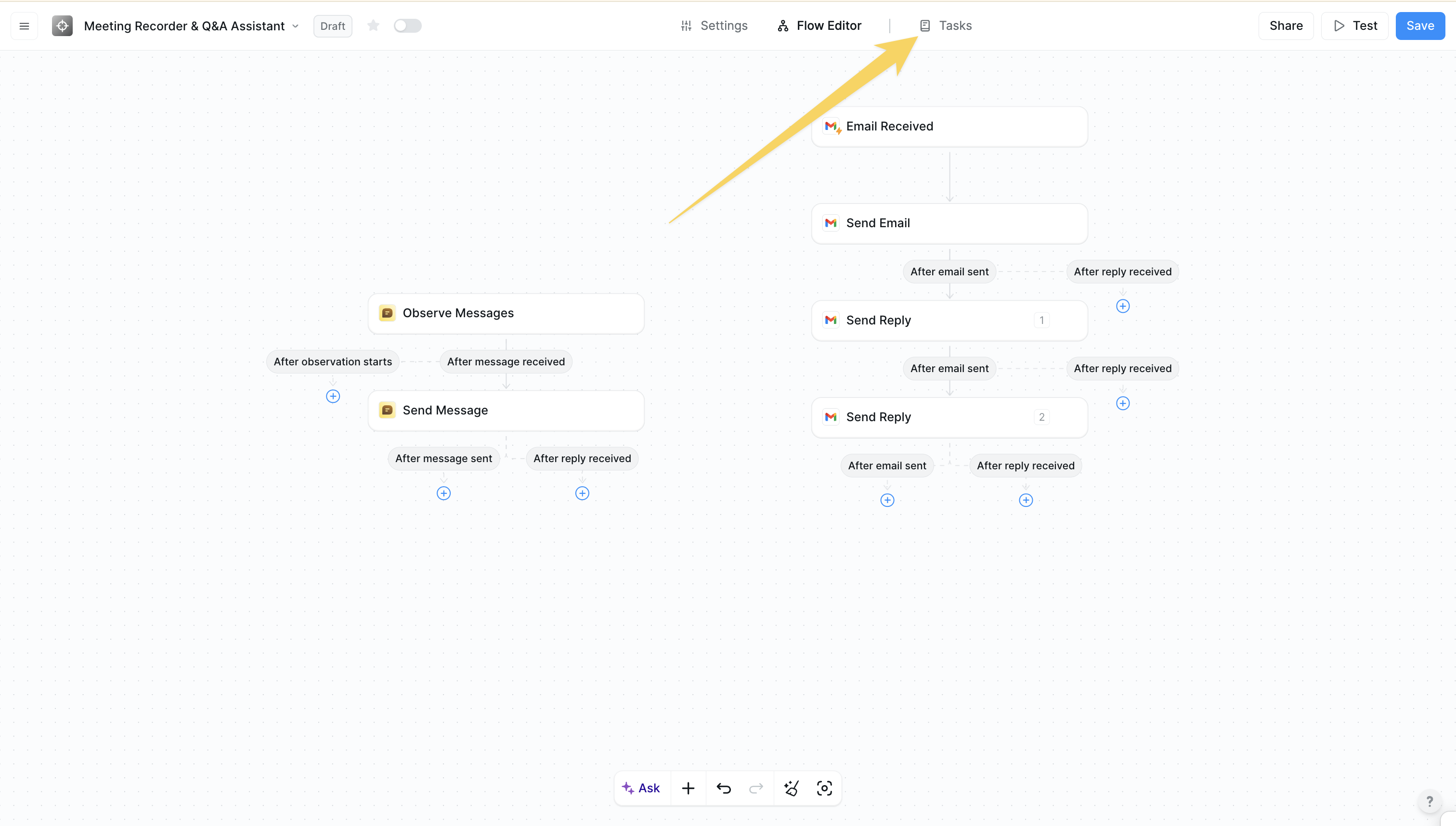 View all task executions with their current status
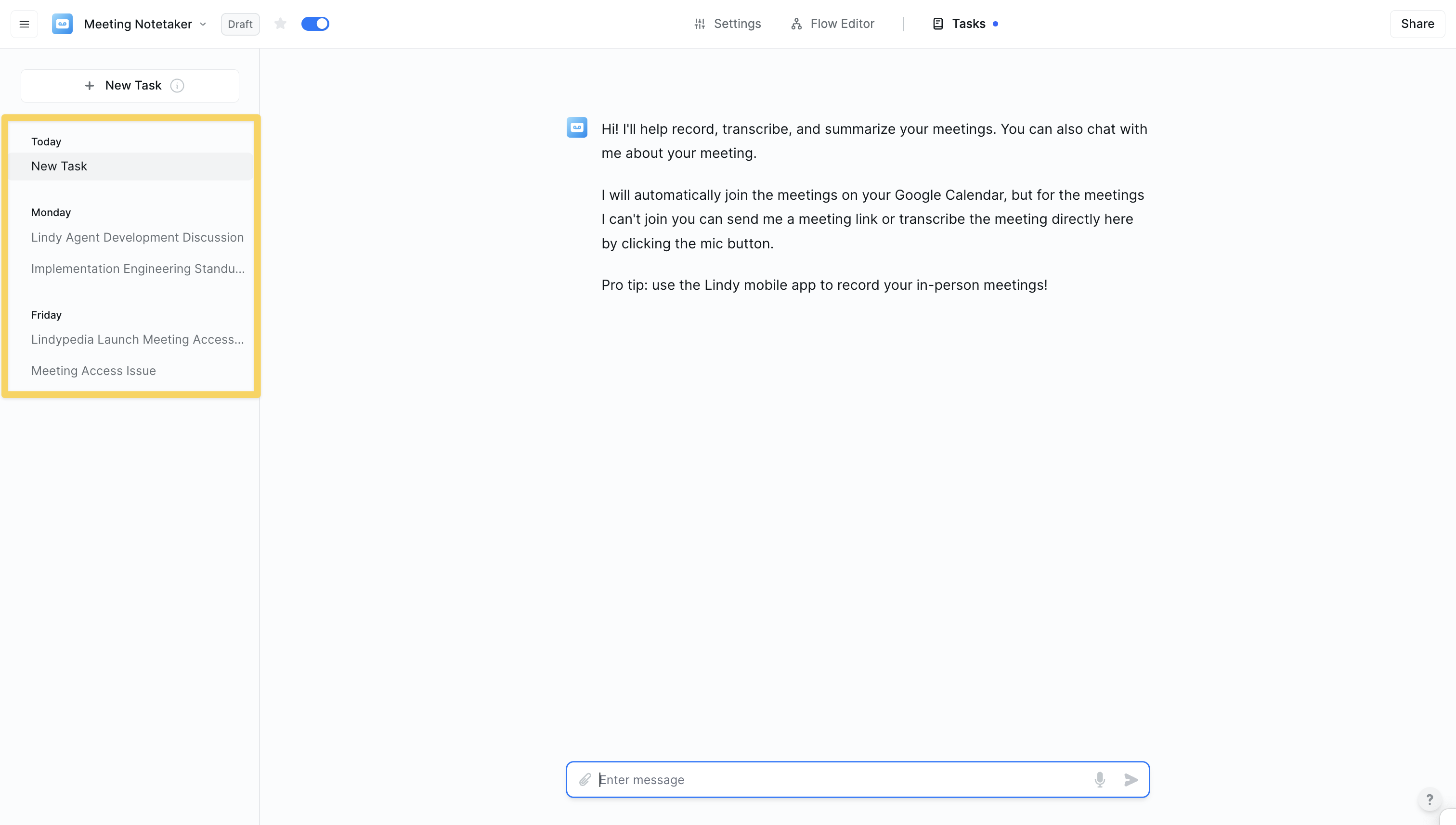 Watch your workflows execute in real-time with live step-by-step chronological execution of all steps.
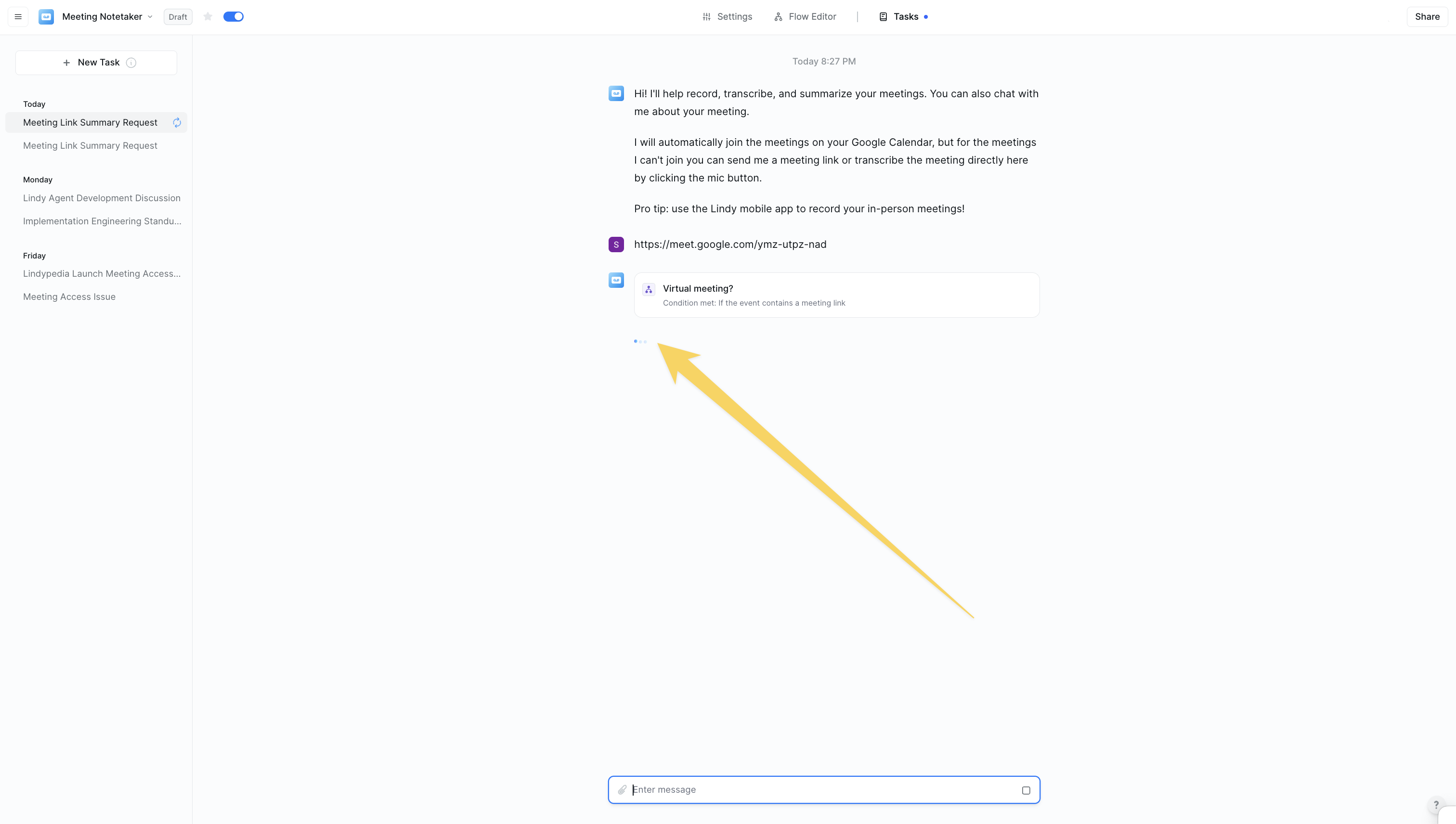 ### Example task monitoring
Click on any individual task to see:
* Subtasks if looping was used in the workflow
* Every single step your Lindy executed in that workflow
* The exact order of operations
* Input and output data for each step
* Timestamps showing when each step was completed
* Any decisions or conditions your Lindy evaluated
### Error detection and troubleshooting
### Example task monitoring
Click on any individual task to see:
* Subtasks if looping was used in the workflow
* Every single step your Lindy executed in that workflow
* The exact order of operations
* Input and output data for each step
* Timestamps showing when each step was completed
* Any decisions or conditions your Lindy evaluated
### Error detection and troubleshooting
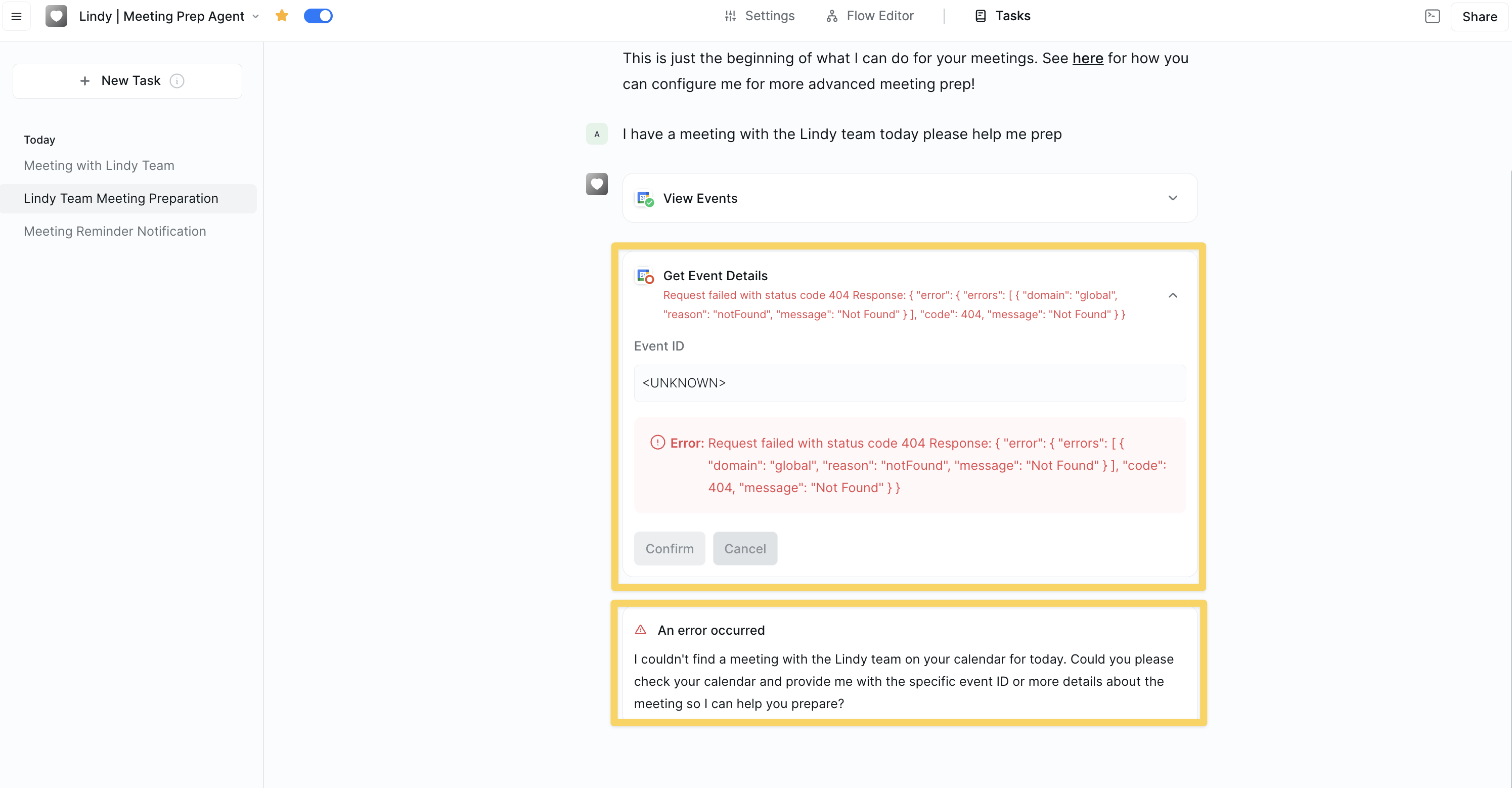 Quickly identify and resolve issues with:
* Exact error location and failure reasons
* Detailed error messages and debugging information
Use the Tasks view alongside Test Mode in the Flow Editor to compare expected vs. actual results and iterate on your workflows.
## What you can see in real-time
### Live execution tracking
Monitor your workflows as they happen:
* Watch each step execute in real-time
* See which step is currently running
* Track progress through complex workflows
* Monitor overall task completion times
### Data flow visibility
See exactly how information moves through your workflow:
* Data being passed between steps
* API responses and extracted information
* How information transforms as it moves through your workflow
* Processed results and final outputs
## Task monitoring benefits
### Proactive problem solving
Stay ahead of issues with:
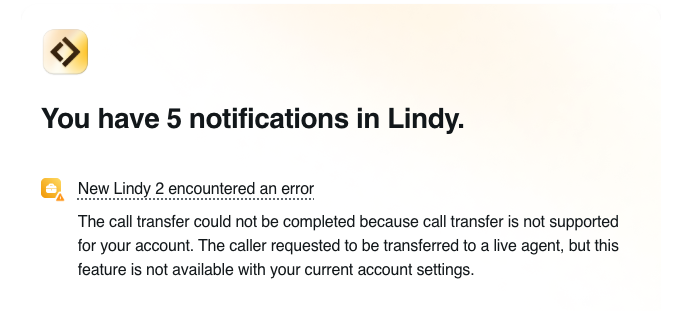
* Immediate error detection and notifications
* Email alerts when errors occur
* Detailed error information for quick fixes
* Prevention of workflow failures
Quickly identify and resolve issues with:
* Exact error location and failure reasons
* Detailed error messages and debugging information
Use the Tasks view alongside Test Mode in the Flow Editor to compare expected vs. actual results and iterate on your workflows.
## What you can see in real-time
### Live execution tracking
Monitor your workflows as they happen:
* Watch each step execute in real-time
* See which step is currently running
* Track progress through complex workflows
* Monitor overall task completion times
### Data flow visibility
See exactly how information moves through your workflow:
* Data being passed between steps
* API responses and extracted information
* How information transforms as it moves through your workflow
* Processed results and final outputs
## Task monitoring benefits
### Proactive problem solving
Stay ahead of issues with:
* Immediate error detection and notifications
* Email alerts when errors occur
* Detailed error information for quick fixes
* Prevention of workflow failures
 Need help troubleshooting a specific task?
Check out our [debugging guide](/testing/debugging) for detailed troubleshooting steps and common solutions.
## Next steps
Explore what actions can do in a workflow
Test workflows before deployment
Learn to troubleshoot common issues
Track performance and task execution
Need help troubleshooting a specific task?
Check out our [debugging guide](/testing/debugging) for detailed troubleshooting steps and common solutions.
## Next steps
Explore what actions can do in a workflow
Test workflows before deployment
Learn to troubleshoot common issues
Track performance and task execution