> ## Documentation Index
> Fetch the complete documentation index at: https://docs.lindy.ai/llms.txt
> Use this file to discover all available pages before exploring further.
# Templates
> Discover, install, and share pre-built workflow templates to get custom agents running faster.
## What are Templates?
Templates are pre-built workflows you can install as starting points for custom agents. They give you a working structure with common steps, integrations, and logic that you can adapt to your use case.
Templates help you:
* **Get started quickly** - Skip the initial setup and configuration
* **Learn proven patterns** - See how effective workflows are structured
* **Save time** - Build on proven patterns instead of starting from scratch
* **Share knowledge** - Distribute your workflows to help others
## Where to Find Templates
### Lindy Template Library
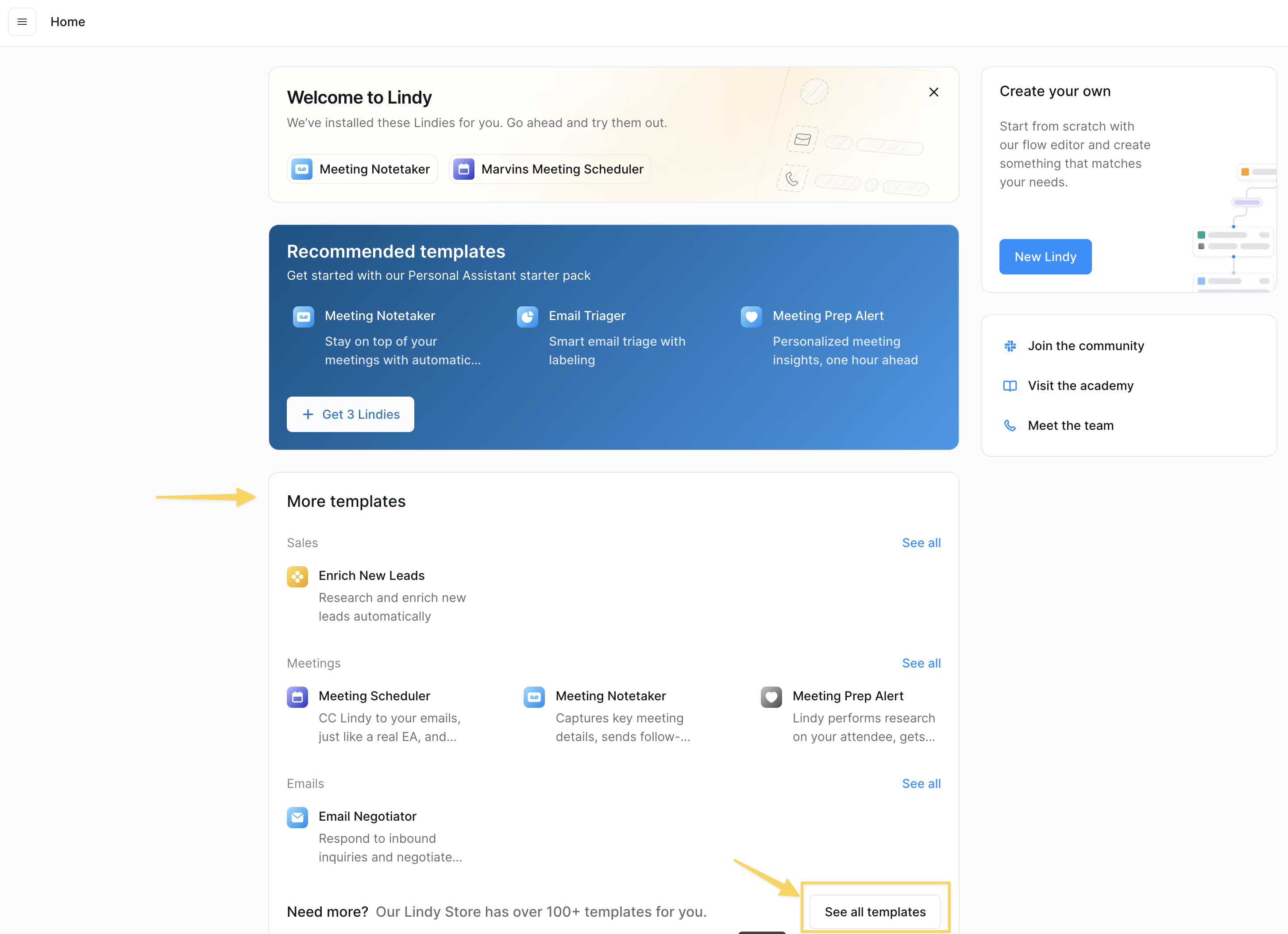 When logged in, go to [chat.lindy.ai/home](https://chat.lindy.ai/home) and click "See all templates" to browse our curated collection. You'll find templates organized by:
* **Use Case** - Email automation, sales, customer support, etc.
* **Industry** - Healthcare, SaaS, finance, etc.
* **Complexity** - Beginner, intermediate, advanced
* **Popularity** - Most used and highly rated templates
Community Templates: Join our community to discover templates shared by other Lindy users. You'll often find creative workflow patterns and setup tips there.
## How to Install a Template
### Step 1: Find Your Template
Navigate to the template you want to install. You can find templates through:
* The Lindy template library (click "See all templates" at [chat.lindy.ai/home](https://chat.lindy.ai/home))
* Direct links shared by community members
* Featured templates on the Lindy homepage
### Step 2: Install the Template
When logged in, go to [chat.lindy.ai/home](https://chat.lindy.ai/home) and click "See all templates" to browse our curated collection. You'll find templates organized by:
* **Use Case** - Email automation, sales, customer support, etc.
* **Industry** - Healthcare, SaaS, finance, etc.
* **Complexity** - Beginner, intermediate, advanced
* **Popularity** - Most used and highly rated templates
Community Templates: Join our community to discover templates shared by other Lindy users. You'll often find creative workflow patterns and setup tips there.
## How to Install a Template
### Step 1: Find Your Template
Navigate to the template you want to install. You can find templates through:
* The Lindy template library (click "See all templates" at [chat.lindy.ai/home](https://chat.lindy.ai/home))
* Direct links shared by community members
* Featured templates on the Lindy homepage
### Step 2: Install the Template
 1. Click the **"Add"** button on the template page
2. Configure any required settings (calendars, account connections, etc.)
3. Click **"Turn on"** to complete the installation
### Step 3: Customize for Your Needs
After installation, you can:
* **Modify triggers** - Adjust when the workflow runs
* **Update actions** - Change what the workflow does
* **Customize prompts** - Tailor the AI behavior to your use case
* **Add integrations** - Connect additional tools and services
* **Test and iterate** - Run the workflow and make improvements
Some templates include step-by-step onboarding to guide you through setup.
## How to Create and Share Templates
### Planning Your Template
Before creating a template, consider:
* **Target your audience** - Consider who will use the template and their skill level
* **Keep it focused** - Build templates for specific use cases that can be customized
### Building Your Template
1. **Create the Workflow**
* Build your workflow in the Flow Editor
* Test thoroughly with different scenarios
* Optimize prompts and conditions for reliability
2. **Add Documentation**
* Write clear setup instructions using notes or Step-by-Step Onboarding
* Include examples of expected inputs/outputs
3. **Create Step-by-Step Onboarding (Optional)**
* Use [Step by Step Onboarding](/skills/by-lindy/step-by-step-onboarding) to guide users through setup
* Collect required configuration automatically
* Provide a smooth user experience
### Sharing Your Template
**Internal Sharing**
* Share templates within your workspace for team use
* Create templates for common workflows your team needs
* Establish naming conventions and documentation standards
**Community Sharing**
* Share templates in the Lindy community
* Include detailed documentation and use cases
* Be responsive to questions and feedback
### Template Best Practices
* **Name everything clearly** - Use descriptive names for steps, conditions, and add helpful notes
* **Test thoroughly** - Verify your template works with different scenarios and edge cases
## Next Steps
Explore our template library
Build your first custom workflow
Share and discover templates with other Lindy users
1. Click the **"Add"** button on the template page
2. Configure any required settings (calendars, account connections, etc.)
3. Click **"Turn on"** to complete the installation
### Step 3: Customize for Your Needs
After installation, you can:
* **Modify triggers** - Adjust when the workflow runs
* **Update actions** - Change what the workflow does
* **Customize prompts** - Tailor the AI behavior to your use case
* **Add integrations** - Connect additional tools and services
* **Test and iterate** - Run the workflow and make improvements
Some templates include step-by-step onboarding to guide you through setup.
## How to Create and Share Templates
### Planning Your Template
Before creating a template, consider:
* **Target your audience** - Consider who will use the template and their skill level
* **Keep it focused** - Build templates for specific use cases that can be customized
### Building Your Template
1. **Create the Workflow**
* Build your workflow in the Flow Editor
* Test thoroughly with different scenarios
* Optimize prompts and conditions for reliability
2. **Add Documentation**
* Write clear setup instructions using notes or Step-by-Step Onboarding
* Include examples of expected inputs/outputs
3. **Create Step-by-Step Onboarding (Optional)**
* Use [Step by Step Onboarding](/skills/by-lindy/step-by-step-onboarding) to guide users through setup
* Collect required configuration automatically
* Provide a smooth user experience
### Sharing Your Template
**Internal Sharing**
* Share templates within your workspace for team use
* Create templates for common workflows your team needs
* Establish naming conventions and documentation standards
**Community Sharing**
* Share templates in the Lindy community
* Include detailed documentation and use cases
* Be responsive to questions and feedback
### Template Best Practices
* **Name everything clearly** - Use descriptive names for steps, conditions, and add helpful notes
* **Test thoroughly** - Verify your template works with different scenarios and edge cases
## Next Steps
Explore our template library
Build your first custom workflow
Share and discover templates with other Lindy users