> ## Documentation Index
> Fetch the complete documentation index at: https://docs.lindy.ai/llms.txt
> Use this file to discover all available pages before exploring further.
# Credentials
> Save an API key once, keep it for yourself or share it with the workspace, and let Lindy use it without anyone pasting it into a chat.
 Some tools don't hand you an OAuth button. They hand you an API key. A credential is where that key lives: you save it once, Lindy uses it when it needs it, and nobody has to paste the key into a message again.
Credentials are what Lindy reaches for **when it runs shell commands and code**. If you've asked it to hit an API directly rather than through a connected tool, this is where the credential for that call comes from.
A credential starts as **yours**. Save a key and only you can use it, until you choose to share it with everyone in the workspace.
## Adding a credential
Go to **Settings**, then **Credentials** under **Workspace**.
Click **Add credential**, then fill in the name and the value.
The credential is available to your agents right away.
The name is how you and Lindy refer to the key later, so make it obvious what it opens. Existing credentials follow `SCREAMING_SNAKE_CASE`:
| Good | Why |
| ----------------------- | ----------------------------------------- |
| `NOTION_API_KEY` | Names the tool and the kind of credential |
| `STRIPE_RESTRICTED_KEY` | Distinguishes it from a full-access key |
| `key1` | Tells you nothing six months from now |
## Reading the list
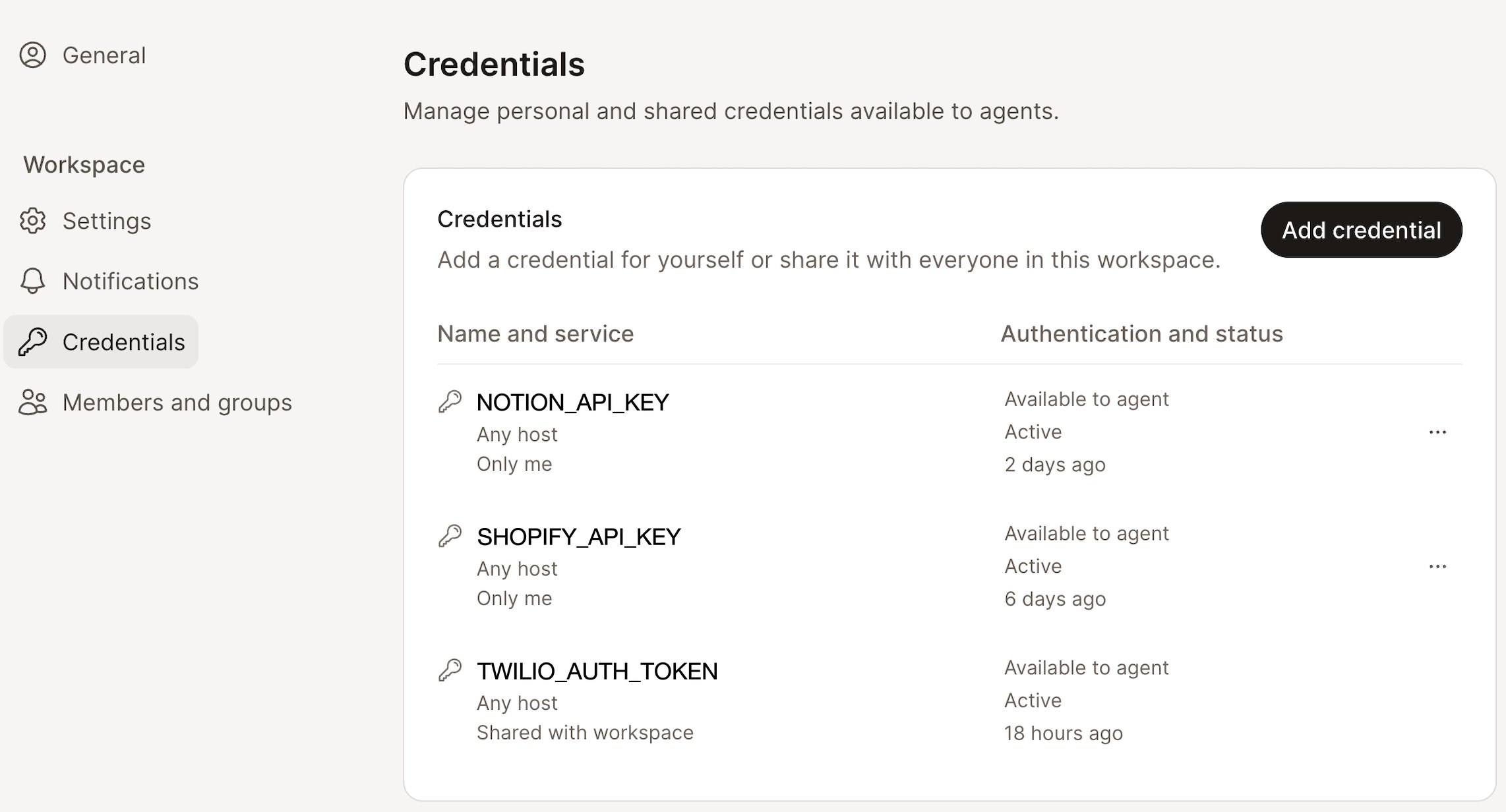
Each row tells you two things: what the credential is, and whether it's working.
| Column | What it shows |
| ----------------------------- | ----------------------------------------------------------------------------------------------------------- |
| **Name and service** | The credential's name, the host it applies to, and who can use it: **Only me** or **Shared with workspace** |
| **Authentication and status** | Whether it's **Available to agent**, whether it's **Active**, and when it was last updated |
A rotated credential is easy to spot: its updated time moves, its name doesn't.
## Rotating and sharing
Open the **...** menu on any credential row.
Some tools don't hand you an OAuth button. They hand you an API key. A credential is where that key lives: you save it once, Lindy uses it when it needs it, and nobody has to paste the key into a message again.
Credentials are what Lindy reaches for **when it runs shell commands and code**. If you've asked it to hit an API directly rather than through a connected tool, this is where the credential for that call comes from.
A credential starts as **yours**. Save a key and only you can use it, until you choose to share it with everyone in the workspace.
## Adding a credential
Go to **Settings**, then **Credentials** under **Workspace**.
Click **Add credential**, then fill in the name and the value.
The credential is available to your agents right away.
The name is how you and Lindy refer to the key later, so make it obvious what it opens. Existing credentials follow `SCREAMING_SNAKE_CASE`:
| Good | Why |
| ----------------------- | ----------------------------------------- |
| `NOTION_API_KEY` | Names the tool and the kind of credential |
| `STRIPE_RESTRICTED_KEY` | Distinguishes it from a full-access key |
| `key1` | Tells you nothing six months from now |
## Reading the list
Each row tells you two things: what the credential is, and whether it's working.
| Column | What it shows |
| ----------------------------- | ----------------------------------------------------------------------------------------------------------- |
| **Name and service** | The credential's name, the host it applies to, and who can use it: **Only me** or **Shared with workspace** |
| **Authentication and status** | Whether it's **Available to agent**, whether it's **Active**, and when it was last updated |
A rotated credential is easy to spot: its updated time moves, its name doesn't.
## Rotating and sharing
Open the **...** menu on any credential row.
 | Action | What it does |
| ------------------------ | ----------------------------------------------------------------------------------------------------------------------------------------------------------------------------------- |
| **Rotate value** | Replaces the key with a new one. The name stays the same, so nothing that refers to the credential needs to change. |
| **Share with workspace** | Hands the credential to everyone in the workspace. The row flips from **Only me** to **Shared with workspace**, and other people's agents can use it without ever seeing the value. |
| **Revoke** | Removes the credential. Anything relying on that key stops being able to authenticate, so rotate rather than revoke if the tool is still in use. |
Rotating and sharing are separate decisions. Rotating a shared credential keeps it shared: everyone simply starts using the new value.
## What Lindy shows you, and what it doesn't
A saved credential's value is **write-only**. You can see that a credential exists, what it's called, who it's shared with, and when it was last updated. You cannot read the value back: not in the app, not through the API, not by asking Lindy.
| You can see | You cannot see |
| ------------------------ | ---------------------- |
| The credential's name | The credential's value |
| Its host and visibility | |
| When it was last updated | |
Because values can't be read back, Lindy has no "show me the key" escape hatch. Keep the original somewhere you control, like a password manager. If you lose it, rotate the credential with a fresh key from the tool it came from.
## Credentials and integrations
Credentials and [integrations](/integrations/overview) solve the same problem from different ends.
| | Integration | Credential |
| ------------------------ | ----------------------------------------- | -------------------------------------- |
| **How you connect** | OAuth, or an API key entered during setup | An API key you save yourself |
| **Scope** | Personal, or shared with the team | Personal, or shared with the workspace |
| **Guardrails apply** | Yes | No |
| **Value readable later** | No | No |
If the tool you want is already in the integrations list, connect it there. Reach for a credential when the thing you're calling has no integration of its own.
| Action | What it does |
| ------------------------ | ----------------------------------------------------------------------------------------------------------------------------------------------------------------------------------- |
| **Rotate value** | Replaces the key with a new one. The name stays the same, so nothing that refers to the credential needs to change. |
| **Share with workspace** | Hands the credential to everyone in the workspace. The row flips from **Only me** to **Shared with workspace**, and other people's agents can use it without ever seeing the value. |
| **Revoke** | Removes the credential. Anything relying on that key stops being able to authenticate, so rotate rather than revoke if the tool is still in use. |
Rotating and sharing are separate decisions. Rotating a shared credential keeps it shared: everyone simply starts using the new value.
## What Lindy shows you, and what it doesn't
A saved credential's value is **write-only**. You can see that a credential exists, what it's called, who it's shared with, and when it was last updated. You cannot read the value back: not in the app, not through the API, not by asking Lindy.
| You can see | You cannot see |
| ------------------------ | ---------------------- |
| The credential's name | The credential's value |
| Its host and visibility | |
| When it was last updated | |
Because values can't be read back, Lindy has no "show me the key" escape hatch. Keep the original somewhere you control, like a password manager. If you lose it, rotate the credential with a fresh key from the tool it came from.
## Credentials and integrations
Credentials and [integrations](/integrations/overview) solve the same problem from different ends.
| | Integration | Credential |
| ------------------------ | ----------------------------------------- | -------------------------------------- |
| **How you connect** | OAuth, or an API key entered during setup | An API key you save yourself |
| **Scope** | Personal, or shared with the team | Personal, or shared with the workspace |
| **Guardrails apply** | Yes | No |
| **Value readable later** | No | No |
If the tool you want is already in the integrations list, connect it there. Reach for a credential when the thing you're calling has no integration of its own.