> ## Documentation Index
> Fetch the complete documentation index at: https://docs.lindy.ai/llms.txt
> Use this file to discover all available pages before exploring further.
# Chat with Lindy
> Build interactive workflows using chat as a trigger and an action.
## Overview
Chat with Lindy allows you to build interactive workflows that can be triggered by incoming messages and respond in real-time. This skill is perfect for creating conversational agents, custom commands, and workflows that require direct user interaction. You can start a chat from your [Tasks menu](/skills/lindy-utilities/get-task), making it incredibly easy to kick off an automation.
## Trigger: Message Received
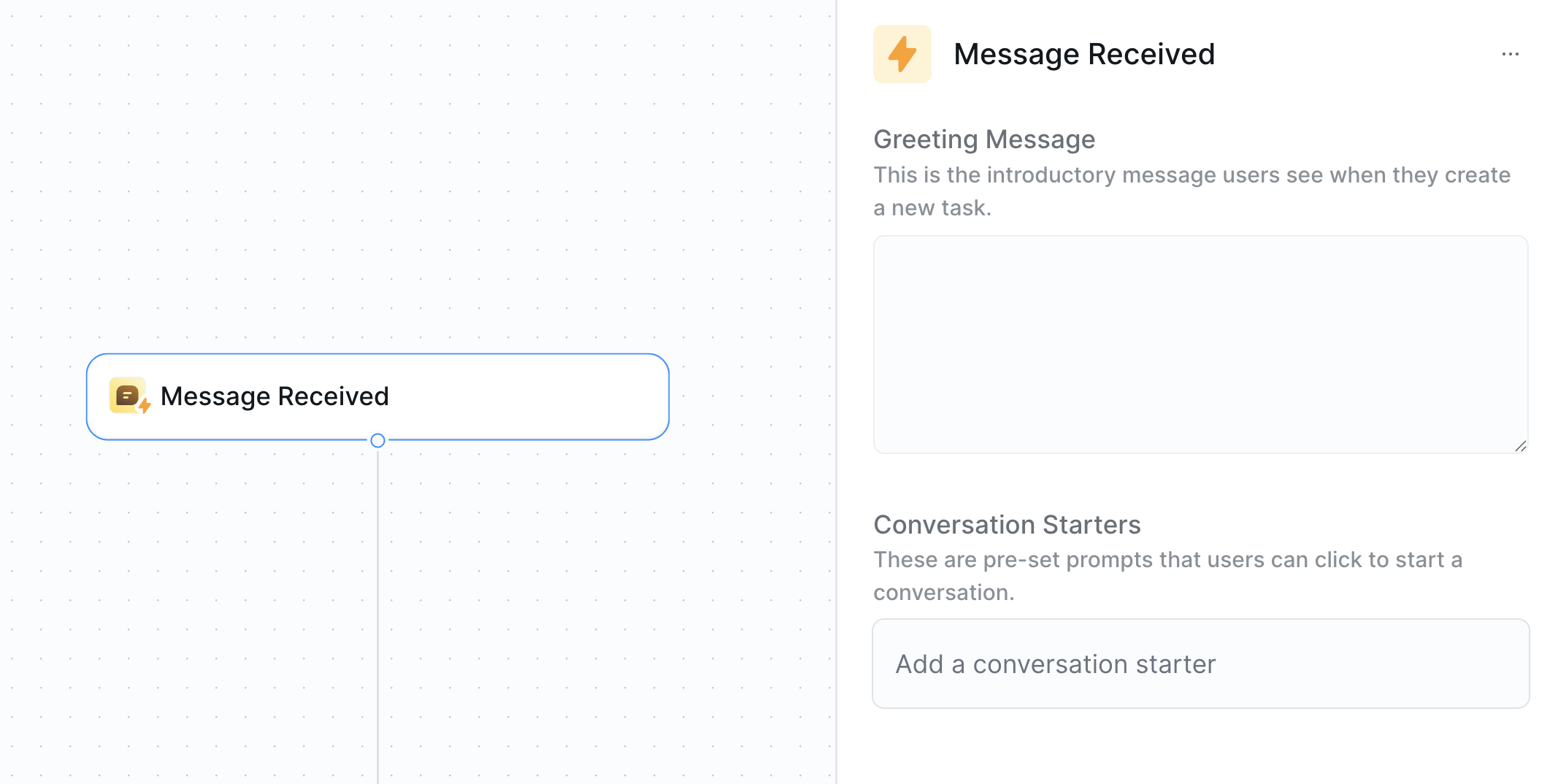
The `Message Received` trigger is the starting point for any chat-based workflow. When your agent receives a message in the chat interface that matches your trigger conditions, it will automatically start the corresponding workflow.
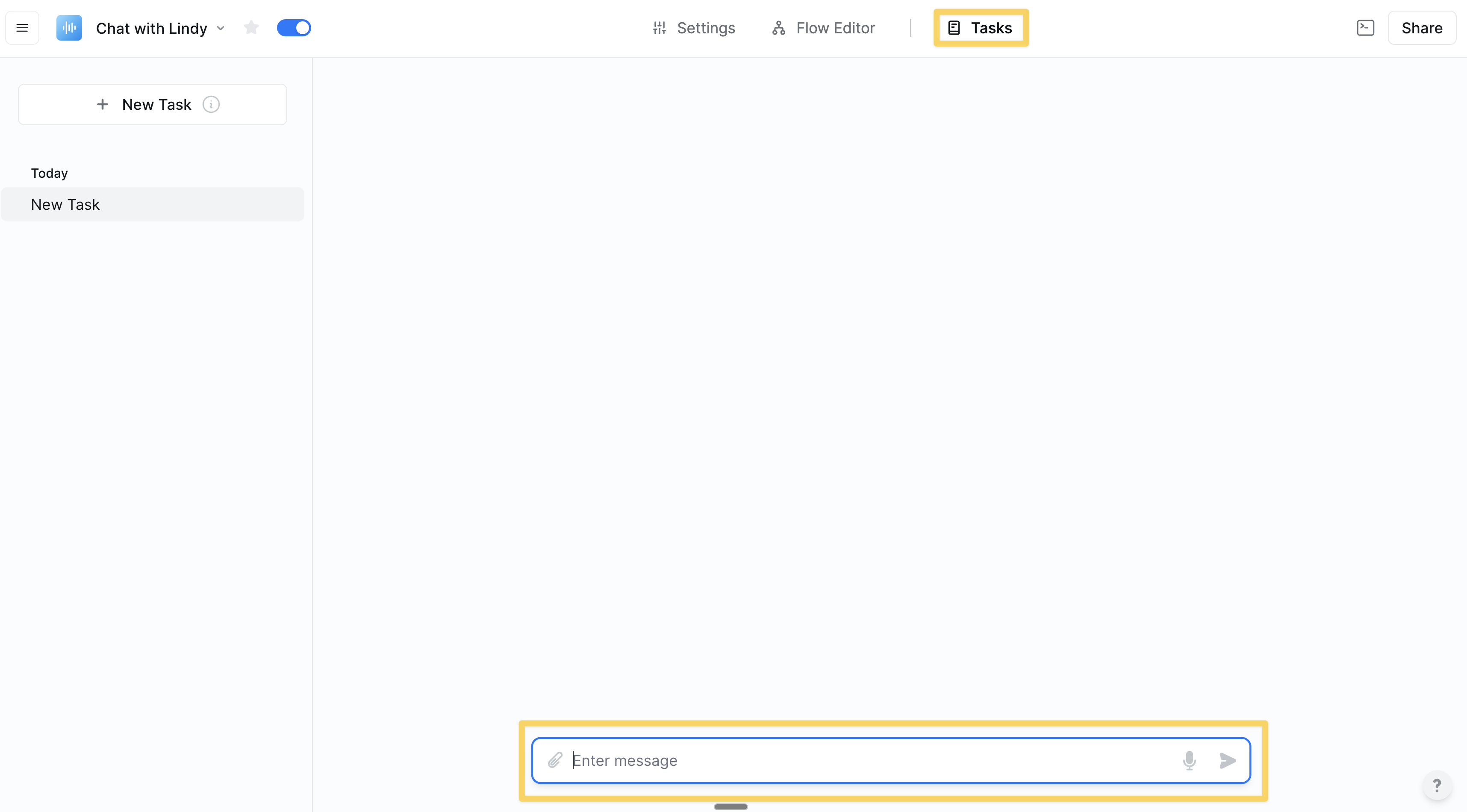 This trigger will remember the conversation context and can be re-triggered by new messages in the same chat thread.
 ## Actions
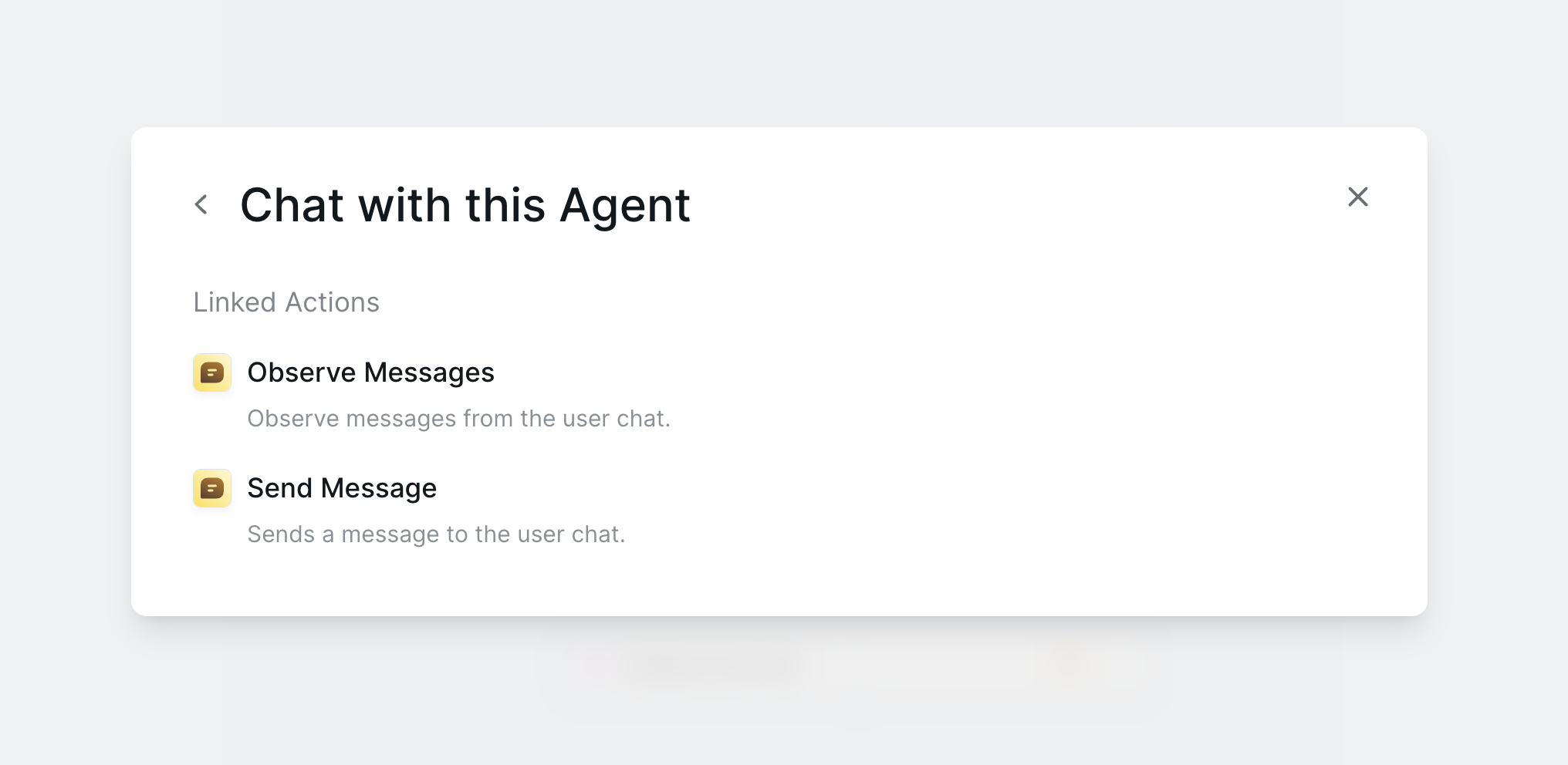
There are two primary actions you can use to interact with the chat.
## Actions
There are two primary actions you can use to interact with the chat.
 ### Send Message
The `Send Message` action allows your agent to send a message back to the chat. This is how your agent communicates with you or your users. You can use Markdown to format your messages, allowing you to create rich, interactive responses.
### Observe Message
The `Observe Message` action allows the agent to "listen" for new messages in the chat without being the active trigger. This is useful for workflows where you need to monitor a conversation and take action later in the flow. While `Message Received` is also listening, `Observe Message` gives you more granular control over when and where you listen for new messages.
## AI Agent Integration
The AI Agent is a powerful tool that can be used to create intelligent, conversational workflows. When you use the AI Agent in a chat-based workflow, it can read the incoming messages, understand the user's intent, and then decide which actions to take. The AI Agent can also send messages back to the chat, allowing you to create a natural, back-and-forth conversation.
The AI Agent always has access to the "Send Message" action, so you don't need to add it explicitly. It can read and send messages in the Lindy chat natively.
## Bulk Uploading Tasks via CSV
You can quickly create multiple chat tasks for your agents by uploading a CSV file to the tasks side panel. This is perfect for batch processing. Each row in your CSV will generate a new chat task, making it easy to automate large sets of interactions.
## Next Steps
Embed chat functionality on your website
Add knowledge to make conversations smarter
Add oversight to chat interactions
Build intelligent conversation flows
### Send Message
The `Send Message` action allows your agent to send a message back to the chat. This is how your agent communicates with you or your users. You can use Markdown to format your messages, allowing you to create rich, interactive responses.
### Observe Message
The `Observe Message` action allows the agent to "listen" for new messages in the chat without being the active trigger. This is useful for workflows where you need to monitor a conversation and take action later in the flow. While `Message Received` is also listening, `Observe Message` gives you more granular control over when and where you listen for new messages.
## AI Agent Integration
The AI Agent is a powerful tool that can be used to create intelligent, conversational workflows. When you use the AI Agent in a chat-based workflow, it can read the incoming messages, understand the user's intent, and then decide which actions to take. The AI Agent can also send messages back to the chat, allowing you to create a natural, back-and-forth conversation.
The AI Agent always has access to the "Send Message" action, so you don't need to add it explicitly. It can read and send messages in the Lindy chat natively.
## Bulk Uploading Tasks via CSV
You can quickly create multiple chat tasks for your agents by uploading a CSV file to the tasks side panel. This is perfect for batch processing. Each row in your CSV will generate a new chat task, making it easy to automate large sets of interactions.
## Next Steps
Embed chat functionality on your website
Add knowledge to make conversations smarter
Add oversight to chat interactions
Build intelligent conversation flows