> ## Documentation Index
> Fetch the complete documentation index at: https://docs.lindy.ai/llms.txt
> Use this file to discover all available pages before exploring further.
# HTTP Request
> Execute custom API calls and webhooks directly from your agent workflows
## Overview
The HTTP Request action enables your agents to interact with any API or webhook endpoint. Whether you're fetching data, updating records, or triggering external workflows, HTTP Request provides complete control over your API interactions.
HTTP Request is one of the most popular Lindy actions, giving you access to thousands of APIs that don't have native Lindy integrations yet.
## Adding HTTP Request to Your Workflow
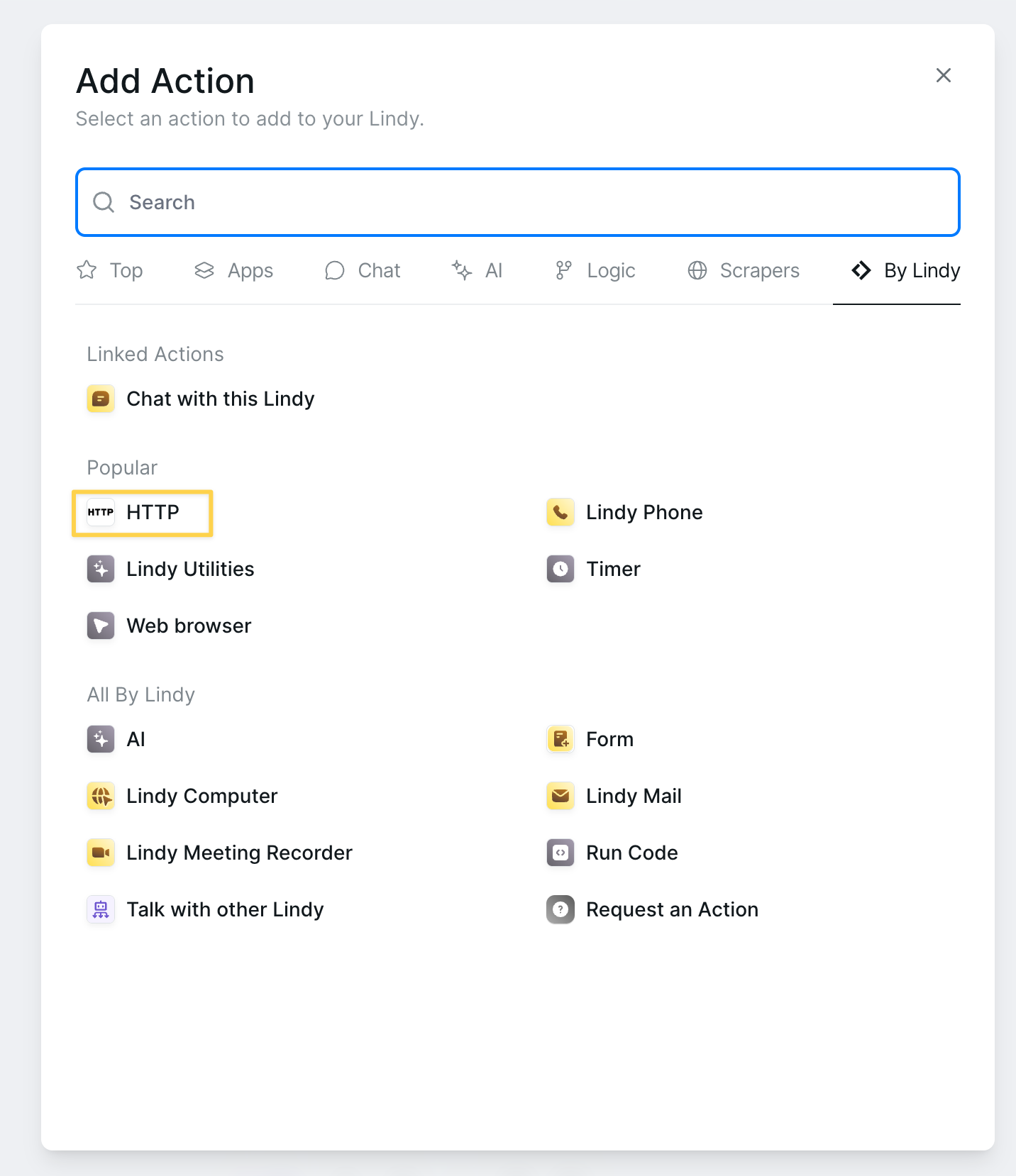 Find HTTP Request in two places:
* **Popular** section (highlighted for quick access)
* **By Lindy** → **All By Lindy** section
## Configuration Fields
### URL (Required)
The complete endpoint URL for your API call.
**Examples:**
* `https://api.example.com/v1/users`
* `https://webhook.site/unique-id`
* `{{api_base_url}}/customers/{{customer_id}}`
Use variables from previous steps by typing `{{` to see available options.
### Method
Find HTTP Request in two places:
* **Popular** section (highlighted for quick access)
* **By Lindy** → **All By Lindy** section
## Configuration Fields
### URL (Required)
The complete endpoint URL for your API call.
**Examples:**
* `https://api.example.com/v1/users`
* `https://webhook.site/unique-id`
* `{{api_base_url}}/customers/{{customer_id}}`
Use variables from previous steps by typing `{{` to see available options.
### Method
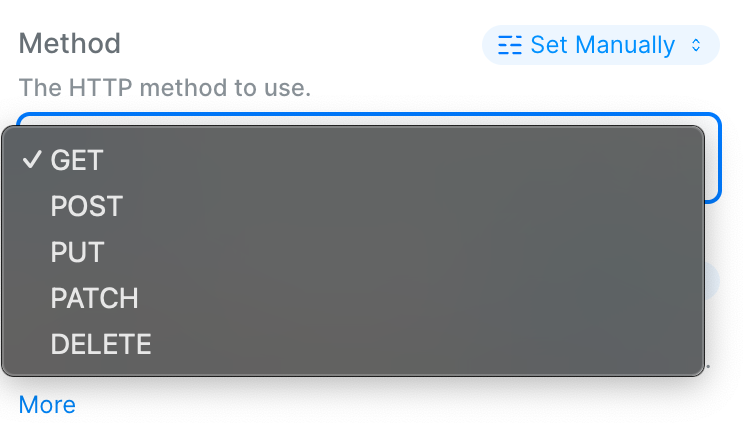 Select the HTTP method based on your API's requirements:
| Method | Use Case |
| ---------- | ------------------------------------ |
| **GET** | Retrieve data without making changes |
| **POST** | Create new resources or submit data |
| **PUT** | Update entire resources |
| **PATCH** | Partially update resources |
| **DELETE** | Remove resources |
### Headers
Select the HTTP method based on your API's requirements:
| Method | Use Case |
| ---------- | ------------------------------------ |
| **GET** | Retrieve data without making changes |
| **POST** | Create new resources or submit data |
| **PUT** | Update entire resources |
| **PATCH** | Partially update resources |
| **DELETE** | Remove resources |
### Headers
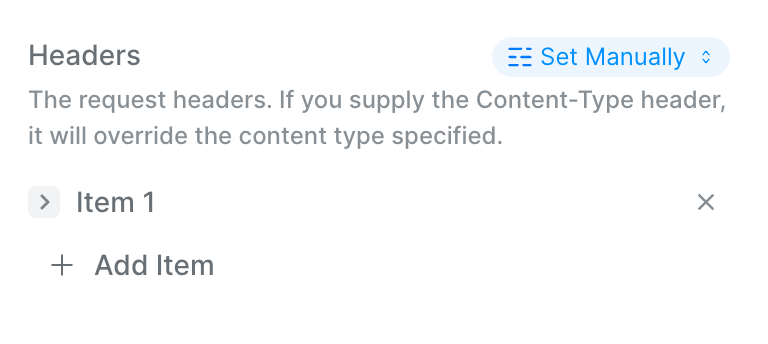 Headers provide additional context about your request. Common headers include:
**Authentication:**
```
Authorization: Bearer {{api_token}}
X-API-Key: {{secret_key}}
```
**Content Type:**
```
Content-Type: application/json
Content-Type: application/xml
Content-Type: application/x-www-form-urlencoded
```
**Custom Headers:**
```
X-Client-Version: 2.0
X-Request-ID: {{unique_id}}
```
If you specify a Content-Type header, it will override the content type field selection.
### Content Type
Tells the server what format your request body is in:
* **application/json** — Most common for modern APIs (default)
* **application/xml** — For XML-based APIs
* **application/x-www-form-urlencoded** — For form submissions
* **multipart/form-data** — For file uploads
* **text/plain** — For plain text data
### Body
The request body contains the data you're sending to the API. Lindy offers two powerful modes:
Headers provide additional context about your request. Common headers include:
**Authentication:**
```
Authorization: Bearer {{api_token}}
X-API-Key: {{secret_key}}
```
**Content Type:**
```
Content-Type: application/json
Content-Type: application/xml
Content-Type: application/x-www-form-urlencoded
```
**Custom Headers:**
```
X-Client-Version: 2.0
X-Request-ID: {{unique_id}}
```
If you specify a Content-Type header, it will override the content type field selection.
### Content Type
Tells the server what format your request body is in:
* **application/json** — Most common for modern APIs (default)
* **application/xml** — For XML-based APIs
* **application/x-www-form-urlencoded** — For form submissions
* **multipart/form-data** — For file uploads
* **text/plain** — For plain text data
### Body
The request body contains the data you're sending to the API. Lindy offers two powerful modes:
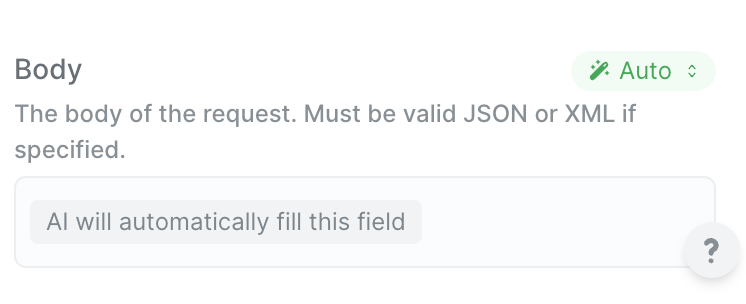 In Auto mode, AI automatically constructs the request body based on:
* The URL and method you've chosen
* Available variables from previous steps
* Common patterns for the API endpoint
Simply leave it blank and your agent will intelligently fill in the appropriate data.
In Auto mode, AI automatically constructs the request body based on:
* The URL and method you've chosen
* Available variables from previous steps
* Common patterns for the API endpoint
Simply leave it blank and your agent will intelligently fill in the appropriate data.
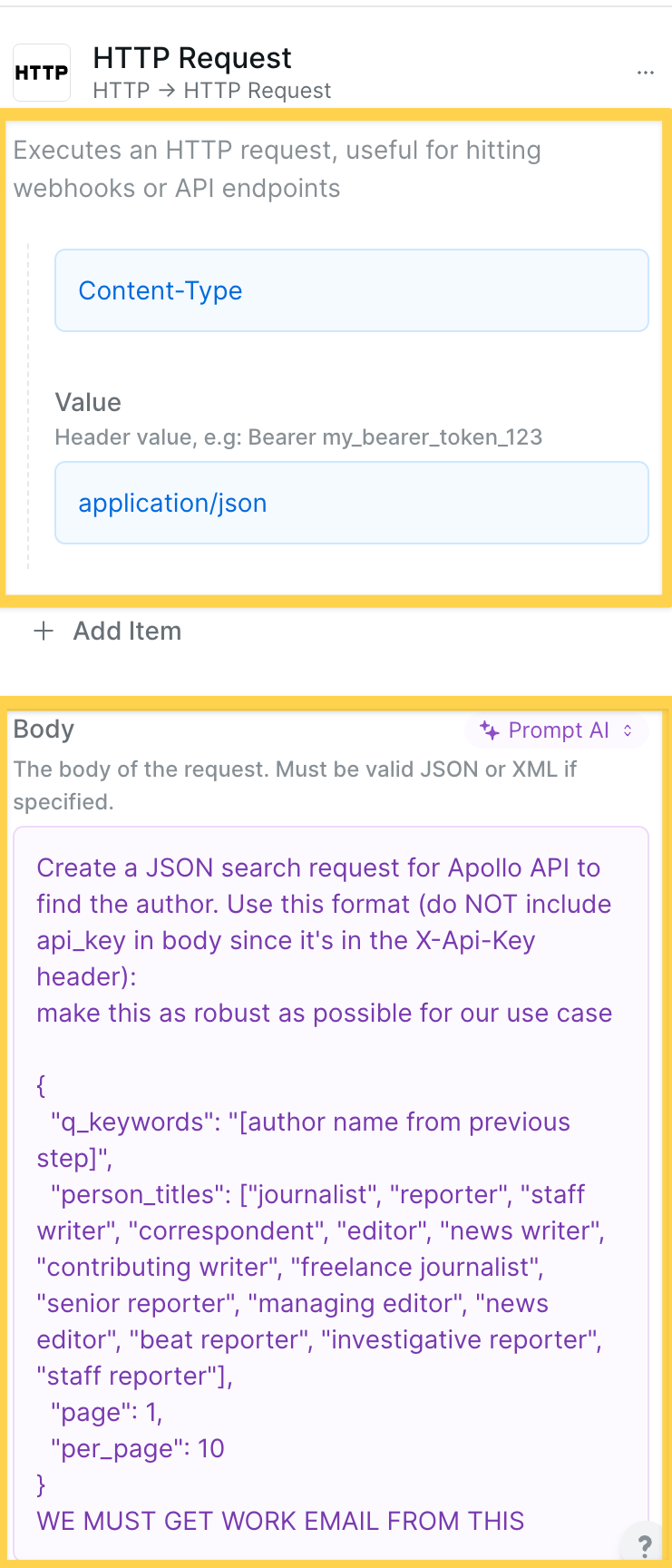 Use Prompt AI when you need precise control over the body structure. Describe what you want in natural language:
```
Create a JSON search request for Apollo API to find the author.
Use this format (do NOT include api_key in body since it's in
the X-Api-Key header):
{
"q_keywords": "[author name from previous step]",
"person_titles": ["journalist", "reporter", "staff writer",
"correspondent", "editor", "news writer",
"contributing writer", "freelance journalist"],
"page": 1,
"per_page": 10
}
WE MUST GET WORK EMAIL FROM THIS
```
Your agent will generate the exact JSON structure based on your instructions and available data.
## Common Patterns
**Bearer Token:**
```
Headers:
Authorization: Bearer {{access_token}}
```
**API Key:**
```
Headers:
X-API-Key: {{api_key}}
```
**Basic Auth:**
```
Headers:
Authorization: Basic {{base64_credentials}}
```
**Sending JSON data:**
```
Method: POST
Content-Type: application/json
Body: {
"name": "{{customer_name}}",
"email": "{{customer_email}}",
"tags": ["new", "premium"]
}
```
**Updating records:**
```
Method: PATCH
URL: https://api.example.com/users/{{user_id}}
Body: {
"status": "active",
"last_seen": "{{current_timestamp}}"
}
```
Add conditions after your HTTP Request to handle different responses:
1. Check status code: `{{http_request.status_code}}`
2. Parse error messages: `{{http_request.response.error}}`
3. Implement retry logic for failures
4. Log errors for debugging
## Response Handling
After execution, access the response data:
* **Response body**: `{{http_request.response}}`
* **Status code**: `{{http_request.status_code}}`
* **Headers**: `{{http_request.headers}}`
Use these in subsequent steps to:
* Parse JSON responses
* Check for success/failure
* Extract specific data fields
* Trigger different workflows based on results
## Best Practices
Reference data from previous steps using `{{variable_name}}` syntax to create dynamic, data-driven API calls
Use postman or similar tools to test your requests before going live to avoid issues in production
Always add error handling conditions after API calls to gracefully manage failures and unexpected responses
## Next Steps
Route workflows based on API responses
Process multiple API calls efficiently
Store API responses for future use
Debug and handle API failures
Use Prompt AI when you need precise control over the body structure. Describe what you want in natural language:
```
Create a JSON search request for Apollo API to find the author.
Use this format (do NOT include api_key in body since it's in
the X-Api-Key header):
{
"q_keywords": "[author name from previous step]",
"person_titles": ["journalist", "reporter", "staff writer",
"correspondent", "editor", "news writer",
"contributing writer", "freelance journalist"],
"page": 1,
"per_page": 10
}
WE MUST GET WORK EMAIL FROM THIS
```
Your agent will generate the exact JSON structure based on your instructions and available data.
## Common Patterns
**Bearer Token:**
```
Headers:
Authorization: Bearer {{access_token}}
```
**API Key:**
```
Headers:
X-API-Key: {{api_key}}
```
**Basic Auth:**
```
Headers:
Authorization: Basic {{base64_credentials}}
```
**Sending JSON data:**
```
Method: POST
Content-Type: application/json
Body: {
"name": "{{customer_name}}",
"email": "{{customer_email}}",
"tags": ["new", "premium"]
}
```
**Updating records:**
```
Method: PATCH
URL: https://api.example.com/users/{{user_id}}
Body: {
"status": "active",
"last_seen": "{{current_timestamp}}"
}
```
Add conditions after your HTTP Request to handle different responses:
1. Check status code: `{{http_request.status_code}}`
2. Parse error messages: `{{http_request.response.error}}`
3. Implement retry logic for failures
4. Log errors for debugging
## Response Handling
After execution, access the response data:
* **Response body**: `{{http_request.response}}`
* **Status code**: `{{http_request.status_code}}`
* **Headers**: `{{http_request.headers}}`
Use these in subsequent steps to:
* Parse JSON responses
* Check for success/failure
* Extract specific data fields
* Trigger different workflows based on results
## Best Practices
Reference data from previous steps using `{{variable_name}}` syntax to create dynamic, data-driven API calls
Use postman or similar tools to test your requests before going live to avoid issues in production
Always add error handling conditions after API calls to gracefully manage failures and unexpected responses
## Next Steps
Route workflows based on API responses
Process multiple API calls efficiently
Store API responses for future use
Debug and handle API failures