> ## Documentation Index
> Fetch the complete documentation index at: https://docs.lindy.ai/llms.txt
> Use this file to discover all available pages before exploring further.
# Lindy Embed
> Embed Lindy onto your website as a popup or an iFrame
## Customize Your Chatbot For Your Website
Select the "Lindy Embed" trigger in the flow editor. Click Configure Embed Settings.
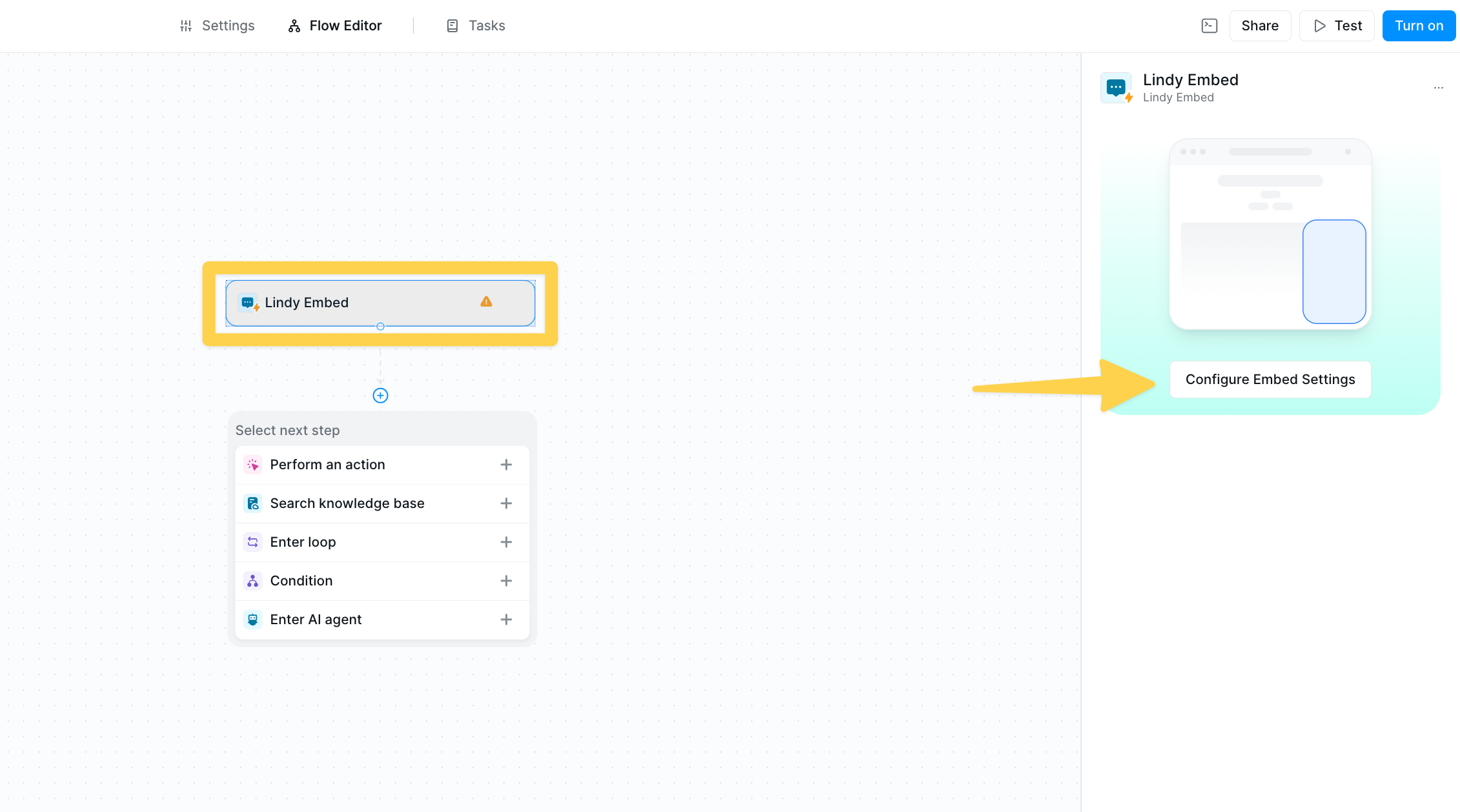 You'll see several options to customize your chatbot:
**Domain Name:** Restrict where your Lindy can be embedded. Leave it empty to use on any domain, or enter a specific domain like "yourcompany.com".
**Display Name:** Set the name of your bot as it will appear to users. For example, "Technical Interview Assistant" or "Customer Survey Bot".
**Accent Color:** Choose a color that matches your brand for the top of the chatbot window.
**Popup or iFrame:** Decide between a floating popup chatbot or a fixed iFrame embedded directly in your page.
**Logo:** Upload your company or project logo to appear in the top left of the expanded chatbot.
**Icon:** Select an icon for your chatbot's collapsed bubble.
**Greeting Message:** The introductory message the user sees when they start a chat.
**Conversation Starters:** Customize messages next to your bot to prompt engagement.
**Callout message:** Create a prompt to encourage users to interact with your chatbot.
## Access The Popup Code Snippet
Select the "Lindy Embed" trigger in the flow editor. Click Configure Embed Settings.
Ensure you have the popup tab selected and copy the "Code Snippet" to your clipboard.
You'll see several options to customize your chatbot:
**Domain Name:** Restrict where your Lindy can be embedded. Leave it empty to use on any domain, or enter a specific domain like "yourcompany.com".
**Display Name:** Set the name of your bot as it will appear to users. For example, "Technical Interview Assistant" or "Customer Survey Bot".
**Accent Color:** Choose a color that matches your brand for the top of the chatbot window.
**Popup or iFrame:** Decide between a floating popup chatbot or a fixed iFrame embedded directly in your page.
**Logo:** Upload your company or project logo to appear in the top left of the expanded chatbot.
**Icon:** Select an icon for your chatbot's collapsed bubble.
**Greeting Message:** The introductory message the user sees when they start a chat.
**Conversation Starters:** Customize messages next to your bot to prompt engagement.
**Callout message:** Create a prompt to encourage users to interact with your chatbot.
## Access The Popup Code Snippet
Select the "Lindy Embed" trigger in the flow editor. Click Configure Embed Settings.
Ensure you have the popup tab selected and copy the "Code Snippet" to your clipboard.
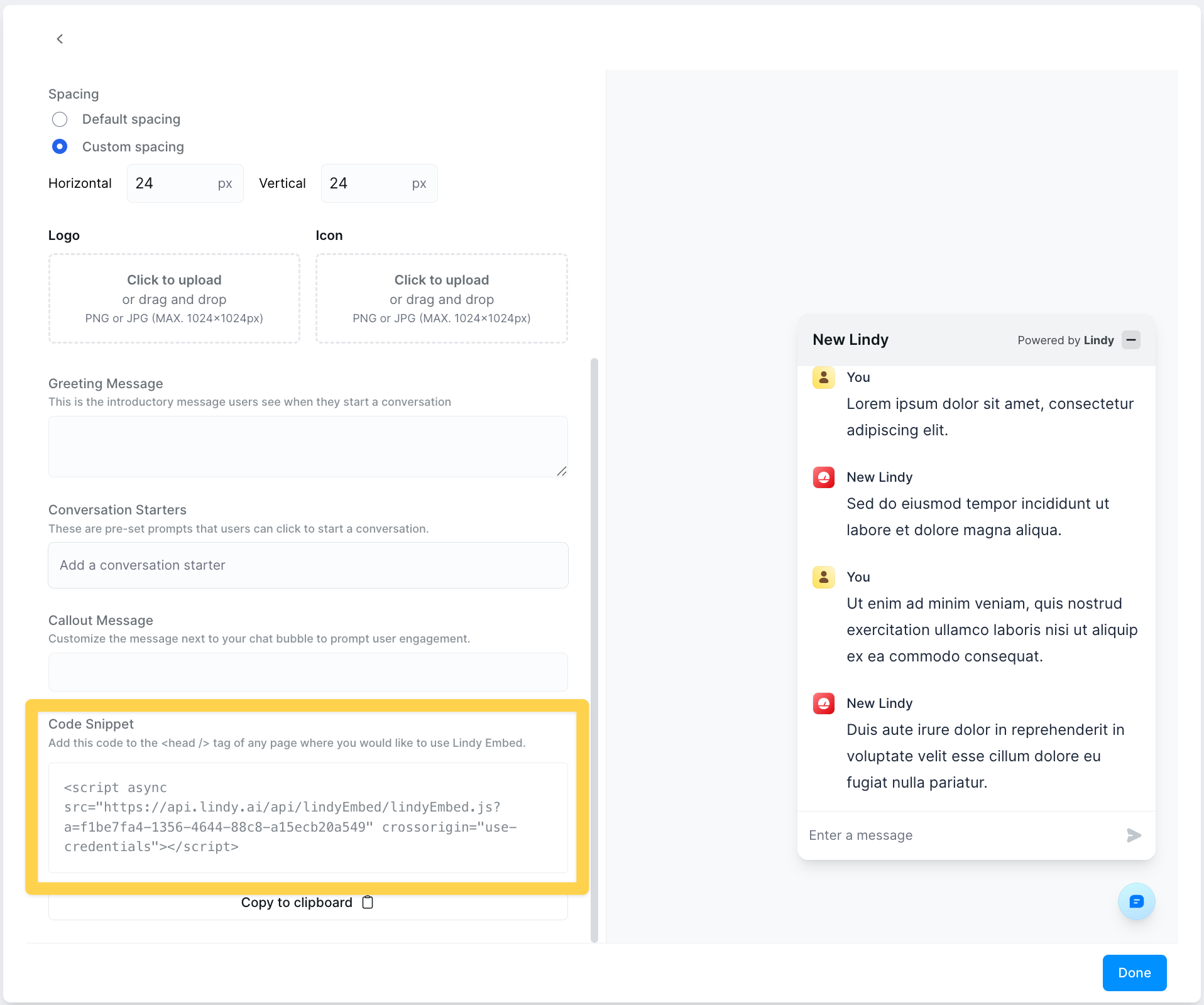 Paste the code snippet into your website's header.
We offer instructions on how to do so for the most popular platforms:
### Webflow
1. Access your Site Settings.
2. Navigate to "Custom Code".
3. Paste the Code Snippet at the bottom of your "Head Code" section.
4. Publish your changes!
### Wix
1. Choose the site you want to embed Lindy on and click Settings.
2. Scroll down until you see Custom Code.
3. You will see an option in the top right corner to Add Custom Code.
4. Click this and paste your Lindy Code Snippet here.
5. Click Apply.
### Squarespace
1. Access your Site Settings then click Advanced.
2. Select Code Injection.
3. Paste your Lindy Code Snippet into the Header section.
4. Remember to Save and Publish your changes.
### WordPress
1. Install and activate the free Insert Headers and Footers plugin by WPCode.
2. In your WordPress dashboard, navigate to Code Snippets → Header & Footer.
3. Paste the Lindy Code Snippet into the Header box.
4. Click Save Changes.
## Embedding Lindy as an iFrame
You can also embed Lindy as an iFrame.
On the Configure Embed Settings modal, select the iFrame tab and copy the code snippet to your clipboard. You can then paste this code anywhere your website builder accepts iFrames.
When embedding Lindy as an iFrame, it is important to set the height on the element containing the Embed iFrame.
You can also change the height property of the iFrame itself to a specific pixel value (e.g., 100px, 500px) instead of using "100%".
When using iFrame embedding, ensure your container element has a defined height. The iFrame will inherit the height of its container, so setting this correctly is crucial for proper display.
## Testing Your Embed
Before deploying your Lindy Embed to production, it's essential to test the chatbot functionality and user experience.
Paste the code snippet into your website's header.
We offer instructions on how to do so for the most popular platforms:
### Webflow
1. Access your Site Settings.
2. Navigate to "Custom Code".
3. Paste the Code Snippet at the bottom of your "Head Code" section.
4. Publish your changes!
### Wix
1. Choose the site you want to embed Lindy on and click Settings.
2. Scroll down until you see Custom Code.
3. You will see an option in the top right corner to Add Custom Code.
4. Click this and paste your Lindy Code Snippet here.
5. Click Apply.
### Squarespace
1. Access your Site Settings then click Advanced.
2. Select Code Injection.
3. Paste your Lindy Code Snippet into the Header section.
4. Remember to Save and Publish your changes.
### WordPress
1. Install and activate the free Insert Headers and Footers plugin by WPCode.
2. In your WordPress dashboard, navigate to Code Snippets → Header & Footer.
3. Paste the Lindy Code Snippet into the Header box.
4. Click Save Changes.
## Embedding Lindy as an iFrame
You can also embed Lindy as an iFrame.
On the Configure Embed Settings modal, select the iFrame tab and copy the code snippet to your clipboard. You can then paste this code anywhere your website builder accepts iFrames.
When embedding Lindy as an iFrame, it is important to set the height on the element containing the Embed iFrame.
You can also change the height property of the iFrame itself to a specific pixel value (e.g., 100px, 500px) instead of using "100%".
When using iFrame embedding, ensure your container element has a defined height. The iFrame will inherit the height of its container, so setting this correctly is crucial for proper display.
## Testing Your Embed
Before deploying your Lindy Embed to production, it's essential to test the chatbot functionality and user experience.
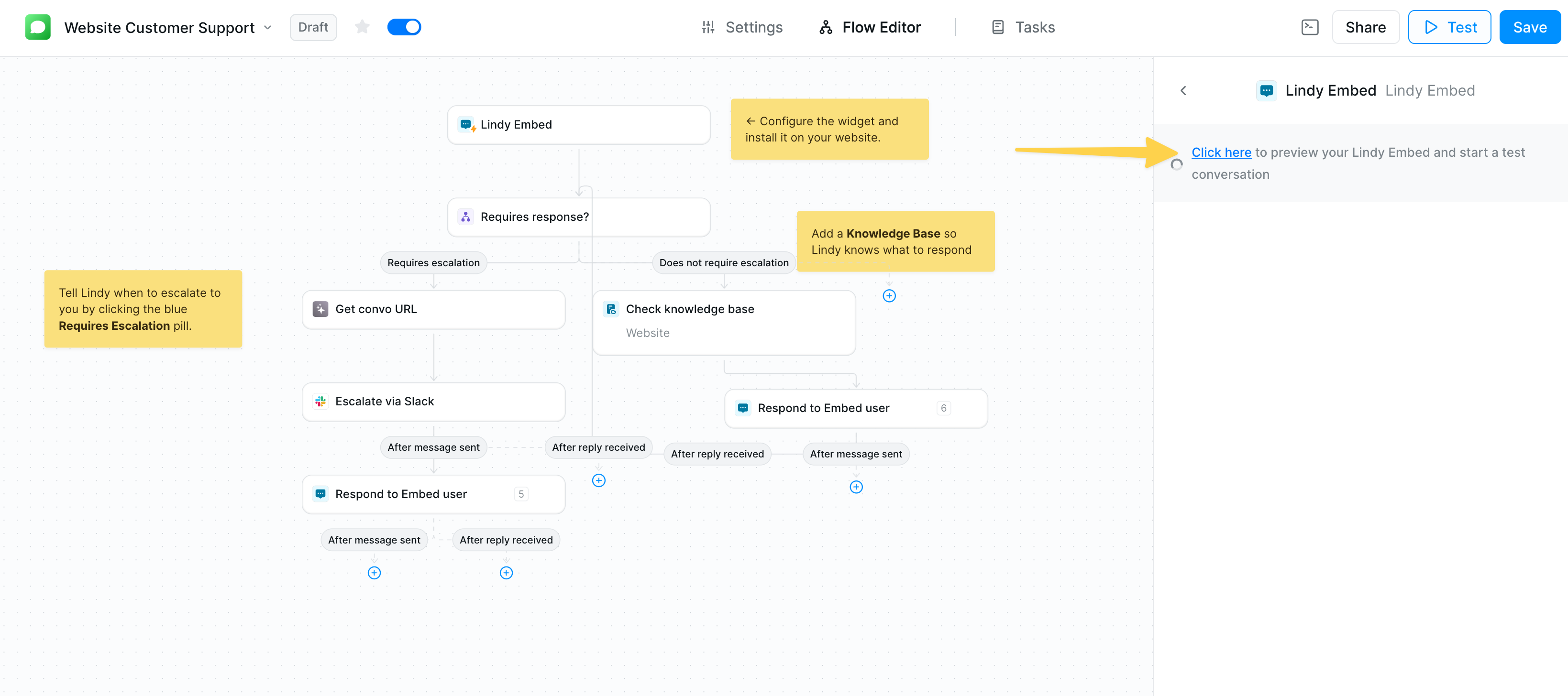 After sending a test message, return to the test panel and click the incoming message to continue the conversation.
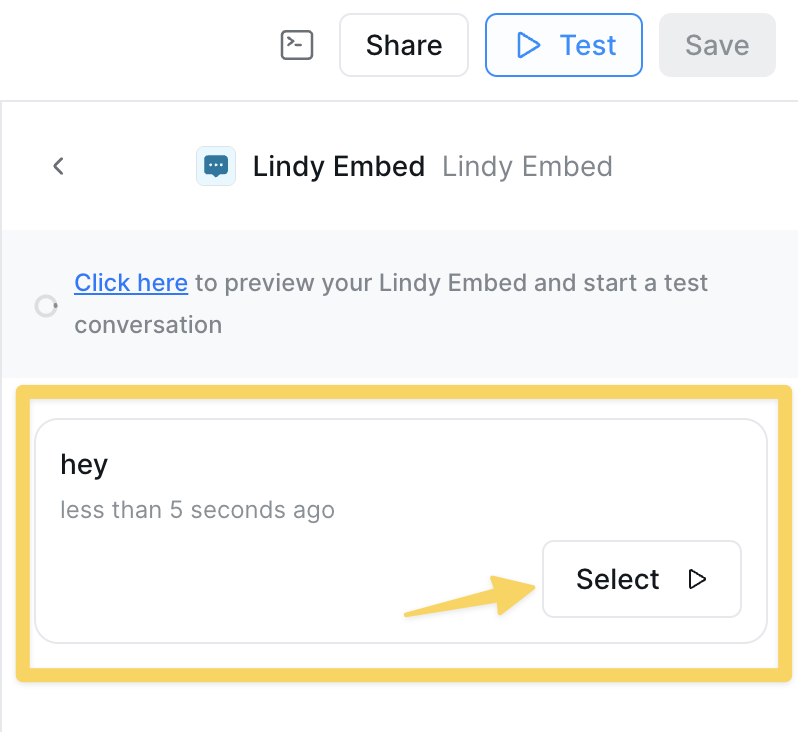 ### Preview Your Chatbot
Use the "Click here to preview your Lindy Embed and start a test conversation" link in the configuration panel to test your chatbot in a realistic environment. This allows you to:
* Verify the visual appearance matches your brand
* Test conversation flows and responses
* Check knowledge base integration
* Validate escalation workflows
### Monitor Chatbot Conversations
### Preview Your Chatbot
Use the "Click here to preview your Lindy Embed and start a test conversation" link in the configuration panel to test your chatbot in a realistic environment. This allows you to:
* Verify the visual appearance matches your brand
* Test conversation flows and responses
* Check knowledge base integration
* Validate escalation workflows
### Monitor Chatbot Conversations
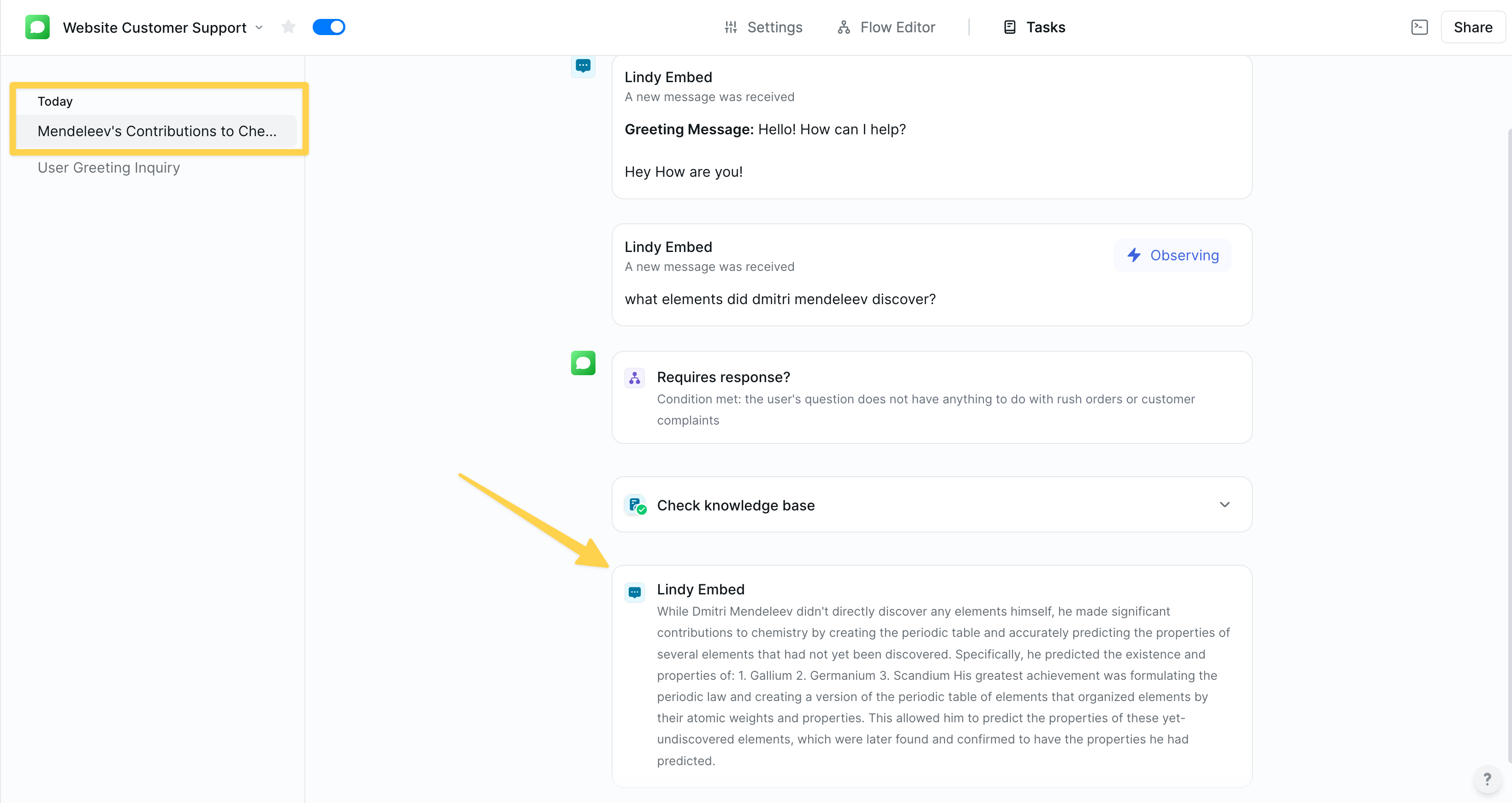 Track user interactions and monitor conversation quality through the flow view. This helps you:
* Analyze user questions and interaction patterns
* Identify knowledge gaps or areas for improvement
* Monitor escalation triggers and response quality
* Optimize conversation starters and greeting messages
## Best Practices
* **Test on Multiple Devices**: Ensure your embed works well on desktop, tablet, and mobile
* **Match Your Brand**: Use your brand colors and logo for a cohesive experience
* **Clear Purpose**: Make the chatbot's purpose obvious through the display name and greeting
* **Domain Security**: Always specify allowed domains for production sites
* **Performance**: Monitor loading times and optimize as needed
## Troubleshooting
* Verify the code snippet is placed in the correct location (usually `` section)
* Check browser console for JavaScript errors
* Ensure your domain matches the domain restriction if set
* Clear browser cache and try again
* Make sure the Lindy agent is published and active
* Set explicit height on the container element
* Use pixel values instead of percentages for better control
* Test different heights to find optimal size
* Consider responsive breakpoints for mobile devices
* Use more specific CSS selectors if needed
* Consider using the iFrame option for complete style isolation
* Check for z-index conflicts with other page elements
* Try using a different browser
* Copy the code manually by selecting all text
* Ensure JavaScript is enabled in your browser
* Check if browser extensions are blocking functionality
## Next Steps
Test your embedded agent before going live
Fine-tune your agent's behavior and responses
Enhance your agent with specific knowledge
Track usage and optimize your embed
Track user interactions and monitor conversation quality through the flow view. This helps you:
* Analyze user questions and interaction patterns
* Identify knowledge gaps or areas for improvement
* Monitor escalation triggers and response quality
* Optimize conversation starters and greeting messages
## Best Practices
* **Test on Multiple Devices**: Ensure your embed works well on desktop, tablet, and mobile
* **Match Your Brand**: Use your brand colors and logo for a cohesive experience
* **Clear Purpose**: Make the chatbot's purpose obvious through the display name and greeting
* **Domain Security**: Always specify allowed domains for production sites
* **Performance**: Monitor loading times and optimize as needed
## Troubleshooting
* Verify the code snippet is placed in the correct location (usually `` section)
* Check browser console for JavaScript errors
* Ensure your domain matches the domain restriction if set
* Clear browser cache and try again
* Make sure the Lindy agent is published and active
* Set explicit height on the container element
* Use pixel values instead of percentages for better control
* Test different heights to find optimal size
* Consider responsive breakpoints for mobile devices
* Use more specific CSS selectors if needed
* Consider using the iFrame option for complete style isolation
* Check for z-index conflicts with other page elements
* Try using a different browser
* Copy the code manually by selecting all text
* Ensure JavaScript is enabled in your browser
* Check if browser extensions are blocking functionality
## Next Steps
Test your embedded agent before going live
Fine-tune your agent's behavior and responses
Enhance your agent with specific knowledge
Track usage and optimize your embed