> ## Documentation Index
> Fetch the complete documentation index at: https://docs.lindy.ai/llms.txt
> Use this file to discover all available pages before exploring further.
# Lindy Phone
> Build AI-powered voice agents that can handle complex phone conversations with tool integrations
## Overview
Lindy Phone transforms voice interactions into powerful automated workflows. Unlike traditional phone trees, Lindy Phone seamlessly connects to AI agents that can access your entire integration ecosystem - making API calls, searching the web, updating databases, and more — all during a live conversation.
Every phone call in Lindy is automatically followed by an AI Agent node, enabling sophisticated tool integrations and dynamic responses based on the conversation.
## How Lindy Phone Works
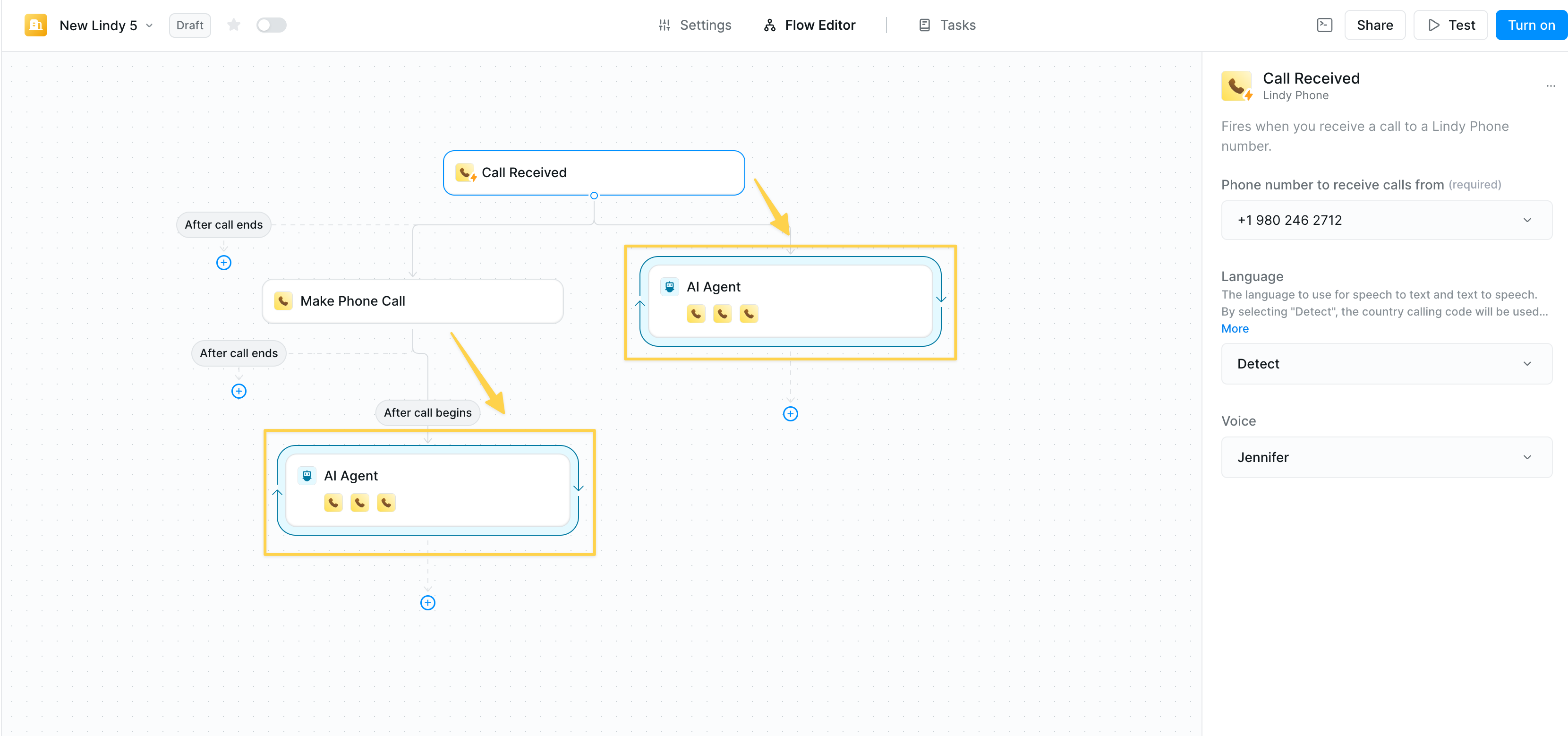 This is how you interact with Lindy Phone:
1. **Phone trigger** (inbound) or **action** (outbound) initiates the call
2. **AI Agent node** automatically follows with phone agent skills. The prompt dictates the behavior, and you can optionally add other skills like:
* Lindy integrations (Gmail, Slack, CRMs, etc.)
* Web browsing and search capabilities
* API connections
* Database operations
This means your voice agent can work across your tech stack during conversations.
Pro tip: Use "After Call Ends" path to perform any logging or post-call actions instead of trying to do things during the live conversation.
## Setting Up Your AI-Powered Voice Agent
### Step 1: Configure the AI Agent
After adding your phone trigger/action, the AI agent node appears automatically. Your prompt is the instruction for the phone agent, as that's dictating the behavior on the phone.
**Essential configuration:**
* **Prompt**: Define your agent's personality, objectives, and conversation guidelines
* **Model**: We recommend Gemini Flash for simple calls and Claude Sonnet for complex conversations
* **Skills**: Add any Lindy action as a skill your agent can use
Pro tip: Start your prompt with clear role definition: "You are a \[role] for \[company]. Your goal is to \[objective]."
### Step 2: Add Agent Skills
Your voice agent can perform any action available in Lindy:
This is how you interact with Lindy Phone:
1. **Phone trigger** (inbound) or **action** (outbound) initiates the call
2. **AI Agent node** automatically follows with phone agent skills. The prompt dictates the behavior, and you can optionally add other skills like:
* Lindy integrations (Gmail, Slack, CRMs, etc.)
* Web browsing and search capabilities
* API connections
* Database operations
This means your voice agent can work across your tech stack during conversations.
Pro tip: Use "After Call Ends" path to perform any logging or post-call actions instead of trying to do things during the live conversation.
## Setting Up Your AI-Powered Voice Agent
### Step 1: Configure the AI Agent
After adding your phone trigger/action, the AI agent node appears automatically. Your prompt is the instruction for the phone agent, as that's dictating the behavior on the phone.
**Essential configuration:**
* **Prompt**: Define your agent's personality, objectives, and conversation guidelines
* **Model**: We recommend Gemini Flash for simple calls and Claude Sonnet for complex conversations
* **Skills**: Add any Lindy action as a skill your agent can use
Pro tip: Start your prompt with clear role definition: "You are a \[role] for \[company]. Your goal is to \[objective]."
### Step 2: Add Agent Skills
Your voice agent can perform any action available in Lindy:
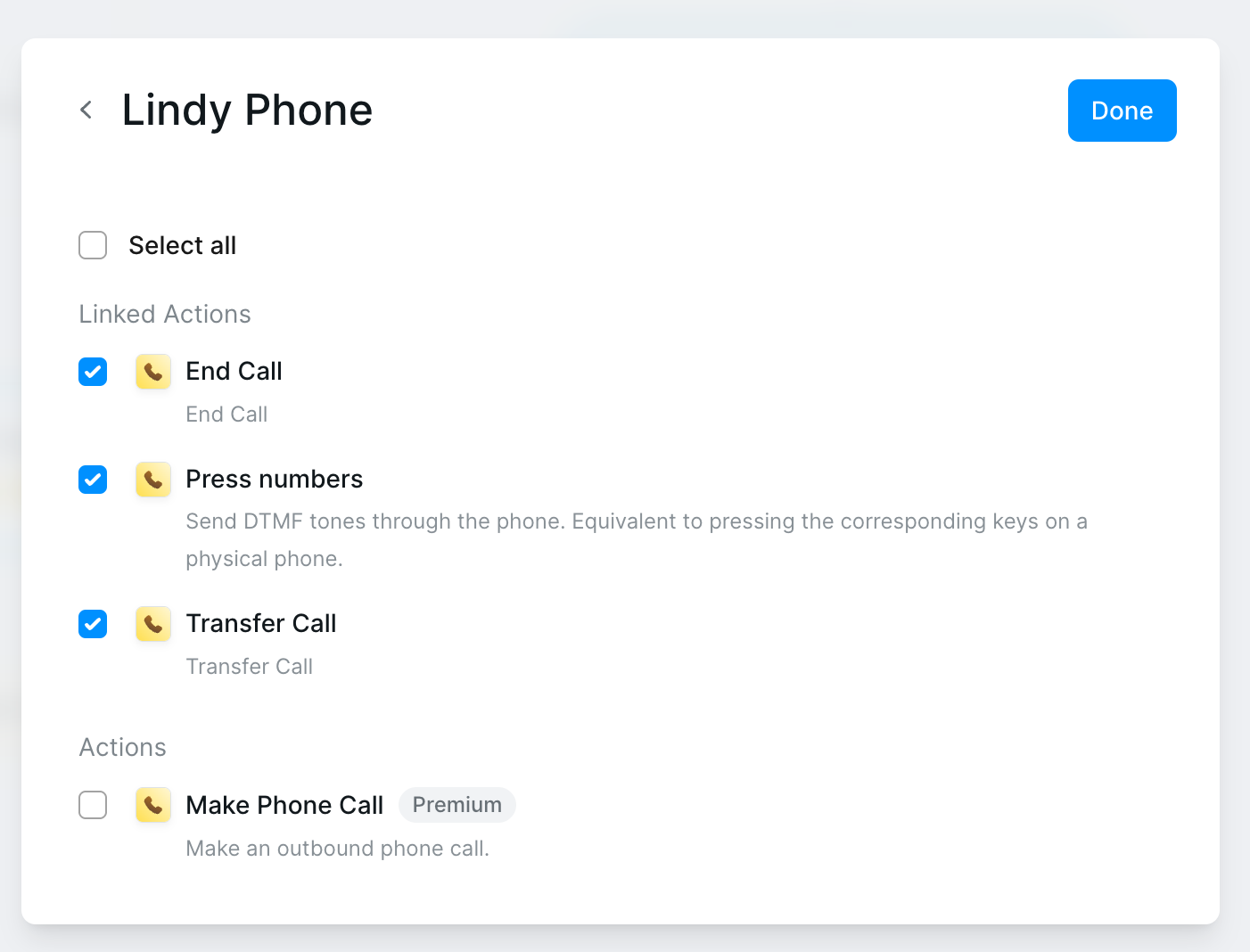 **Phone-specific skills:**
* **End Call** — Gracefully terminate conversations
* **Press Numbers** — Navigate phone trees
* **Transfer Call** — Route to humans or departments
You can add any skills, but keep in mind that if your agent uses non-phone skills it will increase latency and this is a conversation.
## Real Example Prompts
```
You are on a phone call with a customer needing technical support.
**Follow these conversation steps:**
1. Introduce yourself briefly:
"Hi there, I'm your technical support assistant. Can I please get your name?"
2. [Instruction]: WAIT FOR THE OTHER PERSON TO RESPOND BEFORE CONTINUING.
3. Ask how you can help them today with their technical issue.
*** Anytime you receive a question, move to the "support question" state ***
4. Respond to technical questions concisely using your knowledge base.
Try to keep responses 1-2 sentences. If you cannot answer the question,
search the knowledge base or create a support ticket.
5. If the user indicates the issue is resolved or conversation is over,
say thank you and goodbye then end the call.
Skills: Search Knowledge Base, Create Zendesk Ticket, Send SMS, Transfer Call
```
```
You are on a phone call with a potential customer interested in our services.
**Follow these conversation steps:**
1. Introduce yourself briefly:
"Hi there, I'm calling from [Company]. Can I please get your name?"
2. [Instruction]: WAIT FOR THE OTHER PERSON TO RESPOND BEFORE CONTINUING.
3. Ask how you can help them learn about our services today.
*** Anytime you receive a question, move to the "sales question" state ***
4. Respond to questions about our services concisely. Gather company size,
budget, and timeline information. Try to keep responses 1-2 sentences.
If they're qualified, offer to schedule a demo.
5. If they want to schedule a demo or the conversation is over,
say thank you and goodbye then end the call.
Skills: Search Internet, Check Calendar, Create Calendar Event, Update CRM, Send Email
```
```
You are on a phone call with someone wanting to schedule an appointment.
**Follow these conversation steps:**
1. Introduce yourself briefly:
"Hi there, I'm calling to help you schedule an appointment. Can I please get your name?"
2. [Instruction]: WAIT FOR THE OTHER PERSON TO RESPOND BEFORE CONTINUING.
3. Ask what type of appointment they need and their preferred date/time.
*** Anytime you receive a question, move to the "scheduling question" state ***
4. Check availability and verify insurance if needed. Try to keep responses
1-2 sentences. If you cannot find suitable times, offer alternatives.
5. Once appointment is booked or if conversation is over,
say thank you and goodbye then end the call.
Skills: Query API, Search Calendar, Create Event, Send SMS, Update Database
```
## Configuration Options
Lindy Phone supports 30+ languages for global reach:
* English, Spanish, French, German
* Chinese (Mandarin/Cantonese)
* Japanese, Korean, Hindi, Arabic
* And 25+ more
Configure in your phone trigger/action settings.
* **Cost**: \$10/month per number
* **Coverage**: 100+ countries
* **Features**: Concurrent calls, SMS capable
* **Management**: Settings → Phone Numbers
Choose from multiple voice options:
* Standard voices (included)
* Premium voices (Business/Enterprise)
* Gender and accent variations
* Language-specific options
## Best Practices
* Keep prompts conversational and natural
* Plan for common scenarios and edge cases
* Include fallback responses
* Test with real users
* Only add skills the agent actually needs
* Group related actions logically
* Test each skill in isolation first
* Monitor usage patterns
* Use "After Call Ends" trigger to perform any logging or post-call actions
* Avoid trying to log or update records during the live conversation
* Set up follow-up emails or notifications after the call completes
* Process call transcripts and summaries post-call for better performance
## Related Resources
Deep dive into AI agent configuration
Detailed phone system documentation
Add approval steps to workflows
Give agents access to information
**Phone-specific skills:**
* **End Call** — Gracefully terminate conversations
* **Press Numbers** — Navigate phone trees
* **Transfer Call** — Route to humans or departments
You can add any skills, but keep in mind that if your agent uses non-phone skills it will increase latency and this is a conversation.
## Real Example Prompts
```
You are on a phone call with a customer needing technical support.
**Follow these conversation steps:**
1. Introduce yourself briefly:
"Hi there, I'm your technical support assistant. Can I please get your name?"
2. [Instruction]: WAIT FOR THE OTHER PERSON TO RESPOND BEFORE CONTINUING.
3. Ask how you can help them today with their technical issue.
*** Anytime you receive a question, move to the "support question" state ***
4. Respond to technical questions concisely using your knowledge base.
Try to keep responses 1-2 sentences. If you cannot answer the question,
search the knowledge base or create a support ticket.
5. If the user indicates the issue is resolved or conversation is over,
say thank you and goodbye then end the call.
Skills: Search Knowledge Base, Create Zendesk Ticket, Send SMS, Transfer Call
```
```
You are on a phone call with a potential customer interested in our services.
**Follow these conversation steps:**
1. Introduce yourself briefly:
"Hi there, I'm calling from [Company]. Can I please get your name?"
2. [Instruction]: WAIT FOR THE OTHER PERSON TO RESPOND BEFORE CONTINUING.
3. Ask how you can help them learn about our services today.
*** Anytime you receive a question, move to the "sales question" state ***
4. Respond to questions about our services concisely. Gather company size,
budget, and timeline information. Try to keep responses 1-2 sentences.
If they're qualified, offer to schedule a demo.
5. If they want to schedule a demo or the conversation is over,
say thank you and goodbye then end the call.
Skills: Search Internet, Check Calendar, Create Calendar Event, Update CRM, Send Email
```
```
You are on a phone call with someone wanting to schedule an appointment.
**Follow these conversation steps:**
1. Introduce yourself briefly:
"Hi there, I'm calling to help you schedule an appointment. Can I please get your name?"
2. [Instruction]: WAIT FOR THE OTHER PERSON TO RESPOND BEFORE CONTINUING.
3. Ask what type of appointment they need and their preferred date/time.
*** Anytime you receive a question, move to the "scheduling question" state ***
4. Check availability and verify insurance if needed. Try to keep responses
1-2 sentences. If you cannot find suitable times, offer alternatives.
5. Once appointment is booked or if conversation is over,
say thank you and goodbye then end the call.
Skills: Query API, Search Calendar, Create Event, Send SMS, Update Database
```
## Configuration Options
Lindy Phone supports 30+ languages for global reach:
* English, Spanish, French, German
* Chinese (Mandarin/Cantonese)
* Japanese, Korean, Hindi, Arabic
* And 25+ more
Configure in your phone trigger/action settings.
* **Cost**: \$10/month per number
* **Coverage**: 100+ countries
* **Features**: Concurrent calls, SMS capable
* **Management**: Settings → Phone Numbers
Choose from multiple voice options:
* Standard voices (included)
* Premium voices (Business/Enterprise)
* Gender and accent variations
* Language-specific options
## Best Practices
* Keep prompts conversational and natural
* Plan for common scenarios and edge cases
* Include fallback responses
* Test with real users
* Only add skills the agent actually needs
* Group related actions logically
* Test each skill in isolation first
* Monitor usage patterns
* Use "After Call Ends" trigger to perform any logging or post-call actions
* Avoid trying to log or update records during the live conversation
* Set up follow-up emails or notifications after the call completes
* Process call transcripts and summaries post-call for better performance
## Related Resources
Deep dive into AI agent configuration
Detailed phone system documentation
Add approval steps to workflows
Give agents access to information