> ## Documentation Index
> Fetch the complete documentation index at: https://docs.lindy.ai/llms.txt
> Use this file to discover all available pages before exploring further.
# Talk with Other Lindy
> Enable Lindys to communicate and collaborate with each other using message triggers and actions for multi-agent workflows
## Overview
Enable Lindys to interact and collaborate with each other through direct messaging. There are two key components for Lindy-to-Lindy communication:
* `Agent Message Received` trigger listens for messages from other Lindys and determines how to handle them
* `Send Message` action allows one Lindy to send messages to another Lindy with the appropriate trigger
## Agent Message Received Trigger
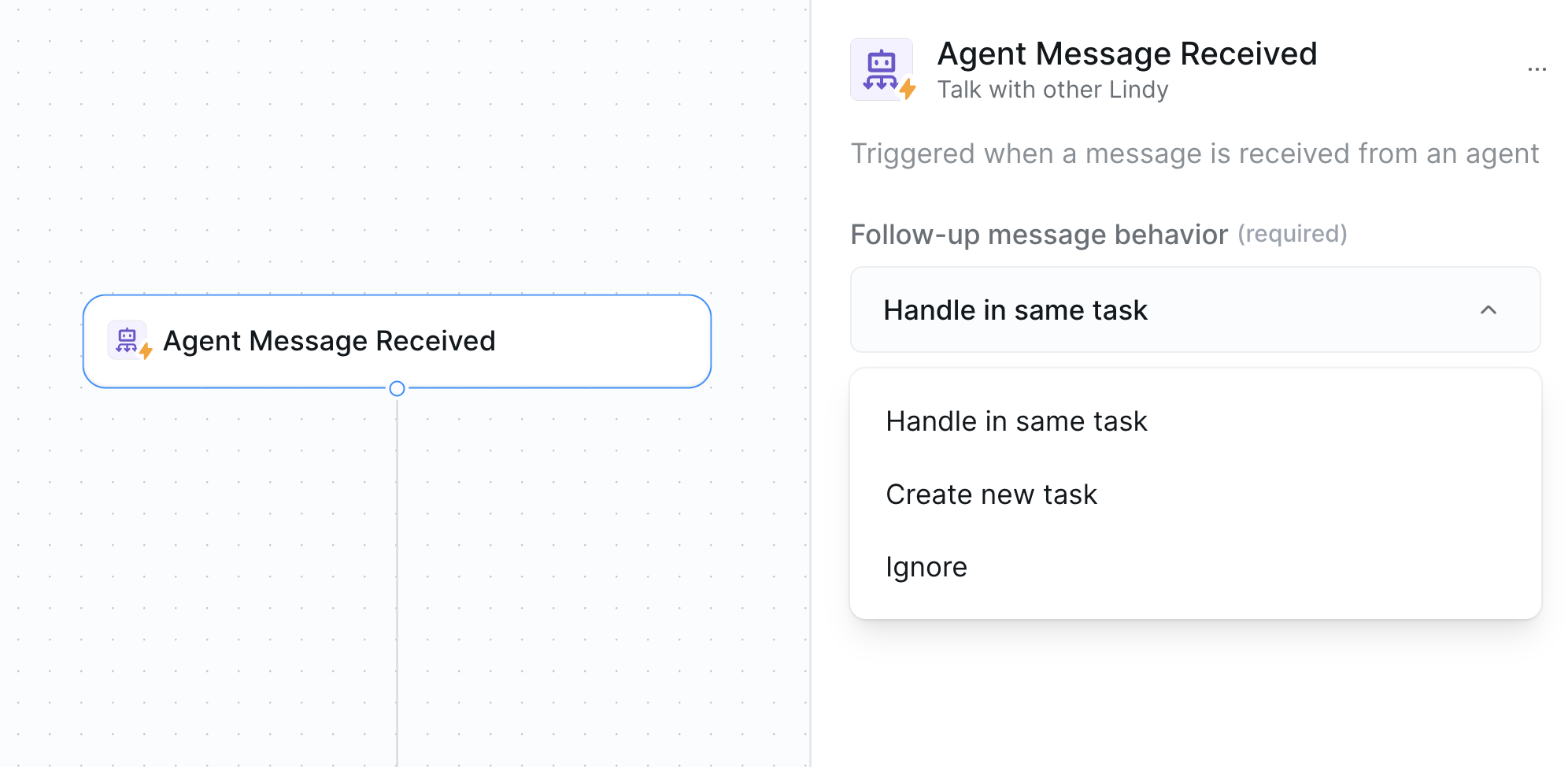
* **What it does**: Triggers when another Lindy sends a message to this Lindy - perfect for building collaborative multi-agent workflows.
 ### Inputs
* **Follow-up Message Behavior**: Choose how to handle subsequent messages:
* **"Handle in same task"** — Process new messages within the same ongoing task
* **"Create new task"** — Start a fresh task for each new message
* **"Ignore"** — Only respond to the first message, ignore follow-ups
This follow-up behavior works very similar to email and other stateful triggers.
***
## Send Message Action
* **What it does**: Sends a message from this Lindy to another Lindy that has the Agent Message Receive trigger configured.
### Inputs
* **Follow-up Message Behavior**: Choose how to handle subsequent messages:
* **"Handle in same task"** — Process new messages within the same ongoing task
* **"Create new task"** — Start a fresh task for each new message
* **"Ignore"** — Only respond to the first message, ignore follow-ups
This follow-up behavior works very similar to email and other stateful triggers.
***
## Send Message Action
* **What it does**: Sends a message from this Lindy to another Lindy that has the Agent Message Receive trigger configured.
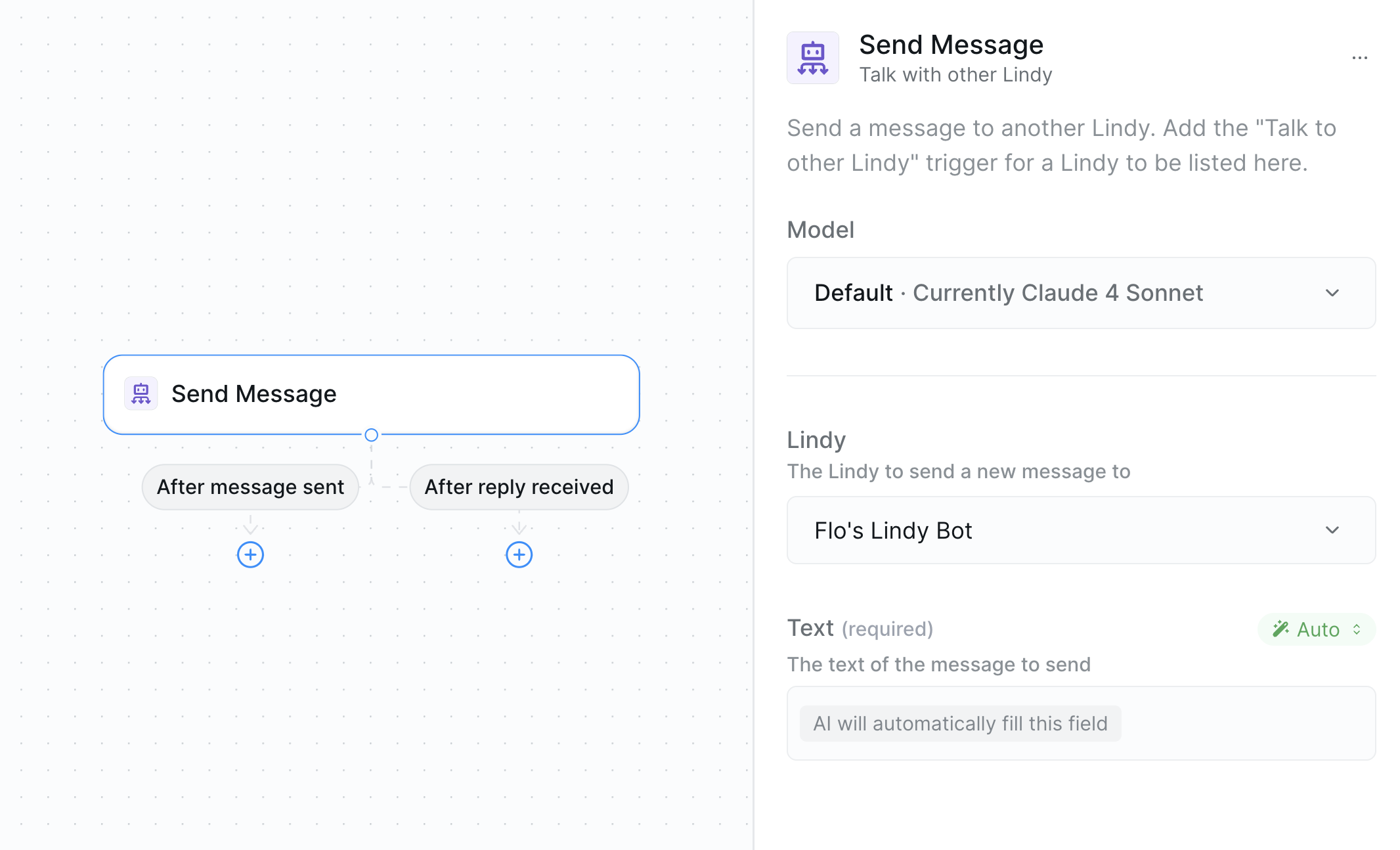 Important: Before you can select an agent to delegate to, you need to have the `Agent Message Received Trigger` set up and saved in the other agent. This trigger allows the other agent to receive and process messages from your current agent.
### Inputs
* **Target Lindy**: Choose which Lindy you're sending the message to
* **Text**: The message content you want to pass to the receiving Lindy
### Requirements
* The target Lindy must have the "Agent Message Received" trigger configured
* You can only send messages to Lindys that are set up to receive them
Send structured data and let the receiving agent know that structured data is coming in. The receiving agent won't include all the context it needs, so be explicit about what information you're passing along.
***
## Bulk Uploading Tasks via CSV
You can quickly create multiple tasks for your agents by uploading a CSV file directly from the tasks side panel. This is perfect for batch processing. Each row in your CSV will generate a new task.
## Use Cases
| Scenario | How it works |
| ------------------------ | ----------------------------------------------------------------------------- |
| **Workflow Handoffs** | One Lindy completes initial processing, then hands off to a specialist Lindy |
| **Task Distribution** | A coordinator Lindy distributes different types of work to specialized agents |
| **Review Processes** | One Lindy drafts content, sends to another Lindy for review and approval |
| **Multi-step Analysis** | Chain multiple Lindys together for complex, multi-stage analysis |
| **Escalation Workflows** | Basic Lindy handles routine tasks, escalates complex cases to advanced Lindy |
## Best Practices
Choose the right follow-up behavior based on your workflow needs — use "handle and save task" for ongoing conversations, "create new task" for independent requests, and "ignore" for one-time handoffs.
Structure messages clearly with context and specific instructions. Include relevant data and clear expectations for what the receiving Lindy should do.
Design clear handoff points between Lindys. Avoid circular communication loops and establish clear ownership of different workflow stages.
## Next Steps
Configure your Lindys for optimal communication
Build specialized Lindys for different workflow stages
Share data effectively between communicating Lindys
Pass information between Lindys in workflows
Important: Before you can select an agent to delegate to, you need to have the `Agent Message Received Trigger` set up and saved in the other agent. This trigger allows the other agent to receive and process messages from your current agent.
### Inputs
* **Target Lindy**: Choose which Lindy you're sending the message to
* **Text**: The message content you want to pass to the receiving Lindy
### Requirements
* The target Lindy must have the "Agent Message Received" trigger configured
* You can only send messages to Lindys that are set up to receive them
Send structured data and let the receiving agent know that structured data is coming in. The receiving agent won't include all the context it needs, so be explicit about what information you're passing along.
***
## Bulk Uploading Tasks via CSV
You can quickly create multiple tasks for your agents by uploading a CSV file directly from the tasks side panel. This is perfect for batch processing. Each row in your CSV will generate a new task.
## Use Cases
| Scenario | How it works |
| ------------------------ | ----------------------------------------------------------------------------- |
| **Workflow Handoffs** | One Lindy completes initial processing, then hands off to a specialist Lindy |
| **Task Distribution** | A coordinator Lindy distributes different types of work to specialized agents |
| **Review Processes** | One Lindy drafts content, sends to another Lindy for review and approval |
| **Multi-step Analysis** | Chain multiple Lindys together for complex, multi-stage analysis |
| **Escalation Workflows** | Basic Lindy handles routine tasks, escalates complex cases to advanced Lindy |
## Best Practices
Choose the right follow-up behavior based on your workflow needs — use "handle and save task" for ongoing conversations, "create new task" for independent requests, and "ignore" for one-time handoffs.
Structure messages clearly with context and specific instructions. Include relevant data and clear expectations for what the receiving Lindy should do.
Design clear handoff points between Lindys. Avoid circular communication loops and establish clear ownership of different workflow stages.
## Next Steps
Configure your Lindys for optimal communication
Build specialized Lindys for different workflow stages
Share data effectively between communicating Lindys
Pass information between Lindys in workflows