> ## Documentation Index
> Fetch the complete documentation index at: https://docs.lindy.ai/llms.txt
> Use this file to discover all available pages before exploring further.
# Timer
> Schedule workflows and add delays with precision timing controls
## Overview
Timer provides precise scheduling and delay capabilities for your agent workflows. Whether you need to run tasks on a recurring schedule, trigger at specific times, or add intelligent delays between actions, Timer gives you complete control over workflow timing.
Timer is essential for creating time-based automations, scheduled reports, follow-up sequences, and any workflow requiring precise timing control.
## Timer as a Trigger
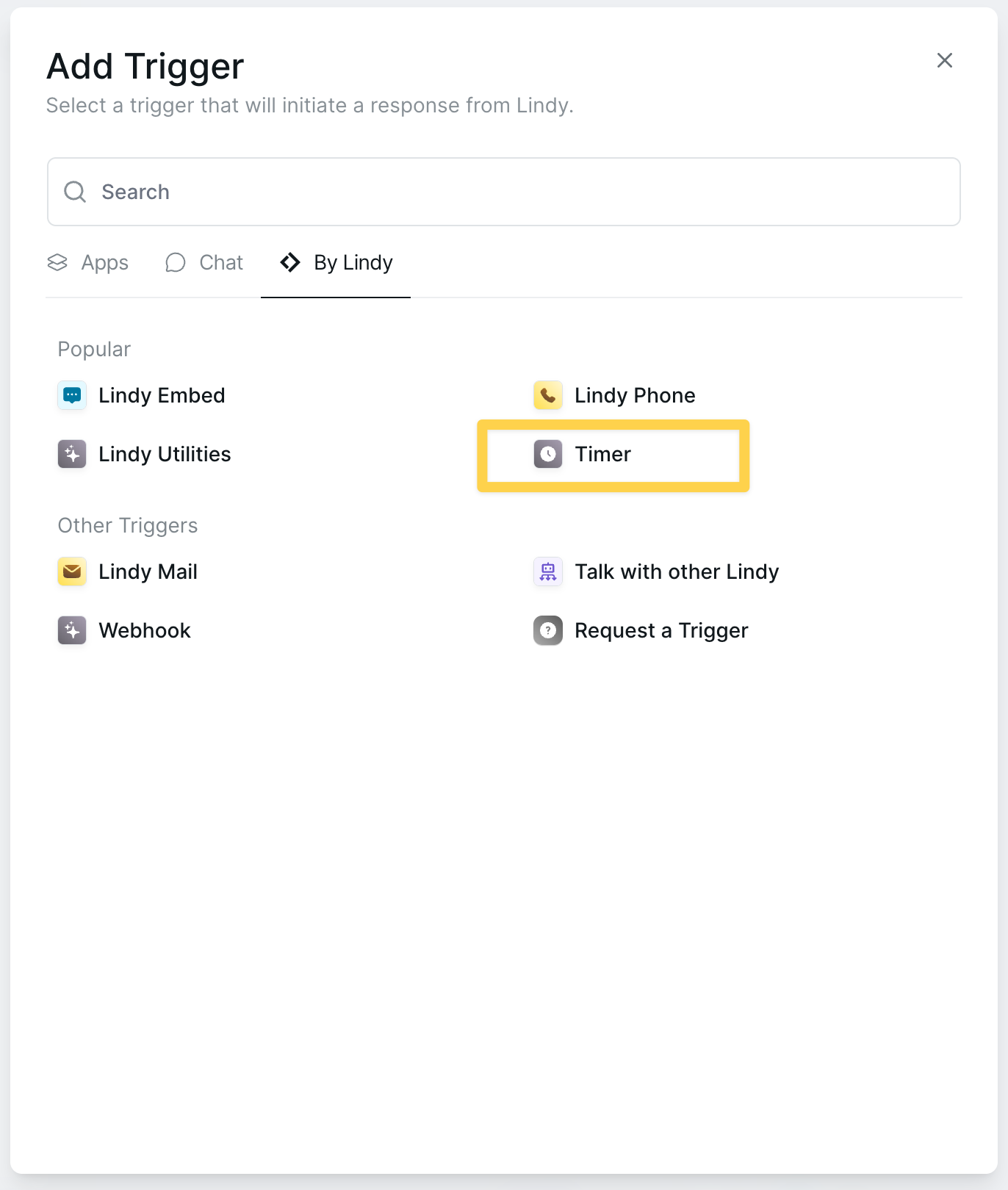 Timer appears in the "Popular" triggers section, offering two powerful scheduling options:
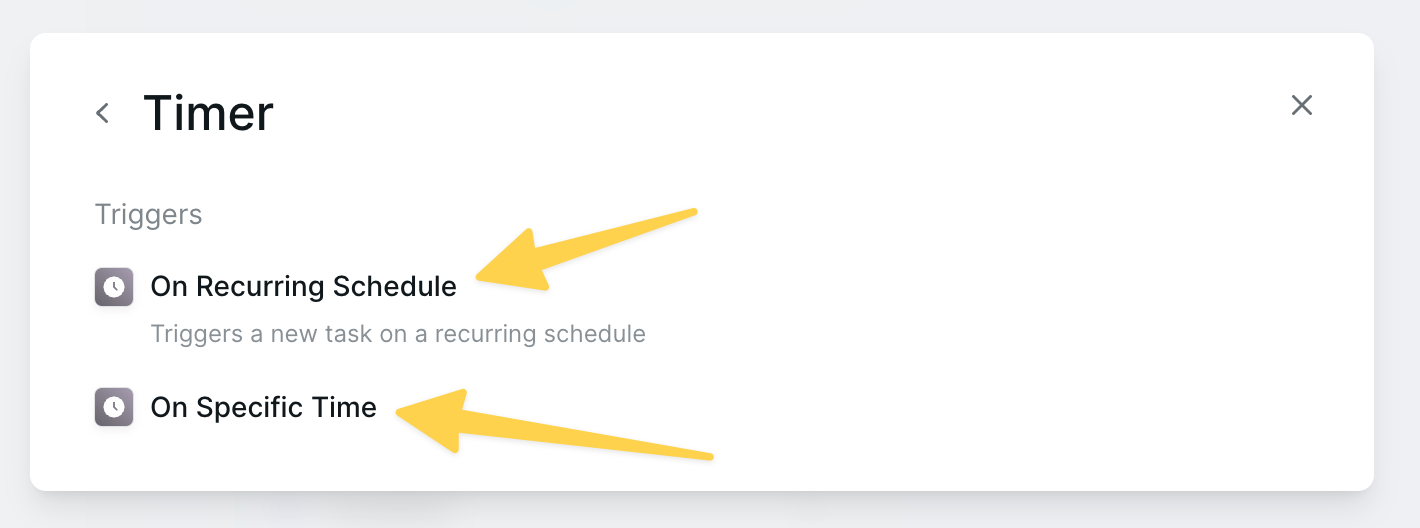 ### On Recurring Schedule
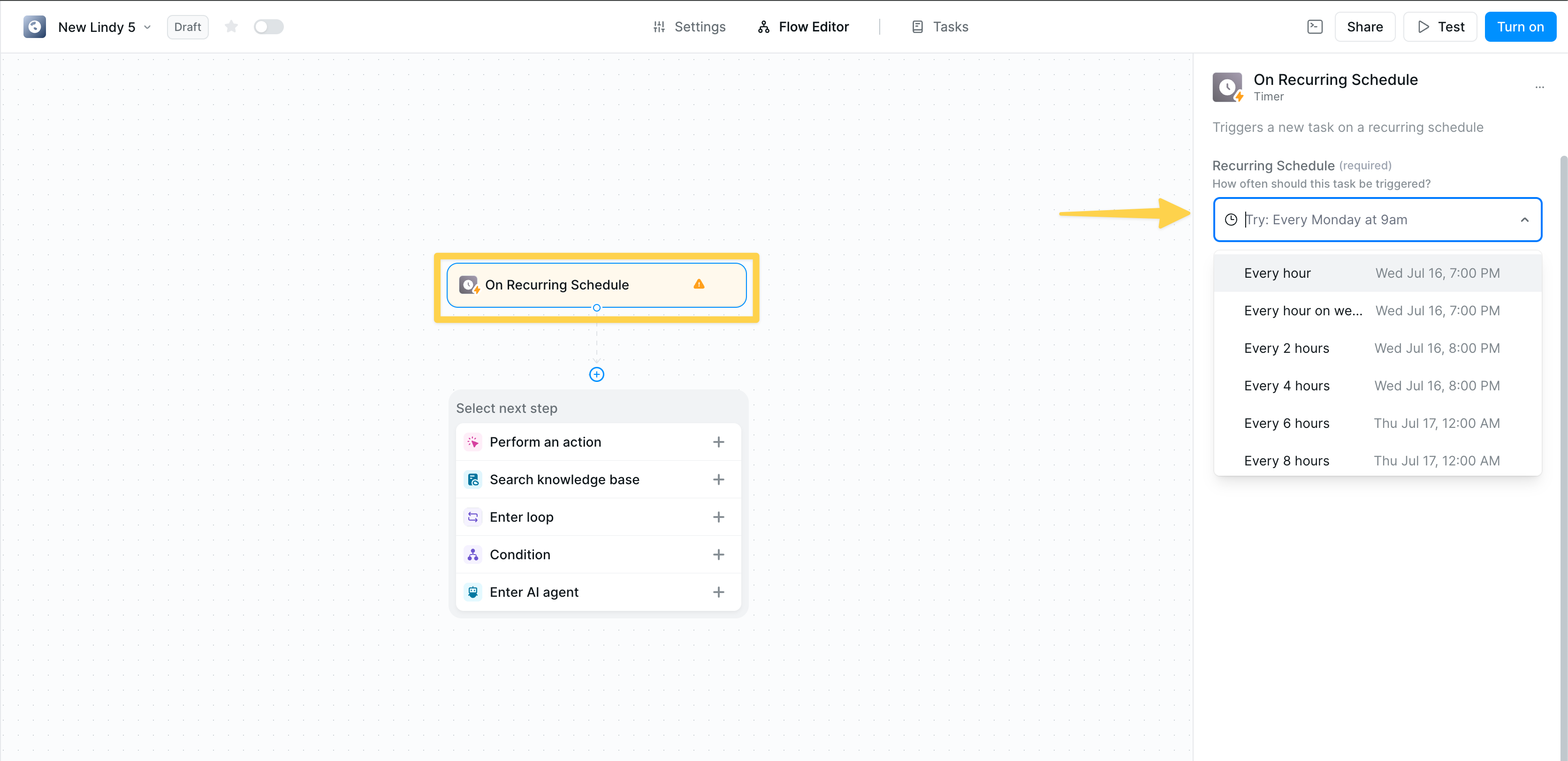 Create workflows that run automatically on a repeating schedule. You can define any interval in natural language—just type what you want, like "every Monday to Friday at 8am."
The interface shows when each schedule will next run, helping you verify your timing is correct before activating.
### On Specific Time
Create workflows that run automatically on a repeating schedule. You can define any interval in natural language—just type what you want, like "every Monday to Friday at 8am."
The interface shows when each schedule will next run, helping you verify your timing is correct before activating.
### On Specific Time
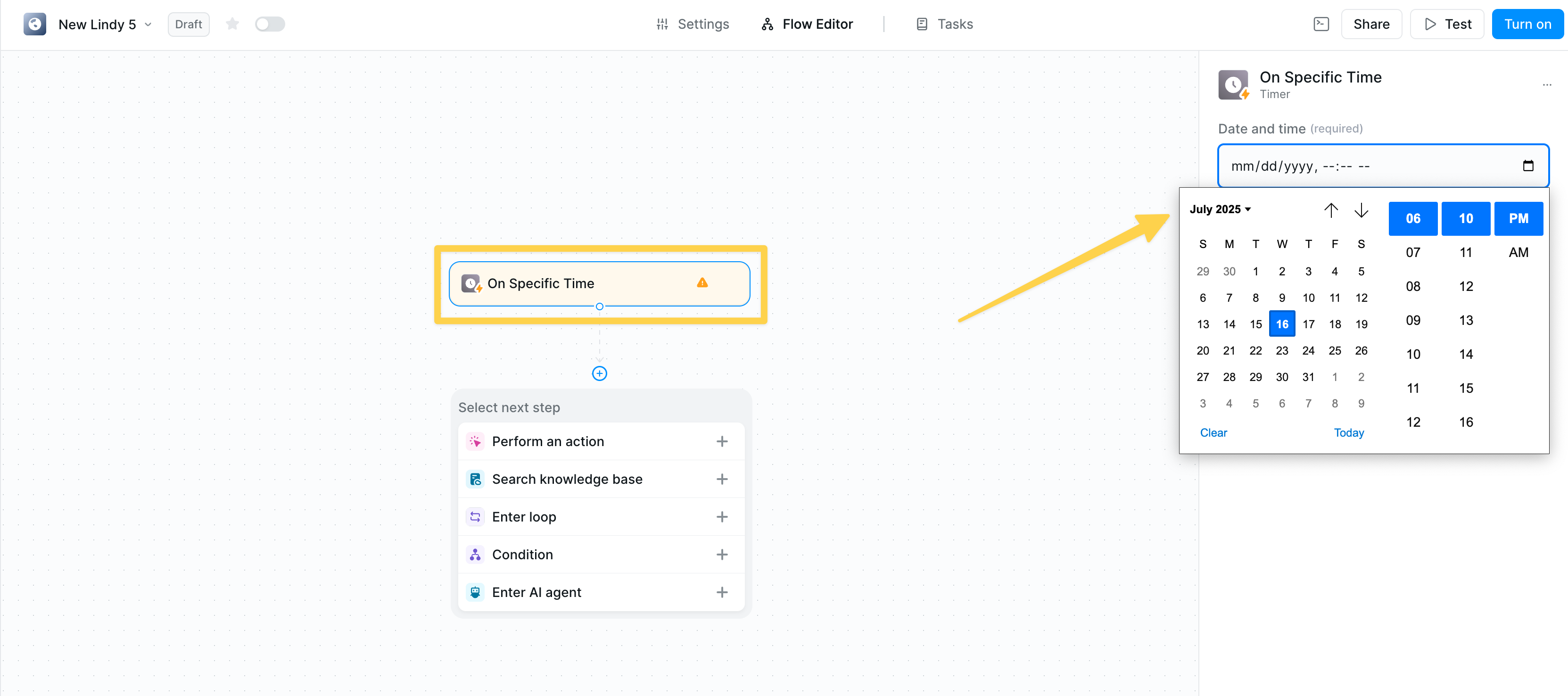 Trigger workflows at an exact date and time.
**Configuration:**
* Visual calendar picker
* Precise time selection (hour/minute)
* AM/PM format
* Clear date display (mm/dd/yyyy)
## Timer as an Action
### Set Timer
Add intelligent delays to your workflows with flexible timing options.
Trigger workflows at an exact date and time.
**Configuration:**
* Visual calendar picker
* Precise time selection (hour/minute)
* AM/PM format
* Clear date display (mm/dd/yyyy)
## Timer as an Action
### Set Timer
Add intelligent delays to your workflows with flexible timing options.
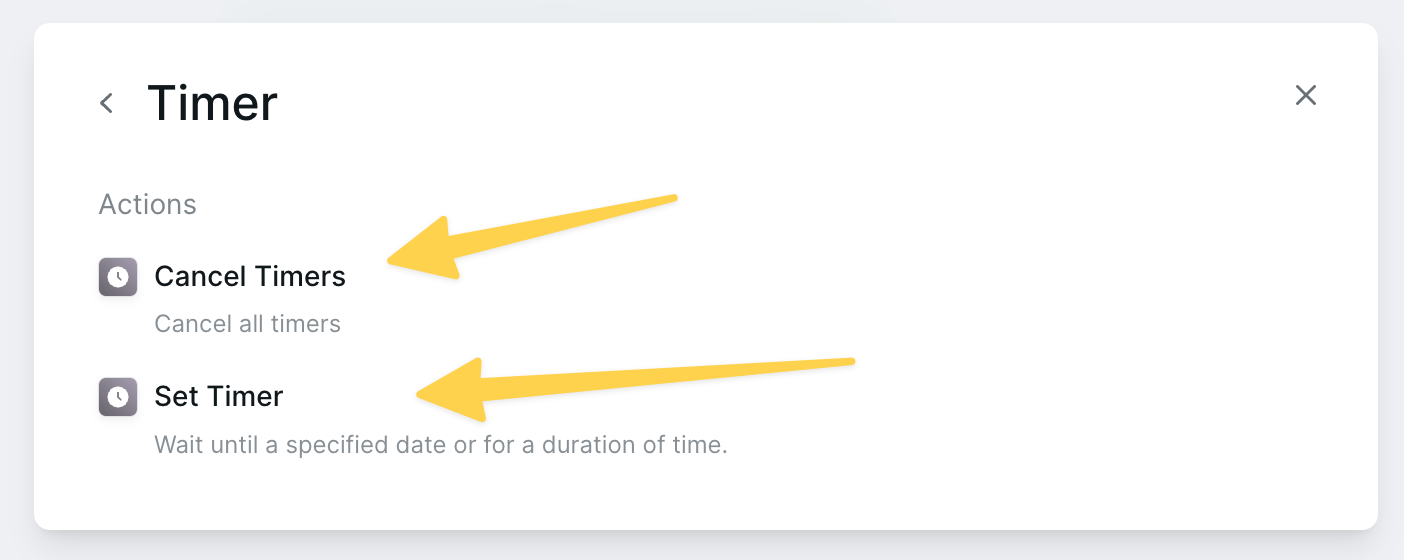 Timer provides two essential actions for controlling workflow timing:
#### Wait Until Specific Time
Timer provides two essential actions for controlling workflow timing:
#### Wait Until Specific Time
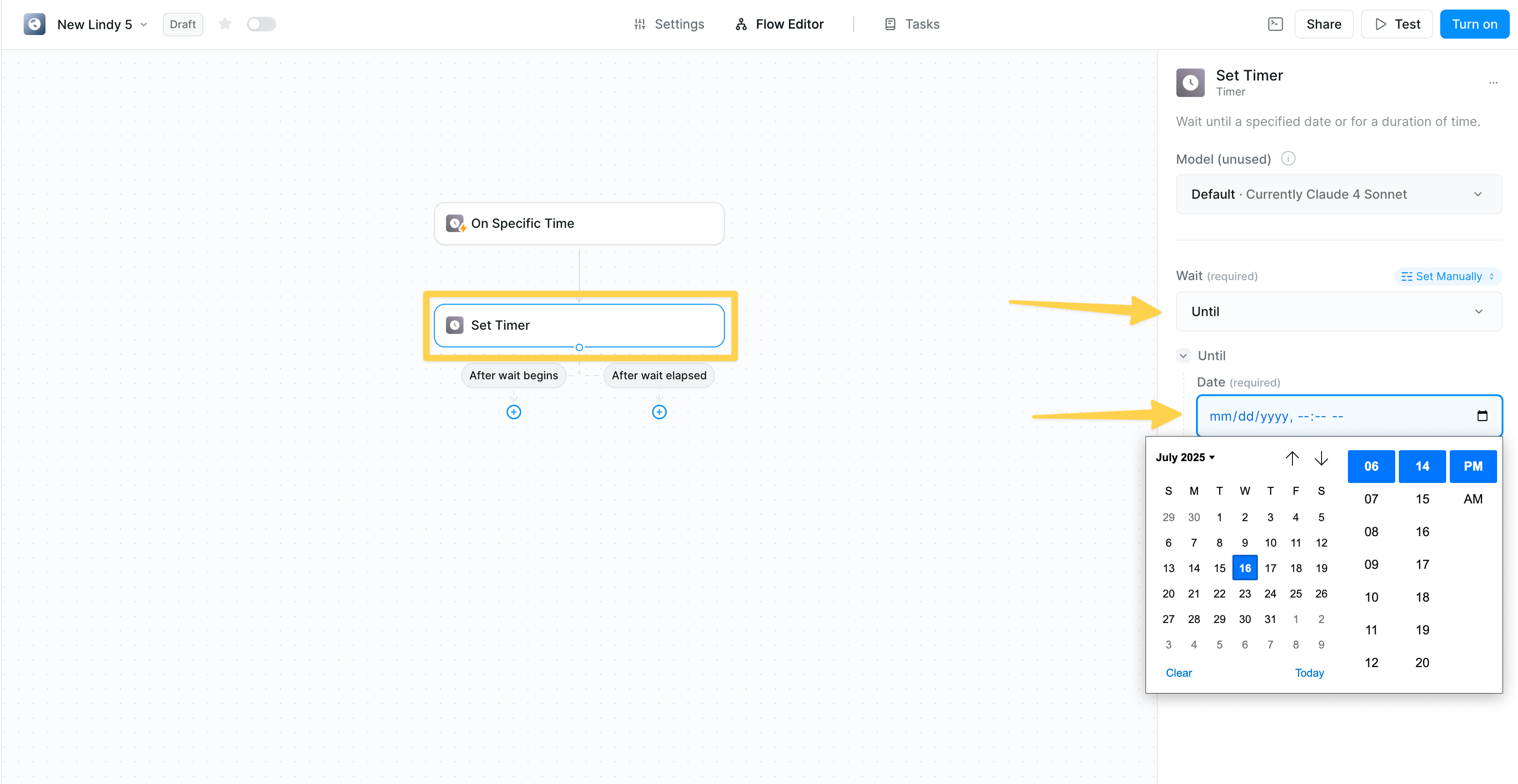 Pause your workflow until an exact moment:
* Select specific date with calendar picker
* Choose precise time
* Workflow resumes automatically at the specified time
**Use cases:**
* Wait until business hours to send emails
* Delay actions until after an event
* Coordinate with external schedules
#### Wait For Duration
Pause your workflow until an exact moment:
* Select specific date with calendar picker
* Choose precise time
* Workflow resumes automatically at the specified time
**Use cases:**
* Wait until business hours to send emails
* Delay actions until after an event
* Coordinate with external schedules
#### Wait For Duration
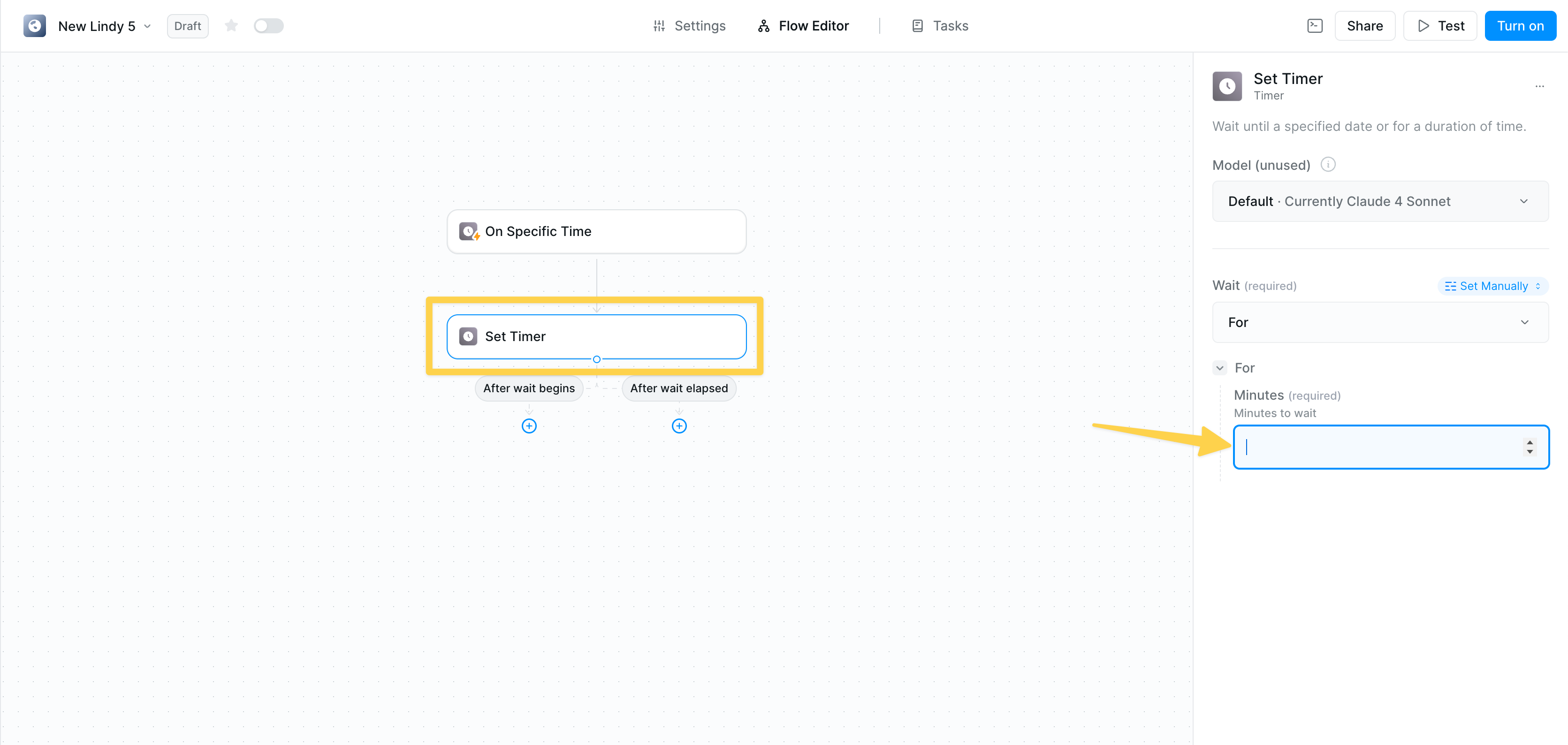 Add a relative delay to your workflow:
* Specify duration in minutes
* Simple numeric input
* Workflow continues after the delay
**Common durations:**
* 5 minutes — Brief pause between actions
* 60 minutes — Hourly intervals
* 1440 minutes — Daily delays
* Custom — Any duration you need
#### AI-Powered Timing
Add a relative delay to your workflow:
* Specify duration in minutes
* Simple numeric input
* Workflow continues after the delay
**Common durations:**
* 5 minutes — Brief pause between actions
* 60 minutes — Hourly intervals
* 1440 minutes — Daily delays
* Custom — Any duration you need
#### AI-Powered Timing
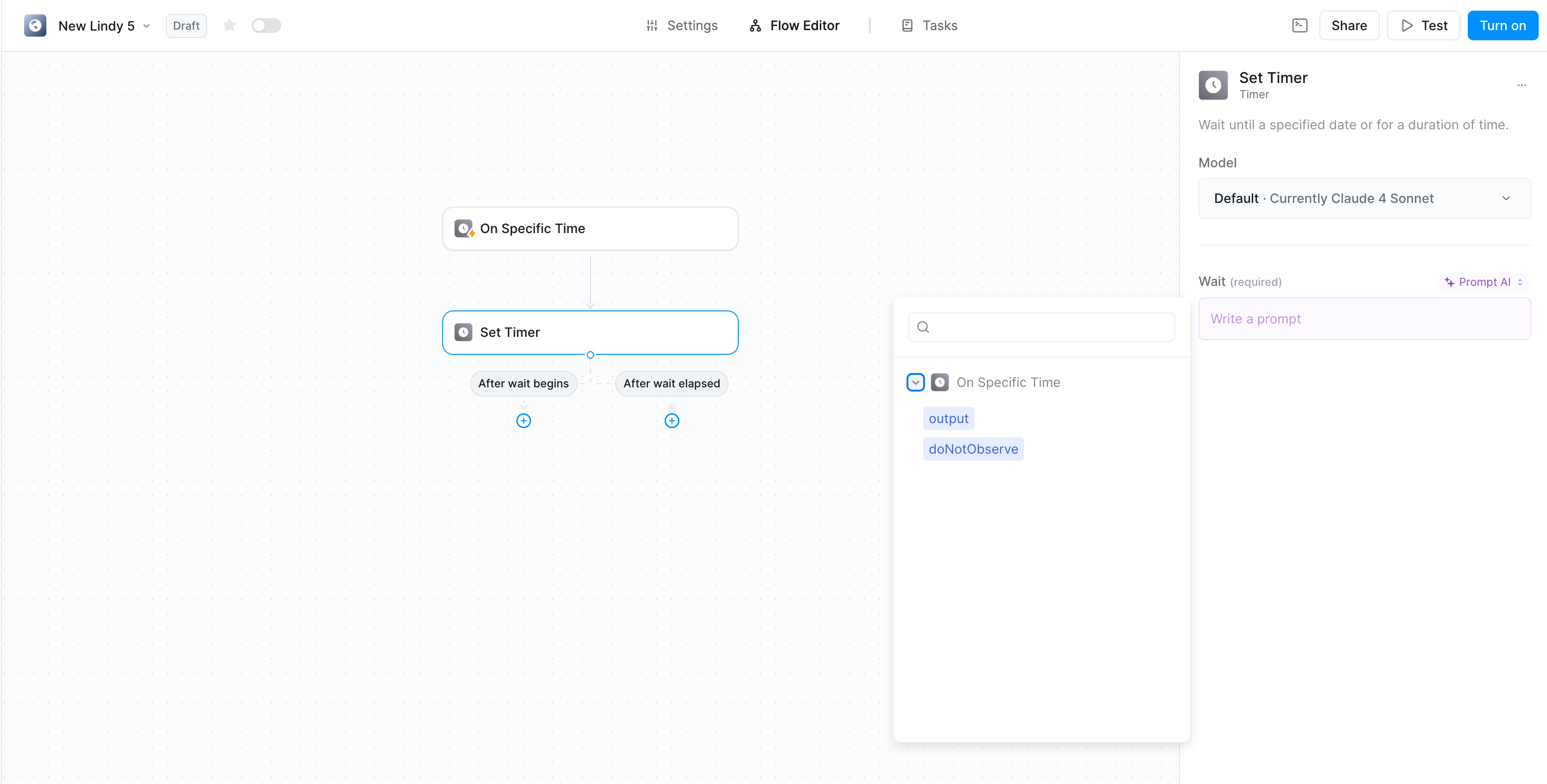 Let AI determine the optimal wait time:
* Switch to "Prompt AI" mode
* Describe your timing needs in natural language
* AI calculates appropriate delays based on context
**Example prompts:**
* "Wait 2 hours after sending the initial email"
* "Delay until next business day at 9 AM"
* "Pause for the time specified in the response"
### Cancel Timers
Let AI determine the optimal wait time:
* Switch to "Prompt AI" mode
* Describe your timing needs in natural language
* AI calculates appropriate delays based on context
**Example prompts:**
* "Wait 2 hours after sending the initial email"
* "Delay until next business day at 9 AM"
* "Pause for the time specified in the response"
### Cancel Timers
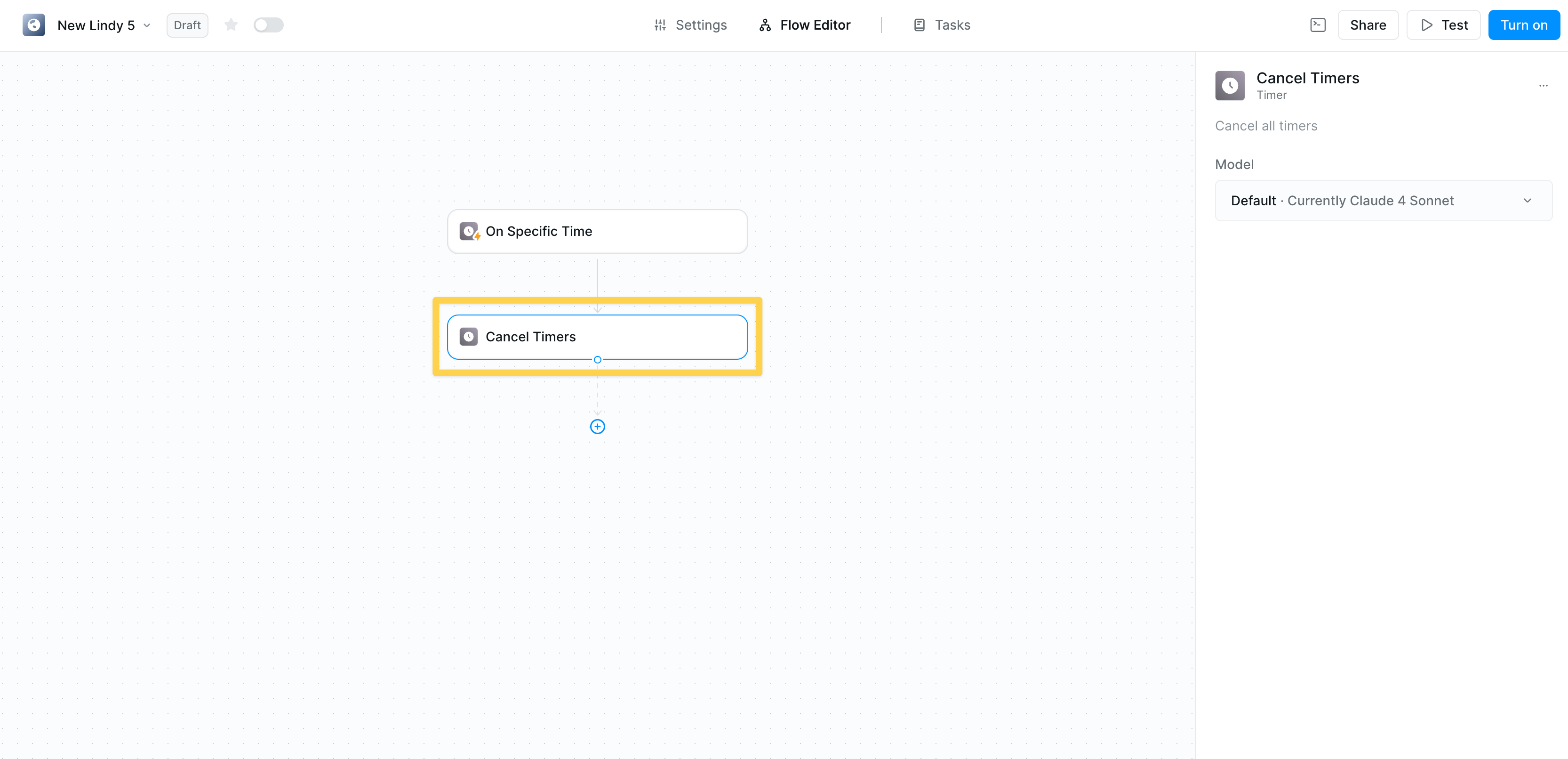 Stop all active timers in your workflow. This action cancels any pending timer delays and prevents queued actions from executing.
Canceling timers is especially useful for outbound sequences. If a recipient responds before a scheduled follow-up, you can use this action to cancel the timer and stop future messages from being sent.
## Managing Execution Paths
Both Timer triggers and actions show clear connection points:
* **After wait begins** — Continue parallel tasks
* **After wait elapsed** — Resume sequential flow
This enables sophisticated patterns like:
* Starting multiple timers simultaneously
* Running actions while waiting
* Coordinating complex timing sequences
This is a common mistake: If your timer isn't working as expected, make sure your next steps are connected to the `After wait elapsed` path.
## Related Resources
Combine timers with conditional logic
Process timed batches of data
Store timing preferences
Add approval steps with timeouts
Stop all active timers in your workflow. This action cancels any pending timer delays and prevents queued actions from executing.
Canceling timers is especially useful for outbound sequences. If a recipient responds before a scheduled follow-up, you can use this action to cancel the timer and stop future messages from being sent.
## Managing Execution Paths
Both Timer triggers and actions show clear connection points:
* **After wait begins** — Continue parallel tasks
* **After wait elapsed** — Resume sequential flow
This enables sophisticated patterns like:
* Starting multiple timers simultaneously
* Running actions while waiting
* Coordinating complex timing sequences
This is a common mistake: If your timer isn't working as expected, make sure your next steps are connected to the `After wait elapsed` path.
## Related Resources
Combine timers with conditional logic
Process timed batches of data
Store timing preferences
Add approval steps with timeouts