> ## Documentation Index
> Fetch the complete documentation index at: https://docs.lindy.ai/llms.txt
> Use this file to discover all available pages before exploring further.
# Set Variable
> Store temporary data during task execution that can be referenced and updated throughout your workflow
## Overview
Set Variables lets you store temporary data during task execution. Perfect for:
* **Temporary storage** — hold data that doesn't need to be in global context
* **Data passing** — share information between different parts of your workflow
* **Variable updates** — overwrite existing variables with new values
* **Clean organization** — keep your workflow organized with named references
Variables are scoped to the current task and automatically cleaned up when the task completes.
## Set Variable Action
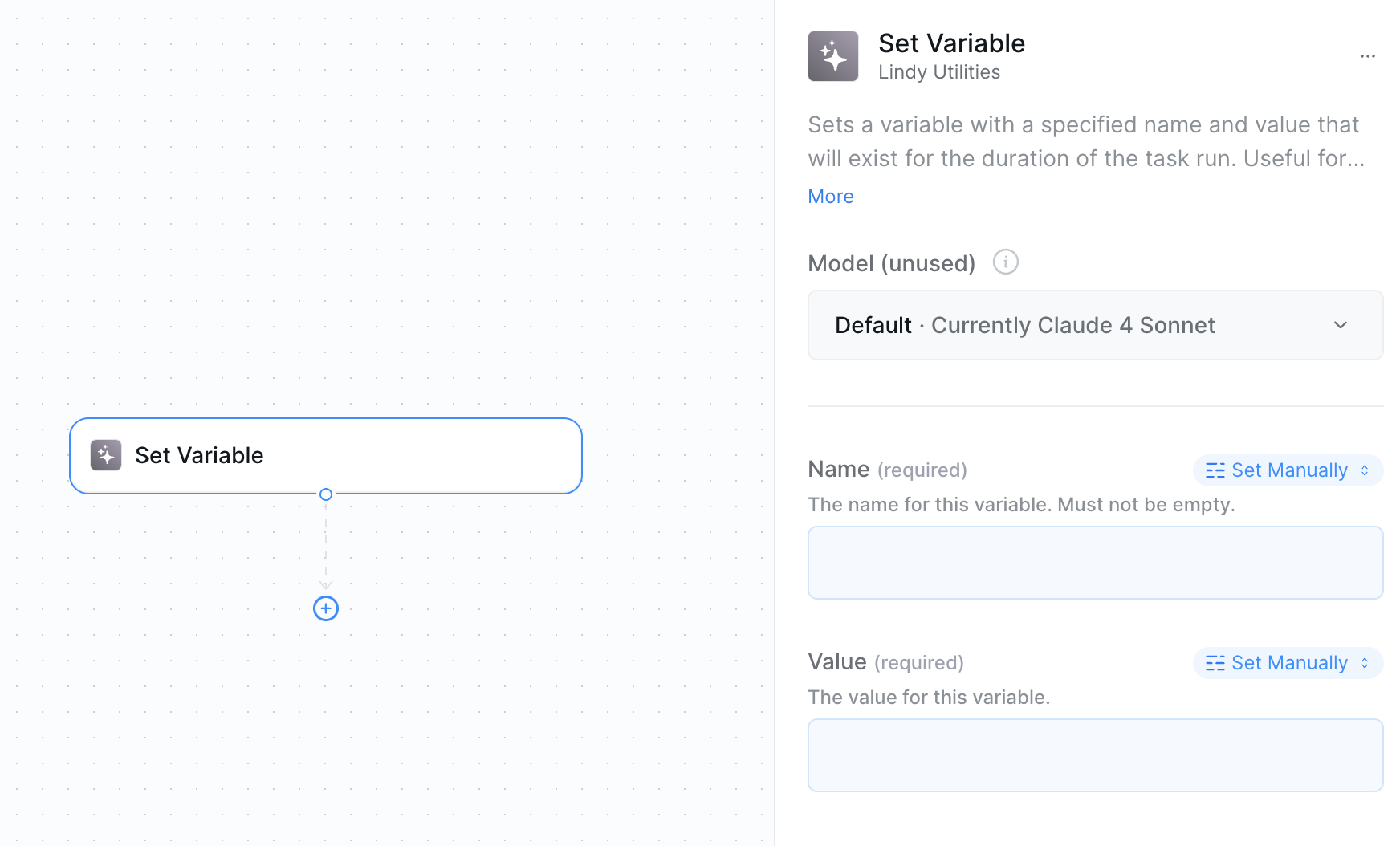
* **What it does**: Creates or updates a variable that can be referenced throughout your current task execution.
 ### Inputs
* **Name**: The variable name that will be used for referencing (becomes the reference key)
* **Value**: The data to store — can be set manually, using prompts with context, or auto mode
### Outputs
* **Variable Reference**: The stored value can be referenced as an output in other actions
* **Updated Variable**: If using the same name, it overwrites the existing variable
Pro tip: Rename the Set Variable action to the actual variable name (like "Set Customer ID") for better organization when selecting output references from the menu.
## When to Use Variables
### Common Use Cases
* Store important data before clearing context
* Pass data between different workflow phases
* Keep track of counters, IDs, or status values
* Hold temporary calculations or processed results
### Variable Updates
* Use the same variable name to overwrite existing values
* Update variables as your workflow progresses
* Maintain state across different actions and conditions
## Best Practices
* Use clear, descriptive names for easy identification
* Rename the action to match the variable name
* Use consistent naming conventions across your workflow
* Avoid generic names like "temp" or "data"
* Store essential data in variables before clearing context
* Update variables rather than creating duplicates
* Use variables for data that doesn't need global context access
* Keep variable scope limited to what's actually needed
* Group related variables near each other in the workflow
* Use descriptive action names for better output reference selection
* Document complex variables with clear action names
* Clean up unused variables by not referencing them
## Next Steps
Manage global memory and prioritized information
Store persistent knowledge across all task executions
Access advanced monitoring and observability features
Make direct AI requests with controlled context
### Inputs
* **Name**: The variable name that will be used for referencing (becomes the reference key)
* **Value**: The data to store — can be set manually, using prompts with context, or auto mode
### Outputs
* **Variable Reference**: The stored value can be referenced as an output in other actions
* **Updated Variable**: If using the same name, it overwrites the existing variable
Pro tip: Rename the Set Variable action to the actual variable name (like "Set Customer ID") for better organization when selecting output references from the menu.
## When to Use Variables
### Common Use Cases
* Store important data before clearing context
* Pass data between different workflow phases
* Keep track of counters, IDs, or status values
* Hold temporary calculations or processed results
### Variable Updates
* Use the same variable name to overwrite existing values
* Update variables as your workflow progresses
* Maintain state across different actions and conditions
## Best Practices
* Use clear, descriptive names for easy identification
* Rename the action to match the variable name
* Use consistent naming conventions across your workflow
* Avoid generic names like "temp" or "data"
* Store essential data in variables before clearing context
* Update variables rather than creating duplicates
* Use variables for data that doesn't need global context access
* Keep variable scope limited to what's actually needed
* Group related variables near each other in the workflow
* Use descriptive action names for better output reference selection
* Document complex variables with clear action names
* Clean up unused variables by not referencing them
## Next Steps
Manage global memory and prioritized information
Store persistent knowledge across all task executions
Access advanced monitoring and observability features
Make direct AI requests with controlled context