> ## Documentation Index
> Fetch the complete documentation index at: https://docs.lindy.ai/llms.txt
> Use this file to discover all available pages before exploring further.
# Gmail
> Complete email automation for sending, receiving, organizing, and managing complex email workflows with intelligent responses
## Overview
Gmail integration provides comprehensive email automation for sending, receiving, organizing, and managing email workflows. Create sophisticated email sequences that can automatically respond to replies and manage ongoing conversations.
## Available Triggers
Connect your Gmail account to enable powerful email automation. Set up triggers to respond to incoming emails, sent messages, attachments, and label changes. Use filters to target specific emails and avoid information overload.
* **Email Received**: Triggers when new emails are received in Gmail. Most popular trigger - use filters to target specific emails!
* **Email Sent**: Triggers when emails are sent from your Gmail account.
* **New Attachment Received**: Trigger when new email attachments are received in Gmail.
* **New Email Matching Search**: Triggers when new emails match specified Gmail search criteria and labels.
* **New Labeled Email**: Triggers when new emails with specified Gmail labels are received.
## Available Actions
### Core Email Actions
* **Send Email**: Send an email using your Gmail account with full formatting support.
* **Send Reply**: Draft or send a reply to an email with conversation threading.
* **Draft Email**: Saves an email as a draft for later editing or sending.
* **Edit Draft**: Edits an existing draft email with new content.
### Email Management
* **Add Label to Email**: Adds a label to one or more emails for organization.
* **Remove Label from Email**: Removes a label from one or more emails by message IDs and label ID or name.
* **Delete Label**: Deletes a Gmail label entirely.
* **Archive**: Archives an email to remove it from the inbox.
* **Unarchive**: Unarchives an email by ID to restore it to the inbox.
### Email Status Management
* **Mark Email as Read**: Marks an email as read.
* **Mark Email as Unread**: Marks an email as unread by ID.
* **Mark Email as Important**: Marks an email as important by ID.
* **Mark Email as Unimportant**: Marks an email as unimportant by ID.
* **Move Email to Trash**: Moves an email to the trash.
* **Move Email Out of Trash**: Moves an email out of the trash by ID.
### Search & Retrieval
* **Find Email**: Search and retrieve messages from Gmail using filters and labels.
* **Search Emails**: Search for emails in your Gmail account matching specific filters.
* **Get Email**: Gets the specified email by ID with full content and metadata.
* **Find Email Address By Person**: Given a person's name, try to find their email address from your contacts.
## Smart Email Sequences & Reply Monitoring
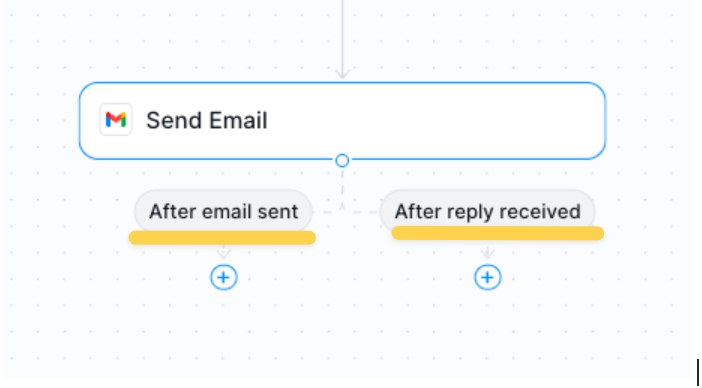 Gmail actions can create intelligent email sequences that automatically monitor and respond to replies. After you send an email, Lindy can watch for responses and take follow-up actions, creating powerful automated conversations:
* **After email sent**: Automatically monitor for replies, set reminders, or trigger follow-up actions
* **After reply received**: Process responses, extract information, or escalate conversations
This enables reactive workflows where your agent can handle both sending emails and intelligently responding to replies.
## Conversation Management & Thread Assignment
Gmail actions can create intelligent email sequences that automatically monitor and respond to replies. After you send an email, Lindy can watch for responses and take follow-up actions, creating powerful automated conversations:
* **After email sent**: Automatically monitor for replies, set reminders, or trigger follow-up actions
* **After reply received**: Process responses, extract information, or escalate conversations
This enables reactive workflows where your agent can handle both sending emails and intelligently responding to replies.
## Conversation Management & Thread Assignment
 ### Special Conversation Actions
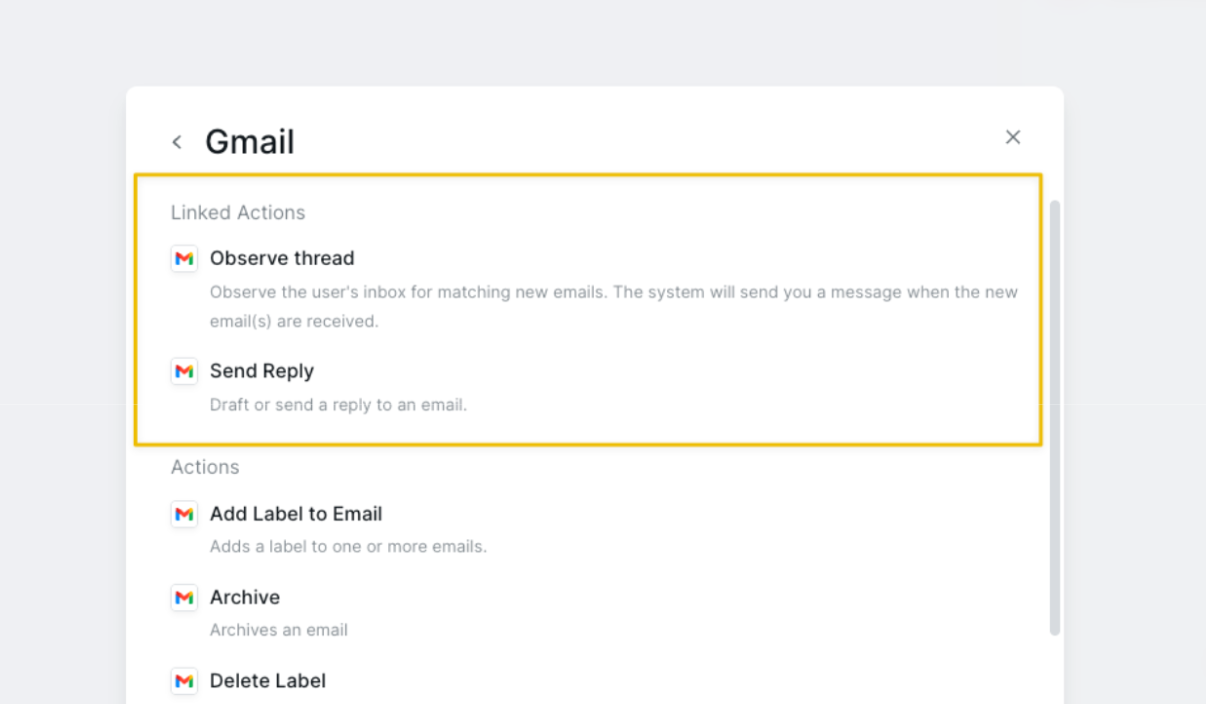
* **Observe Thread**: Monitor your inbox for new emails in ongoing conversations. The system will alert you when new emails arrive, creating a monitoring point for email surveillance.
* **Send Reply (Linked)**: Draft or send a reply to an email within the context of a monitored conversation.
### Managing Multiple Email Conversations
### Special Conversation Actions
* **Observe Thread**: Monitor your inbox for new emails in ongoing conversations. The system will alert you when new emails arrive, creating a monitoring point for email surveillance.
* **Send Reply (Linked)**: Draft or send a reply to an email within the context of a monitored conversation.
### Managing Multiple Email Conversations
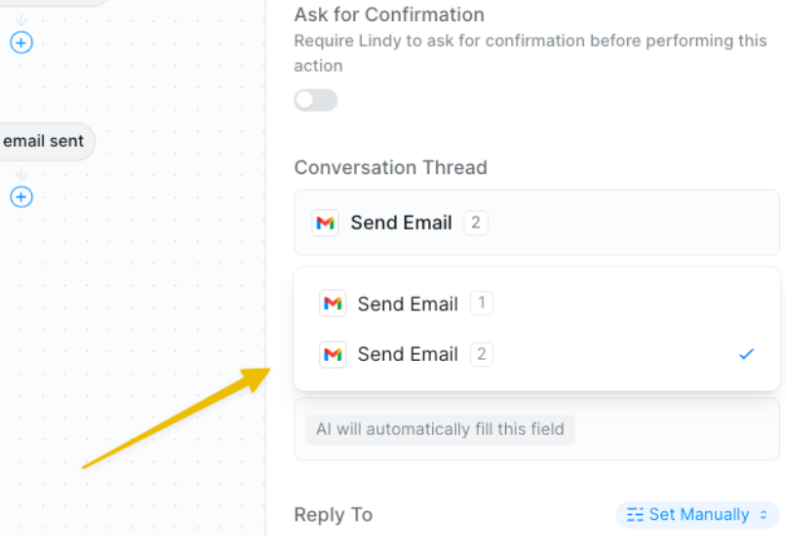 When running multiple email workflows simultaneously, you need to assign the proper conversation thread to ensure actions target the correct email exchange. This prevents mixing up different email conversations and ensures each response goes to the right person.
**How it works:**
* Send multiple emails that monitor for replies
* Each email creates its own conversation thread
* When replies come in, select which specific conversation you're responding to
* Each conversation maintains its own context and history
## Email Filtering Best Practices
When using the "Email Received" trigger, always use filters to target specific emails. Without filters, you'll receive notifications for every email, which can overwhelm your automation.
* Use sender filters: `from:specific@email.com`
* Subject line filters: `subject:urgent OR subject:important`
* Label-based triggers for pre-organized emails
* Attachment filters for document processing workflows
HTML Email Signatures: In the signature field, you can include HTML email signatures for rich formatting, images, and professional branding.
## Best Practices
Structure your email automations for success:
* Start with simple send/receive automation before building complex sequences
* Plan your email journey from send to final resolution
* Monitor thread assignments in multi-workflow scenarios
Ensure your triggers work reliably:
* Test email filters thoroughly to avoid missing important messages
* Use specific sender and subject filters to target the right emails
* Start with low-volume filters before scaling up
Maintain control over sensitive communications:
* Use draft actions for human review before sending sensitive emails
* Verify recipient addresses in automated workflows
* Set up approval processes for important email sequences
## Related Resources
Combine email and calendar automation
Set up email-based triggers
Add smart routing to email workflows
When running multiple email workflows simultaneously, you need to assign the proper conversation thread to ensure actions target the correct email exchange. This prevents mixing up different email conversations and ensures each response goes to the right person.
**How it works:**
* Send multiple emails that monitor for replies
* Each email creates its own conversation thread
* When replies come in, select which specific conversation you're responding to
* Each conversation maintains its own context and history
## Email Filtering Best Practices
When using the "Email Received" trigger, always use filters to target specific emails. Without filters, you'll receive notifications for every email, which can overwhelm your automation.
* Use sender filters: `from:specific@email.com`
* Subject line filters: `subject:urgent OR subject:important`
* Label-based triggers for pre-organized emails
* Attachment filters for document processing workflows
HTML Email Signatures: In the signature field, you can include HTML email signatures for rich formatting, images, and professional branding.
## Best Practices
Structure your email automations for success:
* Start with simple send/receive automation before building complex sequences
* Plan your email journey from send to final resolution
* Monitor thread assignments in multi-workflow scenarios
Ensure your triggers work reliably:
* Test email filters thoroughly to avoid missing important messages
* Use specific sender and subject filters to target the right emails
* Start with low-volume filters before scaling up
Maintain control over sensitive communications:
* Use draft actions for human review before sending sensitive emails
* Verify recipient addresses in automated workflows
* Set up approval processes for important email sequences
## Related Resources
Combine email and calendar automation
Set up email-based triggers
Add smart routing to email workflows