> ## Documentation Index
> Fetch the complete documentation index at: https://docs.lindy.ai/llms.txt
> Use this file to discover all available pages before exploring further.
# Google Docs
## Quick Overview
Google Docs integration enables your AI agents to become document management assistants. Create, edit, and manage documents automatically with both triggers and actions for complete document workflow automation.
Key benefits of Google Docs integration:
* **Automated document creation** – Generate docs from templates with dynamic data
* **Real-time content management** – Update and edit documents automatically
* **AI-driven editing** – Intelligent text processing and formatting
* **Approval workflows** – Streamlined document review and approval processes
## How to set up Google Docs
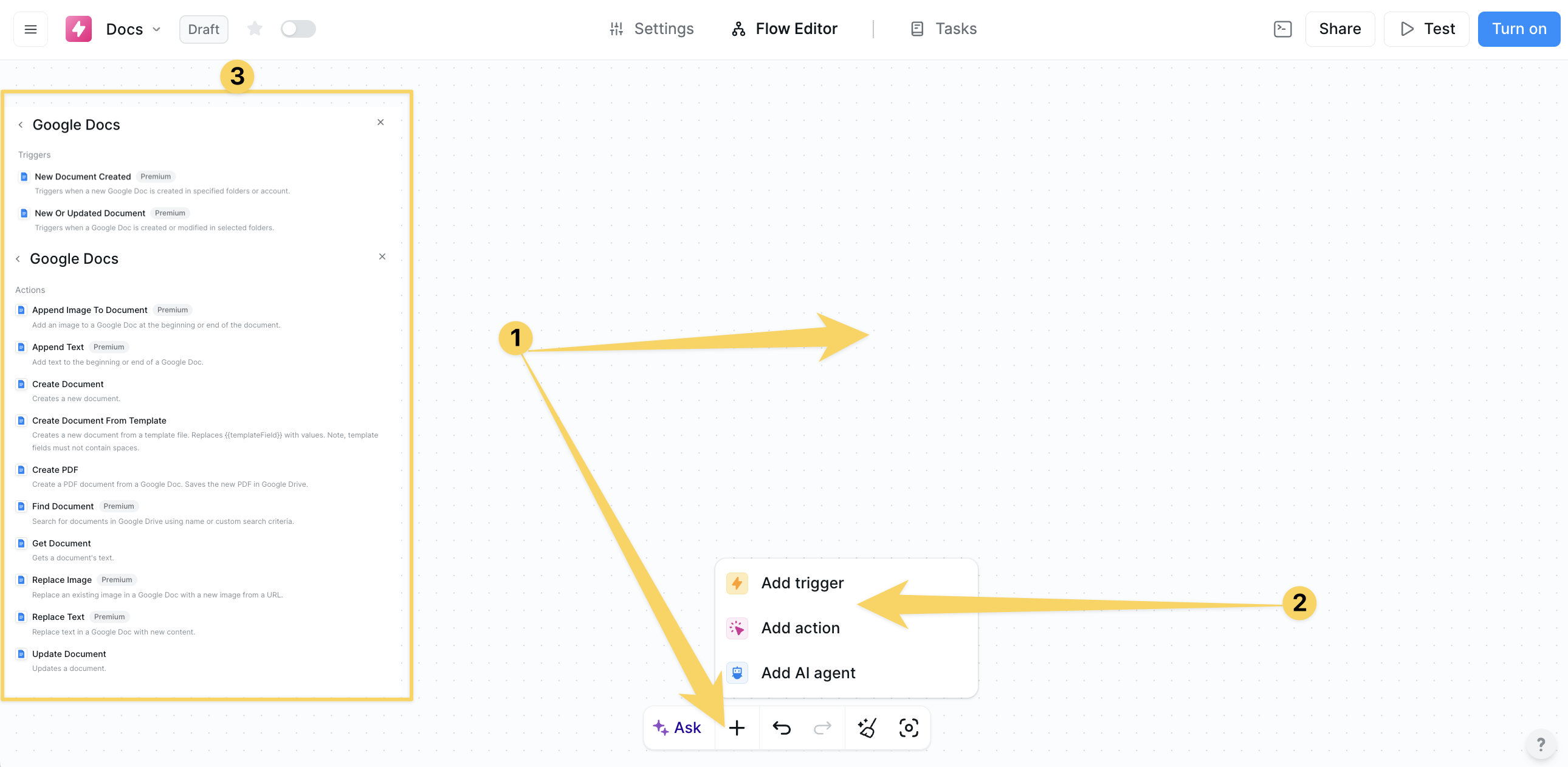
Click on the plus sign at the bottom or right-click anywhere on the canvas and select "Add Trigger" or "Add Action" from the pop-up menu and choose "Google Docs"
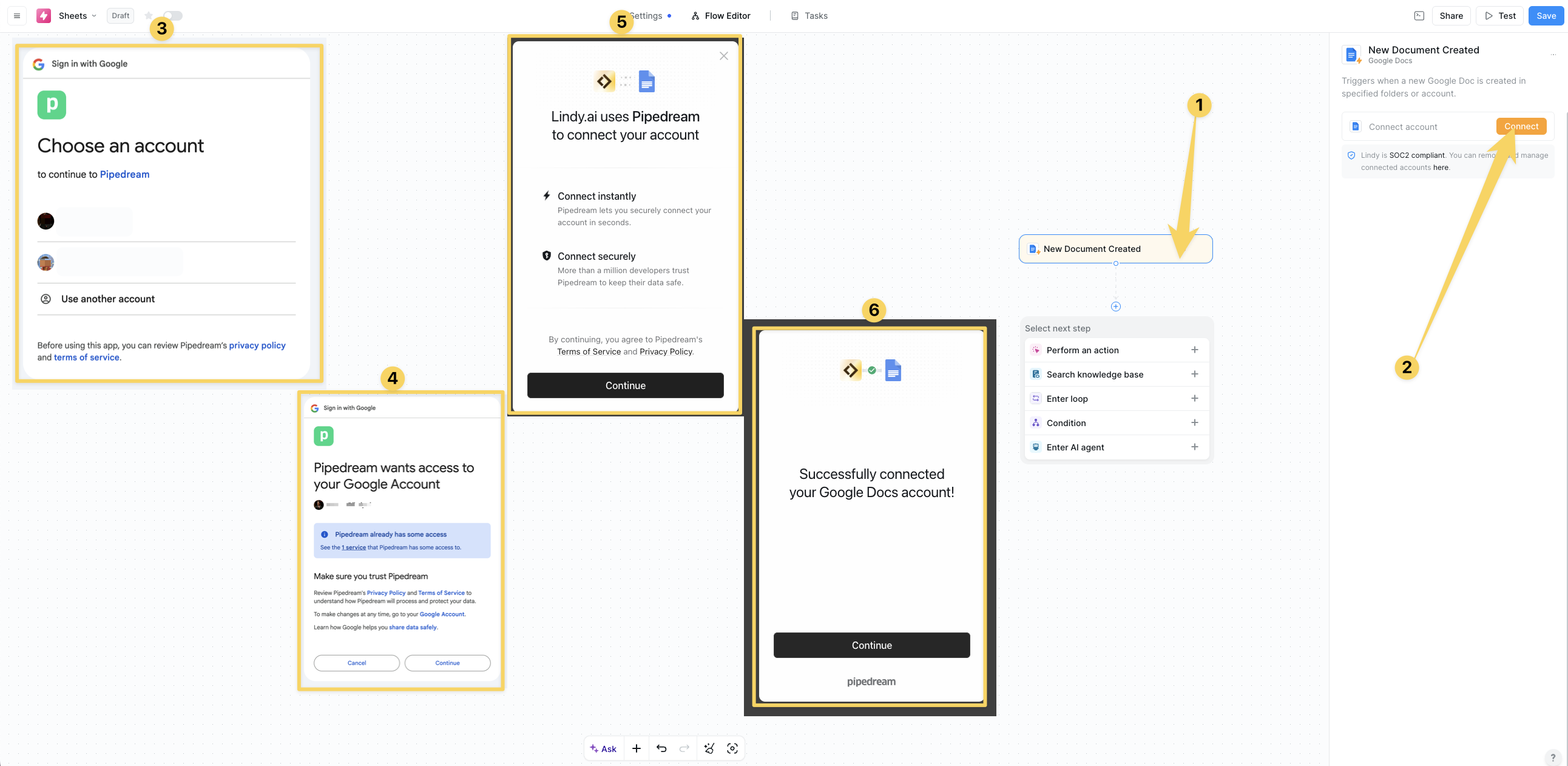
 Click on "Add Account" and authorize your Google Docs for Lindy's integrations by granting permissions for Drive and Docs access. Choose which folders you want this Lindy to access.
 ## Google Docs Triggers
#### New Document Created
## Google Docs Triggers
#### New Document Created
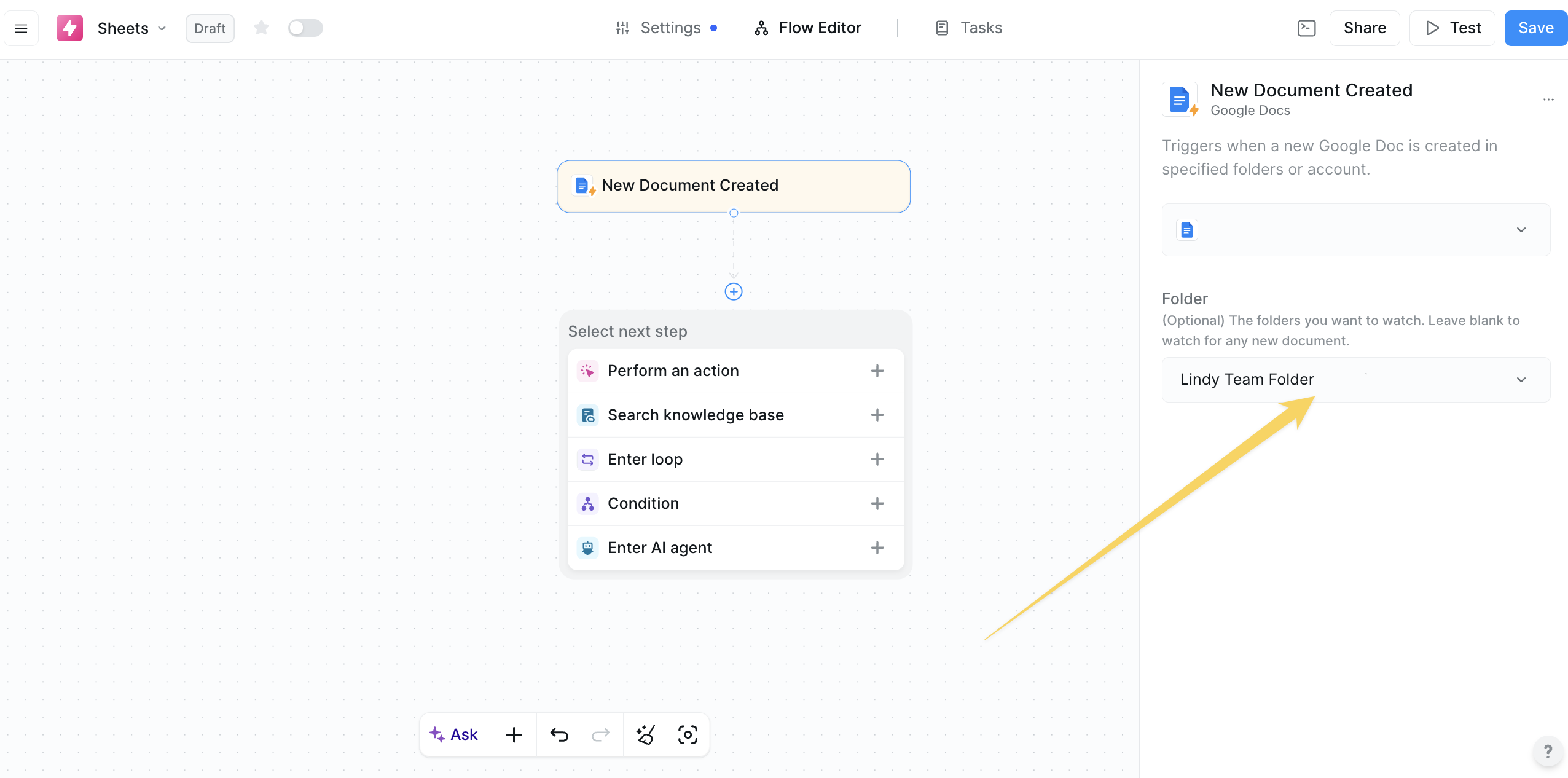 Fires the moment a brand-new Google Doc appears in a chosen folder:
* **Folder filtering** - Optionally select specific folder, defaults to watching entire Drive
* **Dynamic payload** - Provides title, url, documentId, createdTime, creatorEmail, parentFolders
* Perfect for auto-formatting new docs, posting Slack notifications, kickoff approval workflows
#### New or Updated Document
Fires on both creations and any subsequent modifications:
* **Real-time monitoring** - Detects text edits, images, style changes, etc.
* **Enhanced payload** - Includes lastModifiedTime, lastModifyingUser information
* Ideal for change-log summaries, content sync to CMS, maintaining documentation repos
Google push notifications are near-real-time (5-15 seconds). For large organizations, segment by folder to avoid hitting daily push quotas.
## Google Docs Actions
#### Create Document
Creates new Google Docs with customizable settings:
* Complete document creation with title and folder selection
* Returns documentId, url for downstream actions
* Perfect for generating weekly report shells, customer proposal skeletons
#### Create Document from Template
Rapidly create documents using template merge:
* Pick any Google Doc as template with `{{mergeField}}` placeholders
* Auto-generates input fields for each detected placeholder
* Ideal for contracts, offer letters, invoices, personalized onboarding guides
#### Create PDF
Converts documents to PDF format:
* Source document selection with destination folder
* Returns Drive-hosted PDF link and file ID
* Perfect for auto-emailing signed PDFs, uploading to e-signature tools
#### Get Document
Retrieves document information:
* Fuzzy search by ID, Name, or URL
* Returns full plain-text body plus metadata
* Essential for feeding content into AI summarizers, content comparison
#### Update Document
Modifies existing document content:
* Multiple modes: append, prepend, replace
* Supports markdown, plain text, or HTML-like content
* Perfect for appending meeting minutes, adding notices, content revisions
#### Append Text (Premium)
Lightweight content addition optimized for speed:
* Choose start or end of document placement
* Optimized for streaming from AI-generated content
* Ideal for progressive content building
#### Replace Text (Premium)
Powerful text search and replacement:
* Regex support for complex pattern matching
* Match case sensitivity and replace all options
* Perfect for bulk redaction, brand-name swaps, token replacement
#### Append Image (Premium)
Add images to documents automatically:
* Image URL input with position control (start/end)
* Proxy fetch and embed for external images
* Great for automated report generation with charts/diagrams
#### Find Document (Premium)
Search and locate documents intelligently:
* Name-based search with folder scoping
* Returns array of matches with IDs, titles, links
* Essential for version control, avoiding duplicates, routing workflows
## Practical Implementation Scenarios
Transform meeting recordings into structured documents:
* Calendar Event Ended trigger activates workflow
* AI generates meeting summary and action items
* Create Document with structured format
* Share link automatically via Slack or email
Streamline legal document creation:
* Email trigger detects contract requests
* Parse variables (Company, Fee, Terms) from email
* Create Document from Template with merged data
* Generate PDF and send to requester automatically
Maintain up-to-date standard operating procedures:
* New Document Created trigger monitors SOP drafts folder
* AI validates content against style checklist
* Approved documents move to official SOP library
* Failed validation triggers author notification with feedback
## Best Practices
Optimize your document generation workflows:
* Use template-based creation for consistent formatting
* Begin complex flows with Get Document to confirm you have the correct file
* Store document URLs (not IDs) for easier human access
Handle document updates effectively:
* Combine Append, Replace, and Update actions thoughtfully for best results
* Use Get Document to feed content into AI for intelligent processing and rewriting
Structure your documents for automation success:
* Implement proper folder organization and naming conventions
* Use folder filtering on triggers to avoid unnecessary workflow activations
Connect documents with other tools seamlessly:
* Use Conditions on triggers to route workflows by document type
* Chain document actions with Gmail for automated sharing and notifications
* Integrate with approval workflows using human-in-the-loop gates
## Next steps
Manage files and folders alongside documents
Combine document automation with email workflows
Build advanced document processing workflows
Create intelligent content generation agents
Fires the moment a brand-new Google Doc appears in a chosen folder:
* **Folder filtering** - Optionally select specific folder, defaults to watching entire Drive
* **Dynamic payload** - Provides title, url, documentId, createdTime, creatorEmail, parentFolders
* Perfect for auto-formatting new docs, posting Slack notifications, kickoff approval workflows
#### New or Updated Document
Fires on both creations and any subsequent modifications:
* **Real-time monitoring** - Detects text edits, images, style changes, etc.
* **Enhanced payload** - Includes lastModifiedTime, lastModifyingUser information
* Ideal for change-log summaries, content sync to CMS, maintaining documentation repos
Google push notifications are near-real-time (5-15 seconds). For large organizations, segment by folder to avoid hitting daily push quotas.
## Google Docs Actions
#### Create Document
Creates new Google Docs with customizable settings:
* Complete document creation with title and folder selection
* Returns documentId, url for downstream actions
* Perfect for generating weekly report shells, customer proposal skeletons
#### Create Document from Template
Rapidly create documents using template merge:
* Pick any Google Doc as template with `{{mergeField}}` placeholders
* Auto-generates input fields for each detected placeholder
* Ideal for contracts, offer letters, invoices, personalized onboarding guides
#### Create PDF
Converts documents to PDF format:
* Source document selection with destination folder
* Returns Drive-hosted PDF link and file ID
* Perfect for auto-emailing signed PDFs, uploading to e-signature tools
#### Get Document
Retrieves document information:
* Fuzzy search by ID, Name, or URL
* Returns full plain-text body plus metadata
* Essential for feeding content into AI summarizers, content comparison
#### Update Document
Modifies existing document content:
* Multiple modes: append, prepend, replace
* Supports markdown, plain text, or HTML-like content
* Perfect for appending meeting minutes, adding notices, content revisions
#### Append Text (Premium)
Lightweight content addition optimized for speed:
* Choose start or end of document placement
* Optimized for streaming from AI-generated content
* Ideal for progressive content building
#### Replace Text (Premium)
Powerful text search and replacement:
* Regex support for complex pattern matching
* Match case sensitivity and replace all options
* Perfect for bulk redaction, brand-name swaps, token replacement
#### Append Image (Premium)
Add images to documents automatically:
* Image URL input with position control (start/end)
* Proxy fetch and embed for external images
* Great for automated report generation with charts/diagrams
#### Find Document (Premium)
Search and locate documents intelligently:
* Name-based search with folder scoping
* Returns array of matches with IDs, titles, links
* Essential for version control, avoiding duplicates, routing workflows
## Practical Implementation Scenarios
Transform meeting recordings into structured documents:
* Calendar Event Ended trigger activates workflow
* AI generates meeting summary and action items
* Create Document with structured format
* Share link automatically via Slack or email
Streamline legal document creation:
* Email trigger detects contract requests
* Parse variables (Company, Fee, Terms) from email
* Create Document from Template with merged data
* Generate PDF and send to requester automatically
Maintain up-to-date standard operating procedures:
* New Document Created trigger monitors SOP drafts folder
* AI validates content against style checklist
* Approved documents move to official SOP library
* Failed validation triggers author notification with feedback
## Best Practices
Optimize your document generation workflows:
* Use template-based creation for consistent formatting
* Begin complex flows with Get Document to confirm you have the correct file
* Store document URLs (not IDs) for easier human access
Handle document updates effectively:
* Combine Append, Replace, and Update actions thoughtfully for best results
* Use Get Document to feed content into AI for intelligent processing and rewriting
Structure your documents for automation success:
* Implement proper folder organization and naming conventions
* Use folder filtering on triggers to avoid unnecessary workflow activations
Connect documents with other tools seamlessly:
* Use Conditions on triggers to route workflows by document type
* Chain document actions with Gmail for automated sharing and notifications
* Integrate with approval workflows using human-in-the-loop gates
## Next steps
Manage files and folders alongside documents
Combine document automation with email workflows
Build advanced document processing workflows
Create intelligent content generation agents