> ## Documentation Index
> Fetch the complete documentation index at: https://docs.lindy.ai/llms.txt
> Use this file to discover all available pages before exploring further.
# HubSpot
## Quick Overview
HubSpot integration enables your AI agents to act as sales, marketing, and customer service assistants. Automate CRM workflows with both triggers and actions for complete sales and marketing automation.
Key benefits of HubSpot integration:
* **CRM management** – 11 actions for complete sales and marketing control
* **Real-time CRM monitoring** – 23 triggers for instant workflow activation
* **Dynamic field loading** – Automatic property and object discovery
* **Premium automation features** – Advanced capabilities for sophisticated workflows
## How to set up HubSpot
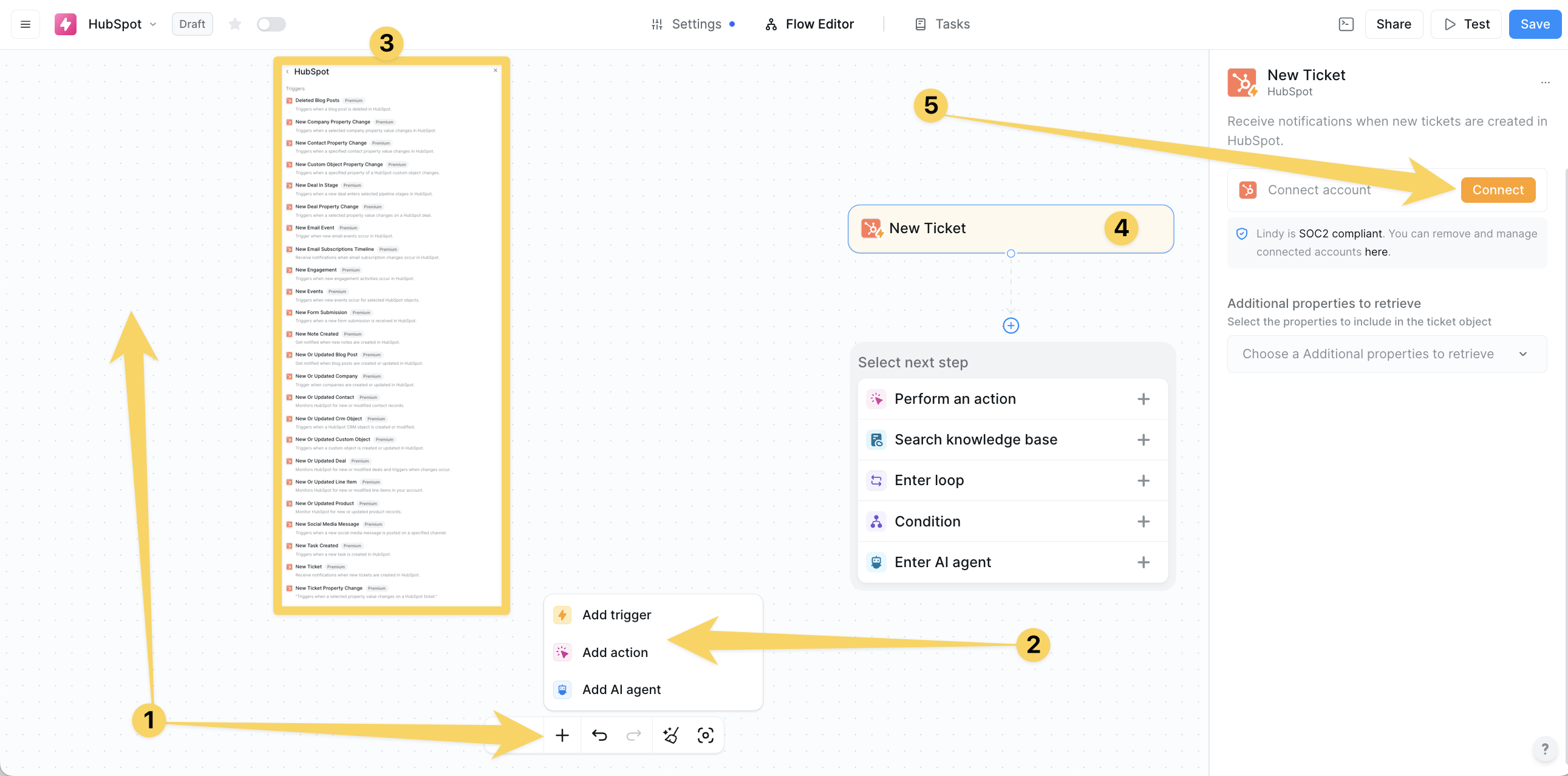
Click on the plus sign at the bottom or right-click anywhere on the canvas and select "Add Trigger" or "Add Action" from the pop-up menu and choose "HubSpot." Click on connect to configure your account.
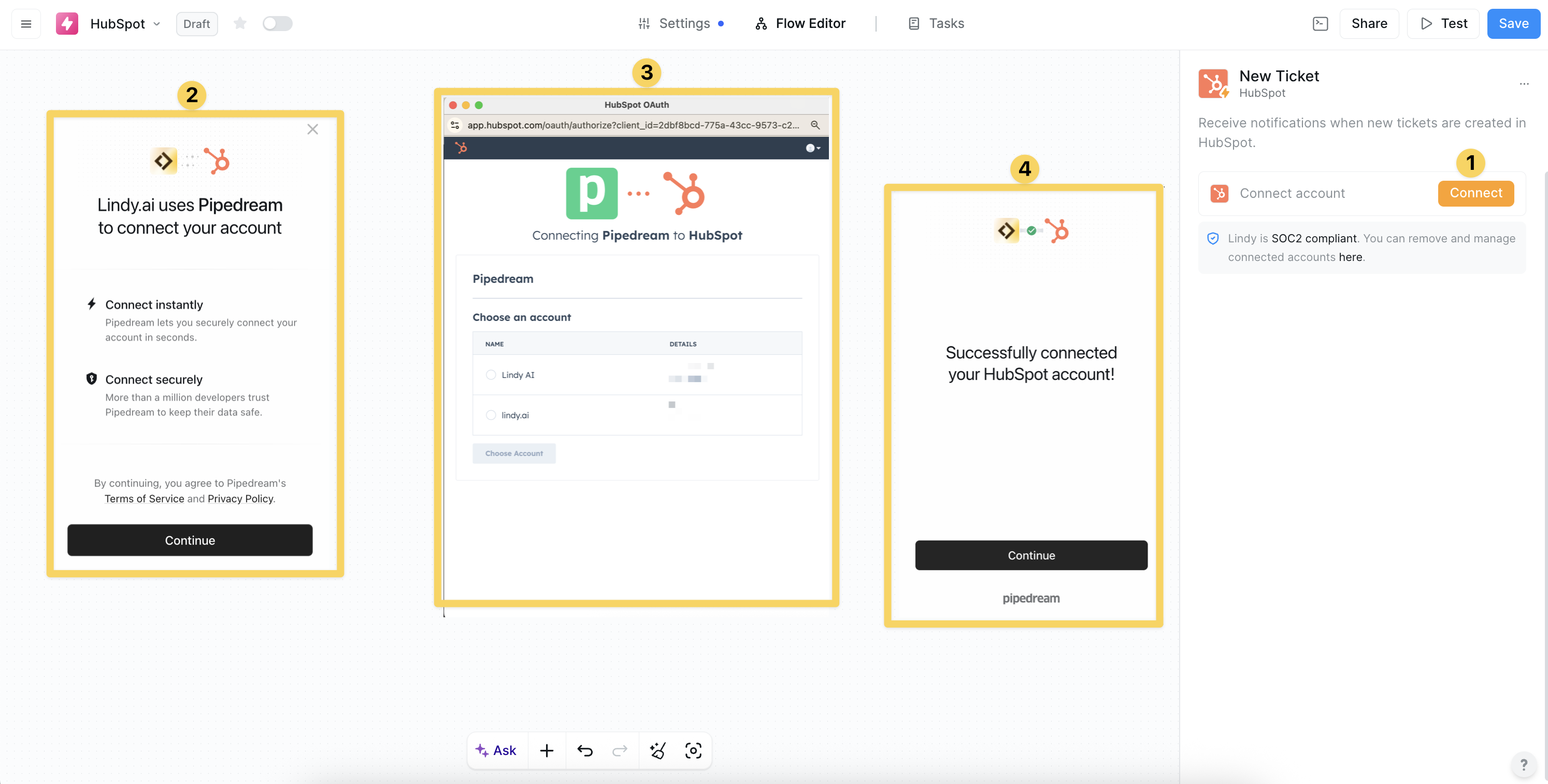
 Click on "Add Account" and authorize your HubSpot for Lindy's integrations by granting permissions for CRM access and management. Choose which objects and properties you want this Lindy to access.
 ## HubSpot Triggers
#### New Or Updated Contact
Monitors for new contacts or changes to existing contact records:
* **Configurable polling** - Default 15-minute intervals (900 seconds) with customization
* **Property selection** - Dynamic selection of additional properties to retrieve
* **List filtering** - Optional monitoring of specific contact lists
We recommend keeping polling at 900 seconds (15 minutes) because of HubSpot rate limits. This ensures reliable performance without hitting API restrictions.
#### New Contact Property Change
Triggers when specific contact properties are modified:
* **Dynamic property selection** - Choose from all contact properties
* **Real-time monitoring** - Track critical field changes instantly
* **Workflow activation** - Trigger based on property-specific changes
#### New Or Updated Deal
Monitors for new deals or changes to existing deal records:
* **Pipeline filtering** - Optional filtering by specific sales pipelines
* **Stage filtering** - Target specific deal stages for monitoring
* **Property retrieval** - Additional deal properties for comprehensive data
#### New Deal In Stage
Triggers when deals enter specific pipeline stages:
* **Pipeline selection** - Dynamic list of all available pipelines
* **Stage targeting** - Dependent stage selection based on chosen pipeline
* **Stage-specific automation** - Customized workflows for each deal stage
#### New Form Submission
Triggers when forms are submitted on your website:
* **Form selection** - Dynamic list of all HubSpot forms
* **Instant activation** - Real-time response to form submissions
* **Lead qualification** - Immediate processing of new leads
Use "New Deal In Stage" triggers combined with "Update Deal" actions for the most powerful sales pipeline automation workflows.
## HubSpot Actions
#### Create Contact
Creates new contact records in HubSpot:
* **Dynamic property mapping** - Based on HubSpot schema for complete data capture
* **Automatic duplicate detection** - Prevents duplicate contact creation
* **Custom property population** - Support for all standard and custom fields
#### Update Contact
Modifies existing contact information:
* **Property-specific updates** - Target individual fields for precise changes
* **Bulk modifications** - Update multiple properties simultaneously
* **Conditional updates** - Changes based on existing data conditions
#### Search Contacts
Advanced contact search with multiple criteria:
* **Advanced filtering** - Up to 3 conditions with multiple operators
* **Property selection** - Choose specific properties for results
* **Sort and limit options** - Organized results with max 100 records
#### Add Contact To List
Adds contacts to static HubSpot lists:
* **Email identification** - Uses email address for contact targeting
* **List building** - Dynamic list management capabilities
* **Segmentation tools** - Organize contacts for targeted campaigns
#### Enroll Contact Into Workflow
Triggers HubSpot workflow enrollment:
* **Email-based enrollment** - Target contacts by email address
* **Automated nurturing** - Trigger sophisticated nurture sequences
* **Lifecycle management** - Progress contacts through defined stages
#### Update Deal
Modifies deal properties and stages:
* **Stage progression** - Move deals through pipeline stages automatically
* **Property updates** - Modify deal values, close dates, and custom fields
* **Pipeline management** - Handle multiple sales pipelines efficiently
#### Create Associations
Links different HubSpot objects together:
* **Contact-to-company associations** - Build organizational relationships
* **Deal-to-contact relationships** - Connect deals with stakeholders
* **Custom object associations** - Link industry-specific objects
#### Create Communication
Logs communication records in HubSpot:
* **Email logging** - Track email interactions automatically
* **Call records** - Document phone conversations
* **Meeting notes** - Log meeting outcomes and action items
## Example CRM workflow
## Practical Implementation Scenarios
Transform Lindy into an intelligent lead qualification system:
* New Form Submission trigger captures leads instantly
* Search Contacts action checks for existing records to prevent duplicates
* Create Contact action adds new qualified leads to CRM
* Add Contact To List action segments leads for targeted campaigns
Automate your entire sales process:
* New Deal In Stage trigger activates stage-specific workflows
* Update Deal action progresses deals through pipeline stages
* Create Communication action logs sales activities automatically
* Create Associations action links deals with relevant contacts and companies
Streamline customer success processes:
* New Or Updated Deal trigger detects closed-won deals
* Enroll Contact Into Workflow action starts onboarding sequences
* Create Communication action logs onboarding activities
* Update Contact action tracks onboarding progress and milestones
## Best Practices
Pick the best trigger for your workflow:
* Use "New Form Submission" for immediate lead response (fastest activation)
* Use "New Deal In Stage" when you need stage-specific automation
* Avoid "New Or Updated Contact" for high-volume accounts unless you have a strong filter
* Always test with real data before going live
* Start with one trigger and one action, then add complexity
* Use Search Contacts before Create Contact to avoid duplicates
* Set up error notifications so you know when something breaks
Keep your CRM clean and useful:
* Use Update Contact instead of Create Contact when the person might already exist
* Always create associations between contacts, deals, and companies
* Log all important communications with Create Communication
* Use lists to segment contacts before running bulk operations
Prevent workflow problems before they happen:
* Don't use multiple triggers that could fire at the same time
* Keep polling at 900 seconds to avoid hitting rate limits
* Test triggers with small data sets first before scaling up
## Next steps
Compare CRM automation capabilities
Combine CRM with email automation
Build automated lead enrichment workflows
Set up HubSpot-based automation triggers
## HubSpot Triggers
#### New Or Updated Contact
Monitors for new contacts or changes to existing contact records:
* **Configurable polling** - Default 15-minute intervals (900 seconds) with customization
* **Property selection** - Dynamic selection of additional properties to retrieve
* **List filtering** - Optional monitoring of specific contact lists
We recommend keeping polling at 900 seconds (15 minutes) because of HubSpot rate limits. This ensures reliable performance without hitting API restrictions.
#### New Contact Property Change
Triggers when specific contact properties are modified:
* **Dynamic property selection** - Choose from all contact properties
* **Real-time monitoring** - Track critical field changes instantly
* **Workflow activation** - Trigger based on property-specific changes
#### New Or Updated Deal
Monitors for new deals or changes to existing deal records:
* **Pipeline filtering** - Optional filtering by specific sales pipelines
* **Stage filtering** - Target specific deal stages for monitoring
* **Property retrieval** - Additional deal properties for comprehensive data
#### New Deal In Stage
Triggers when deals enter specific pipeline stages:
* **Pipeline selection** - Dynamic list of all available pipelines
* **Stage targeting** - Dependent stage selection based on chosen pipeline
* **Stage-specific automation** - Customized workflows for each deal stage
#### New Form Submission
Triggers when forms are submitted on your website:
* **Form selection** - Dynamic list of all HubSpot forms
* **Instant activation** - Real-time response to form submissions
* **Lead qualification** - Immediate processing of new leads
Use "New Deal In Stage" triggers combined with "Update Deal" actions for the most powerful sales pipeline automation workflows.
## HubSpot Actions
#### Create Contact
Creates new contact records in HubSpot:
* **Dynamic property mapping** - Based on HubSpot schema for complete data capture
* **Automatic duplicate detection** - Prevents duplicate contact creation
* **Custom property population** - Support for all standard and custom fields
#### Update Contact
Modifies existing contact information:
* **Property-specific updates** - Target individual fields for precise changes
* **Bulk modifications** - Update multiple properties simultaneously
* **Conditional updates** - Changes based on existing data conditions
#### Search Contacts
Advanced contact search with multiple criteria:
* **Advanced filtering** - Up to 3 conditions with multiple operators
* **Property selection** - Choose specific properties for results
* **Sort and limit options** - Organized results with max 100 records
#### Add Contact To List
Adds contacts to static HubSpot lists:
* **Email identification** - Uses email address for contact targeting
* **List building** - Dynamic list management capabilities
* **Segmentation tools** - Organize contacts for targeted campaigns
#### Enroll Contact Into Workflow
Triggers HubSpot workflow enrollment:
* **Email-based enrollment** - Target contacts by email address
* **Automated nurturing** - Trigger sophisticated nurture sequences
* **Lifecycle management** - Progress contacts through defined stages
#### Update Deal
Modifies deal properties and stages:
* **Stage progression** - Move deals through pipeline stages automatically
* **Property updates** - Modify deal values, close dates, and custom fields
* **Pipeline management** - Handle multiple sales pipelines efficiently
#### Create Associations
Links different HubSpot objects together:
* **Contact-to-company associations** - Build organizational relationships
* **Deal-to-contact relationships** - Connect deals with stakeholders
* **Custom object associations** - Link industry-specific objects
#### Create Communication
Logs communication records in HubSpot:
* **Email logging** - Track email interactions automatically
* **Call records** - Document phone conversations
* **Meeting notes** - Log meeting outcomes and action items
## Example CRM workflow
## Practical Implementation Scenarios
Transform Lindy into an intelligent lead qualification system:
* New Form Submission trigger captures leads instantly
* Search Contacts action checks for existing records to prevent duplicates
* Create Contact action adds new qualified leads to CRM
* Add Contact To List action segments leads for targeted campaigns
Automate your entire sales process:
* New Deal In Stage trigger activates stage-specific workflows
* Update Deal action progresses deals through pipeline stages
* Create Communication action logs sales activities automatically
* Create Associations action links deals with relevant contacts and companies
Streamline customer success processes:
* New Or Updated Deal trigger detects closed-won deals
* Enroll Contact Into Workflow action starts onboarding sequences
* Create Communication action logs onboarding activities
* Update Contact action tracks onboarding progress and milestones
## Best Practices
Pick the best trigger for your workflow:
* Use "New Form Submission" for immediate lead response (fastest activation)
* Use "New Deal In Stage" when you need stage-specific automation
* Avoid "New Or Updated Contact" for high-volume accounts unless you have a strong filter
* Always test with real data before going live
* Start with one trigger and one action, then add complexity
* Use Search Contacts before Create Contact to avoid duplicates
* Set up error notifications so you know when something breaks
Keep your CRM clean and useful:
* Use Update Contact instead of Create Contact when the person might already exist
* Always create associations between contacts, deals, and companies
* Log all important communications with Create Communication
* Use lists to segment contacts before running bulk operations
Prevent workflow problems before they happen:
* Don't use multiple triggers that could fire at the same time
* Keep polling at 900 seconds to avoid hitting rate limits
* Test triggers with small data sets first before scaling up
## Next steps
Compare CRM automation capabilities
Combine CRM with email automation
Build automated lead enrichment workflows
Set up HubSpot-based automation triggers