> ## Documentation Index
> Fetch the complete documentation index at: https://docs.lindy.ai/llms.txt
> Use this file to discover all available pages before exploring further.
# Watch and Learn
> Show Lindy how you do a task and turn it into a reusable skill and routine.
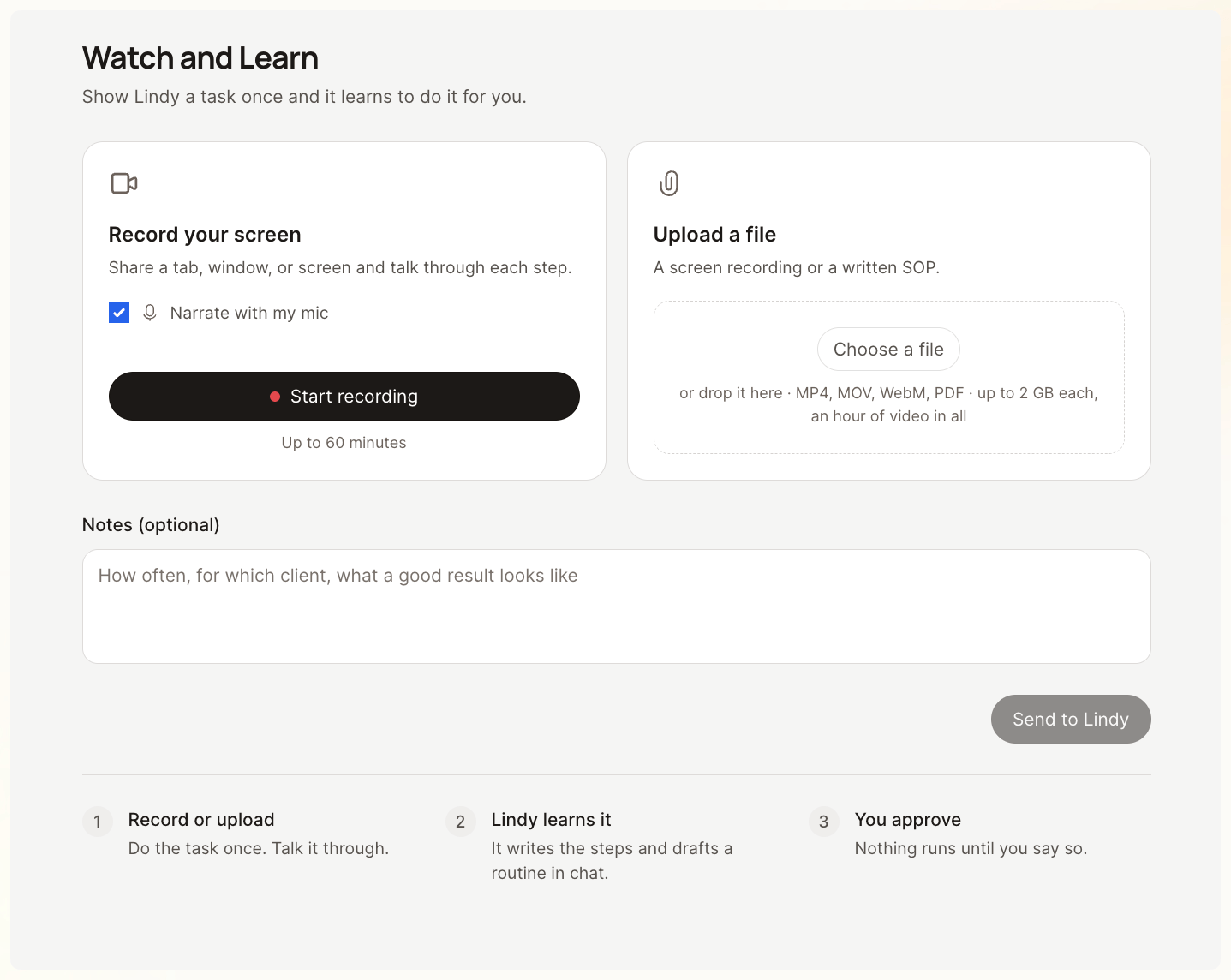 Watch and Learn lets you teach Lindy a task by showing how you do it. Record your screen as you work, or upload an existing recording or written process. Lindy breaks it into steps, checks which parts it can handle, and helps you save the process as a skill and set up a routine in chat.
## Open Watch and Learn
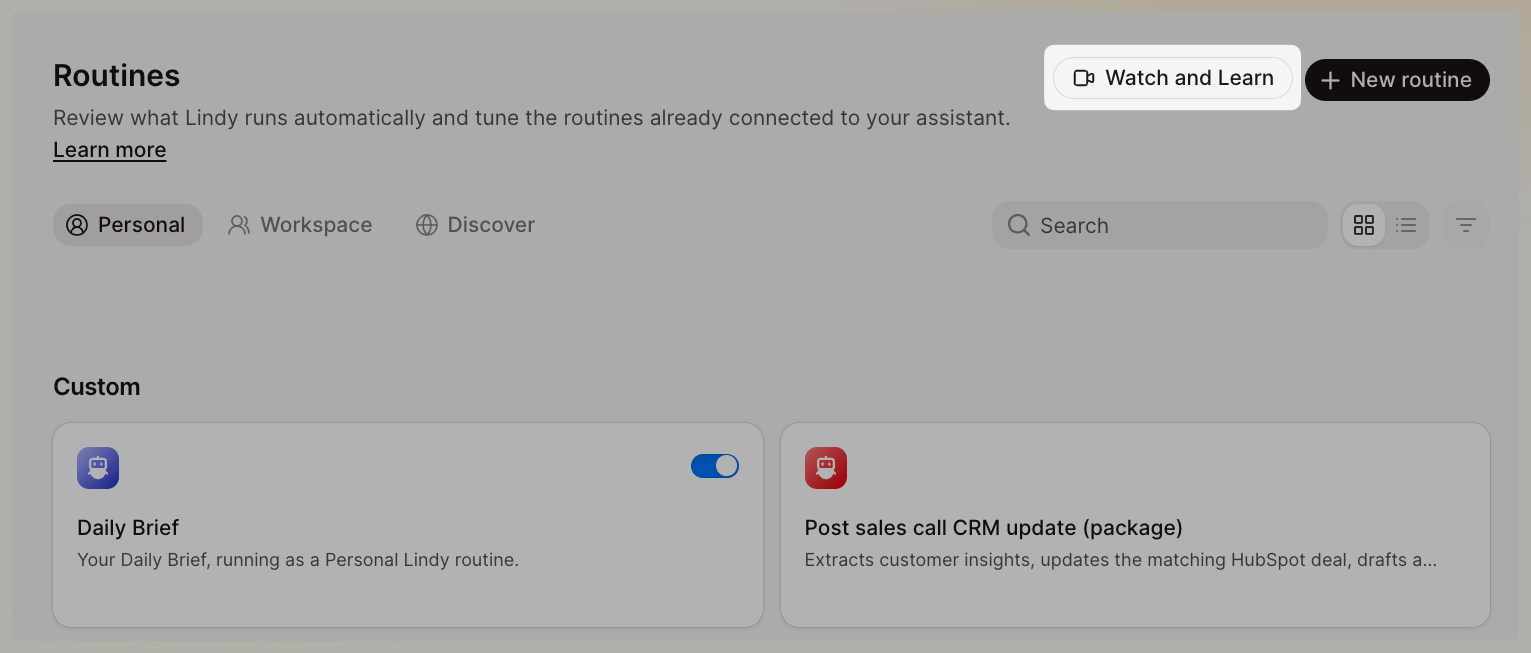
In the Lindy web app, open **Routines** from the sidebar, then click **Watch and Learn** at the top of the page.
Watch and Learn lets you teach Lindy a task by showing how you do it. Record your screen as you work, or upload an existing recording or written process. Lindy breaks it into steps, checks which parts it can handle, and helps you save the process as a skill and set up a routine in chat.
## Open Watch and Learn
In the Lindy web app, open **Routines** from the sidebar, then click **Watch and Learn** at the top of the page.
 ## Record or upload your process
1. Leave **Narrate with my mic** checked to talk through the task, or uncheck it to record without narration.
2. Click **Start recording** and choose the browser tab, window, or screen to share.
3. Do the task as you normally would. Explain what you're doing and why you make each decision.
4. Click **Stop recording** when you're done, then review the recording. Choose **Record again** if you want to replace it.
Use Chrome, Edge, or Safari on a computer. Allow microphone access if you want to include narration.
Click **Choose a file**, or drag files into the upload area. You can use a screen recording or a written process, such as a standard operating procedure (SOP).
You can add multiple files and combine them with a new recording. If your recording is hosted elsewhere, download it first and upload the file here.
## Add context and send
Use **Notes (optional)** for details the recording doesn't cover: which client the task is for, how often it happens, or what the finished result should look like.
For example: *"This is how I prepare our weekly client report. Use the latest numbers from the tracking sheet, flag missing data, and save the report in the client's folder every Friday."*
Click **Send to Lindy**. Your files upload, then you continue in a private conversation with Lindy. Keep the page open until that conversation opens; recordings aren't saved automatically if you leave before sending.
## Review and set it up
Lindy summarizes the process, including the tools, inputs, decisions, and expected result. Correct anything it missed and answer any remaining questions.
Lindy also checks the steps against your connected tools and available capabilities. Connect any missing accounts and agree on an alternative for steps it can't complete.
Confirm the steps when they look right. Lindy saves the procedure as a personal [skill](/teammate/skills), so it can reuse the instructions for future work.
Lindy proposes a [routine](/teammate/routines) for when the work should run. Review the trigger or schedule and where the result should go. Ask for a test on one example, then approve activation when you're ready.
The **skill** describes how to do the work. The **routine** determines when to do it. You can edit them later from Skills and Routines.
## Make your demonstration useful
* **Show a complete example.** Start with the input and finish with the result you want Lindy to produce.
* **Explain your decisions.** Say why you choose a record, skip an item, or flag something for review.
* **Name the details that matter.** Point out the right account, folder, spreadsheet, fields, and format.
* **Cover exceptions.** Explain what should happen when information is missing or someone needs to approve the result.
## Files and limits
| What you can add | Supported formats or limit |
| - | - |
| Video files | MP4, MOV, WebM, M4V |
| Written instructions | PDF, TXT, Markdown |
| File size | Up to 2 GB per file |
| Video length | Up to one hour across all videos, including a new recording |
| Notes | Up to 4,000 characters; include at least one recording or file |
Screen recordings stop automatically at 60 minutes. Analyzing recordings uses credits; see [Usage & Limits](/account-billing/usage) for how credits work.
## Related guides
Review and update the instructions Lindy reuses.
Manage when work runs and where results go.
This documentation is built and hosted on [Mintlify](https://mintlify.com), a developer documentation platform.
## Record or upload your process
1. Leave **Narrate with my mic** checked to talk through the task, or uncheck it to record without narration.
2. Click **Start recording** and choose the browser tab, window, or screen to share.
3. Do the task as you normally would. Explain what you're doing and why you make each decision.
4. Click **Stop recording** when you're done, then review the recording. Choose **Record again** if you want to replace it.
Use Chrome, Edge, or Safari on a computer. Allow microphone access if you want to include narration.
Click **Choose a file**, or drag files into the upload area. You can use a screen recording or a written process, such as a standard operating procedure (SOP).
You can add multiple files and combine them with a new recording. If your recording is hosted elsewhere, download it first and upload the file here.
## Add context and send
Use **Notes (optional)** for details the recording doesn't cover: which client the task is for, how often it happens, or what the finished result should look like.
For example: *"This is how I prepare our weekly client report. Use the latest numbers from the tracking sheet, flag missing data, and save the report in the client's folder every Friday."*
Click **Send to Lindy**. Your files upload, then you continue in a private conversation with Lindy. Keep the page open until that conversation opens; recordings aren't saved automatically if you leave before sending.
## Review and set it up
Lindy summarizes the process, including the tools, inputs, decisions, and expected result. Correct anything it missed and answer any remaining questions.
Lindy also checks the steps against your connected tools and available capabilities. Connect any missing accounts and agree on an alternative for steps it can't complete.
Confirm the steps when they look right. Lindy saves the procedure as a personal [skill](/teammate/skills), so it can reuse the instructions for future work.
Lindy proposes a [routine](/teammate/routines) for when the work should run. Review the trigger or schedule and where the result should go. Ask for a test on one example, then approve activation when you're ready.
The **skill** describes how to do the work. The **routine** determines when to do it. You can edit them later from Skills and Routines.
## Make your demonstration useful
* **Show a complete example.** Start with the input and finish with the result you want Lindy to produce.
* **Explain your decisions.** Say why you choose a record, skip an item, or flag something for review.
* **Name the details that matter.** Point out the right account, folder, spreadsheet, fields, and format.
* **Cover exceptions.** Explain what should happen when information is missing or someone needs to approve the result.
## Files and limits
| What you can add | Supported formats or limit |
| - | - |
| Video files | MP4, MOV, WebM, M4V |
| Written instructions | PDF, TXT, Markdown |
| File size | Up to 2 GB per file |
| Video length | Up to one hour across all videos, including a new recording |
| Notes | Up to 4,000 characters; include at least one recording or file |
Screen recordings stop automatically at 60 minutes. Analyzing recordings uses credits; see [Usage & Limits](/account-billing/usage) for how credits work.
## Related guides
Review and update the instructions Lindy reuses.
Manage when work runs and where results go.
This documentation is built and hosted on [Mintlify](https://mintlify.com), a developer documentation platform.