> ## Documentation Index
> Fetch the complete documentation index at: https://docs.lindy.ai/llms.txt
> Use this file to discover all available pages before exploring further.
# Debugging
> Learn how to troubleshoot errors in Lindy, fix common workflow issues, resolve HTTP errors, and optimize automation performance
## Overview
Lindy makes building agents easy, but occasional errors can occur. This guide helps you quickly identify, understand, and resolve common issues. Perfect for:
* **Error identification** — spot problems in task history and flow editor
* **Quick fixes** — resolve common setup mistakes and configuration issues
* **HTTP troubleshooting** — understand external service connection errors
Most agent errors come down to simple setup mistakes—missing skills, unclear prompts, or undefined exit conditions. It's rarely a system issue. Before assuming something's broken, double-check your configuration—the fix is usually right there.
## How to Identify an Error
When an error occurs, your agent notifies you directly within your Task History, Flow Editor, and via email, so you can address issues immediately.
### Review Errors in Flow Editor Using Test Mode
1. **Open the workflow** - Go to your workflow in the editor
2. **Enter Test Mode** - Click the test button
3. **Run your test** - Execute the workflow to see where it fails
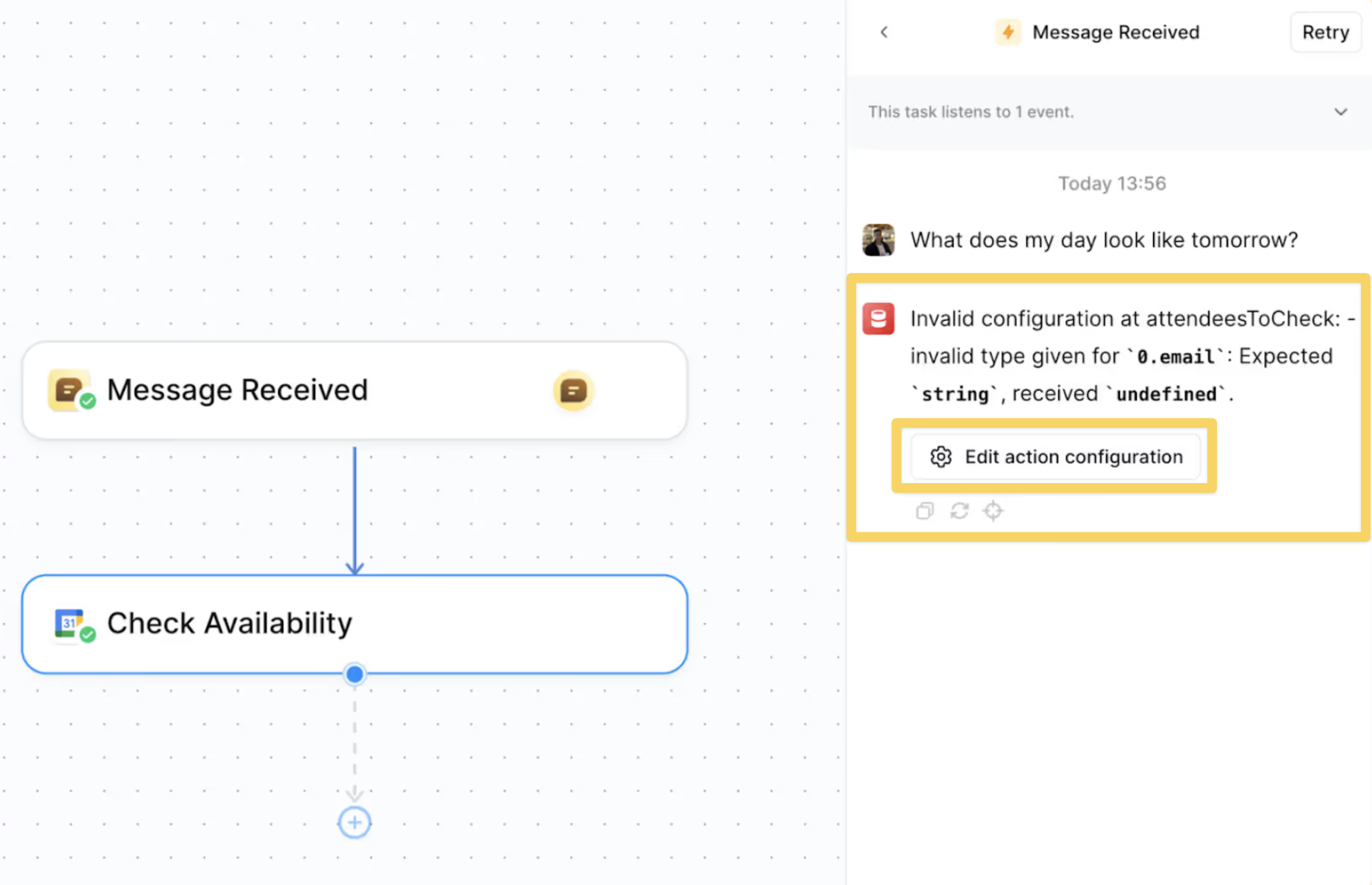 Your agent will usually tell you where and why it got stuck. In this case, we offer an "Edit action configuration" button that opens the erroring step.
### Review Errors in Task History
1. **Go to Tasks View** - Navigate to the Tasks section
2. **Look for errored tasks** - Find tasks marked as "Errored"
3. **Click for details** — Review exactly what your agent executed before the failure and see suggested fixes
Your agent will usually tell you where and why it got stuck. In this case, we offer an "Edit action configuration" button that opens the erroring step.
### Review Errors in Task History
1. **Go to Tasks View** - Navigate to the Tasks section
2. **Look for errored tasks** - Find tasks marked as "Errored"
3. **Click for details** — Review exactly what your agent executed before the failure and see suggested fixes
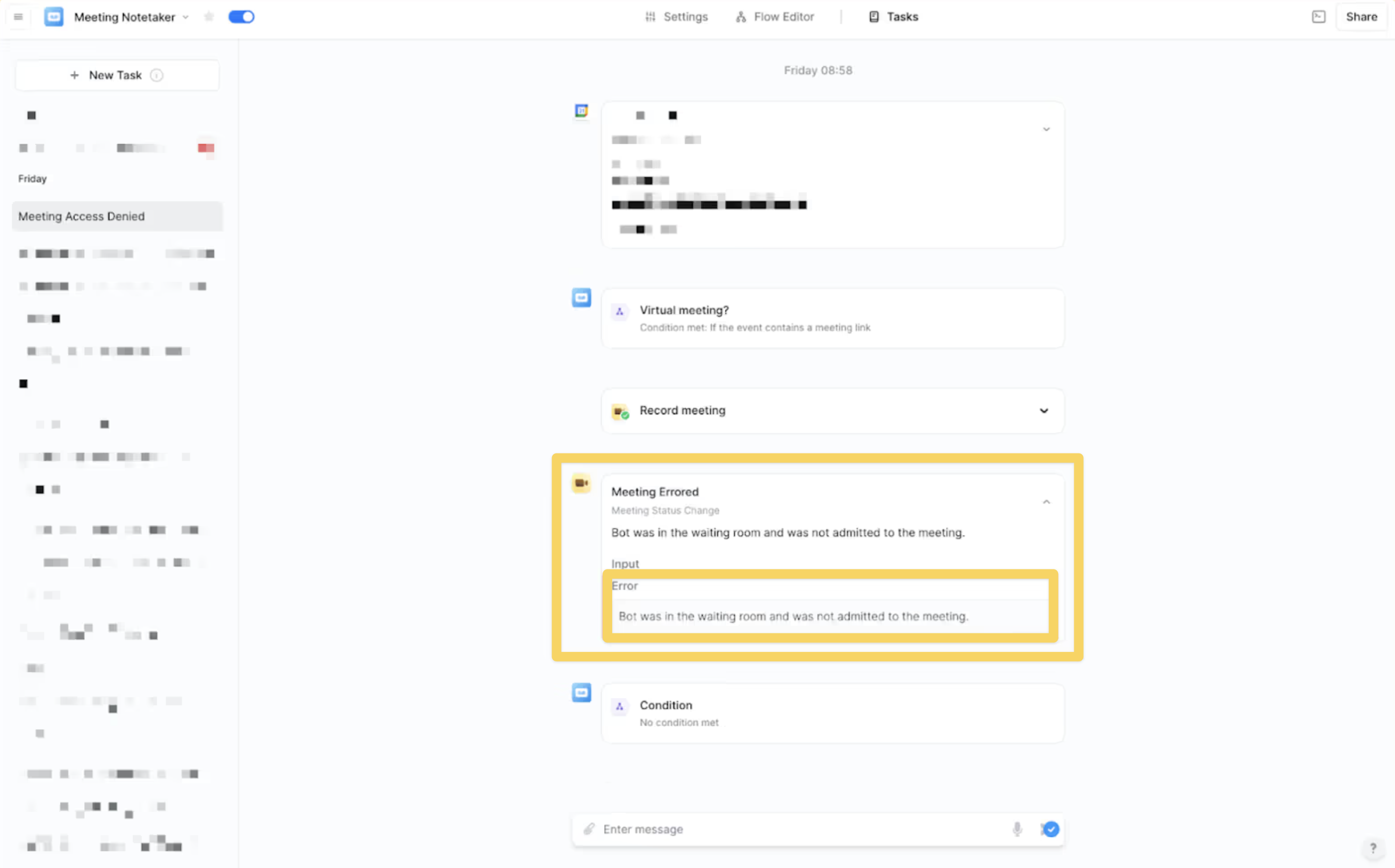 This is the primary place to identify what went wrong. If available, use the provided button to configure the action step or trigger that failed.
When an error occurs, your agent emails you with details about the issue and possible troubleshooting steps.
## General Troubleshooting Steps
1. **Check the Error Message**
* Use the Testing Panel to review all messages sent within the workflow. The error message will often indicate what went wrong and how to resolve it.
2. **Review Triggers and Action Steps**
* Ensure all triggers and action steps are set up correctly. Check that the correct inputs, conditions, and dependencies are in place.
3. **Monitor Outages**
* If an integrated app is down, your agent will notify you. You can also check the app's status page for real-time updates.
## Common Errors and Fixes
### "The Input provided is too long"
This means the task context is exceeding the allowed limit. To resolve this:
* Filter unnecessary high-volume triggers
* Use a more cost-efficient language model
* Optimize the workflow to minimize redundant data
### "Cannot start test. Cannot find the conversation trigger"
This error usually indicates a misconfiguration with triggers:
* Verify trigger setup in the workflow
* Ensure event-based triggers have the right conditions
* Check if multiple triggers conflict with each other
### "My apologies \[Name], I'm having trouble completing this task"
This typically means the agent is unable to complete its assigned task. Possible fixes:
**Missing Exit Condition**
* If the agent is handling a complex task or using multiple skills, it may not know when to stop.
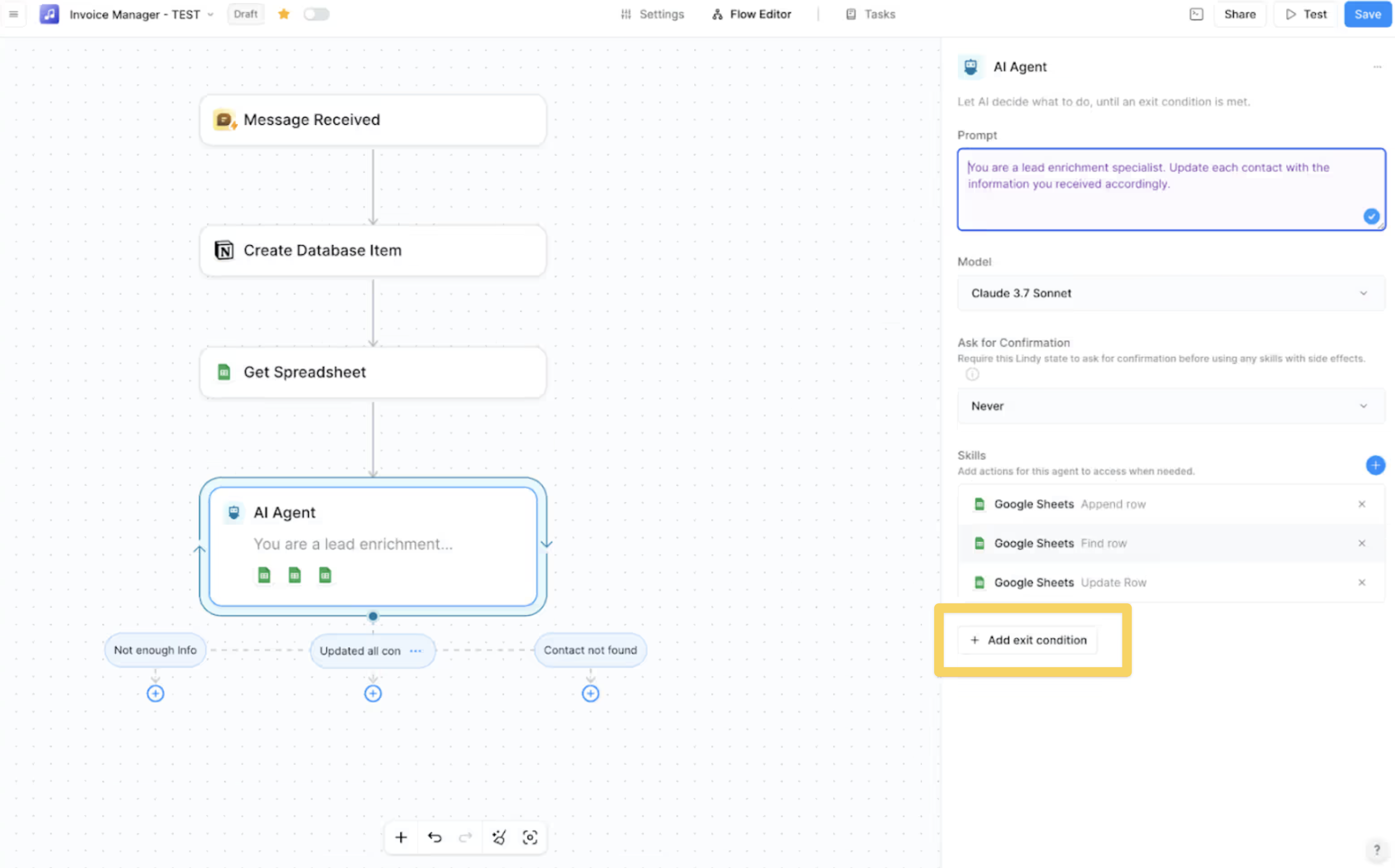
* **Fix**: Define a clear exit condition, so the agent knows when the task is complete
This is the primary place to identify what went wrong. If available, use the provided button to configure the action step or trigger that failed.
When an error occurs, your agent emails you with details about the issue and possible troubleshooting steps.
## General Troubleshooting Steps
1. **Check the Error Message**
* Use the Testing Panel to review all messages sent within the workflow. The error message will often indicate what went wrong and how to resolve it.
2. **Review Triggers and Action Steps**
* Ensure all triggers and action steps are set up correctly. Check that the correct inputs, conditions, and dependencies are in place.
3. **Monitor Outages**
* If an integrated app is down, your agent will notify you. You can also check the app's status page for real-time updates.
## Common Errors and Fixes
### "The Input provided is too long"
This means the task context is exceeding the allowed limit. To resolve this:
* Filter unnecessary high-volume triggers
* Use a more cost-efficient language model
* Optimize the workflow to minimize redundant data
### "Cannot start test. Cannot find the conversation trigger"
This error usually indicates a misconfiguration with triggers:
* Verify trigger setup in the workflow
* Ensure event-based triggers have the right conditions
* Check if multiple triggers conflict with each other
### "My apologies \[Name], I'm having trouble completing this task"
This typically means the agent is unable to complete its assigned task. Possible fixes:
**Missing Exit Condition**
* If the agent is handling a complex task or using multiple skills, it may not know when to stop.
* **Fix**: Define a clear exit condition, so the agent knows when the task is complete
 **Skills Issue**
* The agent may lack the necessary skills to finish the task.
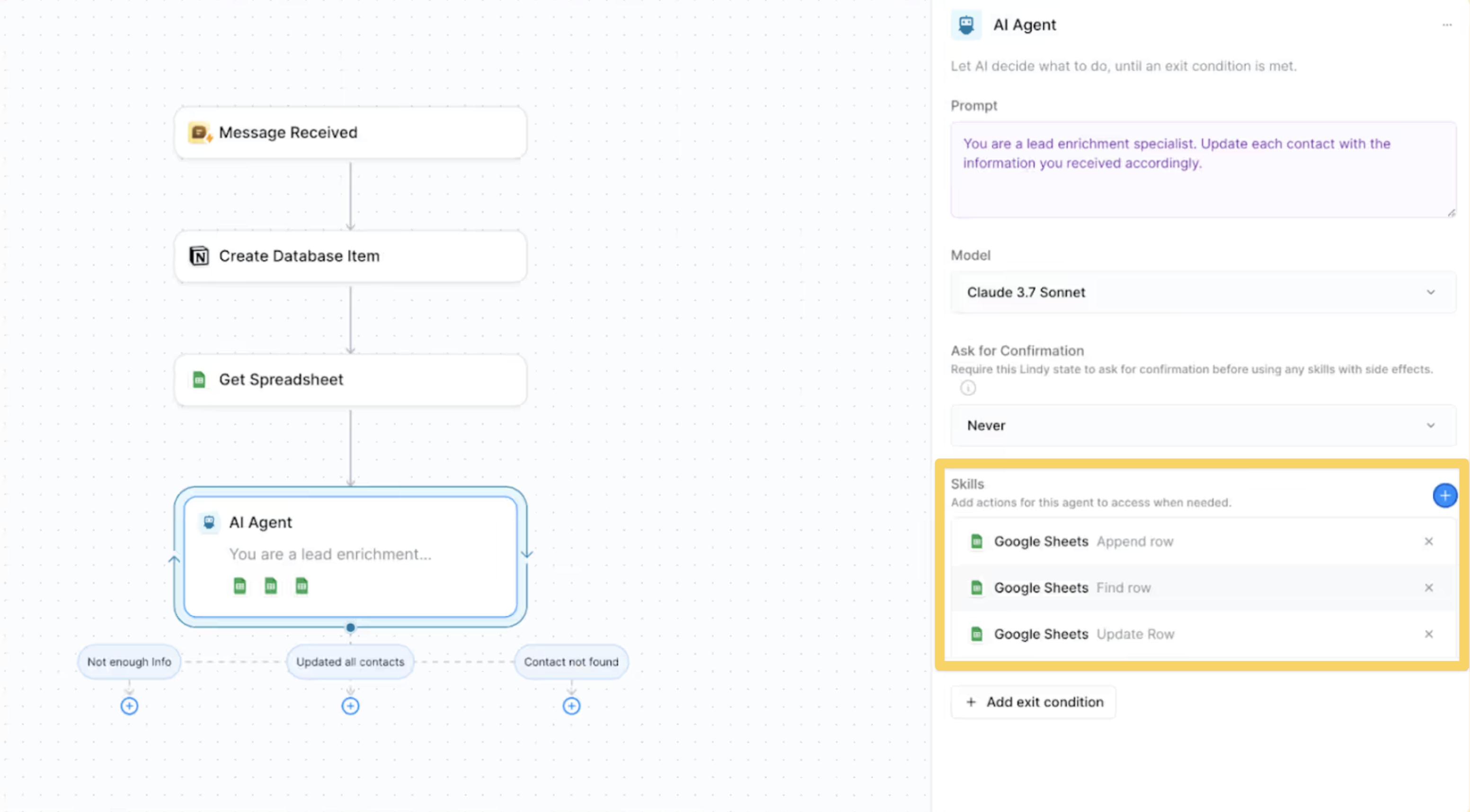
* **Fix**: Assign the required skills, keeping the total below four skills per agent for most tasks
**Skills Issue**
* The agent may lack the necessary skills to finish the task.
* **Fix**: Assign the required skills, keeping the total below four skills per agent for most tasks
 **Prompt Issue**
* The instructions might be unclear or too vague.
* **Fix**: Refine the prompt to ensure the agent fully understands the task
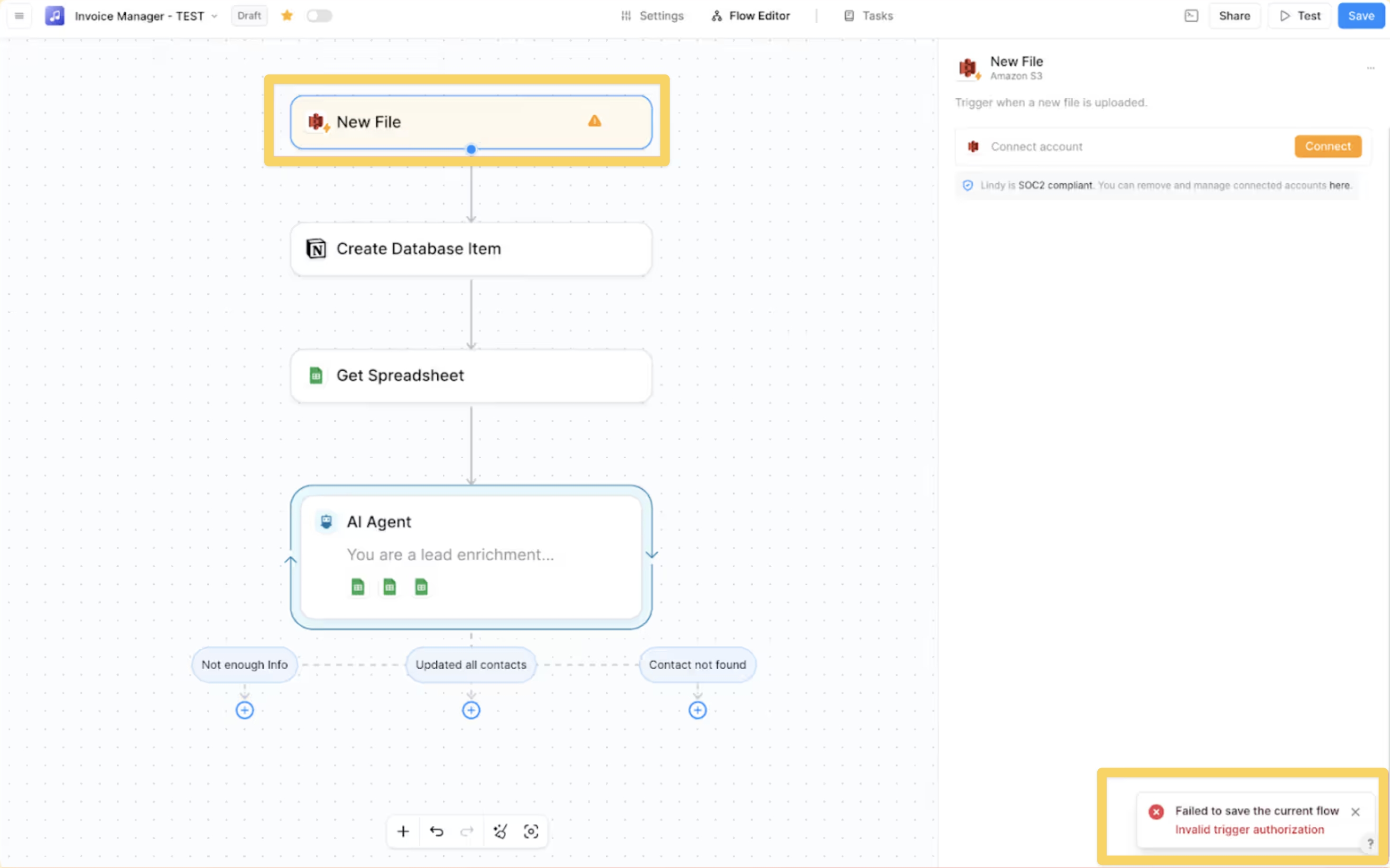
### "Failed to save the current flow"
This error typically indicates a misconfiguration in the trigger:
* Verify that a trigger is set up – ensure your workflow has an active trigger
* Check the trigger configuration – review settings like authentication, permissions, and required parameters
**Prompt Issue**
* The instructions might be unclear or too vague.
* **Fix**: Refine the prompt to ensure the agent fully understands the task
### "Failed to save the current flow"
This error typically indicates a misconfiguration in the trigger:
* Verify that a trigger is set up – ensure your workflow has an active trigger
* Check the trigger configuration – review settings like authentication, permissions, and required parameters
 ### "My Email received trigger does not fire in test mode"
* If you email yourself and the sender and recipient email addresses are the same, it won't trigger the Email Received trigger. This prevents infinite loops.
* **Fix**: Use a different email address to test the trigger
### "Task Stopped Due to Insufficient Credits"
* If an agent task stops because of credit limits, it won't automatically restart.
* **Fix**: Go to your agent → Task View, find the incomplete task, and click "Retry" to continue from where it stopped
## HTTP Status Codes
Lindy interacts with various external services, and sometimes errors come from those connections. Here's what common HTTP error codes mean:
| Code | Error | What it means |
| ------- | --------------------- | ------------------------------------------------------ |
| **400** | Bad Request | The request was incorrect—double-check your input data |
| **401** | Unauthorized | Authentication is missing or incorrect |
| **403** | Forbidden | You don't have permission to access this resource |
| **404** | Not Found | The requested resource doesn't exist |
| **422** | Unprocessable Entity | Data format is invalid |
| **429** | Too Many Requests | You've hit a rate limit—try again later |
| **500** | Internal Server Error | Something went wrong on the external service's end |
Some HTTP errors originate from third-party services, meaning the issue is often outside your agent's control. While some errors can be fixed by adjusting your configuration, others may require checking the third-party provider's documentation.
## How to Report a Bug
If you suspect a bug or need help with your agent, report it through these channels:
* **Email**: Send an email to [support@lindy.ai](mailto:support@lindy.ai)
* **Slack Community**: [Join and post in the Lindy Community](https://community.lindy.ai/join)
### Make sure to include a task URL!
Providing the task URL helps us look directly into the issue:
1. **Click your agent** → click "Tasks"
2. **Find the task** you need help with
3. **Click the specific task** (you should see the full execution)
4. **Copy that page URL** from your browser
5. **Paste the URL** in your support request
The URL should include "conversationID" followed by a number. Screenshots are also helpful!
## Best Practices
* Start with simple workflows and gradually add complexity
* Test each action step individually before connecting them
* Use clear, specific prompts for AI agents
* Define exit conditions for complex tasks
* Keep skill assignments under four per agent
* Always check Task History first for error details
* Use Test Mode to isolate problem steps
* Review error messages carefully for specific guidance
* Check third-party service status pages for outages
* Document recurring issues and their solutions
* After checking your configuration thoroughly
* When HTTP errors persist despite correct setup
* If the same error occurs across multiple workflows
* When third-party documentation doesn't resolve the issue
## Next Steps
Learn how to test your workflows effectively
Set up monitoring to catch issues early
Add oversight for critical workflows
Understand how to configure agents properly
### "My Email received trigger does not fire in test mode"
* If you email yourself and the sender and recipient email addresses are the same, it won't trigger the Email Received trigger. This prevents infinite loops.
* **Fix**: Use a different email address to test the trigger
### "Task Stopped Due to Insufficient Credits"
* If an agent task stops because of credit limits, it won't automatically restart.
* **Fix**: Go to your agent → Task View, find the incomplete task, and click "Retry" to continue from where it stopped
## HTTP Status Codes
Lindy interacts with various external services, and sometimes errors come from those connections. Here's what common HTTP error codes mean:
| Code | Error | What it means |
| ------- | --------------------- | ------------------------------------------------------ |
| **400** | Bad Request | The request was incorrect—double-check your input data |
| **401** | Unauthorized | Authentication is missing or incorrect |
| **403** | Forbidden | You don't have permission to access this resource |
| **404** | Not Found | The requested resource doesn't exist |
| **422** | Unprocessable Entity | Data format is invalid |
| **429** | Too Many Requests | You've hit a rate limit—try again later |
| **500** | Internal Server Error | Something went wrong on the external service's end |
Some HTTP errors originate from third-party services, meaning the issue is often outside your agent's control. While some errors can be fixed by adjusting your configuration, others may require checking the third-party provider's documentation.
## How to Report a Bug
If you suspect a bug or need help with your agent, report it through these channels:
* **Email**: Send an email to [support@lindy.ai](mailto:support@lindy.ai)
* **Slack Community**: [Join and post in the Lindy Community](https://community.lindy.ai/join)
### Make sure to include a task URL!
Providing the task URL helps us look directly into the issue:
1. **Click your agent** → click "Tasks"
2. **Find the task** you need help with
3. **Click the specific task** (you should see the full execution)
4. **Copy that page URL** from your browser
5. **Paste the URL** in your support request
The URL should include "conversationID" followed by a number. Screenshots are also helpful!
## Best Practices
* Start with simple workflows and gradually add complexity
* Test each action step individually before connecting them
* Use clear, specific prompts for AI agents
* Define exit conditions for complex tasks
* Keep skill assignments under four per agent
* Always check Task History first for error details
* Use Test Mode to isolate problem steps
* Review error messages carefully for specific guidance
* Check third-party service status pages for outages
* Document recurring issues and their solutions
* After checking your configuration thoroughly
* When HTTP errors persist despite correct setup
* If the same error occurs across multiple workflows
* When third-party documentation doesn't resolve the issue
## Next Steps
Learn how to test your workflows effectively
Set up monitoring to catch issues early
Add oversight for critical workflows
Understand how to configure agents properly