> ## Documentation Index
> Fetch the complete documentation index at: https://docs.lindy.ai/llms.txt
> Use this file to discover all available pages before exploring further.
# Human in Loop
> Add manual approval steps to your agent workflows for oversight and control over critical actions
## Overview
There are three ways to build your agents to include human oversight when needed. You can always determine when you want to be in the loop for your agents - start with oversight and gradually increase autonomy as you build confidence.
## 1. Ask for Confirmation
Most actions have a confirmation toggle for actions with "side effects" (like sending emails, updating records, or creating events).
 ### How It Works
* **Enable the toggle** — Turn on "Ask for Confirmation" for any action
* **Agent pauses** — Your agent will execute up to that action, then wait for your approval
* **Receive email** — You'll get an email asking you to approve the action
* **Approve in app** — You can also approve it directly in the task menu
* **Agent continues** — Once approved, your agent completes the workflow
## 2. Condition-Based Alerts
Use condition steps to have your agent send alerts when it encounters situations outside its scope or gets stuck.
### How It Works
* **Enable the toggle** — Turn on "Ask for Confirmation" for any action
* **Agent pauses** — Your agent will execute up to that action, then wait for your approval
* **Receive email** — You'll get an email asking you to approve the action
* **Approve in app** — You can also approve it directly in the task menu
* **Agent continues** — Once approved, your agent completes the workflow
## 2. Condition-Based Alerts
Use condition steps to have your agent send alerts when it encounters situations outside its scope or gets stuck.
 ### Setting Up Conditional Human Loops
* **Add a condition** — Create conditions like "if this happens" or "if this is outside your scope" or "if unknown"
* **Send alerts** — When the condition is met, have the agent send an email or Slack message
* **Get notified** — Receive a ping saying "Hey, your agent is stuck and needs help"
* **Take action** — Step in to help or provide guidance when needed
This approach lets your agent run autonomously most of the time but alerts you when it needs human intervention.
## 3. Draft Modes
Certain actions like Gmail can create drafts instead of executing immediately, giving you manual review before final action.
### Setting Up Conditional Human Loops
* **Add a condition** — Create conditions like "if this happens" or "if this is outside your scope" or "if unknown"
* **Send alerts** — When the condition is met, have the agent send an email or Slack message
* **Get notified** — Receive a ping saying "Hey, your agent is stuck and needs help"
* **Take action** — Step in to help or provide guidance when needed
This approach lets your agent run autonomously most of the time but alerts you when it needs human intervention.
## 3. Draft Modes
Certain actions like Gmail can create drafts instead of executing immediately, giving you manual review before final action.
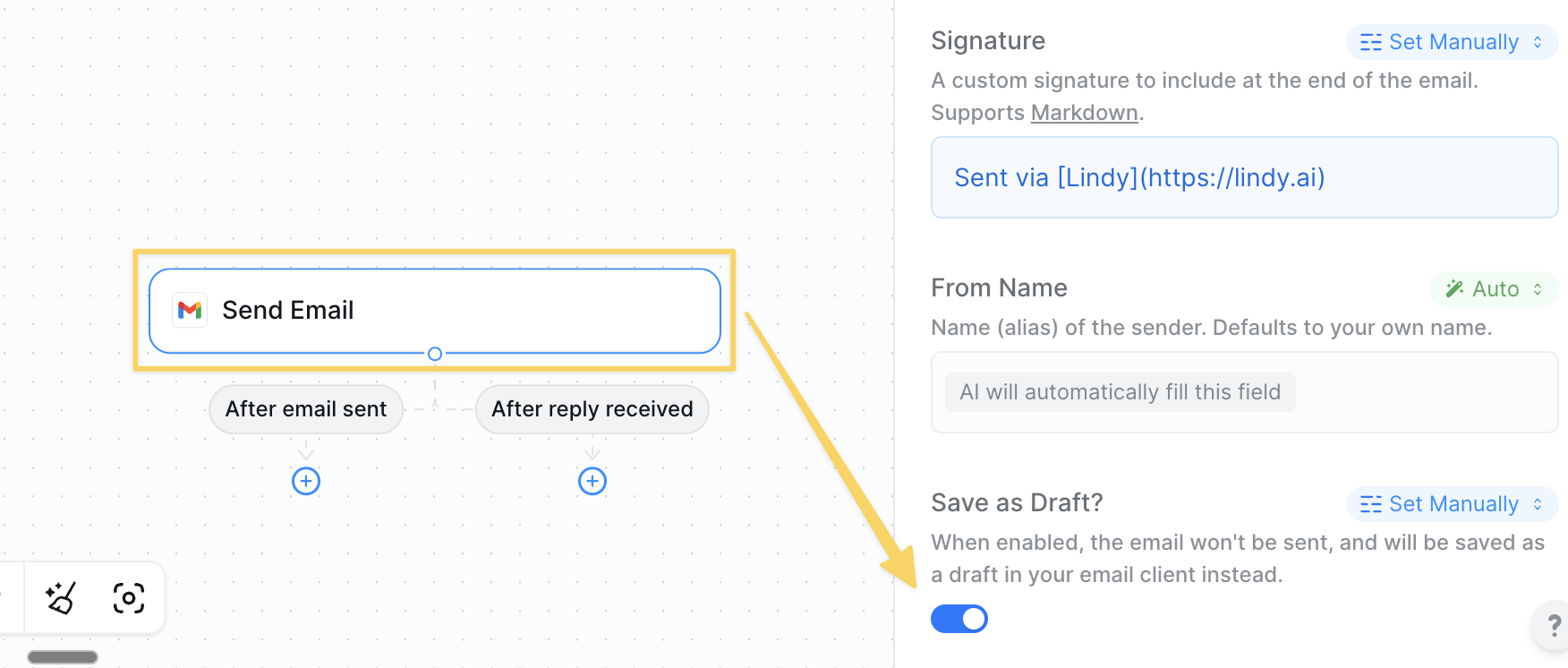 ### Gmail Draft Mode
* **Creates drafts** — Emails are saved to your Gmail drafts folder instead of being sent
* **Manual review** — You can edit, approve, or delete drafts before sending
* **Maintains context** — All email details (recipients, subject, body) are preserved
* **Flexible timing** — Send when you're ready, not when the agent runs
Draft modes are particularly useful for customer communications, negotiations, or sensitive outreach where tone and timing matter.
## When to Use Human in the Loop
Always start with human oversight for actions that affect other people. Test thoroughly with confirmation enabled, then gradually increase autonomy as you build confidence in your agent's performance.
Use confirmation for emails, messages, and outreach to customers, leads, or partners. This ensures tone, timing, and content meet your standards before reaching recipients.
Enable oversight for actions that create, update, or delete important records. This prevents accidental data loss or corruption while your agent learns your preferences.
Require approval for actions involving money, contracts, scheduling, or other high-stakes decisions that could impact your business or relationships.
## Next Steps
Troubleshoot issues in your agent workflows
Set up ongoing monitoring for live workflow runs
Test your workflows with human approval steps
Restore previous versions when issues arise
### Gmail Draft Mode
* **Creates drafts** — Emails are saved to your Gmail drafts folder instead of being sent
* **Manual review** — You can edit, approve, or delete drafts before sending
* **Maintains context** — All email details (recipients, subject, body) are preserved
* **Flexible timing** — Send when you're ready, not when the agent runs
Draft modes are particularly useful for customer communications, negotiations, or sensitive outreach where tone and timing matter.
## When to Use Human in the Loop
Always start with human oversight for actions that affect other people. Test thoroughly with confirmation enabled, then gradually increase autonomy as you build confidence in your agent's performance.
Use confirmation for emails, messages, and outreach to customers, leads, or partners. This ensures tone, timing, and content meet your standards before reaching recipients.
Enable oversight for actions that create, update, or delete important records. This prevents accidental data loss or corruption while your agent learns your preferences.
Require approval for actions involving money, contracts, scheduling, or other high-stakes decisions that could impact your business or relationships.
## Next Steps
Troubleshoot issues in your agent workflows
Set up ongoing monitoring for live workflow runs
Test your workflows with human approval steps
Restore previous versions when issues arise