> ## Documentation Index
> Fetch the complete documentation index at: https://docs.lindy.ai/llms.txt
> Use this file to discover all available pages before exploring further.
# Monitor Your Agents
> Track workflow runs, task history, and execution details with built-in monitoring and observability tools.
## Overview
Monitoring helps you track task runs, identify issues, and understand how your custom workflows behave over time. Use it to:
* **Track performance**: See how workflow runs perform over time
* **Spot issues**: Quickly identify failures and diagnose problems
* **Understand usage**: See how often workflows run and when they fire
We'll show you how to access task history and use observability tools so you can inspect runs manually or build workflow-based monitoring.
## Accessing Task History
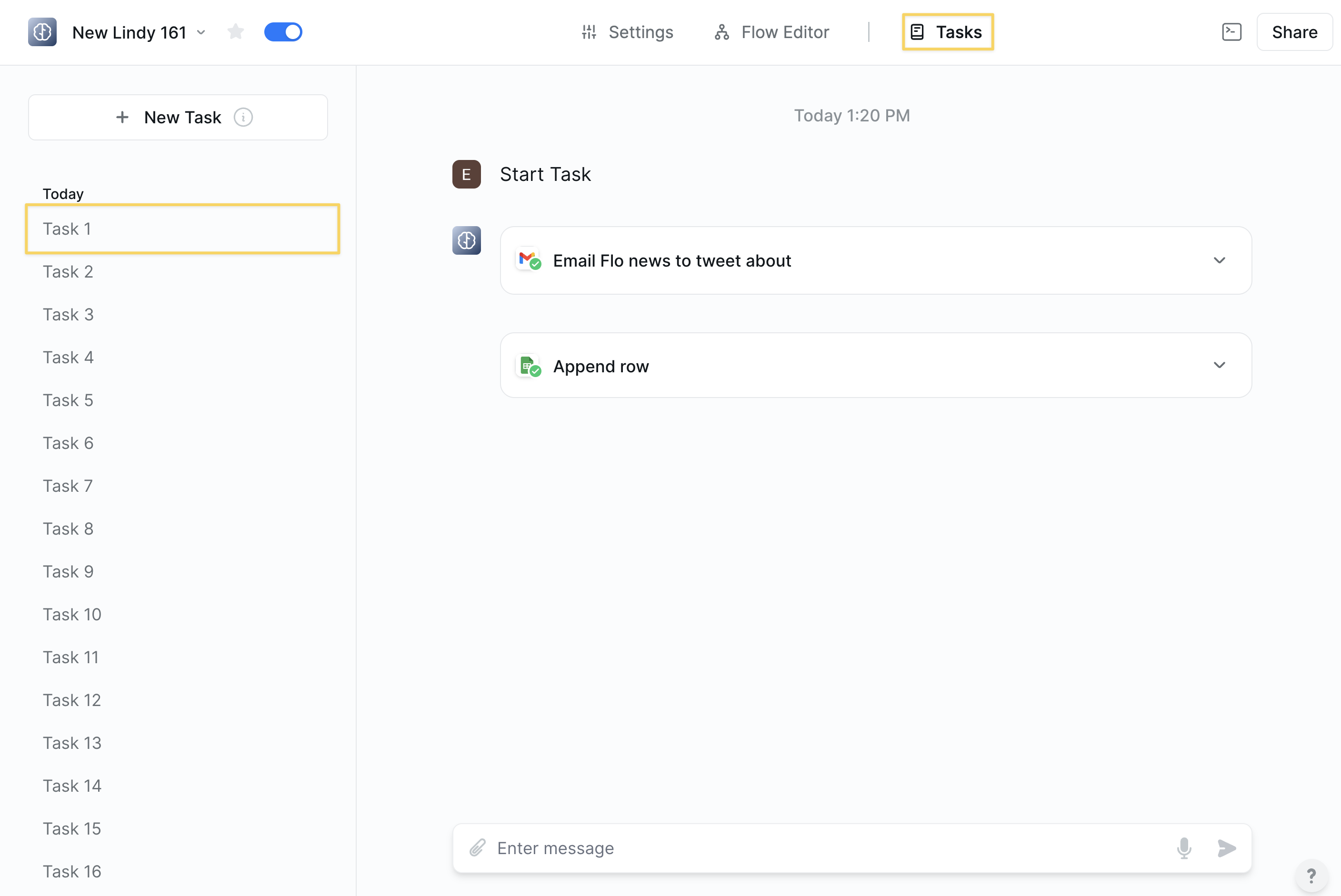
To view task runs for a custom agent:
1. **Select the agent**: Choose the specific custom agent you want to monitor
2. **Click Tasks**: In the top right of your task or flow editor, click on "Tasks"
3. **View all runs**: Within task history, you can review past runs for that agent
4. **Review execution**: Open any run to see what happened step-by-step
 You can use the "Set task title" action to improve the task titling in run history.
## Observability Tools
Monitor and analyze task execution with detailed run data. There are two key building blocks for observability in custom agents:
* `Agent Task Change` trigger wakes up when another Lindy agent hits specific task events such as errors, starts, or completions
* `Get Task Details` action reads and analyzes a task run, showing block-by-block inputs, outputs, and performance data
### Agent Task Change Trigger
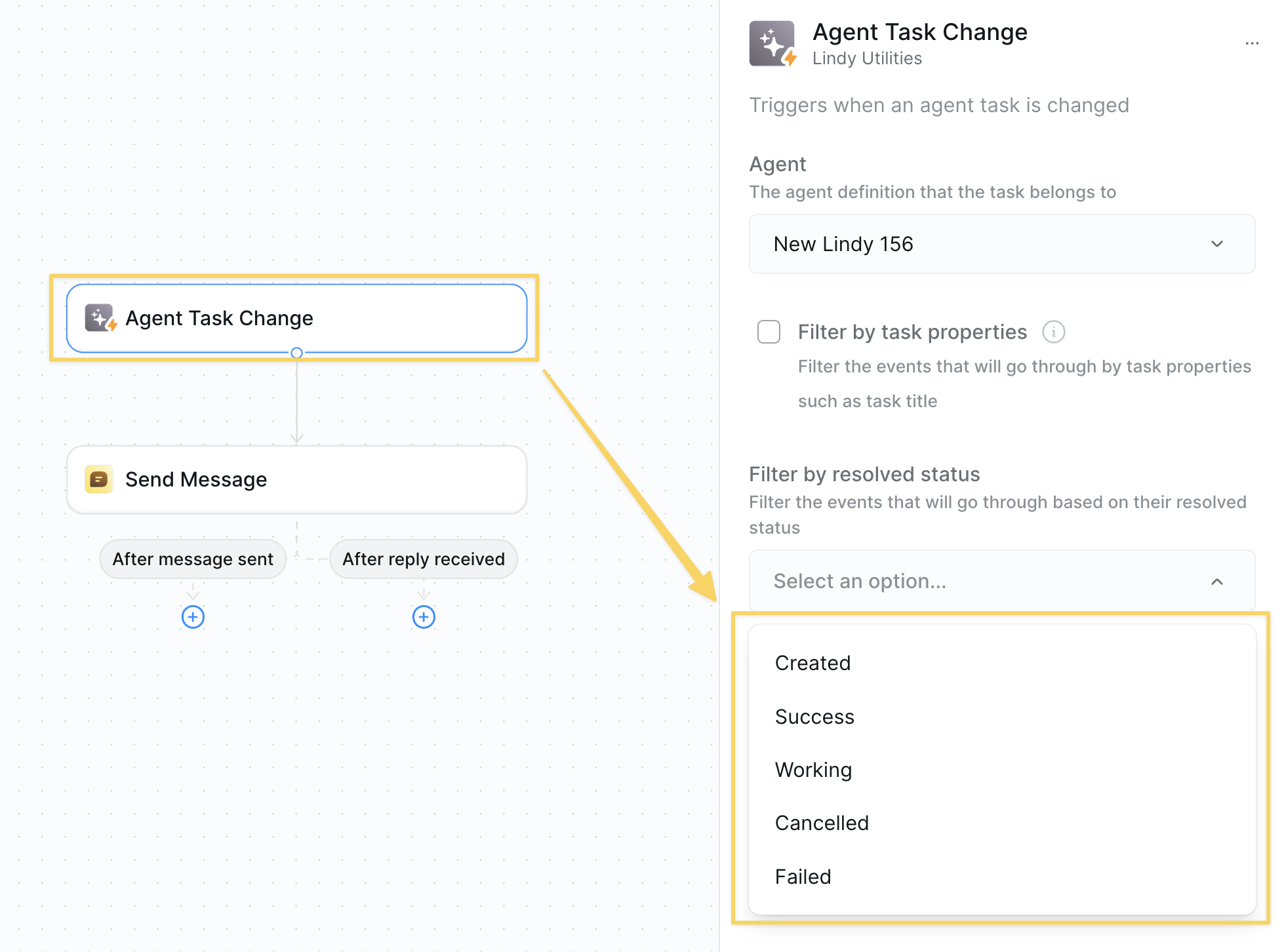
* **What it does**: Triggers when another agent performs specific task events. It's useful for monitoring activity and building reactive workflows.
You can use the "Set task title" action to improve the task titling in run history.
## Observability Tools
Monitor and analyze task execution with detailed run data. There are two key building blocks for observability in custom agents:
* `Agent Task Change` trigger wakes up when another Lindy agent hits specific task events such as errors, starts, or completions
* `Get Task Details` action reads and analyzes a task run, showing block-by-block inputs, outputs, and performance data
### Agent Task Change Trigger
* **What it does**: Triggers when another agent performs specific task events. It's useful for monitoring activity and building reactive workflows.
 **Inputs:**
* **Agent**: Select which agent you want to monitor
* **Events**: Multi-select from task states:
* Task was created
* Task succeeded
* Task is working
* Task was canceled
* Task failed
* **Filter by subtask title**: Optional — monitor specific subtasks only
**Common Examples:**
* **Error Alerts**: Trigger on "Task failed" → Send email with failure details
* **Performance Tracking**: Trigger on "Task succeeded" → Log completion metrics
* **Real-time Monitoring**: Trigger on "Task is working" → Send status updates
### Get Task Details
* **What it does**: Reads and analyzes everything an agent did during task execution. Shows block-by-block inputs, outputs, and performance data for complete observability.
**Inputs:**
* **Agent**: Select which agent you want to monitor
* **Events**: Multi-select from task states:
* Task was created
* Task succeeded
* Task is working
* Task was canceled
* Task failed
* **Filter by subtask title**: Optional — monitor specific subtasks only
**Common Examples:**
* **Error Alerts**: Trigger on "Task failed" → Send email with failure details
* **Performance Tracking**: Trigger on "Task succeeded" → Log completion metrics
* **Real-time Monitoring**: Trigger on "Task is working" → Send status updates
### Get Task Details
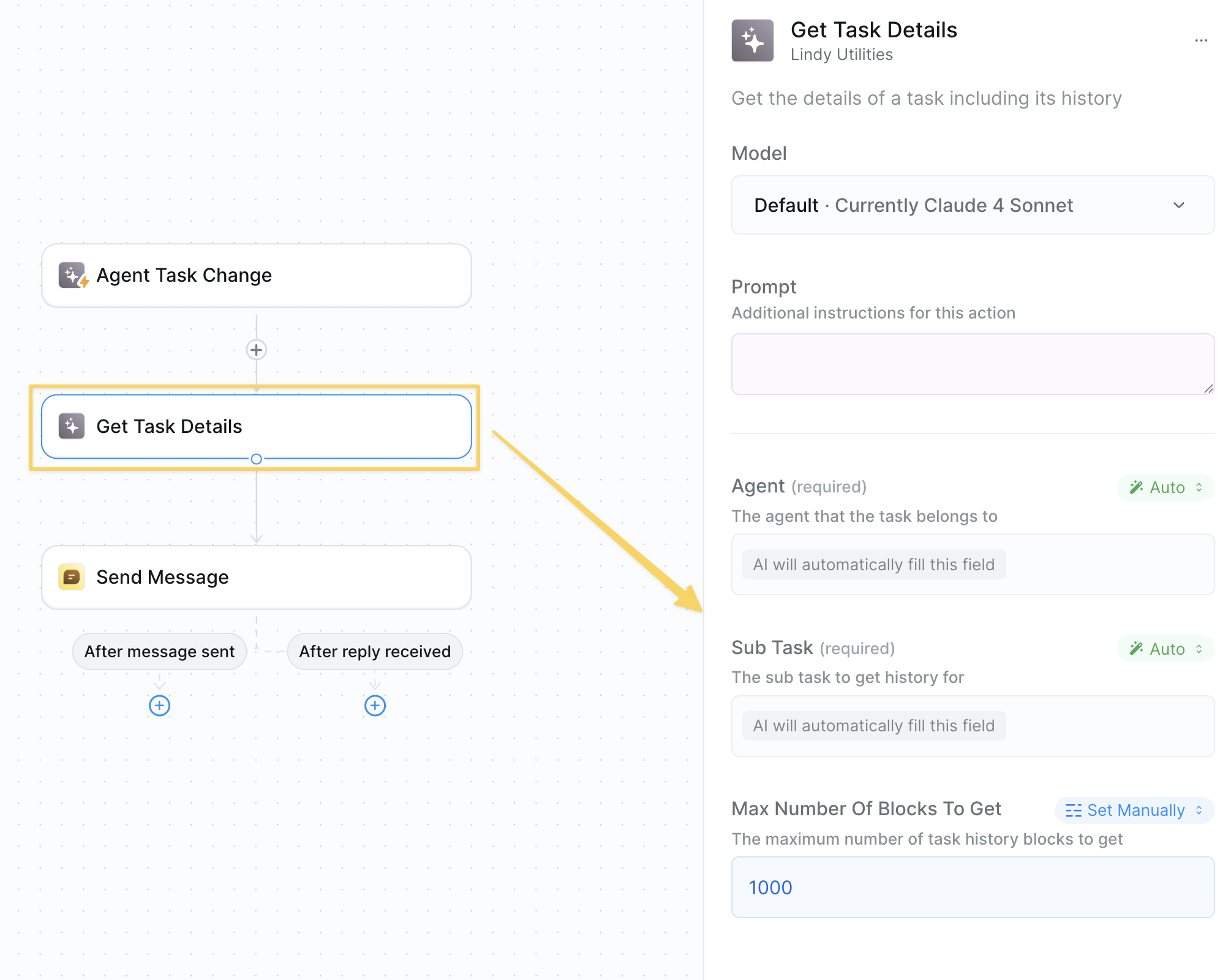
* **What it does**: Reads and analyzes everything an agent did during task execution. Shows block-by-block inputs, outputs, and performance data for complete observability.
 **Inputs:**
* **Agent**: Select the agent to analyze
* **Sub Task** (required): ID of the specific task/subtask to examine
* **Max Number of Blocks**: Recommended to set high — controls how much execution history to retrieve
Usually you want to use this action after an "Agent Task Change" trigger and you can leave the fields on "Auto" to pull in the correct agent & task ID.
**Outputs:**
* **Block-by-block execution**: Every action the agent performed
* **Inputs and outputs**: Exact data flowing through each step
* **Performance metrics**: Timing, success rates, error details
* **Task metadata**: Status, timestamps, execution context
**Common Examples:**
* **Error Analysis**: Get task details on failure → Analyze what went wrong → Send diagnostic report
* **Quality Evaluation**: Get task details after completion → Score performance → Log to spreadsheet
* **Performance Optimization**: Analyze slow tasks → Identify bottlenecks → Optimize workflows
**Use Cases:**
* Build evaluation tools for agent quality
* Create automated debugging systems
* Track agent performance over time
* Generate detailed audit logs
* Feed execution data to AI for analysis and insights
### Working Together
These actions are designed to work together for complete agent observability:
**Inputs:**
* **Agent**: Select the agent to analyze
* **Sub Task** (required): ID of the specific task/subtask to examine
* **Max Number of Blocks**: Recommended to set high — controls how much execution history to retrieve
Usually you want to use this action after an "Agent Task Change" trigger and you can leave the fields on "Auto" to pull in the correct agent & task ID.
**Outputs:**
* **Block-by-block execution**: Every action the agent performed
* **Inputs and outputs**: Exact data flowing through each step
* **Performance metrics**: Timing, success rates, error details
* **Task metadata**: Status, timestamps, execution context
**Common Examples:**
* **Error Analysis**: Get task details on failure → Analyze what went wrong → Send diagnostic report
* **Quality Evaluation**: Get task details after completion → Score performance → Log to spreadsheet
* **Performance Optimization**: Analyze slow tasks → Identify bottlenecks → Optimize workflows
**Use Cases:**
* Build evaluation tools for agent quality
* Create automated debugging systems
* Track agent performance over time
* Generate detailed audit logs
* Feed execution data to AI for analysis and insights
### Working Together
These actions are designed to work together for complete agent observability:
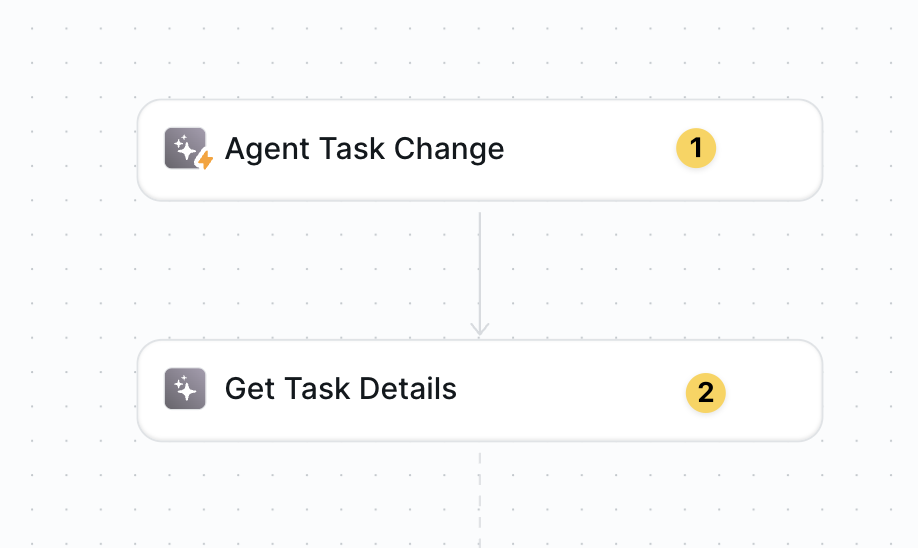 `Agent Task Change` triggers when something happens → `Get Task Details` analyzes exactly what occurred
This gives you full visibility into workflow runs. You'll know when they start, how they perform, and exactly what happened at each step.
### Advanced Features
| Feature | What it does |
| ------------------------ | ------------------------------------------------------------------ |
| Multi-Agent Monitoring | Track multiple agents from one observability workflow |
| Performance Benchmarking | Compare run times and success rates over time |
| Error Pattern Analysis | Identify common failure points across different agents |
| Custom Alert Routing | Send different types of failures to different teams or channels |
| Quality Score Tracking | Build evaluation systems that score workflow quality automatically |
## What to Monitor
* Success vs failure rates across workflow runs
* Execution times to identify performance bottlenecks
* Error patterns to spot recurring issues
* Trigger frequency to understand usage patterns
* Which custom agents run most frequently
* Average completion times for different workflows
* Resource usage and costs per agent
* Success rates for different types of tasks
* Common failure points in your workflows
* Integration issues with external services
* Input validation problems
* Rate limiting or timeout issues
## Best Practices
* **Regular monitoring** - Check task history regularly to catch issues early
* **Set up alerts** - Use conditional workflows to notify you of failures
* **Track patterns** - Look for trends in execution times and success rates
* **Document issues** - Keep track of recurring problems and their solutions
## Next Steps
Learn advanced monitoring and observability techniques
Troubleshoot issues found during monitoring
Add oversight for critical workflow actions
Test workflows after making monitoring-based improvements
`Agent Task Change` triggers when something happens → `Get Task Details` analyzes exactly what occurred
This gives you full visibility into workflow runs. You'll know when they start, how they perform, and exactly what happened at each step.
### Advanced Features
| Feature | What it does |
| ------------------------ | ------------------------------------------------------------------ |
| Multi-Agent Monitoring | Track multiple agents from one observability workflow |
| Performance Benchmarking | Compare run times and success rates over time |
| Error Pattern Analysis | Identify common failure points across different agents |
| Custom Alert Routing | Send different types of failures to different teams or channels |
| Quality Score Tracking | Build evaluation systems that score workflow quality automatically |
## What to Monitor
* Success vs failure rates across workflow runs
* Execution times to identify performance bottlenecks
* Error patterns to spot recurring issues
* Trigger frequency to understand usage patterns
* Which custom agents run most frequently
* Average completion times for different workflows
* Resource usage and costs per agent
* Success rates for different types of tasks
* Common failure points in your workflows
* Integration issues with external services
* Input validation problems
* Rate limiting or timeout issues
## Best Practices
* **Regular monitoring** - Check task history regularly to catch issues early
* **Set up alerts** - Use conditional workflows to notify you of failures
* **Track patterns** - Look for trends in execution times and success rates
* **Document issues** - Keep track of recurring problems and their solutions
## Next Steps
Learn advanced monitoring and observability techniques
Troubleshoot issues found during monitoring
Add oversight for critical workflow actions
Test workflows after making monitoring-based improvements