> ## Documentation Index
> Fetch the complete documentation index at: https://docs.lindy.ai/llms.txt
> Use this file to discover all available pages before exploring further.
# Smart Support Agent
> Intelligent customer support automation with Lindy
## Quick Overview
With the Smart Support flow, your agent will:
* **Monitor** a support inbox (Gmail, Outlook—or swap in Help Desk APIs)
* **Detect** whether the message needs a knowledge-base reply or human help
* **Search** your docs, FAQs, and policies for accurate answers
* **Respond** in your brand voice or draft a reply for approval
* **Log** tickets and escalations to Slack, Zendesk, or HubSpot\
Start from the [email responder template](https://chat.lindy.ai/marketplace/?templateId=66bfc603ea73bec3fea906db) and tweak as below.
## Setting Up Your Smart Support Agent
### Step 1: Connect the Trigger to Support Inbox
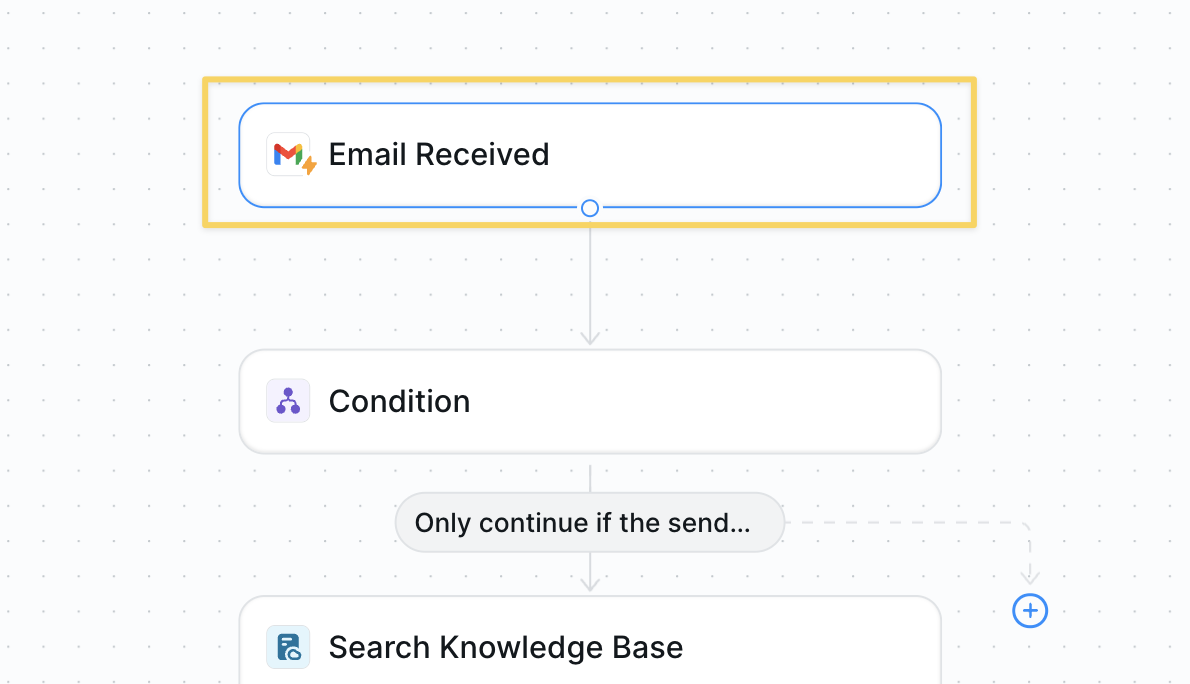 Select `Gmail – Email Received` (could swap for other systems like `Zendesk – New Ticket`).
### Step 2: Determine If a Reply Is Needed
Filter out non-support emails early to avoid responding to newsletters, confirmations, or internal messages.
`Condition` prompt:
```
Only continue if the sender asks a question about products, orders, or policies.
```
### Step 3: Search the Knowledge Base
Query your documentation to find relevant answers before crafting a response.
Select `Gmail – Email Received` (could swap for other systems like `Zendesk – New Ticket`).
### Step 2: Determine If a Reply Is Needed
Filter out non-support emails early to avoid responding to newsletters, confirmations, or internal messages.
`Condition` prompt:
```
Only continue if the sender asks a question about products, orders, or policies.
```
### Step 3: Search the Knowledge Base
Query your documentation to find relevant answers before crafting a response.
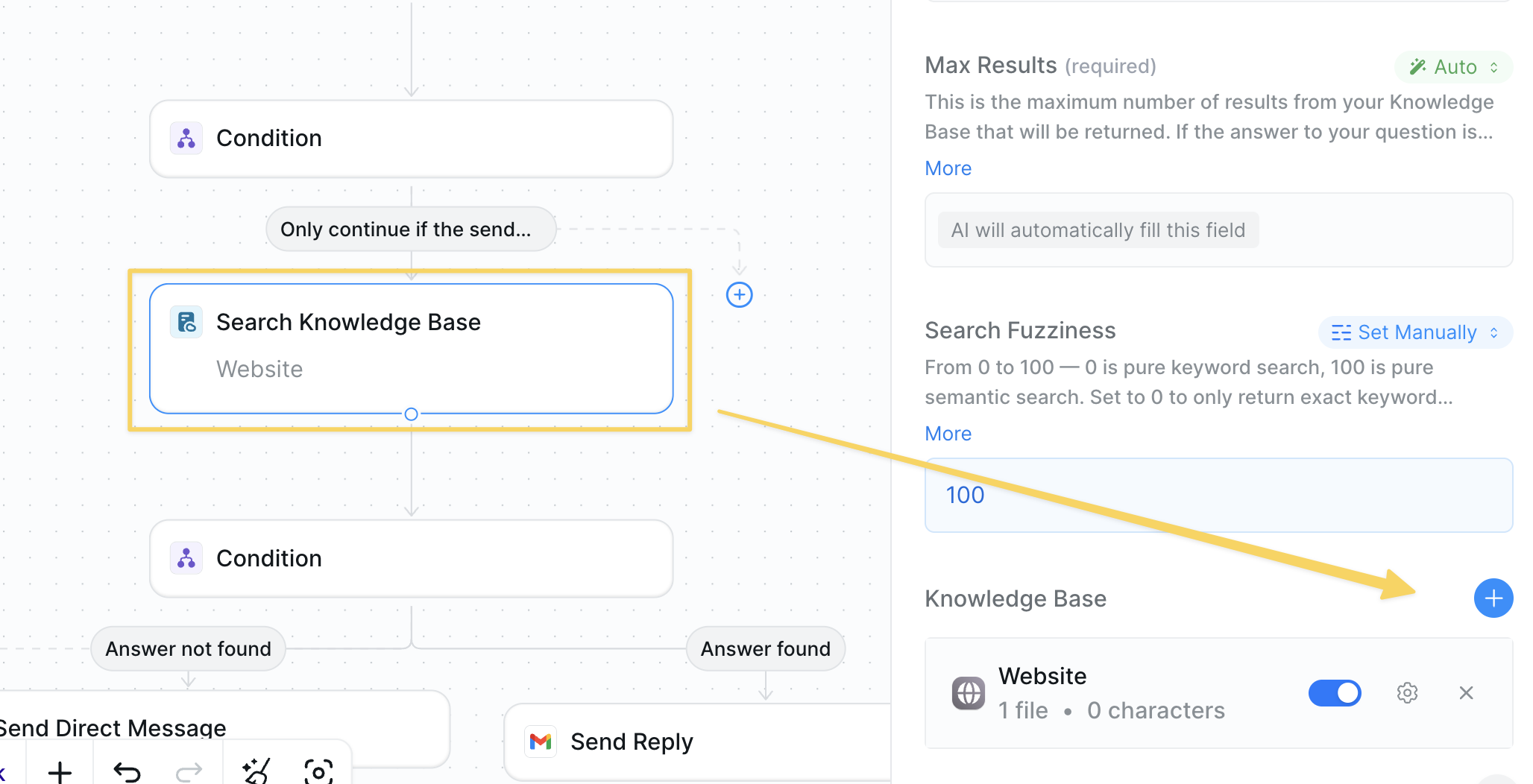 * Action: `Search Knowledge Base`
* Attach FAQs, policies, refund rules, troubleshooting docs, and more
### Step 4: Verify an Answer Exists
Check if we have sufficient information to provide a helpful response, escalating complex issues to humans.
* Action: `Search Knowledge Base`
* Attach FAQs, policies, refund rules, troubleshooting docs, and more
### Step 4: Verify an Answer Exists
Check if we have sufficient information to provide a helpful response, escalating complex issues to humans.
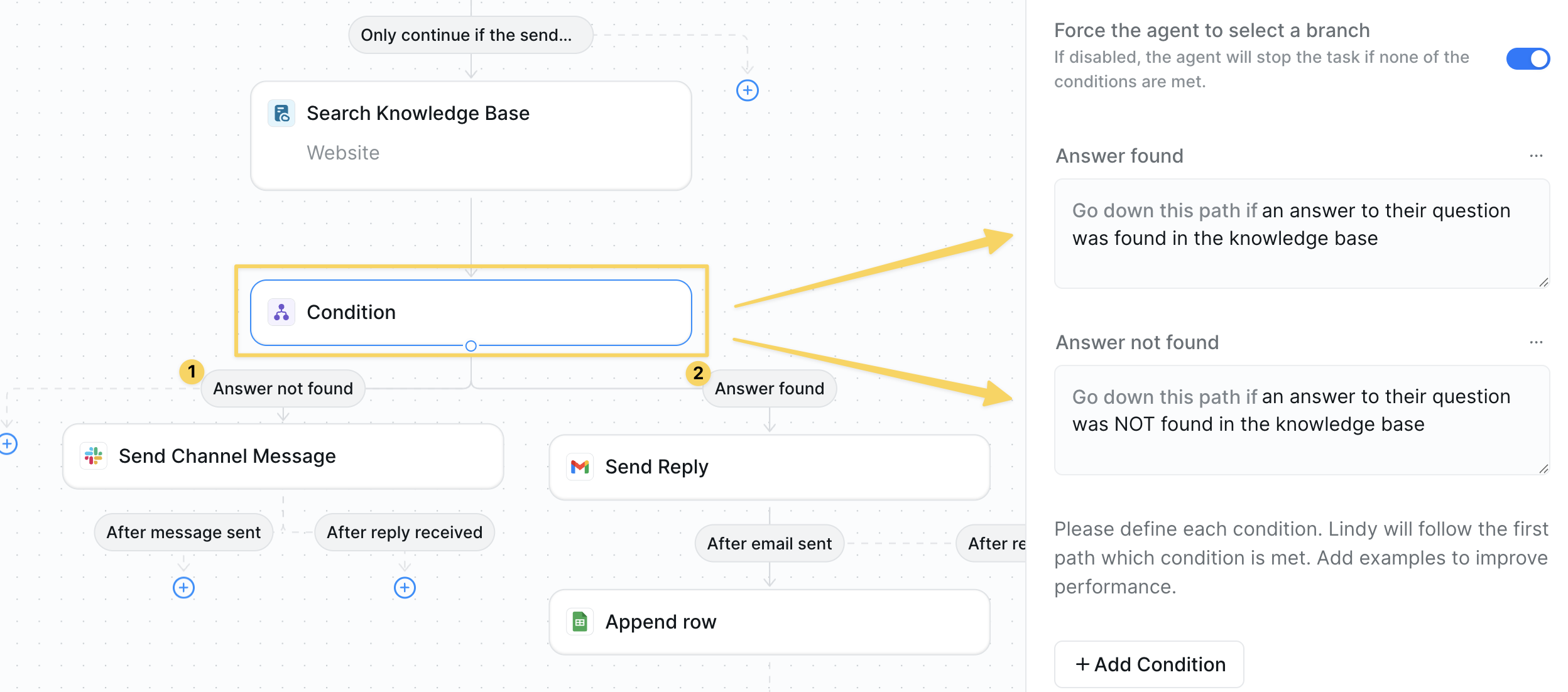 * If answer found → continue.
* If not found → `Slack – Send Channel Message` the thread for human intervention
* For `Send Channel Message` to work correctly, remember to add the Lindy app to your channel
* If answer found → continue.
* If not found → `Slack – Send Channel Message` the thread for human intervention
* For `Send Channel Message` to work correctly, remember to add the Lindy app to your channel
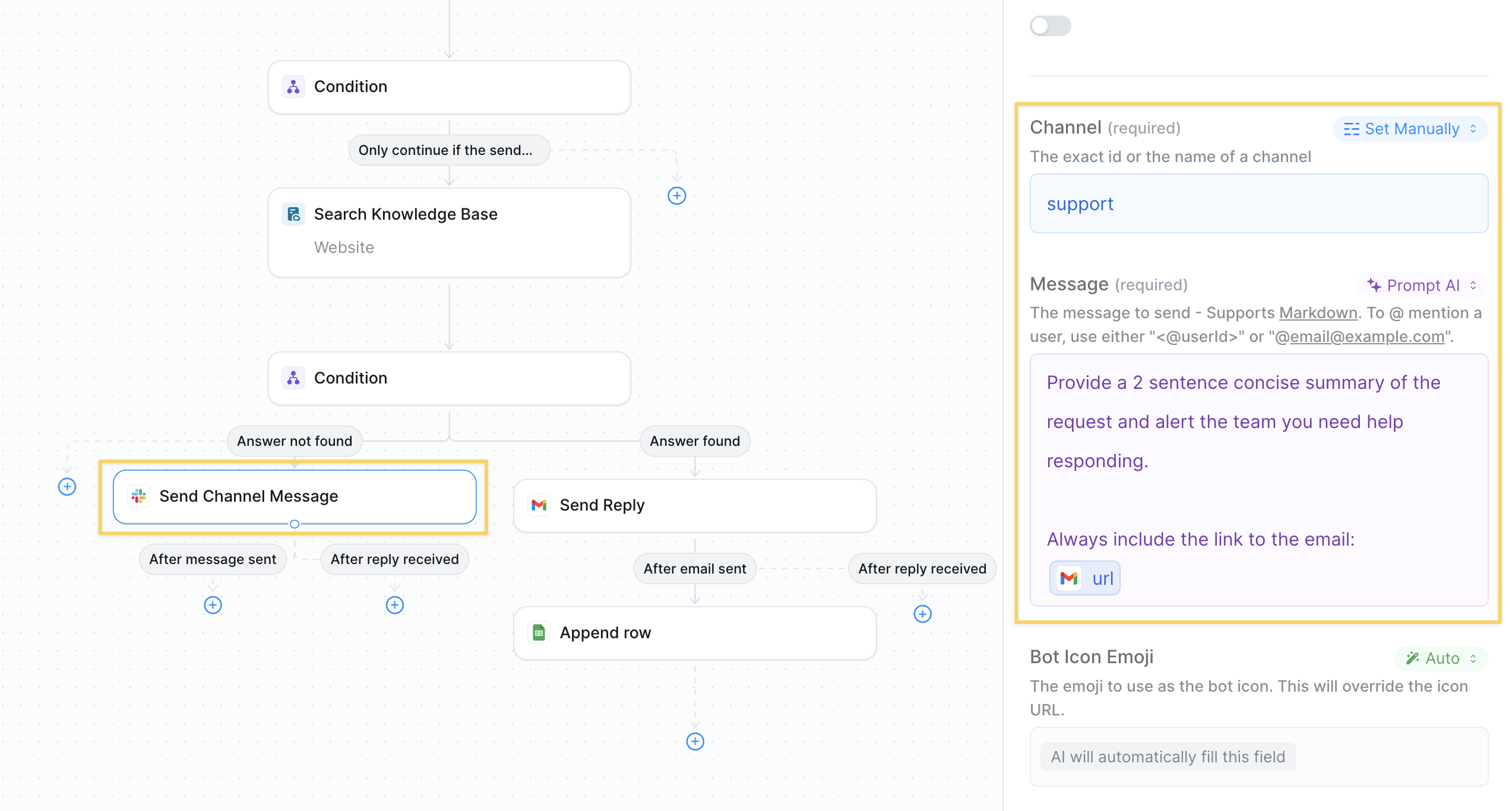 ### Step 5: Draft or Send the Reply
Provide a helpful response using knowledge base information in your brand voice.
### Step 5: Draft or Send the Reply
Provide a helpful response using knowledge base information in your brand voice.
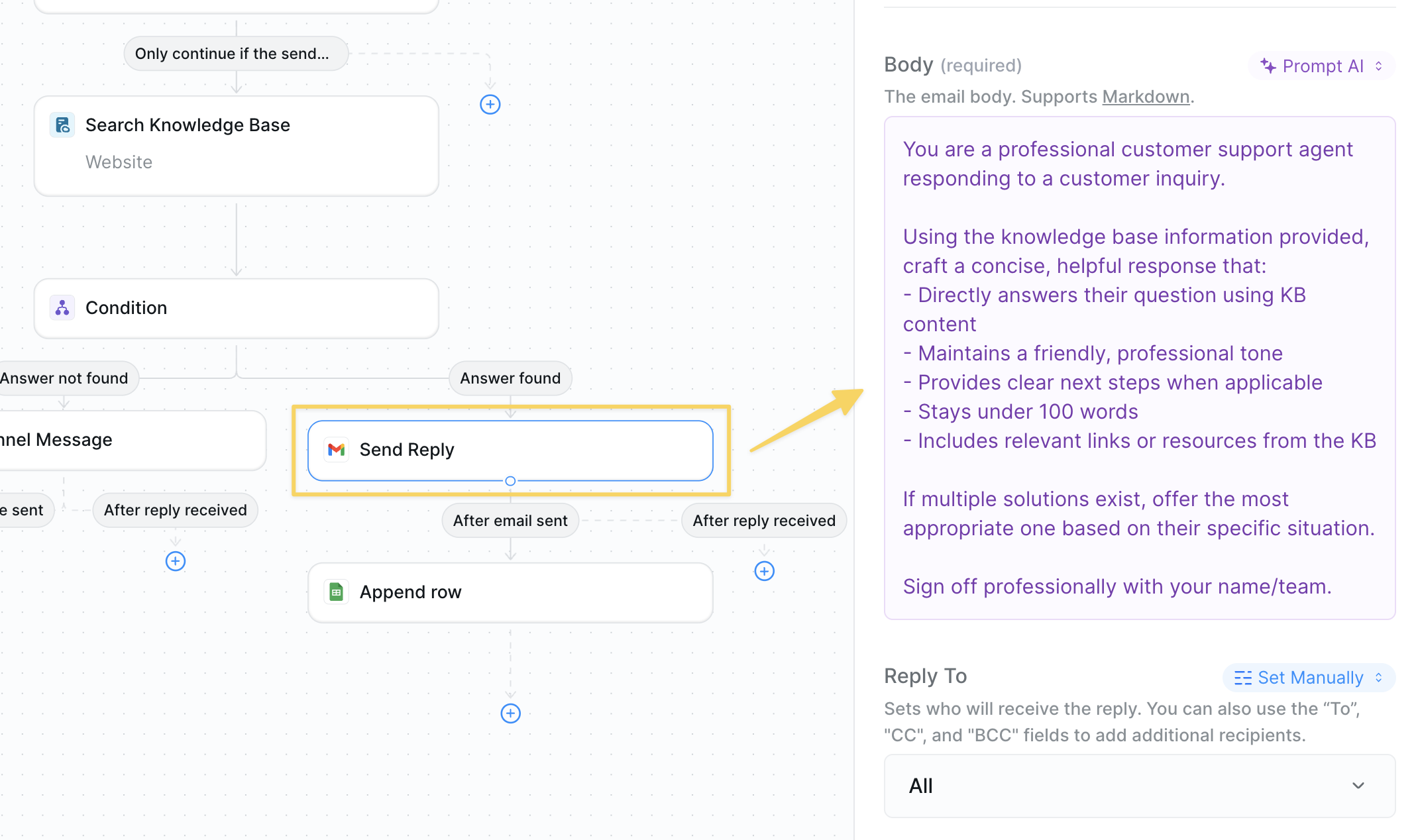 Body prompt:
```
You are a professional customer support agent responding to a customer inquiry.
Using the knowledge base information provided, craft a concise, helpful response that:
- Directly answers their question using KB content
- Maintains a friendly, professional tone
- Provides clear next steps when applicable
- Stays under 100 words
- Includes relevant links or resources from the KB
If multiple solutions exist, offer the most appropriate one based on their specific situation.
Sign off professionally with your name/team.
```
### Step 6: Log Support Interactions
Track all support interactions in a Google Sheet for reporting and analysis, with optional integration to your existing ticketing system instead.
Body prompt:
```
You are a professional customer support agent responding to a customer inquiry.
Using the knowledge base information provided, craft a concise, helpful response that:
- Directly answers their question using KB content
- Maintains a friendly, professional tone
- Provides clear next steps when applicable
- Stays under 100 words
- Includes relevant links or resources from the KB
If multiple solutions exist, offer the most appropriate one based on their specific situation.
Sign off professionally with your name/team.
```
### Step 6: Log Support Interactions
Track all support interactions in a Google Sheet for reporting and analysis, with optional integration to your existing ticketing system instead.
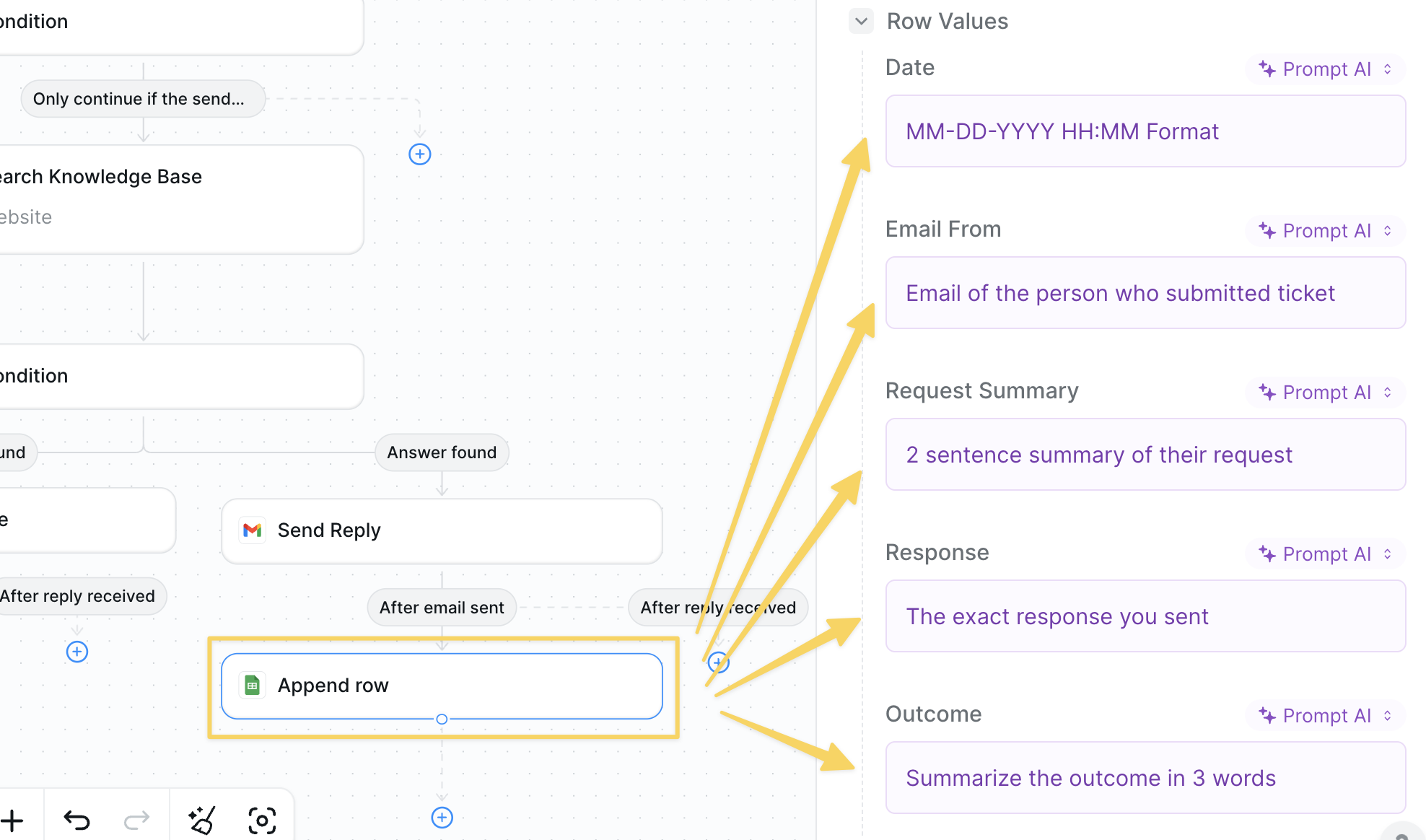 * Action: `Google Sheets – Append Row` to log ticket details, response time, and resolution
* Update your support management system if applicable
## Advanced Customizations
| Trick | What it does |
| --------------------- | ------------------------------------------------------------------------- |
| Multi-Channel Support | Swap Gmail for Zendesk, Intercom, or Slack slash-commands. |
| Sentiment Escalation | Flag angry tone → route to human immediately. |
| SLA Timer | `Wait` + Condition → alert if no answer within 2 h during business hours. |
| Auto-Survey | Send CSAT form 24 h after ticket closure. |
## Best Practices
Review policy and product docs weekly; outdated articles create wrong answers.
Aim for one-screen replies; link out for deeper resources.
Escalate order issues or refund disputes early to avoid churn.
The same flow works for chat or SMS—just swap the trigger/action pair.
## Next Steps
Handle support calls 24/7
Generate customer success reports
Resolve questions in Slack channels
Add oversight for complex support issues
* Action: `Google Sheets – Append Row` to log ticket details, response time, and resolution
* Update your support management system if applicable
## Advanced Customizations
| Trick | What it does |
| --------------------- | ------------------------------------------------------------------------- |
| Multi-Channel Support | Swap Gmail for Zendesk, Intercom, or Slack slash-commands. |
| Sentiment Escalation | Flag angry tone → route to human immediately. |
| SLA Timer | `Wait` + Condition → alert if no answer within 2 h during business hours. |
| Auto-Survey | Send CSAT form 24 h after ticket closure. |
## Best Practices
Review policy and product docs weekly; outdated articles create wrong answers.
Aim for one-screen replies; link out for deeper resources.
Escalate order issues or refund disputes early to avoid churn.
The same flow works for chat or SMS—just swap the trigger/action pair.
## Next Steps
Handle support calls 24/7
Generate customer success reports
Resolve questions in Slack channels
Add oversight for complex support issues