> ## Documentation Index
> Fetch the complete documentation index at: https://docs.lindy.ai/llms.txt
> Use this file to discover all available pages before exploring further.
# Invoice Processing Automation
> Transform your accounts payable by automatically extracting invoice data, matching POs, and routing for approval.
## Quick Overview
Turn your invoice processing from hours to minutes. Your agent will:
* **Receive** invoices sent to a dedicated email address
* **Extract** vendor details, amounts, line items, and due dates
* **Validate** against PO numbers and vendor database
* **Route** for approval based on amount thresholds
* **Track** payment status and send reminders
You can use the [invoice processing template](https://chat.lindy.ai/home/?templateId=6875d732842252d66b38c0ea) to get started.
## Setting Up Invoice Automation
### Step 1: Create Your AP Inbox
Set up a dedicated email system to capture all incoming invoices automatically.
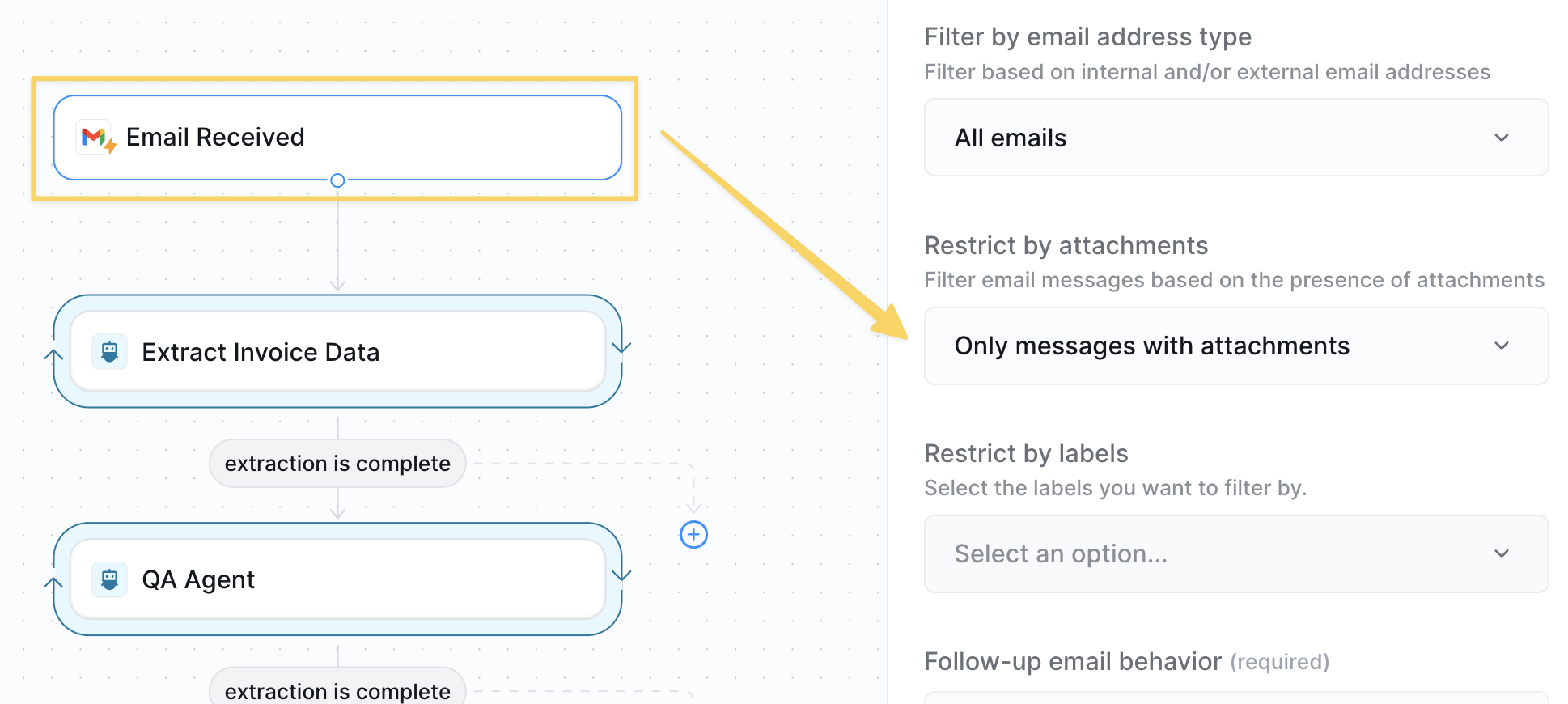 1. Set up a dedicated email: [invoices@yourcompany.com](mailto:invoices@yourcompany.com)
2. Configure `Gmail – Email Received` trigger
3. Add filter: "Has attachment" = Yes
4. Share this email with all vendors and internal teams
Add this email to your vendor portal profiles and email signatures: "Send all invoices to: [invoices@yourcompany.com](mailto:invoices@yourcompany.com)"
### Step 2: Extract Invoice Data with AI
Use AI to extract all key invoice data with forensic precision and accounting expertise.
1. Set up a dedicated email: [invoices@yourcompany.com](mailto:invoices@yourcompany.com)
2. Configure `Gmail – Email Received` trigger
3. Add filter: "Has attachment" = Yes
4. Share this email with all vendors and internal teams
Add this email to your vendor portal profiles and email signatures: "Send all invoices to: [invoices@yourcompany.com](mailto:invoices@yourcompany.com)"
### Step 2: Extract Invoice Data with AI
Use AI to extract all key invoice data with forensic precision and accounting expertise.
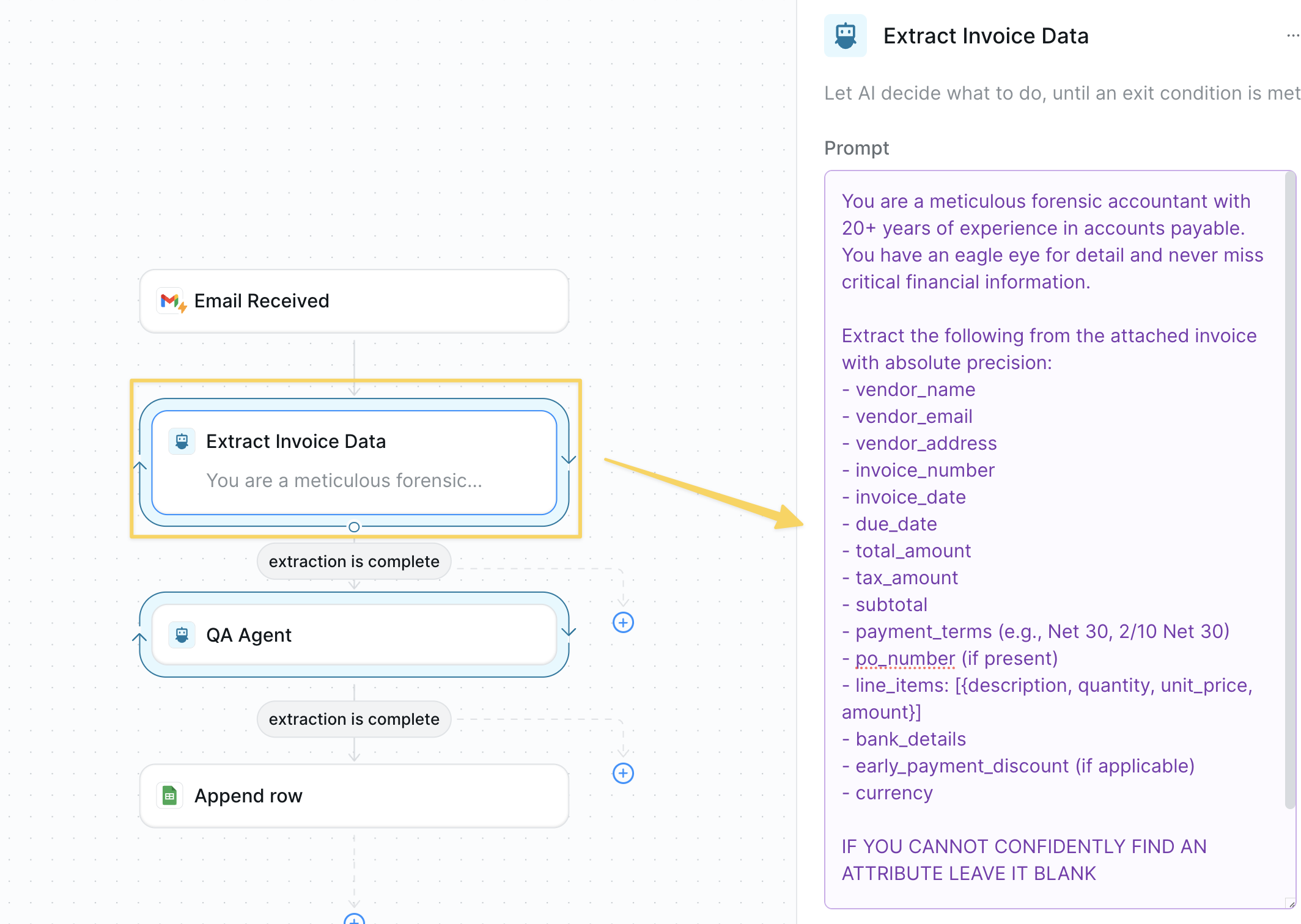 Add `AI Agent – Extract Invoice Data` with this enhanced prompt:
```
You are a meticulous forensic accountant with 20+ years of experience in accounts payable. You have an eagle eye for detail and never miss critical financial information.
Extract the following from the attached invoice with absolute precision:
- vendor_name
- vendor_email
- vendor_address
- invoice_number
- invoice_date
- due_date
- total_amount
- tax_amount
- subtotal
- payment_terms (e.g., Net 30, 2/10 Net 30)
- po_number (if present)
- line_items: [{description, quantity, unit_price, amount}]
- bank_details
- early_payment_discount (if applicable)
- currency
IF YOU CANNOT CONFIDENTLY FIND AN ATTRIBUTE LEAVE IT BLANK
Return as structured JSON. If any field is not found, mark as null. Double-check all amounts for mathematical accuracy.
```
The AI Agent automatically has attachments from Gmail in context - no need to reference them explicitly.
### Step 3: Double-Check Extraction Quality
Add a quality control layer to ensure 100% accuracy before processing.
Add `AI Agent – Extract Invoice Data` with this enhanced prompt:
```
You are a meticulous forensic accountant with 20+ years of experience in accounts payable. You have an eagle eye for detail and never miss critical financial information.
Extract the following from the attached invoice with absolute precision:
- vendor_name
- vendor_email
- vendor_address
- invoice_number
- invoice_date
- due_date
- total_amount
- tax_amount
- subtotal
- payment_terms (e.g., Net 30, 2/10 Net 30)
- po_number (if present)
- line_items: [{description, quantity, unit_price, amount}]
- bank_details
- early_payment_discount (if applicable)
- currency
IF YOU CANNOT CONFIDENTLY FIND AN ATTRIBUTE LEAVE IT BLANK
Return as structured JSON. If any field is not found, mark as null. Double-check all amounts for mathematical accuracy.
```
The AI Agent automatically has attachments from Gmail in context - no need to reference them explicitly.
### Step 3: Double-Check Extraction Quality
Add a quality control layer to ensure 100% accuracy before processing.
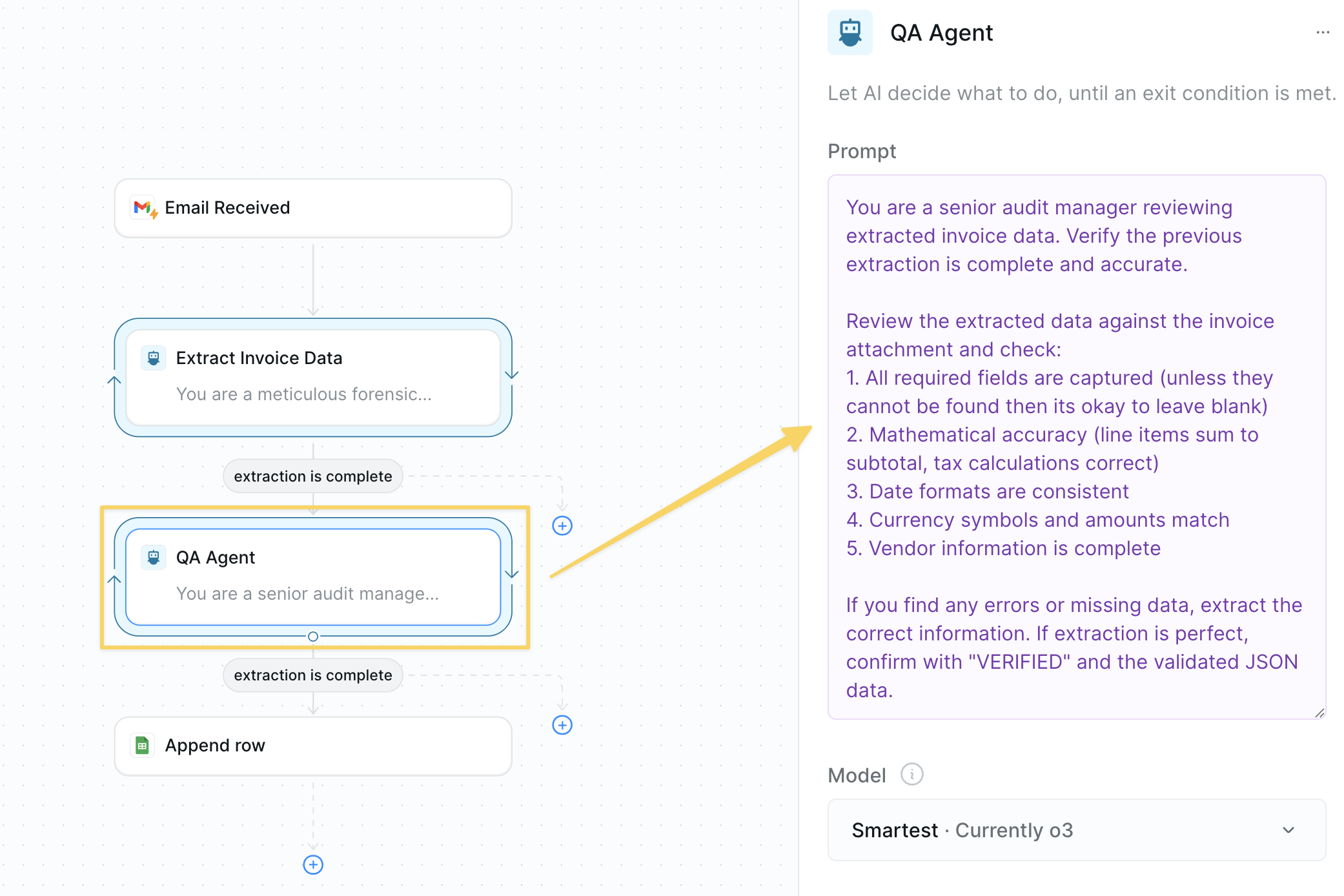 Add `AI Agent – Quality Control` with prompt:
```
You are a senior audit manager reviewing extracted invoice data. Verify the previous extraction is complete and accurate.
Review the extracted data against the invoice attachment and check:
1. All required fields are captured (unless they cannot be found then its okay to leave blank)
2. Mathematical accuracy (line items sum to subtotal, tax calculations correct)
3. Date formats are consistent
4. Currency symbols and amounts match
5. Vendor information is complete
If you find any errors or missing data, extract the correct information. If extraction is perfect, confirm with "VERIFIED" and the validated JSON data.
```
### Step 4: Log Invoice Data
Organize extracted data into your preferred system — spreadsheets are just the starting point.
Add `AI Agent – Quality Control` with prompt:
```
You are a senior audit manager reviewing extracted invoice data. Verify the previous extraction is complete and accurate.
Review the extracted data against the invoice attachment and check:
1. All required fields are captured (unless they cannot be found then its okay to leave blank)
2. Mathematical accuracy (line items sum to subtotal, tax calculations correct)
3. Date formats are consistent
4. Currency symbols and amounts match
5. Vendor information is complete
If you find any errors or missing data, extract the correct information. If extraction is perfect, confirm with "VERIFIED" and the validated JSON data.
```
### Step 4: Log Invoice Data
Organize extracted data into your preferred system — spreadsheets are just the starting point.
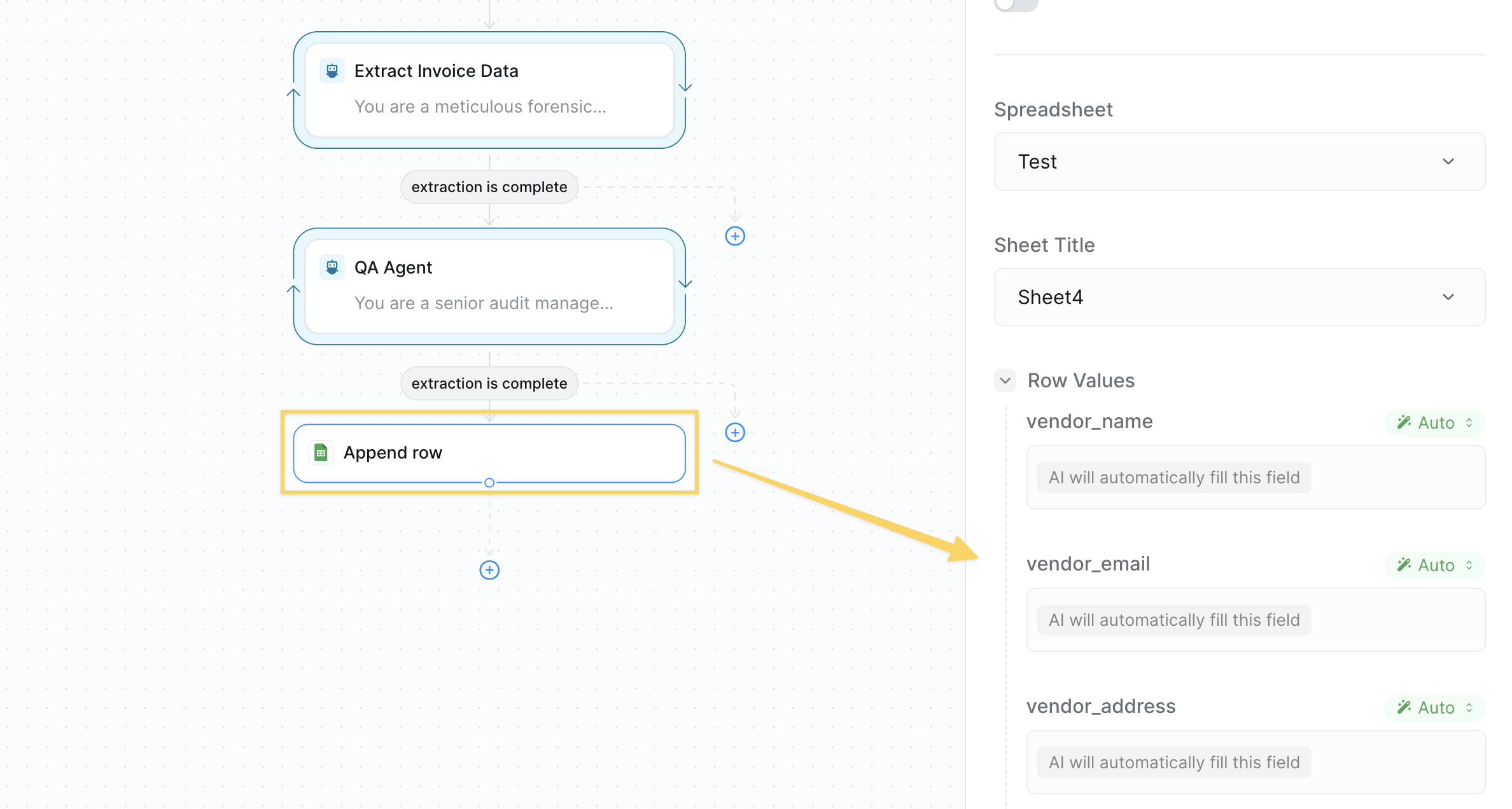 Make sure the fields you are logging match the attributes extracted in the previous step.
**Basic Option:** Use `Google Sheets – Append Row` to log data by document type.
**Advanced Integrations:** You can post this information anywhere using:
* `HTTP Request` actions to send data to your ERP, CRM, or custom databases
* Direct integrations with Airtable, Notion, or other platforms
* Webhook endpoints for real-time processing
* API calls to accounting software like QuickBooks or Xero
The real power comes when you integrate this with your ERP system using API calls or webhook connections from Google Sheets to update your accounting software directly.
## Advanced Features
| Feature | What it does |
| ----------------------- | --------------------------------------------------------------------------- |
| Auto-Approval Rules | Automatically approve trusted vendors under set thresholds |
| API Integrations | Direct connection to QuickBooks, NetSuite, or SAP for seamless data flow |
| Duplicate Detection | Prevent double payments by checking invoice numbers and vendor combinations |
| Early Payment Discounts | Flag and calculate 2/10 Net 30 opportunities |
## Best Practices
Email all vendors about the new invoice email and add to onboarding docs.
Document and communicate approval thresholds to all stakeholders.
Weekly review of pending invoices and monthly reconciliation with GL.
Create a manual review queue for invoices that fail extraction.
## Next Steps
Automate processing of all document types
Generate financial analysis memos
Build intelligent invoice analysis workflows
Optimize costs for high-volume processing
Make sure the fields you are logging match the attributes extracted in the previous step.
**Basic Option:** Use `Google Sheets – Append Row` to log data by document type.
**Advanced Integrations:** You can post this information anywhere using:
* `HTTP Request` actions to send data to your ERP, CRM, or custom databases
* Direct integrations with Airtable, Notion, or other platforms
* Webhook endpoints for real-time processing
* API calls to accounting software like QuickBooks or Xero
The real power comes when you integrate this with your ERP system using API calls or webhook connections from Google Sheets to update your accounting software directly.
## Advanced Features
| Feature | What it does |
| ----------------------- | --------------------------------------------------------------------------- |
| Auto-Approval Rules | Automatically approve trusted vendors under set thresholds |
| API Integrations | Direct connection to QuickBooks, NetSuite, or SAP for seamless data flow |
| Duplicate Detection | Prevent double payments by checking invoice numbers and vendor combinations |
| Early Payment Discounts | Flag and calculate 2/10 Net 30 opportunities |
## Best Practices
Email all vendors about the new invoice email and add to onboarding docs.
Document and communicate approval thresholds to all stakeholders.
Weekly review of pending invoices and monthly reconciliation with GL.
Create a manual review queue for invoices that fail extraction.
## Next Steps
Automate processing of all document types
Generate financial analysis memos
Build intelligent invoice analysis workflows
Optimize costs for high-volume processing