> ## Documentation Index
> Fetch the complete documentation index at: https://docs.lindy.ai/llms.txt
> Use this file to discover all available pages before exploring further.
# Employee Feedback Collection
> Automate employee feedback collection and analysis with Lindy
You can use the [weekly employee feedback template](https://chat.lindy.ai/home/?templateId=6875fa3a17018229eea893fe) to get started.
## Quick Overview
Transform employee feedback collection from manual surveys to an automated weekly pulse system. Your agent will:
* **Schedule** weekly feedback campaigns automatically
* **Send** personalized feedback requests to each team member
* **Monitor** responses and alert you to feedback as it arrives
* **Compile** a weekly summary report after the collection period
No more chasing down feedback or manually organizing responses.
## Setting Up Your Feedback System
### Step 1: Weekly Schedule Trigger
Set up automatic weekly feedback collection to maintain consistent pulse checks.
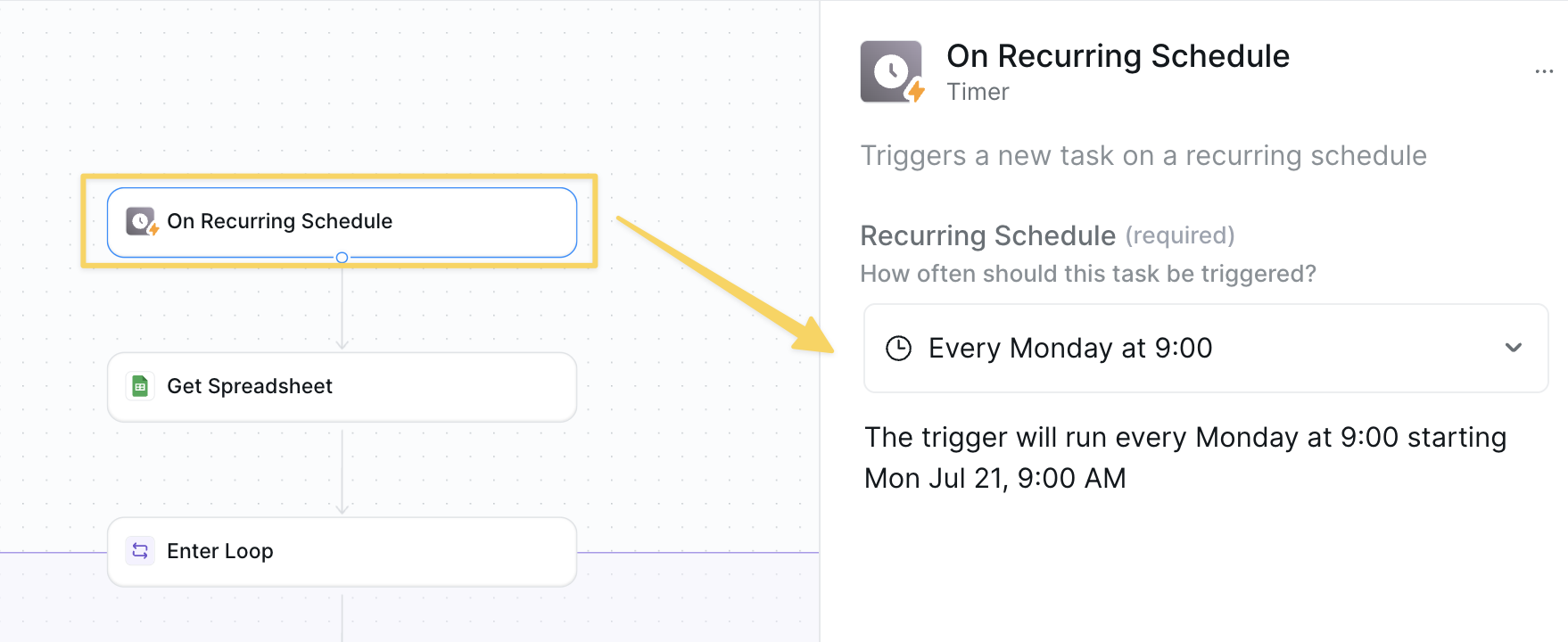 Use `On Recurring Schedule` set to weekly (e.g., Monday 9:00 AM) to kick off the feedback collection process automatically.
### Step 2: Get Employee Directory
Retrieve the list of employees who should receive feedback requests from your master spreadsheet.
Use `On Recurring Schedule` set to weekly (e.g., Monday 9:00 AM) to kick off the feedback collection process automatically.
### Step 2: Get Employee Directory
Retrieve the list of employees who should receive feedback requests from your master spreadsheet.
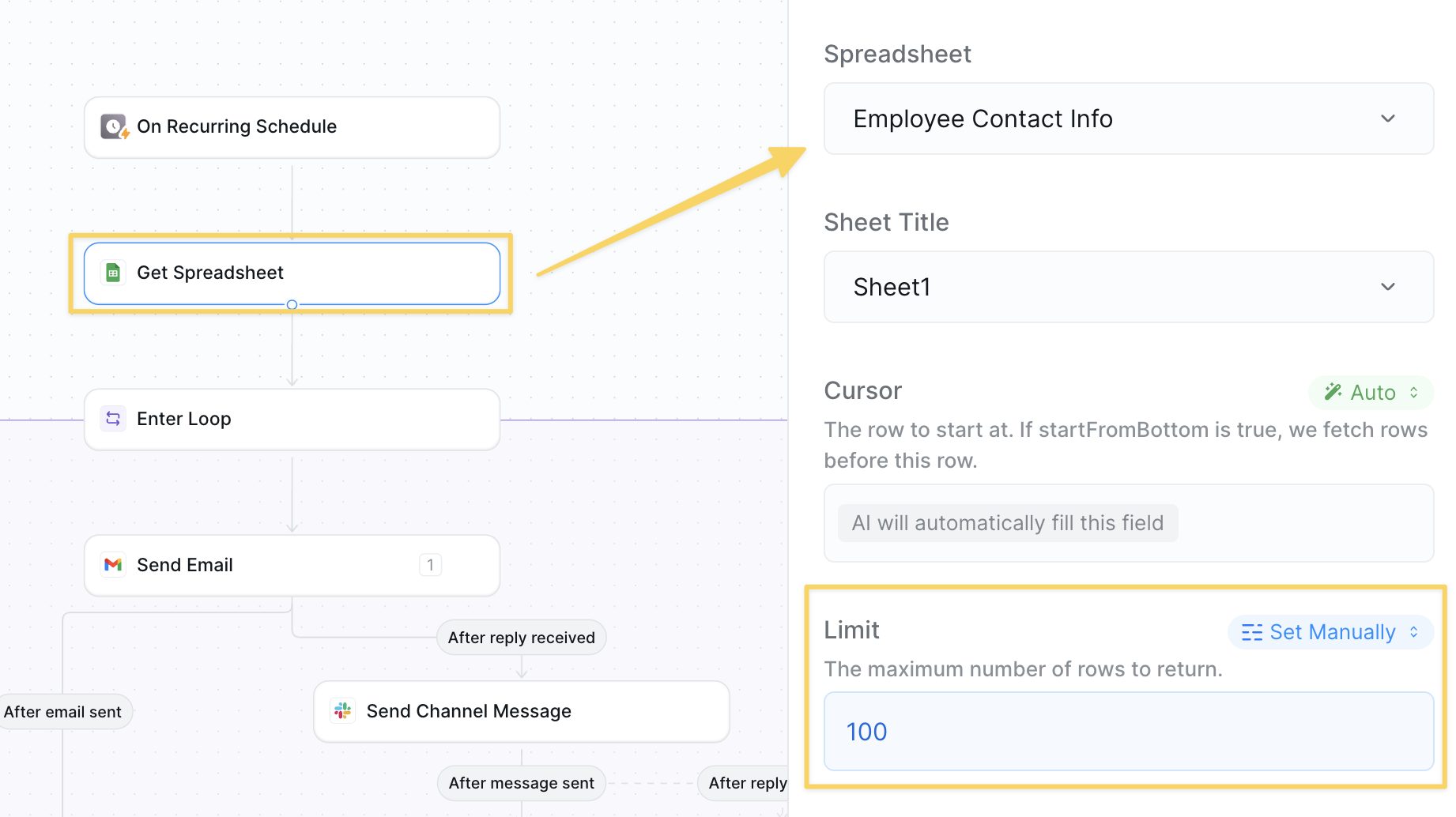 Use `Google Sheets – Get Spreadsheet` from your employee directory sheet.
Required columns:
* **Full Name**: Employee's complete name for personalization
* **Email**: Work email address for survey delivery
Keep your employee spreadsheet updated with current team members for accurate feedback collection. The default row limit is 100 — increase if you have more employees.
### Step 3: Start Employee Loop
Begin processing each employee individually to send personalized feedback requests.
Use `Google Sheets – Get Spreadsheet` from your employee directory sheet.
Required columns:
* **Full Name**: Employee's complete name for personalization
* **Email**: Work email address for survey delivery
Keep your employee spreadsheet updated with current team members for accurate feedback collection. The default row limit is 100 — increase if you have more employees.
### Step 3: Start Employee Loop
Begin processing each employee individually to send personalized feedback requests.
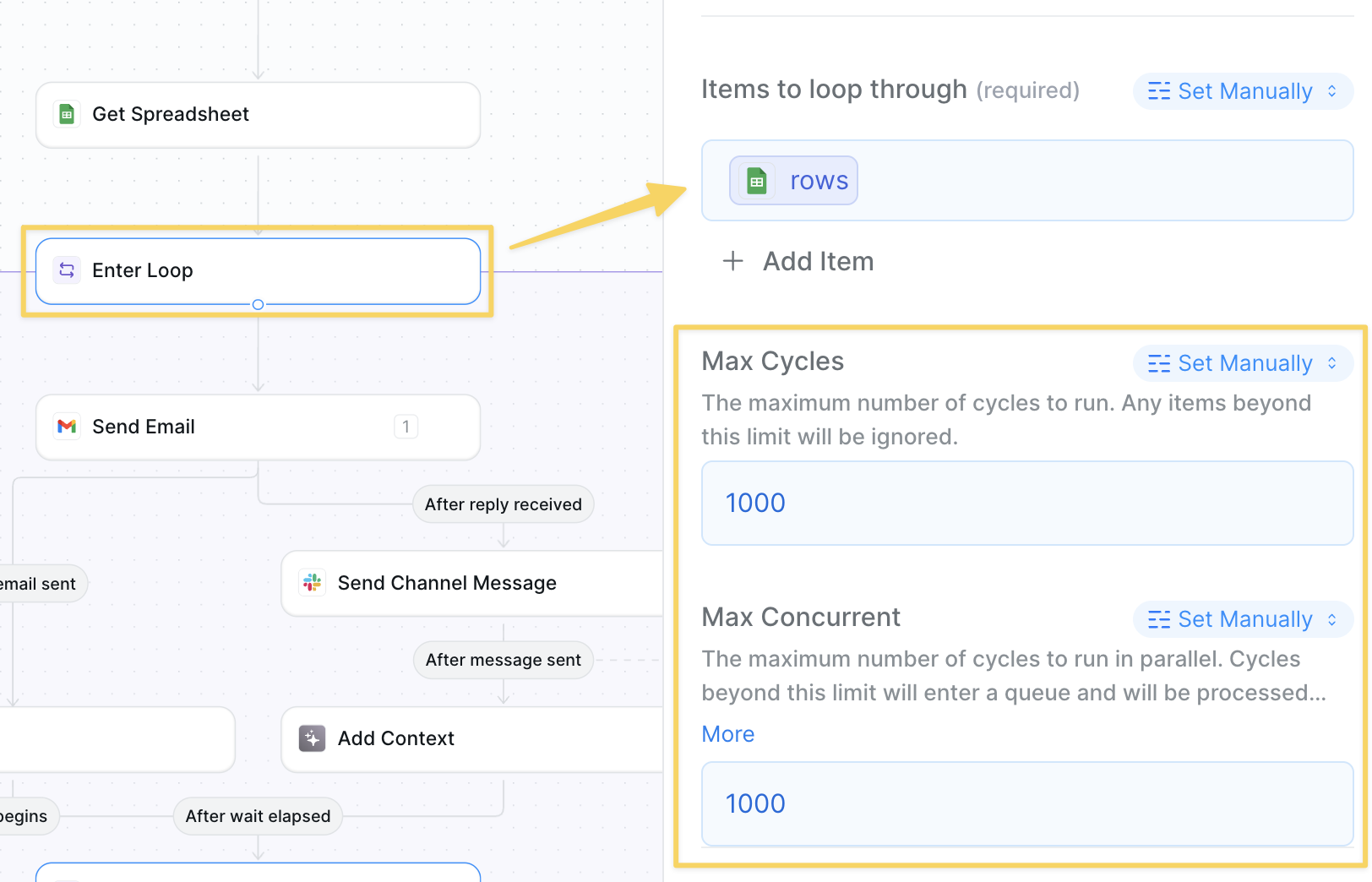 Add the `rows` output reference from your `Get Spreadsheet` action to iterate through each employee row from your spreadsheet.
Increase the max cycles & concurrent above the number of employees you want to send feedback too.
### Step 4: Send Individual Feedback Email
Send personalized feedback requests to each employee with engaging questions.
Add the `rows` output reference from your `Get Spreadsheet` action to iterate through each employee row from your spreadsheet.
Increase the max cycles & concurrent above the number of employees you want to send feedback too.
### Step 4: Send Individual Feedback Email
Send personalized feedback requests to each employee with engaging questions.
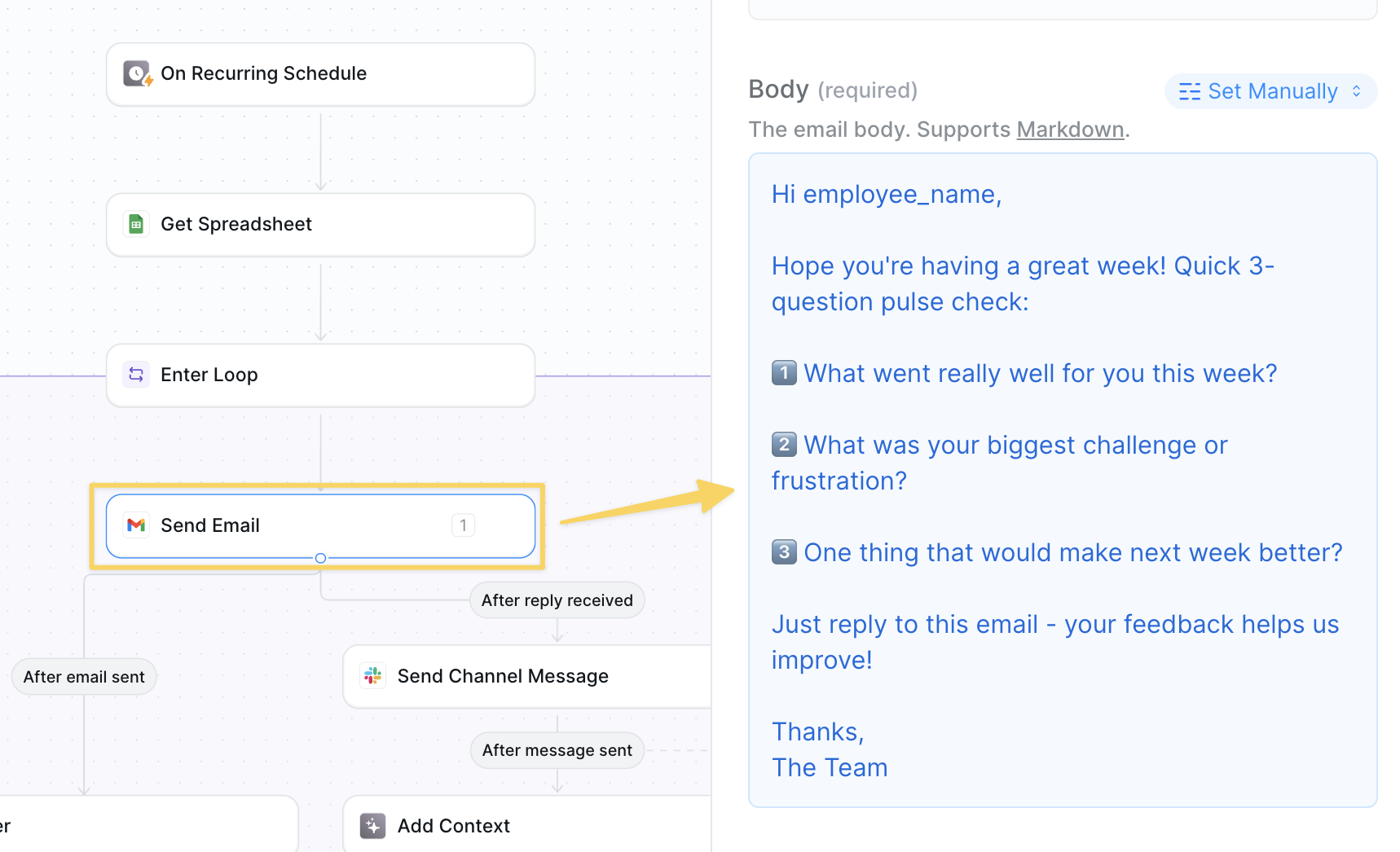 Use `Gmail – Send Email` with:
* **To**: employee email (auto is okay setting)
* **Example Subject**: Weekly Pulse Check — 2 Minutes 📝
* **Example Body**:
```
Hi employee_name,
Hope you're having a great week! Quick 3-question pulse check:
1️⃣ What went really well for you this week?
2️⃣ What was your biggest challenge or frustration?
3️⃣ One thing that would make next week better?
Just reply to this email — your feedback helps us improve!
Thanks,
The Team
```
### Step 5: Send Feedback to Private Channel
Immediately share feedback responses in a private Slack channel as they come in.
Use `Gmail – Send Email` with:
* **To**: employee email (auto is okay setting)
* **Example Subject**: Weekly Pulse Check — 2 Minutes 📝
* **Example Body**:
```
Hi employee_name,
Hope you're having a great week! Quick 3-question pulse check:
1️⃣ What went really well for you this week?
2️⃣ What was your biggest challenge or frustration?
3️⃣ One thing that would make next week better?
Just reply to this email — your feedback helps us improve!
Thanks,
The Team
```
### Step 5: Send Feedback to Private Channel
Immediately share feedback responses in a private Slack channel as they come in.
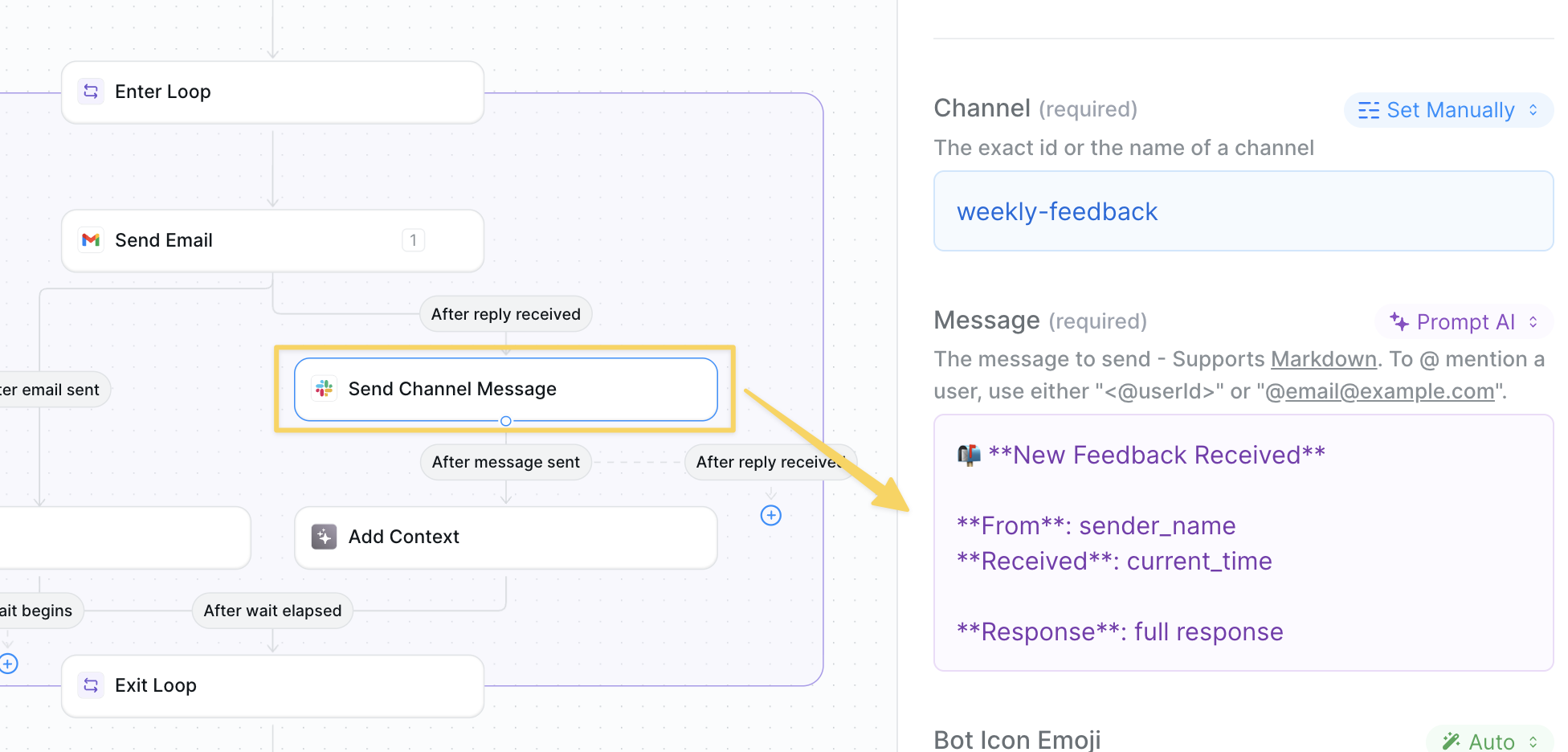 Use `Slack – Send Message` after email reply received:
```
📬 **New Feedback Received**
**From**: sender_name
**Received**: current_time
**Response**: full response
```
Remember to add the Lindy app to the proper slack channel to correctly receive messages.
### Step 6: Add Feedback to Context
Add the full questions and answers from the person into context for your agent to compile a report.
Use `Slack – Send Message` after email reply received:
```
📬 **New Feedback Received**
**From**: sender_name
**Received**: current_time
**Response**: full response
```
Remember to add the Lindy app to the proper slack channel to correctly receive messages.
### Step 6: Add Feedback to Context
Add the full questions and answers from the person into context for your agent to compile a report.
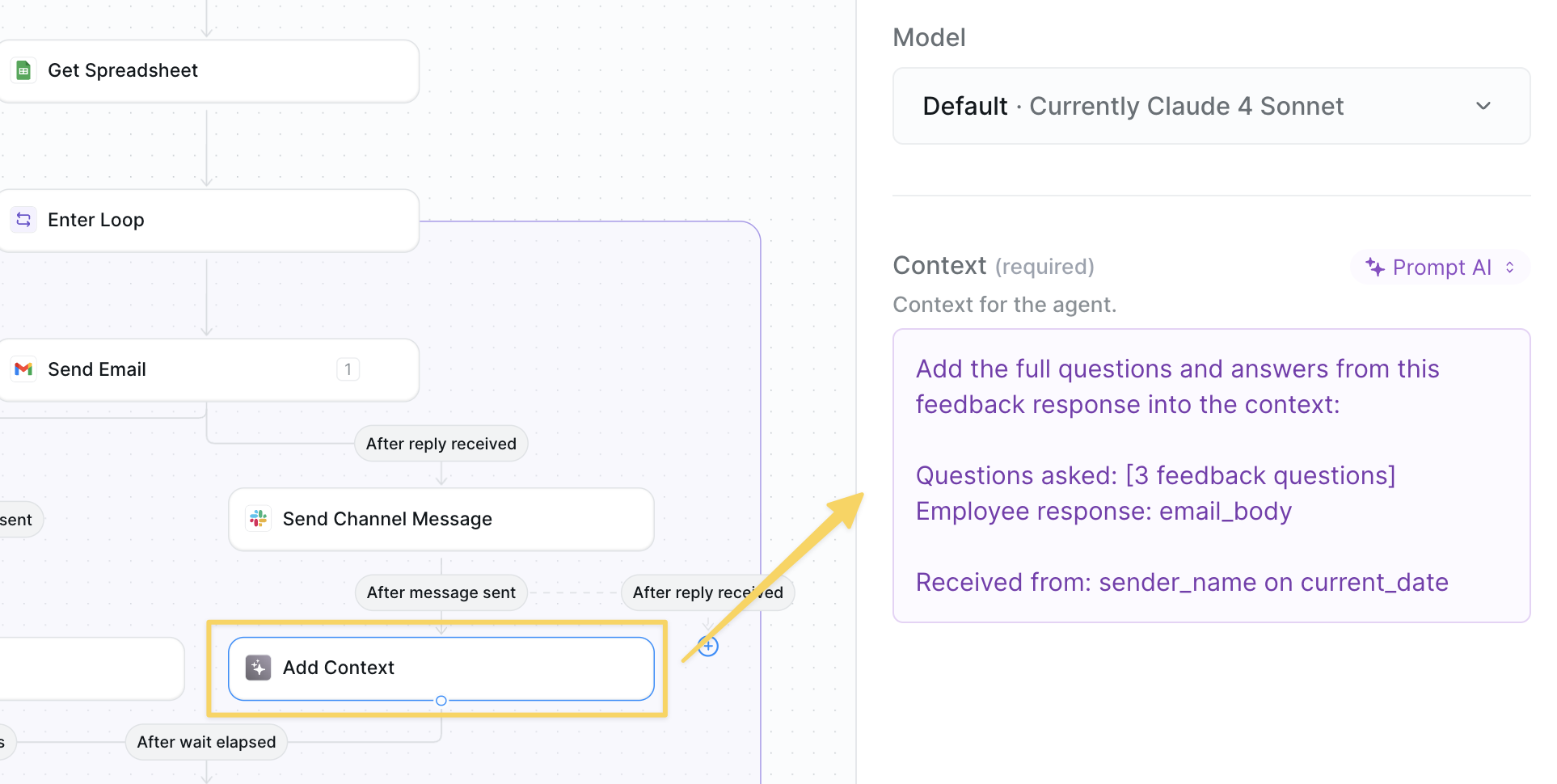 Use `Add Context` action with prompt:
```
Add the full questions and answers from this feedback response into the context:
Questions asked: [3 feedback questions]
Employee response: email_body
Received from: sender_name on current_date
```
### Step 7: Set Collection Timer
Set a 5-day timer to allow employees time to respond before compiling the final report.
Use `Add Context` action with prompt:
```
Add the full questions and answers from this feedback response into the context:
Questions asked: [3 feedback questions]
Employee response: email_body
Received from: sender_name on current_date
```
### Step 7: Set Collection Timer
Set a 5-day timer to allow employees time to respond before compiling the final report.
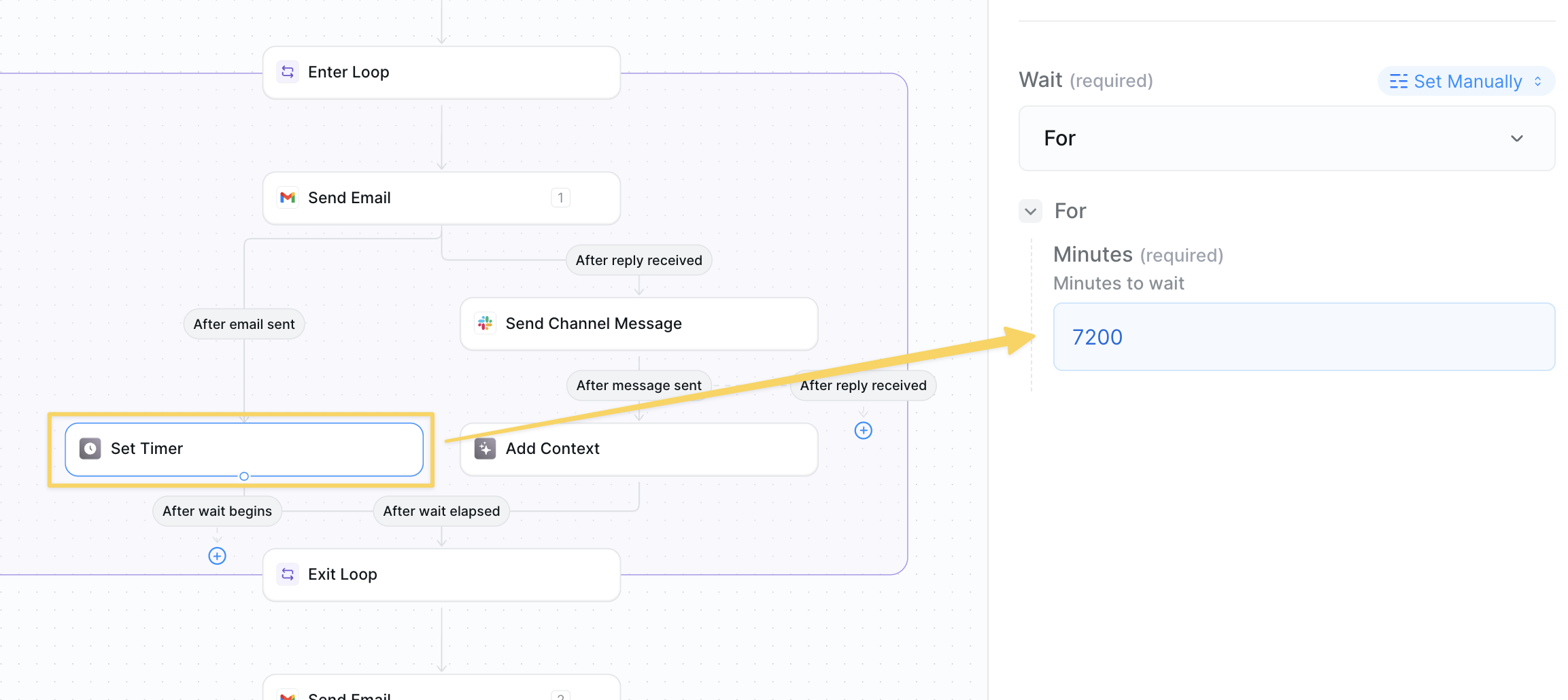 After sending each email, add `Set Timer` for 7200 minutes (5 days).
Make sure to connect the "after wait elapsed" output to the "exit loop" action. This is crucial for exiting the loop correctly at the right time.
### Step 8: Exit Loop
Exit the employee processing loop and prepare to compile the weekly report.
After sending each email, add `Set Timer` for 7200 minutes (5 days).
Make sure to connect the "after wait elapsed" output to the "exit loop" action. This is crucial for exiting the loop correctly at the right time.
### Step 8: Exit Loop
Exit the employee processing loop and prepare to compile the weekly report.
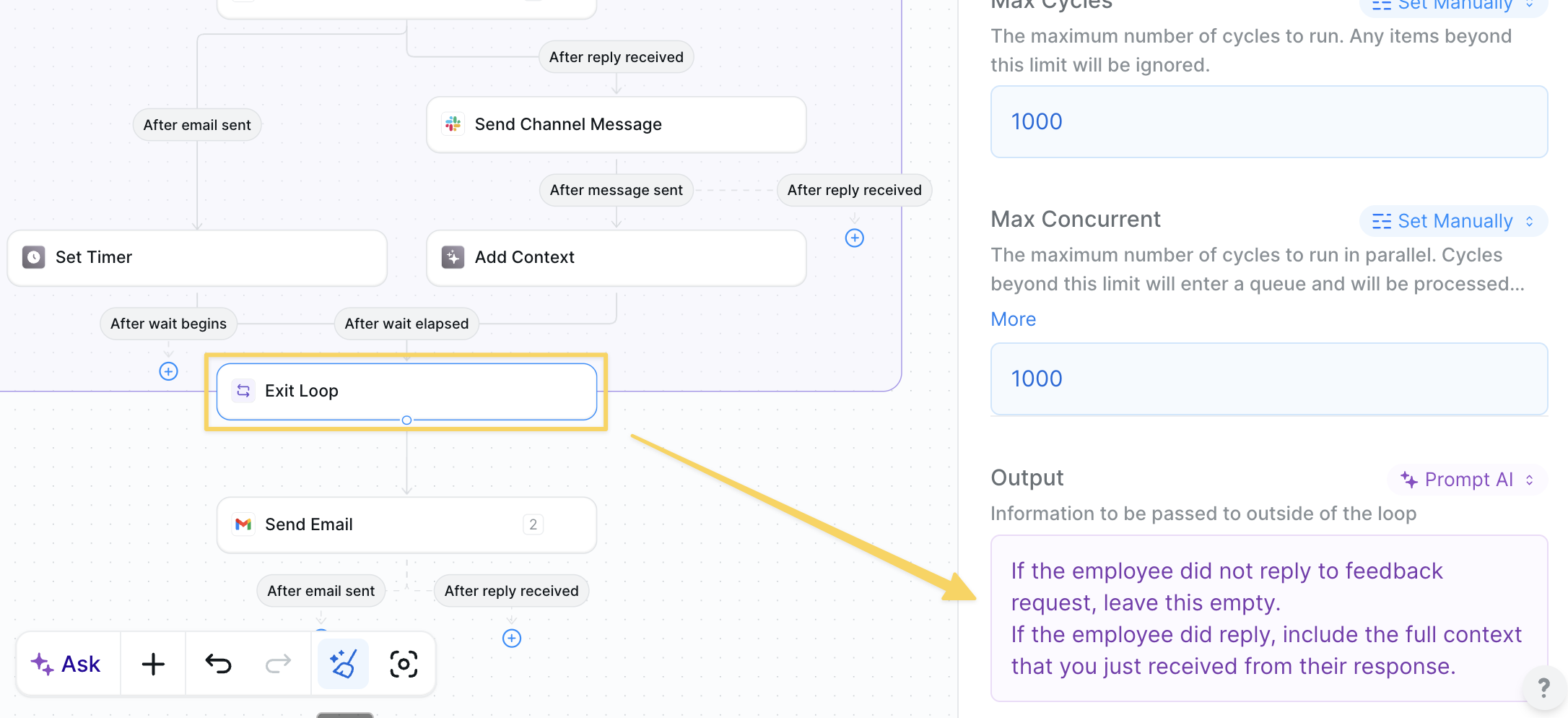 Add `Exit Loop` action with prompt:
```
If the employee did not reply to feedback request, leave this empty.
If the employee did reply, include the full context that you just received from their response.
```
Loops have scope memory — this step allows us to correctly transfer the collected feedback memory outside of the loop for final report generation.
### Step 9: Generate Weekly Report
After the collection period ends, compile all received feedback into a comprehensive weekly summary.
Add `Exit Loop` action with prompt:
```
If the employee did not reply to feedback request, leave this empty.
If the employee did reply, include the full context that you just received from their response.
```
Loops have scope memory — this step allows us to correctly transfer the collected feedback memory outside of the loop for final report generation.
### Step 9: Generate Weekly Report
After the collection period ends, compile all received feedback into a comprehensive weekly summary.
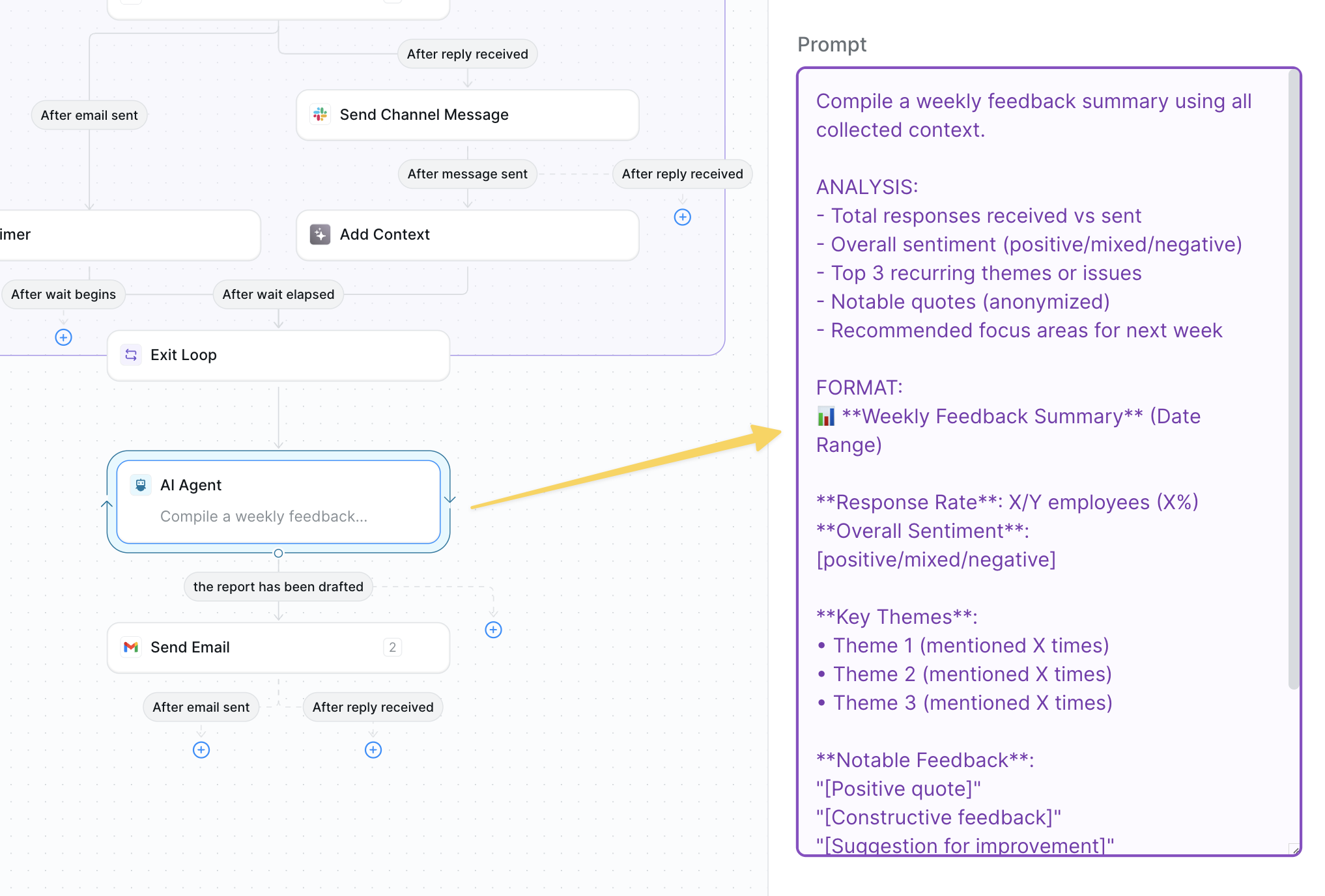 When timer elapses (Friday), exit the loop and use `AI Agent – Generate Weekly Report`:
```
Compile a weekly feedback summary using all collected context.
ANALYSIS:
- Total responses received vs sent
- Overall sentiment (positive/mixed/negative)
- Top 3 recurring themes or issues
- Notable quotes (anonymized)
- Recommended focus areas for next week
FORMAT:
📊 **Weekly Feedback Summary** (Date Range)
**Response Rate**: X/Y employees (X%)
**Overall Sentiment**: [positive/mixed/negative]
**Key Themes**:
• Theme 1 (mentioned X times)
• Theme 2 (mentioned X times)
• Theme 3 (mentioned X times)
**Notable Feedback**:
"[Positive quote]"
"[Constructive feedback]"
"[Suggestion for improvement]"
**Recommended Focus**: [One key area for next week]
Keep summary under 200 words, actionable and clear.
```
### Step 10: Send Weekly Summary Email
Send the compiled feedback report to leadership for review and action planning.
When timer elapses (Friday), exit the loop and use `AI Agent – Generate Weekly Report`:
```
Compile a weekly feedback summary using all collected context.
ANALYSIS:
- Total responses received vs sent
- Overall sentiment (positive/mixed/negative)
- Top 3 recurring themes or issues
- Notable quotes (anonymized)
- Recommended focus areas for next week
FORMAT:
📊 **Weekly Feedback Summary** (Date Range)
**Response Rate**: X/Y employees (X%)
**Overall Sentiment**: [positive/mixed/negative]
**Key Themes**:
• Theme 1 (mentioned X times)
• Theme 2 (mentioned X times)
• Theme 3 (mentioned X times)
**Notable Feedback**:
"[Positive quote]"
"[Constructive feedback]"
"[Suggestion for improvement]"
**Recommended Focus**: [One key area for next week]
Keep summary under 200 words, actionable and clear.
```
### Step 10: Send Weekly Summary Email
Send the compiled feedback report to leadership for review and action planning.
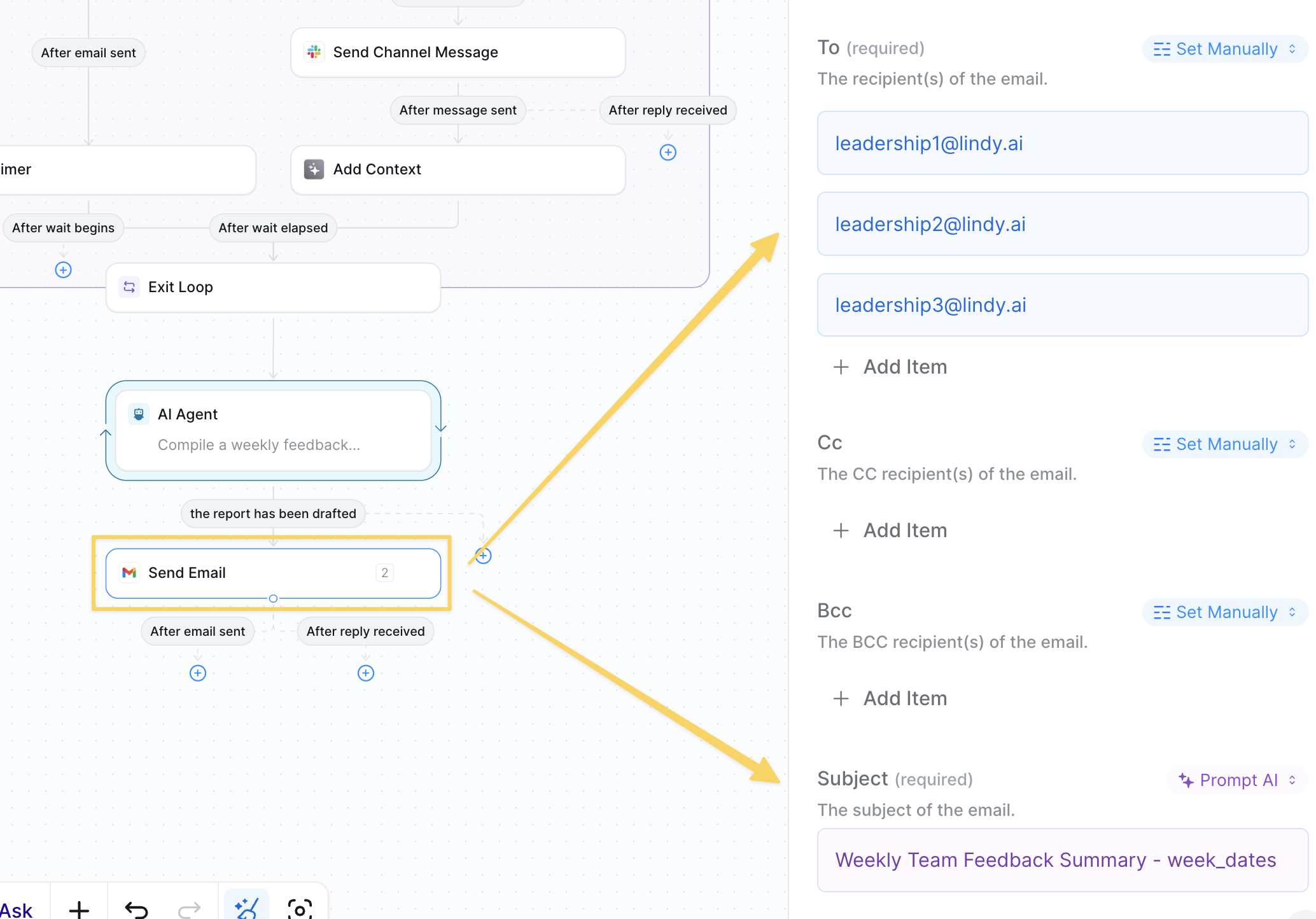 Use `Gmail – Send Email` to leadership team with the report you just generated:
* **To**: leadership\_emails
* **Subject**: Weekly Team Feedback Summary - week\_dates
* **Body**: the full exact report you just generated in markdown
## Advanced Features
| Feature | What it does |
| -------------------- | --------------------------------------------------------------- |
| Response Tracking | Monitor which employees haven't responded for gentle follow-ups |
| Sentiment Analysis | Track mood trends over time to identify patterns |
| Anonymous Mode | Allow anonymous feedback submission for sensitive topics |
| Custom Questions | Rotate different question sets for varied insights |
| Department Filtering | Separate reports by team or department |
## Best Practices
Use the same 3 questions for several weeks to track trends before changing them.
Share one action taken based on feedback in your next all-hands to close the loop.
While leadership sees real-time alerts, ensure final reports anonymize responses.
Track response rates and personally follow up with consistently non-responsive team members.
## Next Steps
Answer employee questions automatically
Automate candidate evaluation process
Handle employee calls with AI
Store feedback patterns and responses
Use `Gmail – Send Email` to leadership team with the report you just generated:
* **To**: leadership\_emails
* **Subject**: Weekly Team Feedback Summary - week\_dates
* **Body**: the full exact report you just generated in markdown
## Advanced Features
| Feature | What it does |
| -------------------- | --------------------------------------------------------------- |
| Response Tracking | Monitor which employees haven't responded for gentle follow-ups |
| Sentiment Analysis | Track mood trends over time to identify patterns |
| Anonymous Mode | Allow anonymous feedback submission for sensitive topics |
| Custom Questions | Rotate different question sets for varied insights |
| Department Filtering | Separate reports by team or department |
## Best Practices
Use the same 3 questions for several weeks to track trends before changing them.
Share one action taken based on feedback in your next all-hands to close the loop.
While leadership sees real-time alerts, ensure final reports anonymize responses.
Track response rates and personally follow up with consistently non-responsive team members.
## Next Steps
Answer employee questions automatically
Automate candidate evaluation process
Handle employee calls with AI
Store feedback patterns and responses