> ## Documentation Index
> Fetch the complete documentation index at: https://docs.lindy.ai/llms.txt
> Use this file to discover all available pages before exploring further.
# Employee Help Desk
> Automated HR help desk for employee support with Lindy
## Quick Overview
Transform any Slack channel into an intelligent employee help desk. Your agent will:
* **Monitor** employee questions in your designated help channels 24/7
* **Search** your company knowledge base for relevant policies and procedures
* **Respond** instantly with accurate, friendly answers to common questions
* **Escalate** complex or sensitive issues to HR with full context
* **Continue** monitoring conversations for follow-up questions
You can use the [employee helpdesk template](https://chat.lindy.ai/home/?templateId=6875fa3a17018229eea893fe) to get started.
## Setting Up Your Employee Help Desk
### Step 1: Connect Slack Channel
Set up monitoring for employee questions in your designated help channel.
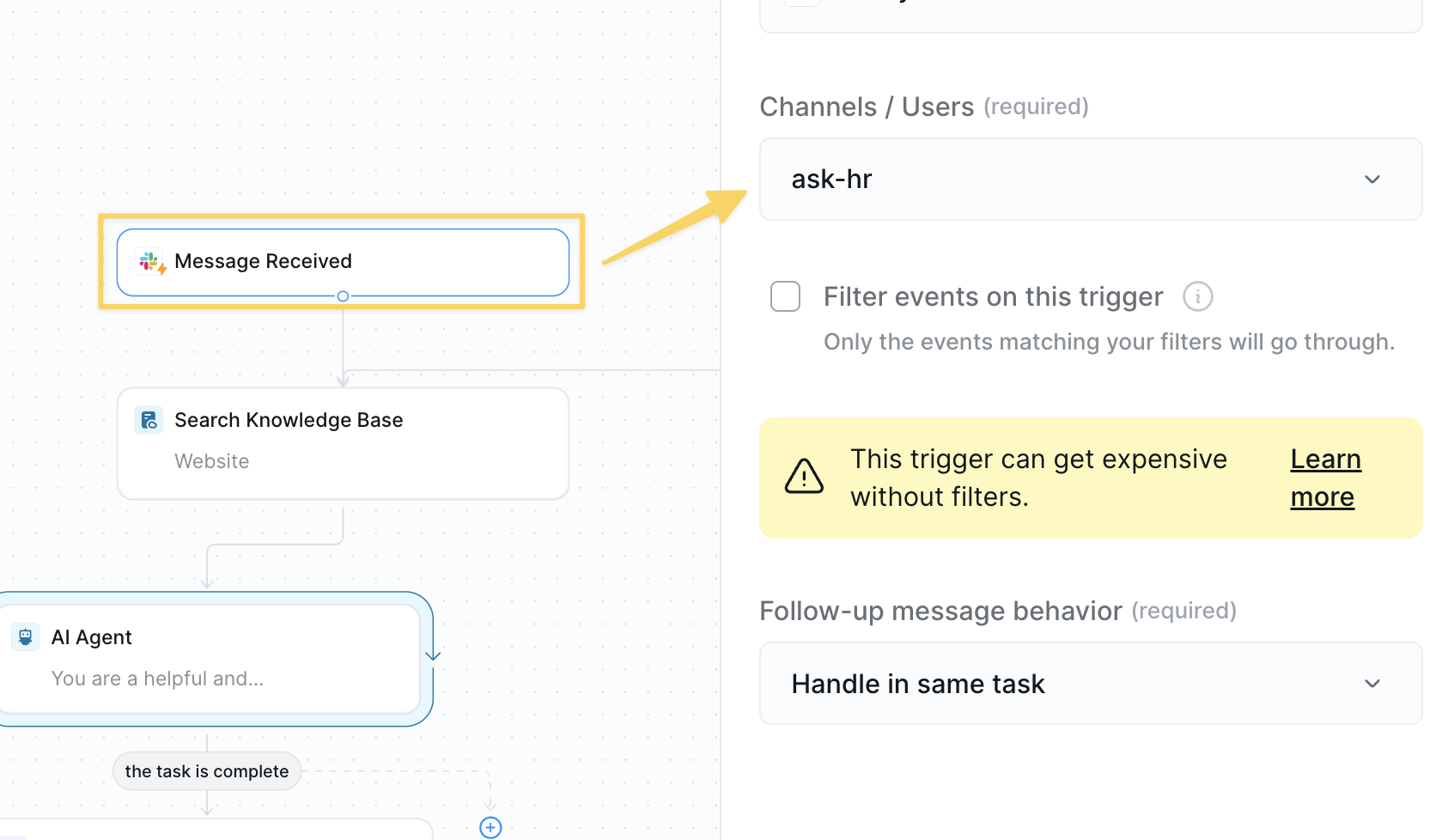 1. Use `Slack – Message Received` trigger
2. Select your help channel (e.g., #ask-hr, #employee-help, #general-questions)
Make sure to add Lindy as an integration to your Slack channel so it can monitor and respond to messages.
### Step 2: Search Company Knowledge Base
Query your company documentation to find relevant information for the employee's question.
1. Use `Slack – Message Received` trigger
2. Select your help channel (e.g., #ask-hr, #employee-help, #general-questions)
Make sure to add Lindy as an integration to your Slack channel so it can monitor and respond to messages.
### Step 2: Search Company Knowledge Base
Query your company documentation to find relevant information for the employee's question.
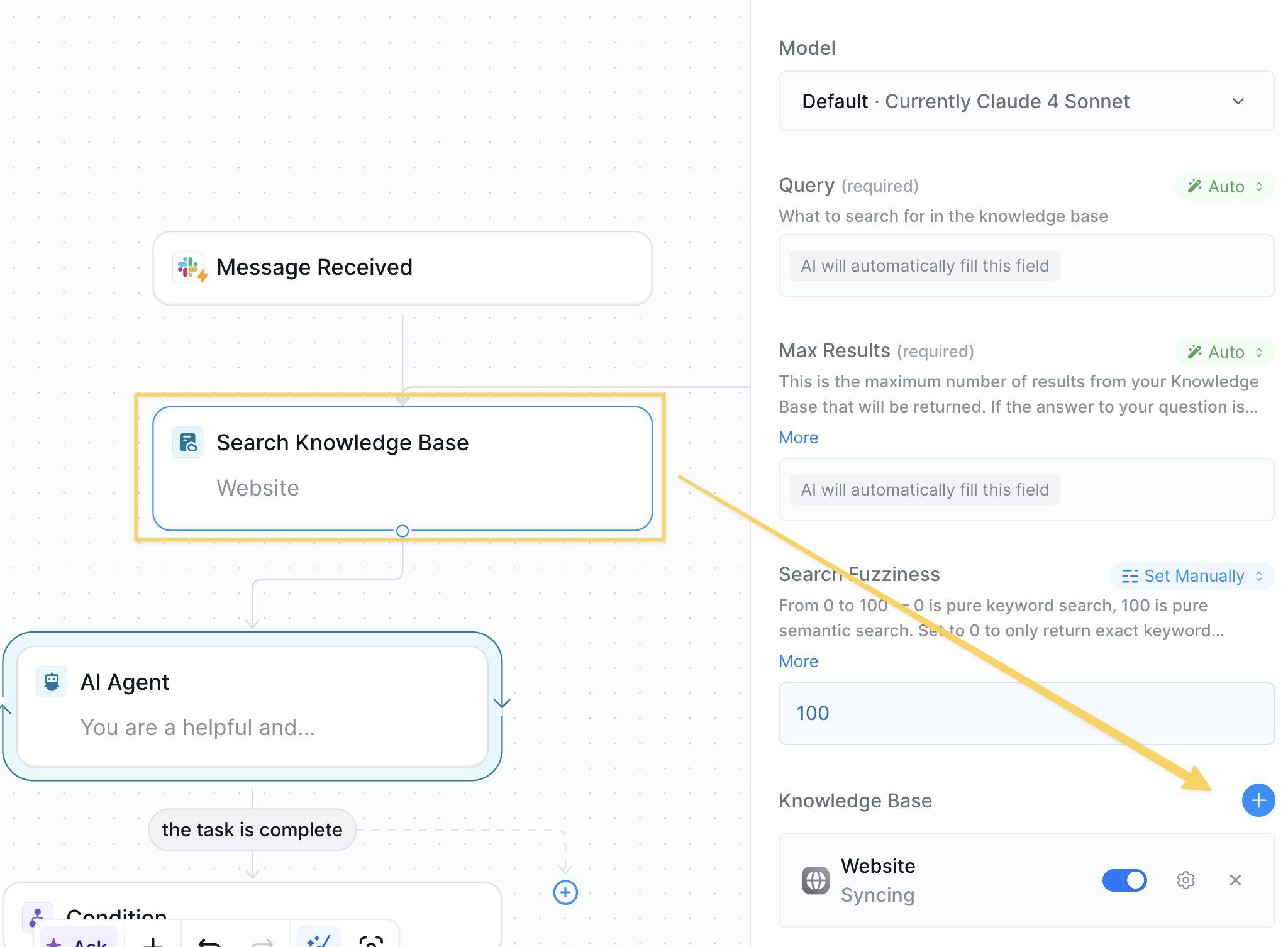 Use `Search Knowledge Base` with the employee's message as the query.
Upload your essential company documents:
* Employee handbook
* Benefits documentation
* PTO policies
* IT setup guides
* Office procedures
* Expense policies
The more comprehensive your knowledge base, the better your agent can help your employees without escalation.
### Step 3: Draft Response with AI
Have AI analyze the context and create an appropriate response or determine it cannot answer.
Use `Search Knowledge Base` with the employee's message as the query.
Upload your essential company documents:
* Employee handbook
* Benefits documentation
* PTO policies
* IT setup guides
* Office procedures
* Expense policies
The more comprehensive your knowledge base, the better your agent can help your employees without escalation.
### Step 3: Draft Response with AI
Have AI analyze the context and create an appropriate response or determine it cannot answer.
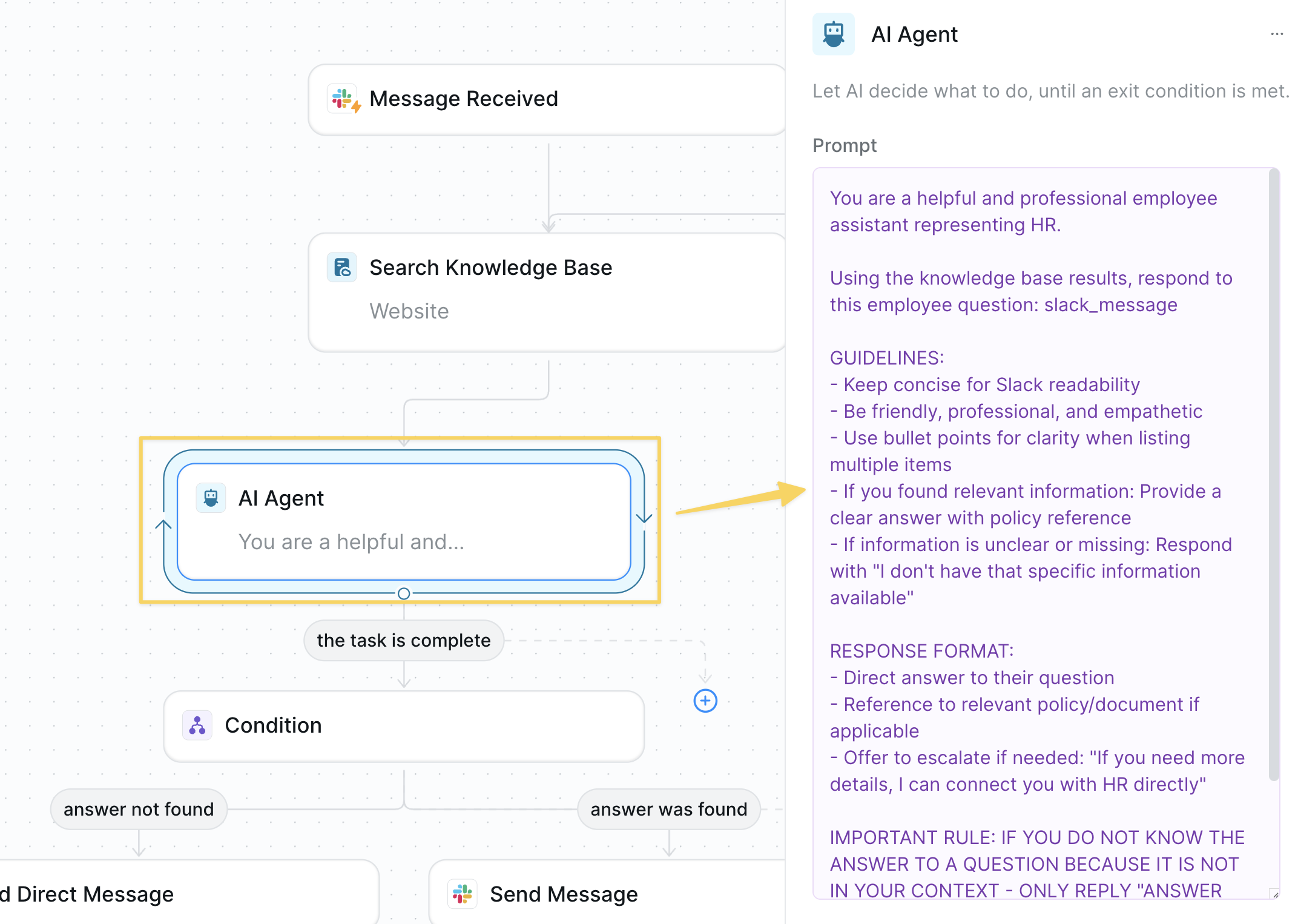 Add `AI Agent – Draft Employee Response`:
```
You are a helpful and professional employee assistant representing HR.
Using the knowledge base results, respond to this employee question: slack_message
GUIDELINES:
- Keep concise for Slack readability
- Be friendly, professional, and empathetic
- Use bullet points for clarity when listing multiple items
- If you found relevant information: Provide a clear answer with policy reference
- If information is unclear or missing: Respond with "I don't have that specific information available"
RESPONSE FORMAT:
- Direct answer to their question
- Reference to relevant policy/document if applicable
- Offer to escalate if needed: "If you need more details, I can connect you with HR directly"
IMPORTANT RULE: IF YOU DO NOT KNOW THE ANSWER TO A QUESTION BECAUSE IT IS NOT IN YOUR CONTEXT - ONLY REPLY "ANSWER NOT FOUND" AND EXIT
Return ONLY the response text, no additional formatting.
```
### Step 4: Check if Answer Found
Determine whether to respond directly or escalate based on AI's ability to find relevant information.
Add `AI Agent – Draft Employee Response`:
```
You are a helpful and professional employee assistant representing HR.
Using the knowledge base results, respond to this employee question: slack_message
GUIDELINES:
- Keep concise for Slack readability
- Be friendly, professional, and empathetic
- Use bullet points for clarity when listing multiple items
- If you found relevant information: Provide a clear answer with policy reference
- If information is unclear or missing: Respond with "I don't have that specific information available"
RESPONSE FORMAT:
- Direct answer to their question
- Reference to relevant policy/document if applicable
- Offer to escalate if needed: "If you need more details, I can connect you with HR directly"
IMPORTANT RULE: IF YOU DO NOT KNOW THE ANSWER TO A QUESTION BECAUSE IT IS NOT IN YOUR CONTEXT - ONLY REPLY "ANSWER NOT FOUND" AND EXIT
Return ONLY the response text, no additional formatting.
```
### Step 4: Check if Answer Found
Determine whether to respond directly or escalate based on AI's ability to find relevant information.
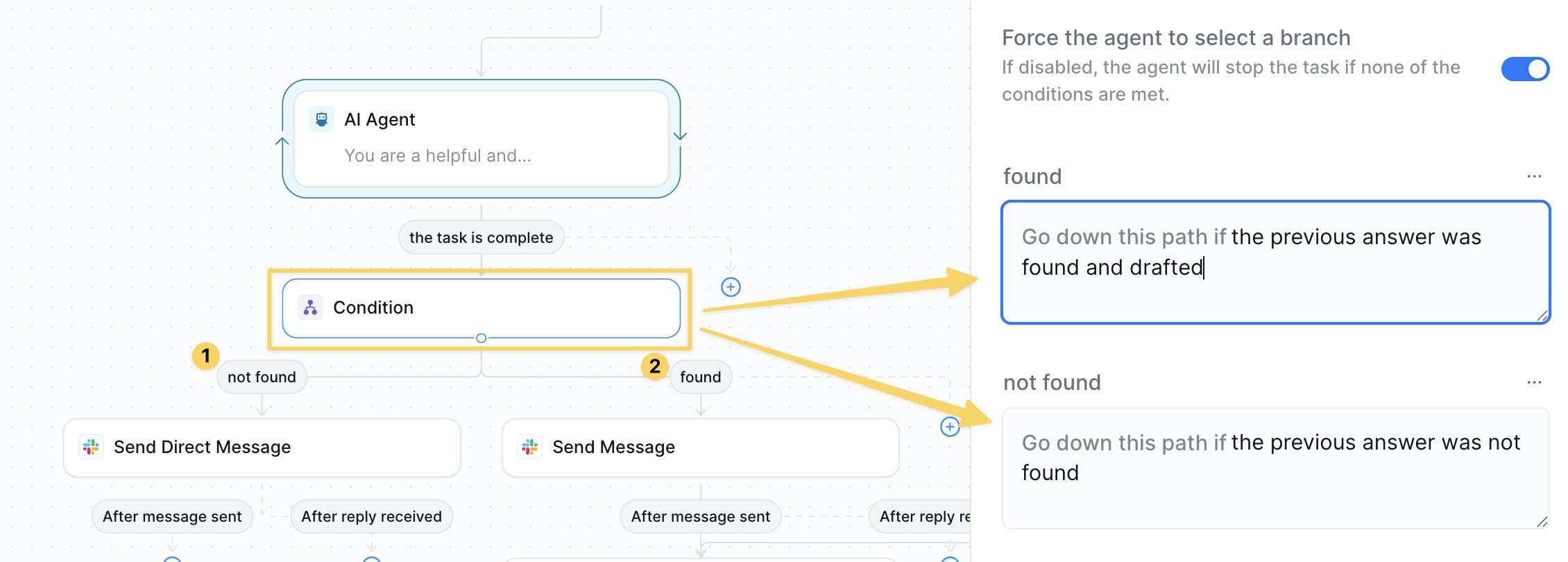 * **Answer Not Found Path**: Route to HR escalation
* **Answer Found Path**: Route to direct response
### Step 5: Escalate to HR Manager
For questions the AI couldn't answer, send context to HR for personal follow-up.
* **Answer Not Found Path**: Route to HR escalation
* **Answer Found Path**: Route to direct response
### Step 5: Escalate to HR Manager
For questions the AI couldn't answer, send context to HR for personal follow-up.
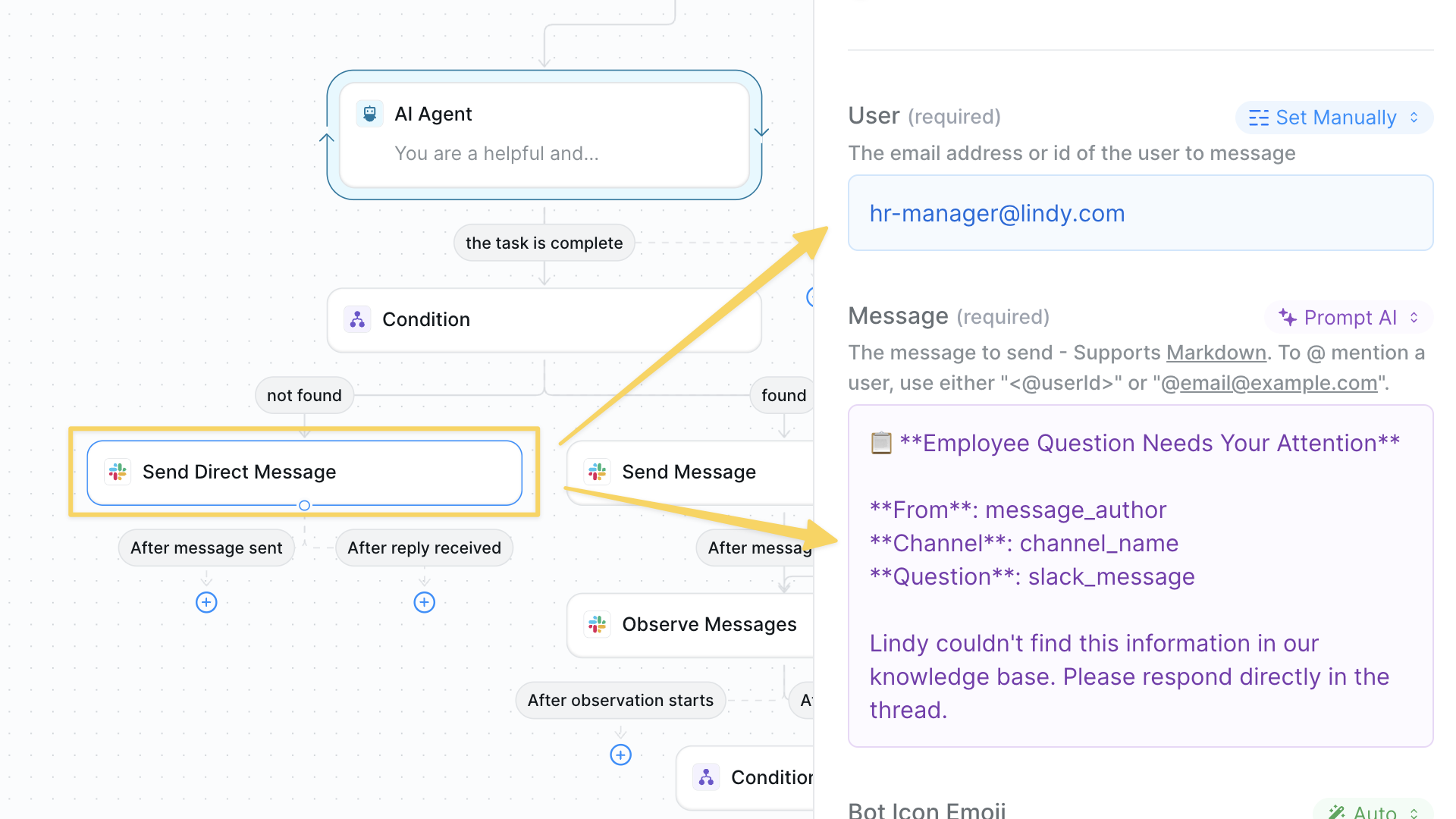 Use `Slack – Send Direct Message` to HR manager:
```
📋 **Employee Question Needs Your Attention**
**From**: message_author
**Channel**: channel_name
**Question**: slack_message
**Thread Link**: message_link
Your agent couldn't find this information in our knowledge base. Please respond directly in the thread.
```
Remember to change the user email to the correct team member.
### Step 6: Reply to Employee
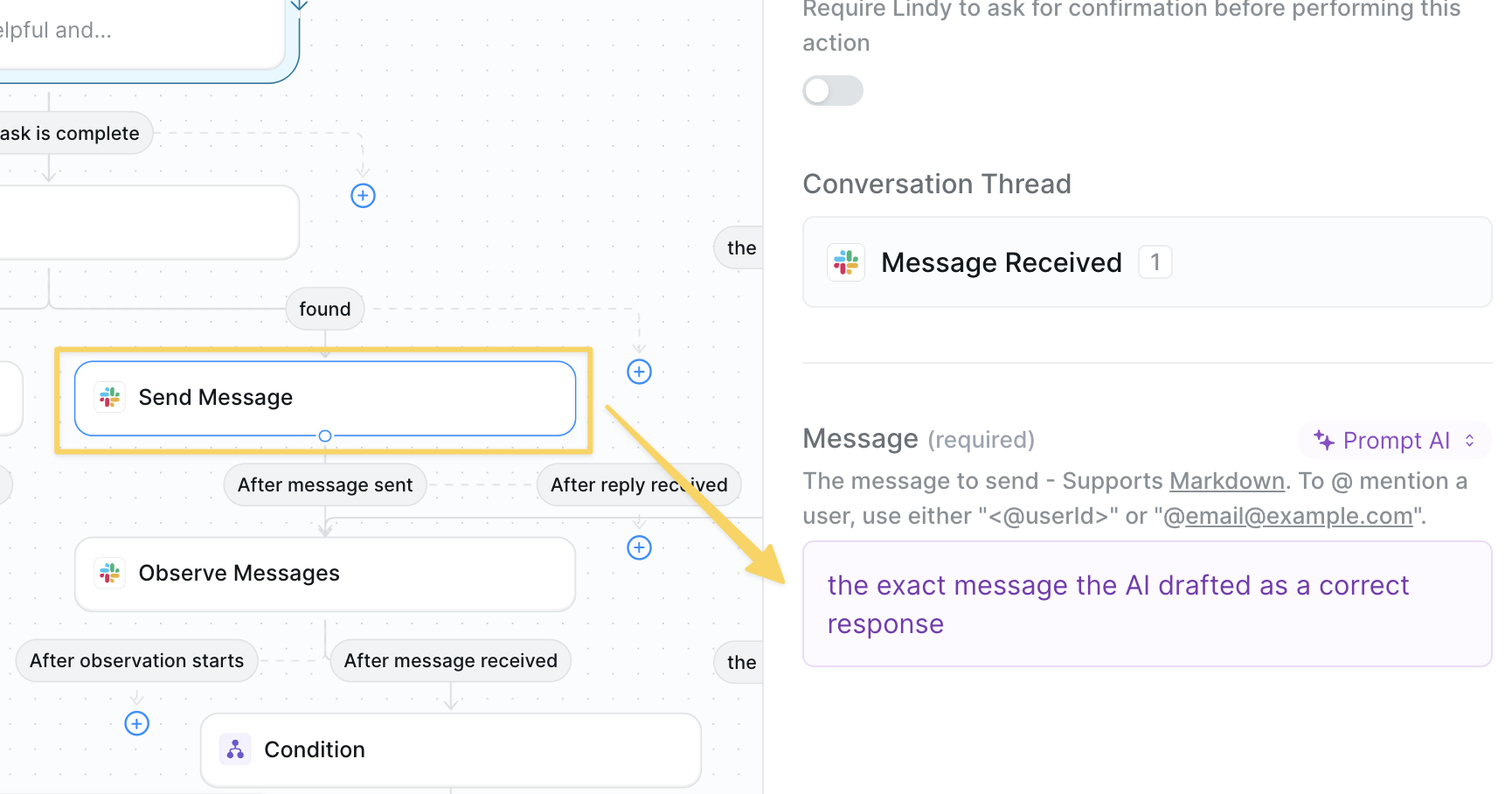
For questions with found answers, respond directly in the thread with helpful information using `Slack - Send Reply`.
Use `Slack – Send Direct Message` to HR manager:
```
📋 **Employee Question Needs Your Attention**
**From**: message_author
**Channel**: channel_name
**Question**: slack_message
**Thread Link**: message_link
Your agent couldn't find this information in our knowledge base. Please respond directly in the thread.
```
Remember to change the user email to the correct team member.
### Step 6: Reply to Employee
For questions with found answers, respond directly in the thread with helpful information using `Slack - Send Reply`.
 ### Step 6: Monitor Thread for Follow-ups
Continuously watch the conversation thread for additional questions or clarifications.
### Step 6: Monitor Thread for Follow-ups
Continuously watch the conversation thread for additional questions or clarifications.
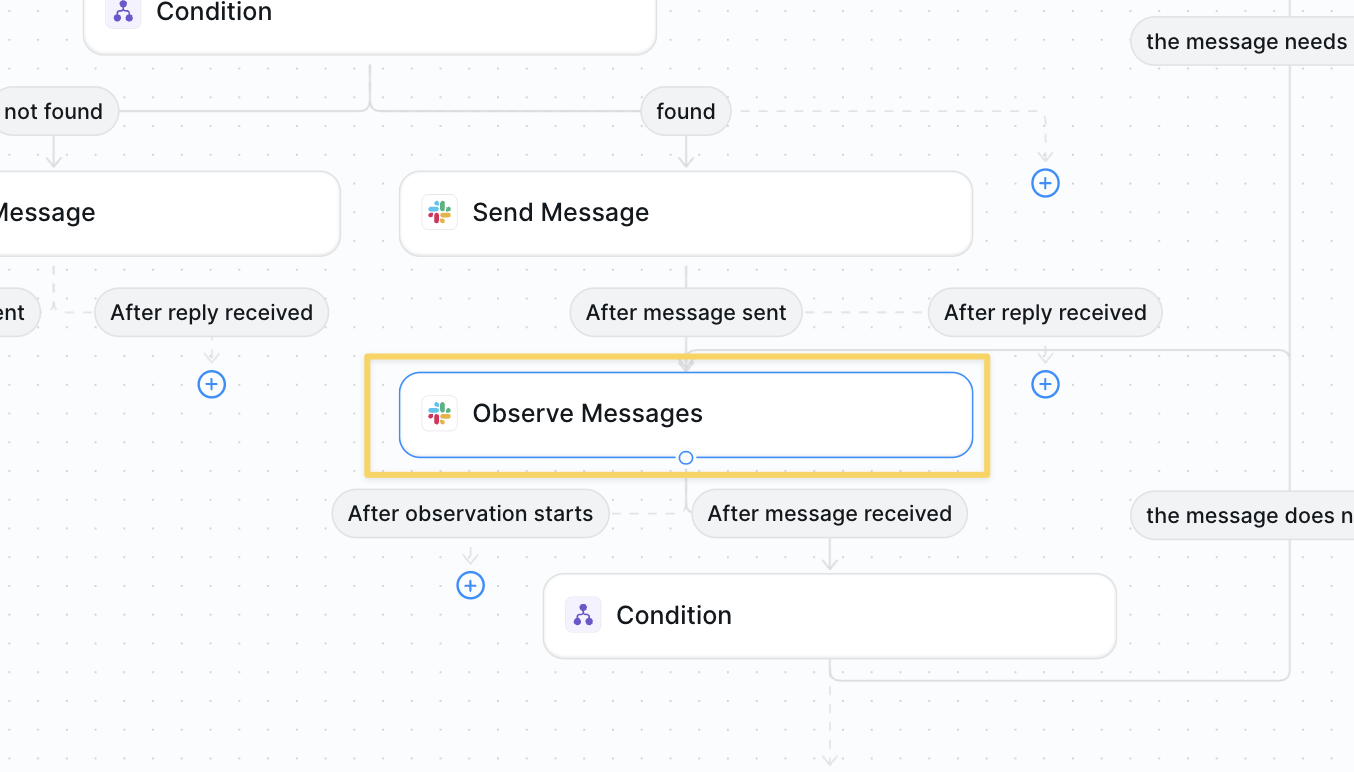 Add `Observe Messages` action to monitor the thread for new messages.
This creates a listening state that waits for any new messages in the conversation.
### Step 7: Handle Follow-up Messages
Check if new messages in the thread require additional assistance or are just acknowledgments.
Add `Observe Messages` action to monitor the thread for new messages.
This creates a listening state that waits for any new messages in the conversation.
### Step 7: Handle Follow-up Messages
Check if new messages in the thread require additional assistance or are just acknowledgments.
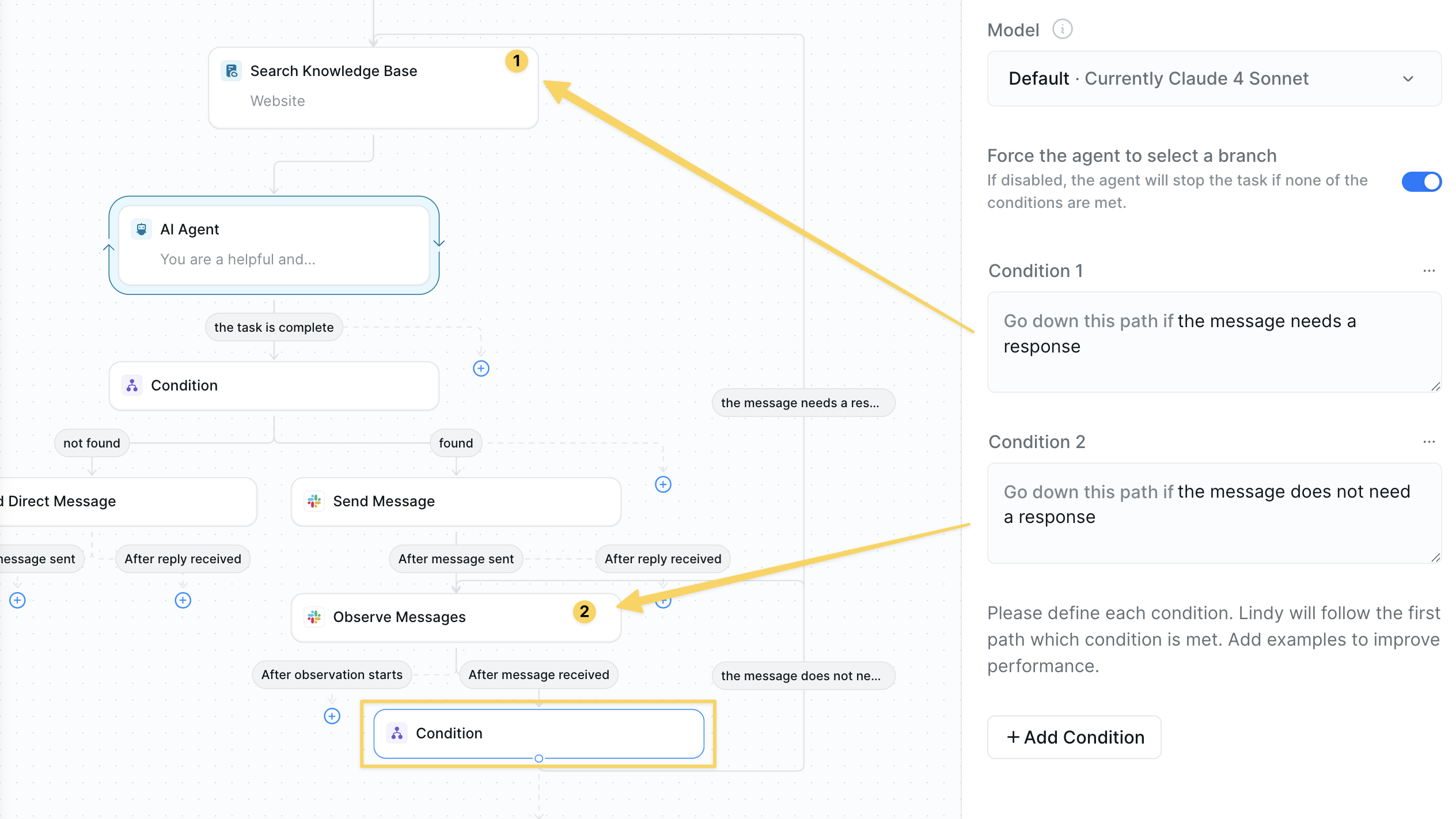 Add `Conditions` with AI evaluation:
* **If NEEDS\_RESPONSE**: Loop back to Step 2 (Search Knowledge Base)
* **If NO\_RESPONSE**: Loop back to Step 6 (Continue Observing)
## Advanced Features
| Feature | What it does |
| --------------------- | ------------------------------------------------------- |
| Escalation Categories | Route different question types to specific team members |
| Response Analytics | Track common questions to improve knowledge base |
## Best Practices
Schedule monthly reviews of your knowledge base to ensure policies and procedures are up to date.
Weekly review of escalated questions helps identify gaps in your knowledge base coverage.
Add guidance about sensitive topics that should always go directly to HR (salary, health, etc.).
Regularly check your agent's responses and refine prompts based on employee feedback.
## Next Steps
Collect structured feedback from employees
Automate candidate evaluation
Store HR policies and FAQs
Escalate complex HR issues for review
Add `Conditions` with AI evaluation:
* **If NEEDS\_RESPONSE**: Loop back to Step 2 (Search Knowledge Base)
* **If NO\_RESPONSE**: Loop back to Step 6 (Continue Observing)
## Advanced Features
| Feature | What it does |
| --------------------- | ------------------------------------------------------- |
| Escalation Categories | Route different question types to specific team members |
| Response Analytics | Track common questions to improve knowledge base |
## Best Practices
Schedule monthly reviews of your knowledge base to ensure policies and procedures are up to date.
Weekly review of escalated questions helps identify gaps in your knowledge base coverage.
Add guidance about sensitive topics that should always go directly to HR (salary, health, etc.).
Regularly check your agent's responses and refine prompts based on employee feedback.
## Next Steps
Collect structured feedback from employees
Automate candidate evaluation
Store HR policies and FAQs
Escalate complex HR issues for review