> ## Documentation Index
> Fetch the complete documentation index at: https://docs.lindy.ai/llms.txt
> Use this file to discover all available pages before exploring further.
# Document Processing
> Automatically process any document type, extract key data, and organize information across your systems.
## Quick Overview
Set up a central document processing hub that:
* **Receives** documents via a dedicated email inbox
* **Identifies** document types automatically (invoices, contracts, forms, etc.)
* **Extracts** key information based on document type
* **Logs** data to organized spreadsheets for easy access
* **Notifies** relevant teams when action is needed
Build it once and process hundreds of documents daily without manual data entry.
You can use the [document processing template](https://chat.lindy.ai/home/?templateId=6875d1d5423a619119d0d417) to get started.
## Setting Up Your Document Hub
### Step 1: Create Your Document Inbox
Set up a dedicated email address to serve as the central entry point for all documents requiring processing.
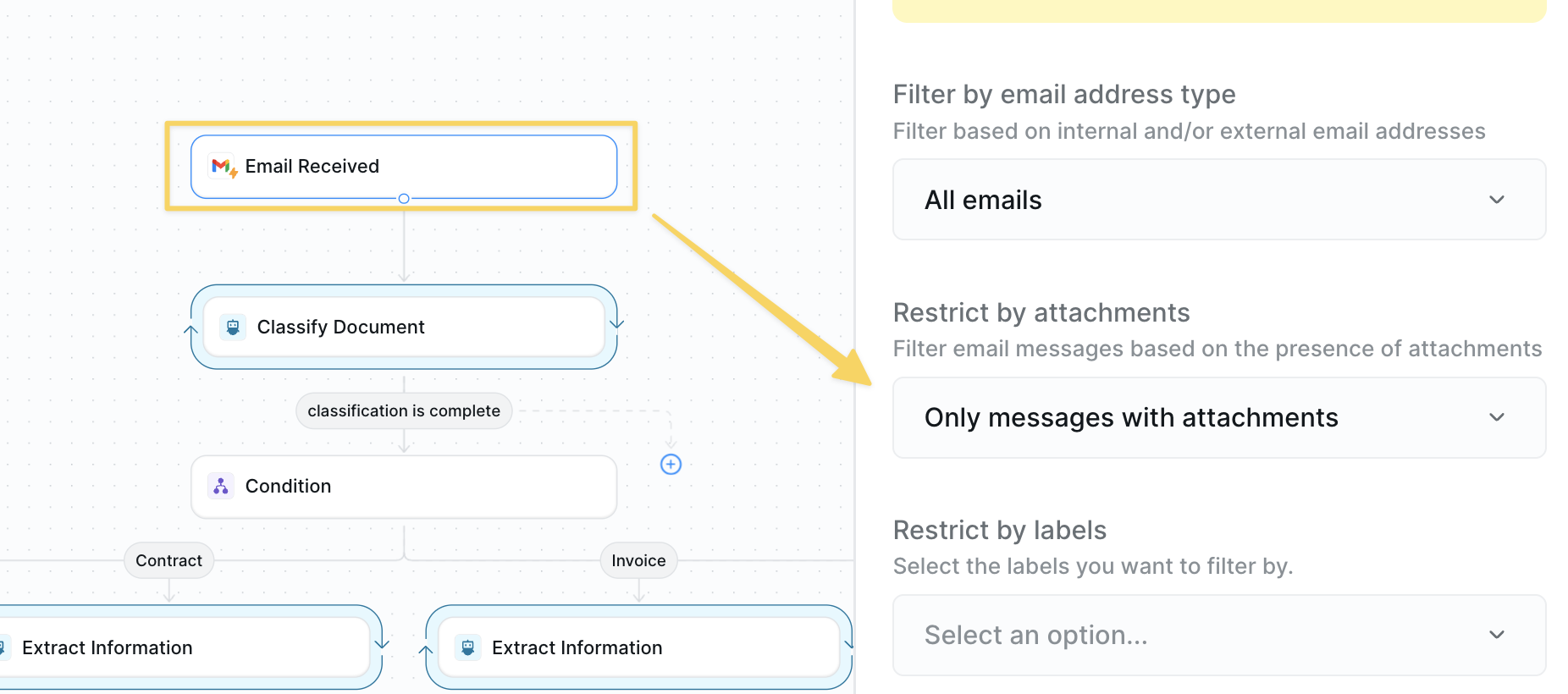 1. Set up a dedicated Gmail account (e.g., [docs@yourcompany.com](mailto:docs@yourcompany.com))
2. Configure `Gmail – Email Received` as your trigger
3. Add filter: "Has attachment" = Yes
4. Share this email with teams who need document processing
### Step 2: Identify Document Type
Automatically classify incoming documents to determine the appropriate processing workflow for each type.
1. Set up a dedicated Gmail account (e.g., [docs@yourcompany.com](mailto:docs@yourcompany.com))
2. Configure `Gmail – Email Received` as your trigger
3. Add filter: "Has attachment" = Yes
4. Share this email with teams who need document processing
### Step 2: Identify Document Type
Automatically classify incoming documents to determine the appropriate processing workflow for each type.
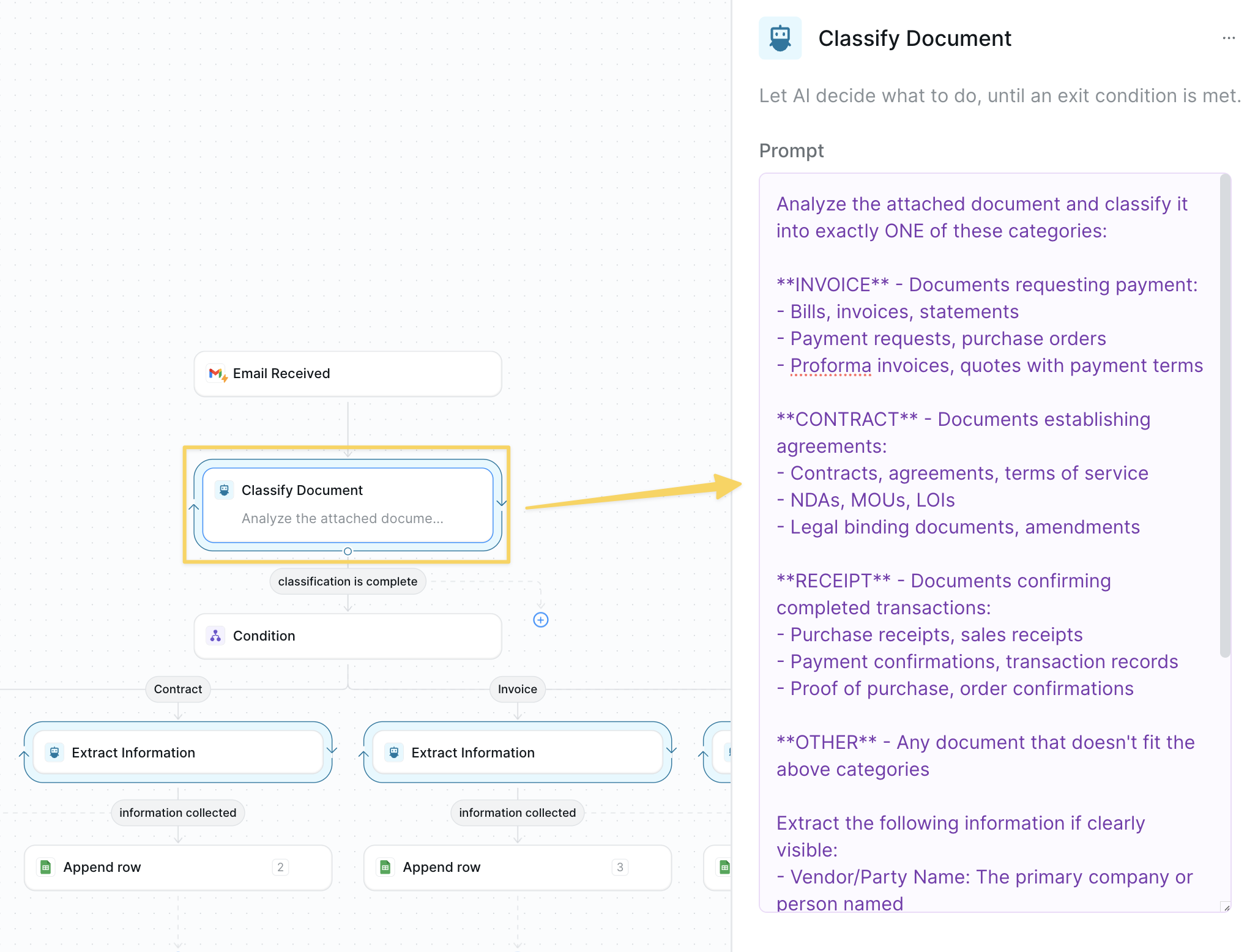 Add `AI Agent` with prompt:
```
Analyze the attached document and classify it into exactly ONE of these categories:
**INVOICE** — Documents requesting payment:
- Bills, invoices, statements
- Payment requests, purchase orders
- Proforma invoices, quotes with payment terms
**CONTRACT** — Documents establishing agreements:
- Contracts, agreements, terms of service
- NDAs, MOUs, LOIs
- Legal binding documents, amendments
**RECEIPT** — Documents confirming completed transactions:
- Purchase receipts, sales receipts
- Payment confirmations, transaction records
- Proof of purchase, order confirmations
**OTHER** — Any document that doesn't fit the above categories
Extract the following information if clearly visible:
- Vendor/Party Name: The primary company or person named
- Document Date: The main date on the document
Return your classification in this exact JSON format and nothing else:
{"type": "[INVOICE/CONTRACT/RECEIPT/OTHER]", "party": "[name or null]", "date": "[YYYY-MM-DD or null]"}
Complete the classification immediately upon document review. Do not provide explanations or additional analysis.
```
The AI Agent automatically has attachments from email in context.
### Step 3: Route to Correct Document Processing
Use conditional routing based on the document classification to send each document type down the appropriate processing path.
Add `AI Agent` with prompt:
```
Analyze the attached document and classify it into exactly ONE of these categories:
**INVOICE** — Documents requesting payment:
- Bills, invoices, statements
- Payment requests, purchase orders
- Proforma invoices, quotes with payment terms
**CONTRACT** — Documents establishing agreements:
- Contracts, agreements, terms of service
- NDAs, MOUs, LOIs
- Legal binding documents, amendments
**RECEIPT** — Documents confirming completed transactions:
- Purchase receipts, sales receipts
- Payment confirmations, transaction records
- Proof of purchase, order confirmations
**OTHER** — Any document that doesn't fit the above categories
Extract the following information if clearly visible:
- Vendor/Party Name: The primary company or person named
- Document Date: The main date on the document
Return your classification in this exact JSON format and nothing else:
{"type": "[INVOICE/CONTRACT/RECEIPT/OTHER]", "party": "[name or null]", "date": "[YYYY-MM-DD or null]"}
Complete the classification immediately upon document review. Do not provide explanations or additional analysis.
```
The AI Agent automatically has attachments from email in context.
### Step 3: Route to Correct Document Processing
Use conditional routing based on the document classification to send each document type down the appropriate processing path.
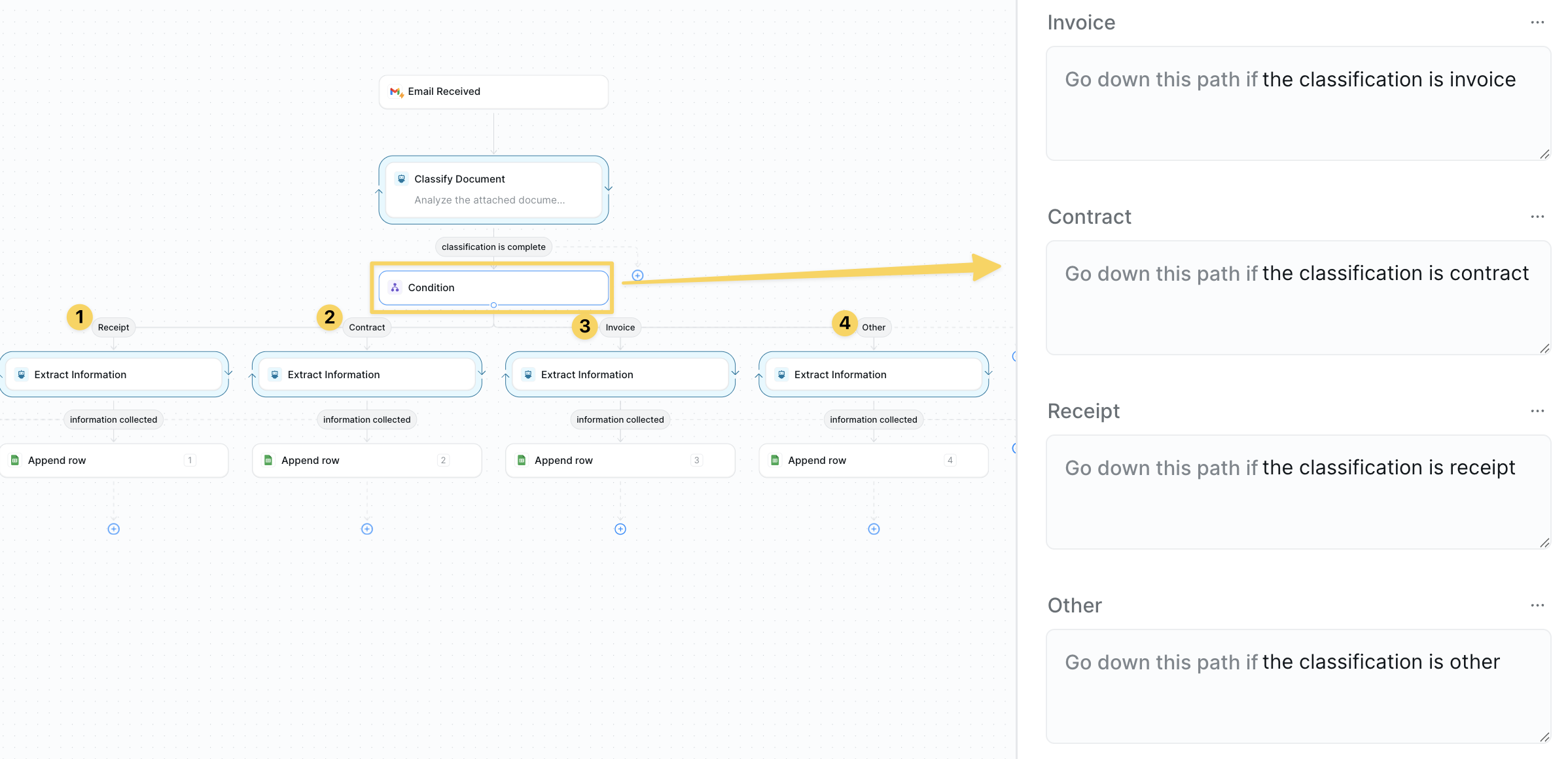 Add `Condition` nodes to route based on document type:
* **If type = "INVOICE"** → Invoice processing branch
* **If type = "CONTRACT"** → Contract processing branch
* **If type = "RECEIPT"** → Receipt processing branch
* **If type = "OTHER"** → General document processing branch
This ensures each document gets the specialized treatment it needs.
### Step 4: Extract Specific Type Data for Those Categories
Pull out the relevant information fields based on the document type with specialized AI agents for each category.
Add `Condition` nodes to route based on document type:
* **If type = "INVOICE"** → Invoice processing branch
* **If type = "CONTRACT"** → Contract processing branch
* **If type = "RECEIPT"** → Receipt processing branch
* **If type = "OTHER"** → General document processing branch
This ensures each document gets the specialized treatment it needs.
### Step 4: Extract Specific Type Data for Those Categories
Pull out the relevant information fields based on the document type with specialized AI agents for each category.
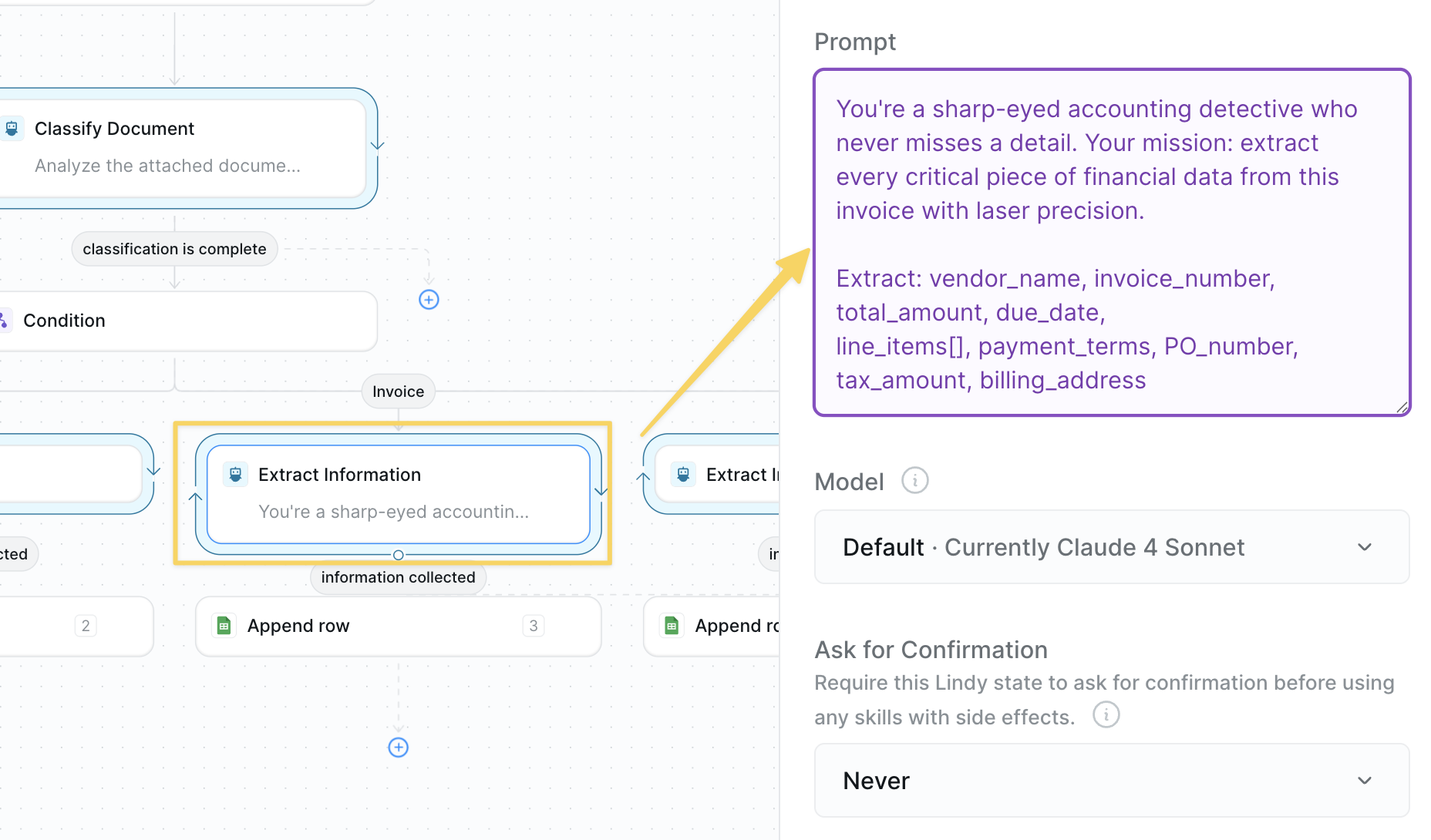 Edit the prompts and attributes to match your documents. For best results you would also prompt the model to leave items not identified as "N/A" or blank.
**For INVOICE branch:**
```
You're a sharp-eyed accounting detective who never misses a detail. Your mission: extract every critical piece of financial data from this invoice with laser precision.
Extract: vendor_name, invoice_number, total_amount, due_date,
line_items[], payment_terms, PO_number, tax_amount, billing_address
```
**For CONTRACT branch:**
```
You're a meticulous legal analyst with an eye for binding commitments. Your job: identify all the key terms that matter for contract management and compliance tracking.
Extract: party_names[], contract_value, start_date, end_date,
renewal_terms, key_obligations[], termination_clause, governing_law, signatures_required
```
**For RECEIPT branch:**
```
You're a savvy expense tracker who knows every receipt tells a story. Your task: capture all the details needed for perfect expense reporting and reimbursement.
Extract: merchant, amount, date, category, payment_method,
expense_type, project_code, tax_amount, receipt_number
```
**For OTHER branch:**
```
You're a versatile document wizard who adapts to any format. Your mission: intelligently extract whatever structured data exists in this document, no matter what type it is.
Extract all field names and their values as key-value pairs, focusing on dates, amounts, names, and identifiers.
```
### Step 5: Log to an Appropriate Spreadsheet
Organize extracted data into your preferred system — spreadsheets are just the starting point.
Edit the prompts and attributes to match your documents. For best results you would also prompt the model to leave items not identified as "N/A" or blank.
**For INVOICE branch:**
```
You're a sharp-eyed accounting detective who never misses a detail. Your mission: extract every critical piece of financial data from this invoice with laser precision.
Extract: vendor_name, invoice_number, total_amount, due_date,
line_items[], payment_terms, PO_number, tax_amount, billing_address
```
**For CONTRACT branch:**
```
You're a meticulous legal analyst with an eye for binding commitments. Your job: identify all the key terms that matter for contract management and compliance tracking.
Extract: party_names[], contract_value, start_date, end_date,
renewal_terms, key_obligations[], termination_clause, governing_law, signatures_required
```
**For RECEIPT branch:**
```
You're a savvy expense tracker who knows every receipt tells a story. Your task: capture all the details needed for perfect expense reporting and reimbursement.
Extract: merchant, amount, date, category, payment_method,
expense_type, project_code, tax_amount, receipt_number
```
**For OTHER branch:**
```
You're a versatile document wizard who adapts to any format. Your mission: intelligently extract whatever structured data exists in this document, no matter what type it is.
Extract all field names and their values as key-value pairs, focusing on dates, amounts, names, and identifiers.
```
### Step 5: Log to an Appropriate Spreadsheet
Organize extracted data into your preferred system — spreadsheets are just the starting point.
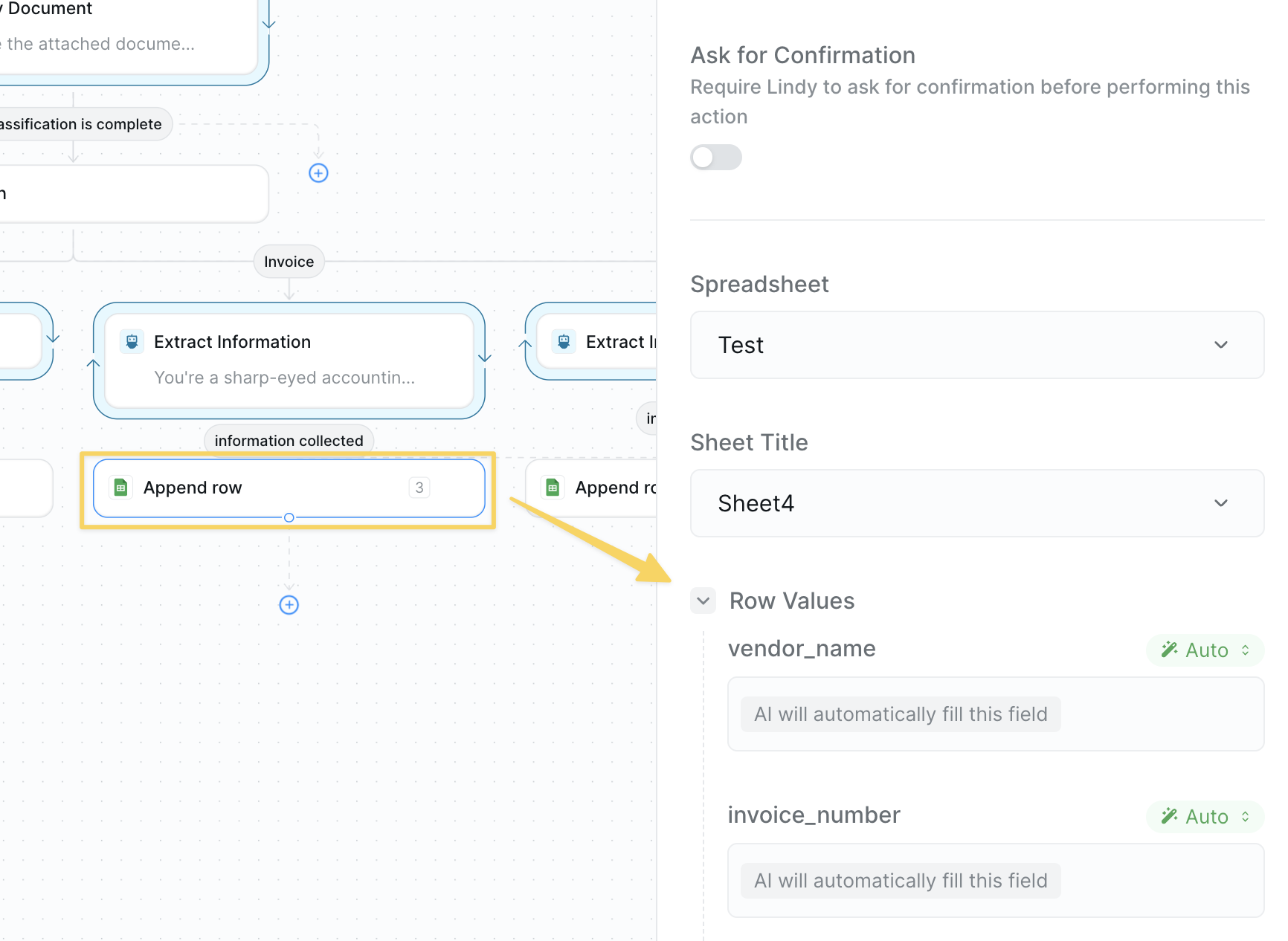 Make sure the fields you are logging match the attributes extracted in the previous step.
**Basic Option:** Use `Google Sheets – Append Row` to log data by document type.
**Advanced Integrations:** You can post this information anywhere using:
* `HTTP Request` actions to send data to your ERP, CRM, or custom databases
* Direct integrations with Airtable, Notion, or other platforms
* Webhook endpoints for real-time processing
* API calls to accounting software like QuickBooks or Xero
Spreadsheets are just a foundation — the real power comes from connecting to your existing systems.
## Advanced Features
| Feature | What it does |
| -------------------- | -------------------------------------------------- |
| Duplicate Detection | Check if invoice/contract already processed |
| Auto-Approval Routes | Route based on amount thresholds and vendor status |
| Data Validation | Add additional QA agent steps |
## Best Practices
Focus on the documents that eat the most time — usually invoices and receipts.
Standardize how documents are named and filed from day one.
Route failed extractions to a manual review queue rather than losing them.
Spot-check 10% of processed documents weekly to refine extraction prompts.
## Next Steps
Deep dive into AP automation
Build intelligent document analysis workflows
Store extracted document data
Add approval steps for critical documents
Make sure the fields you are logging match the attributes extracted in the previous step.
**Basic Option:** Use `Google Sheets – Append Row` to log data by document type.
**Advanced Integrations:** You can post this information anywhere using:
* `HTTP Request` actions to send data to your ERP, CRM, or custom databases
* Direct integrations with Airtable, Notion, or other platforms
* Webhook endpoints for real-time processing
* API calls to accounting software like QuickBooks or Xero
Spreadsheets are just a foundation — the real power comes from connecting to your existing systems.
## Advanced Features
| Feature | What it does |
| -------------------- | -------------------------------------------------- |
| Duplicate Detection | Check if invoice/contract already processed |
| Auto-Approval Routes | Route based on amount thresholds and vendor status |
| Data Validation | Add additional QA agent steps |
## Best Practices
Focus on the documents that eat the most time — usually invoices and receipts.
Standardize how documents are named and filed from day one.
Route failed extractions to a manual review queue rather than losing them.
Spot-check 10% of processed documents weekly to refine extraction prompts.
## Next Steps
Deep dive into AP automation
Build intelligent document analysis workflows
Store extracted document data
Add approval steps for critical documents