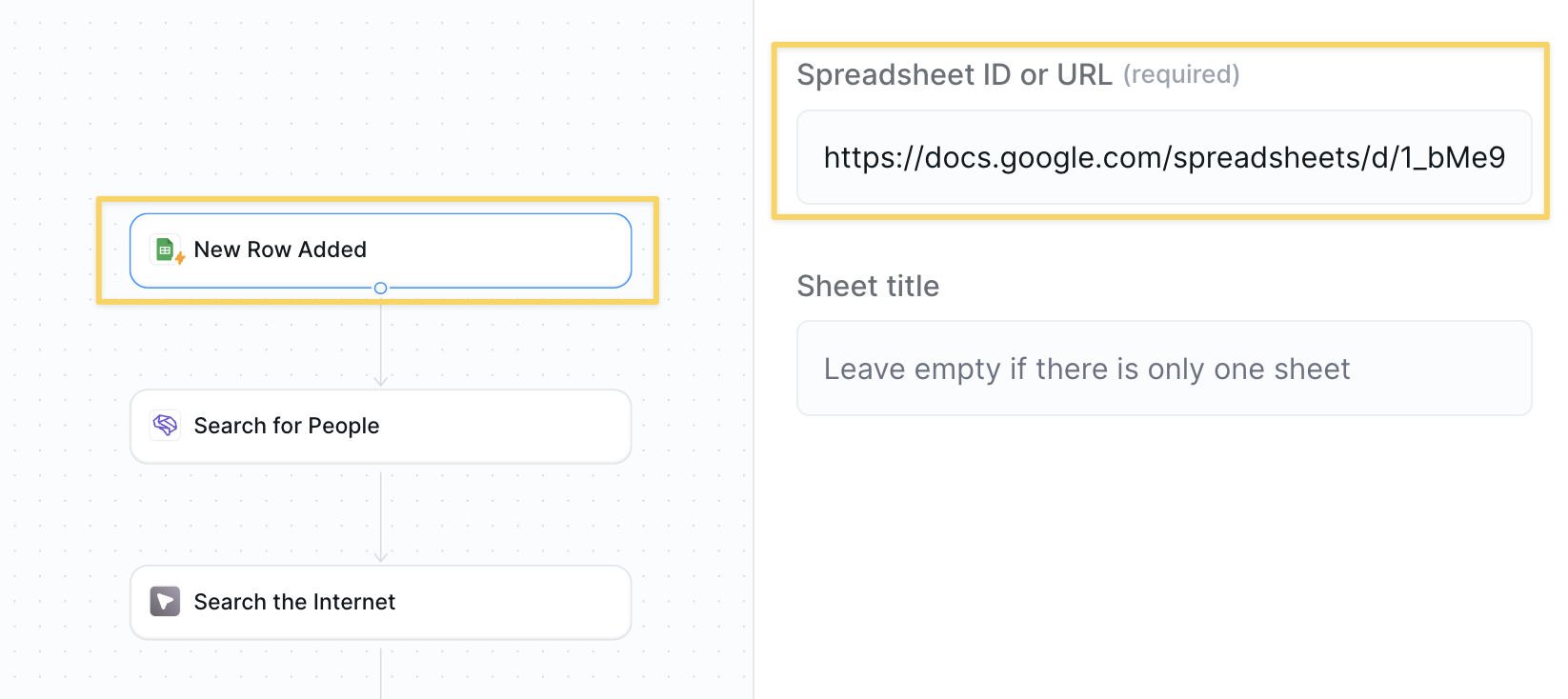
 1. Select `Google Sheets – New Row Added` as your trigger
2. Connect your spreadsheet with columns for:
* Full Name (required)
* Company
* Role
* Email
* LinkedIn URL
* Background
* Company News
3. Paste your spreadsheet link in the trigger settings
**Google Sheets integrations always interpret first row as headers.**
### Step 2: Search with People Data Labs
1. Select `Google Sheets – New Row Added` as your trigger
2. Connect your spreadsheet with columns for:
* Full Name (required)
* Company
* Role
* Email
* LinkedIn URL
* Background
* Company News
3. Paste your spreadsheet link in the trigger settings
**Google Sheets integrations always interpret first row as headers.**
### Step 2: Search with People Data Labs
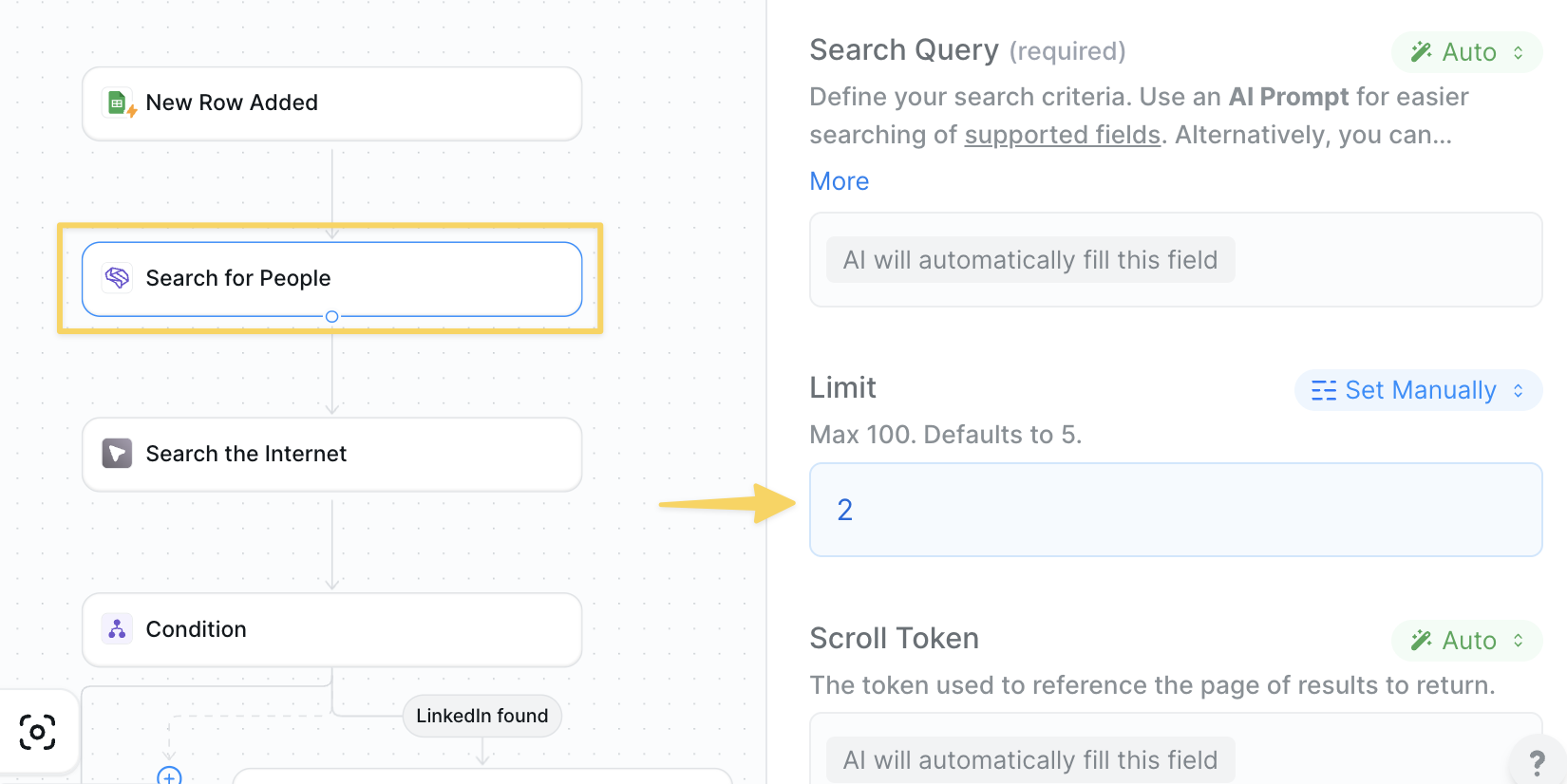 Use `People Data Labs – Search for People` action:
Recommend limiting results to `2` as each person queried consumes credits.
### Step 3: Double Down on LinkedIn Search
Use `People Data Labs – Search for People` action:
Recommend limiting results to `2` as each person queried consumes credits.
### Step 3: Double Down on LinkedIn Search
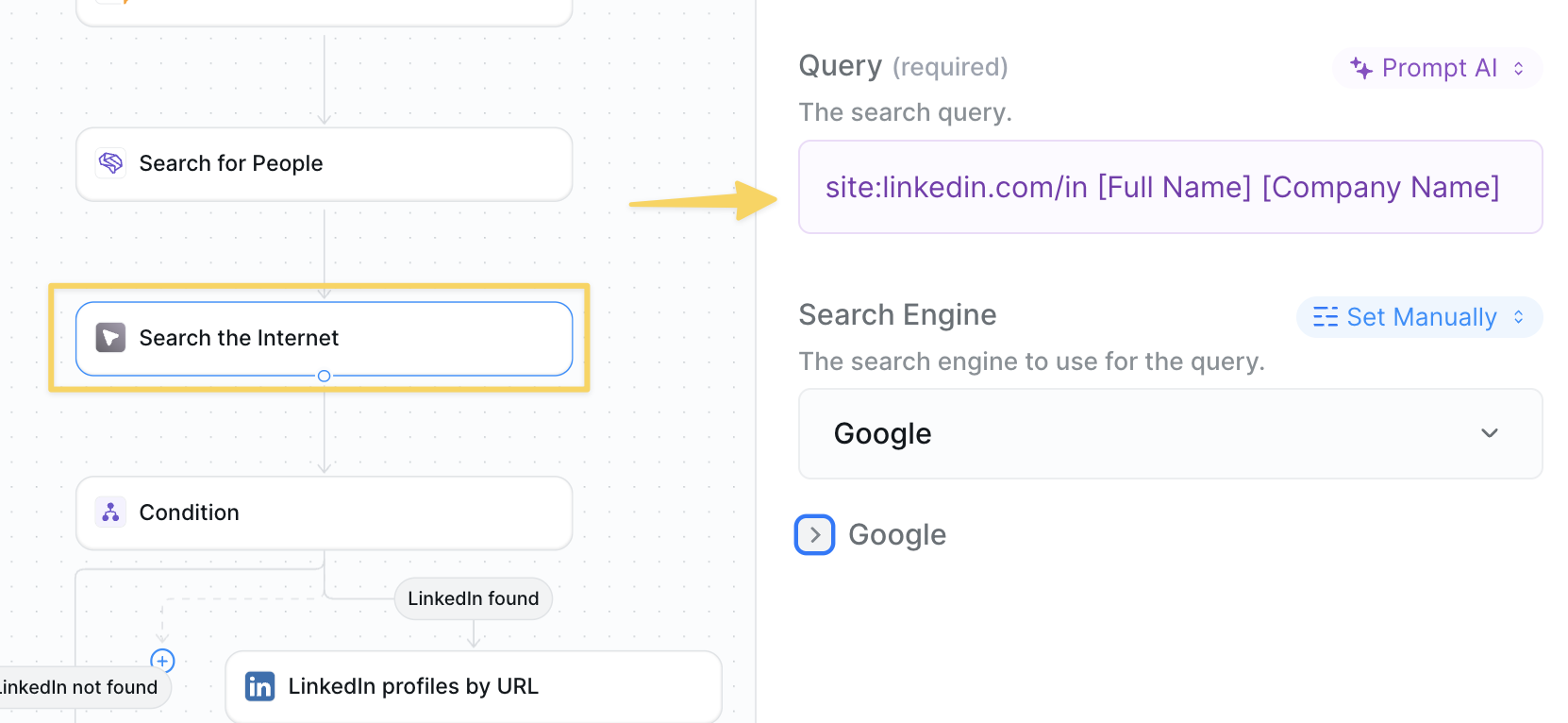 Add `Search the Internet` as a backup method:
```
site:linkedin.com/in [Full Name] [Company Name]
```
This ensures you catch LinkedIn profiles that People Data Labs might miss.
### Step 4: Check If LinkedIn Was Found
Add `Search the Internet` as a backup method:
```
site:linkedin.com/in [Full Name] [Company Name]
```
This ensures you catch LinkedIn profiles that People Data Labs might miss.
### Step 4: Check If LinkedIn Was Found
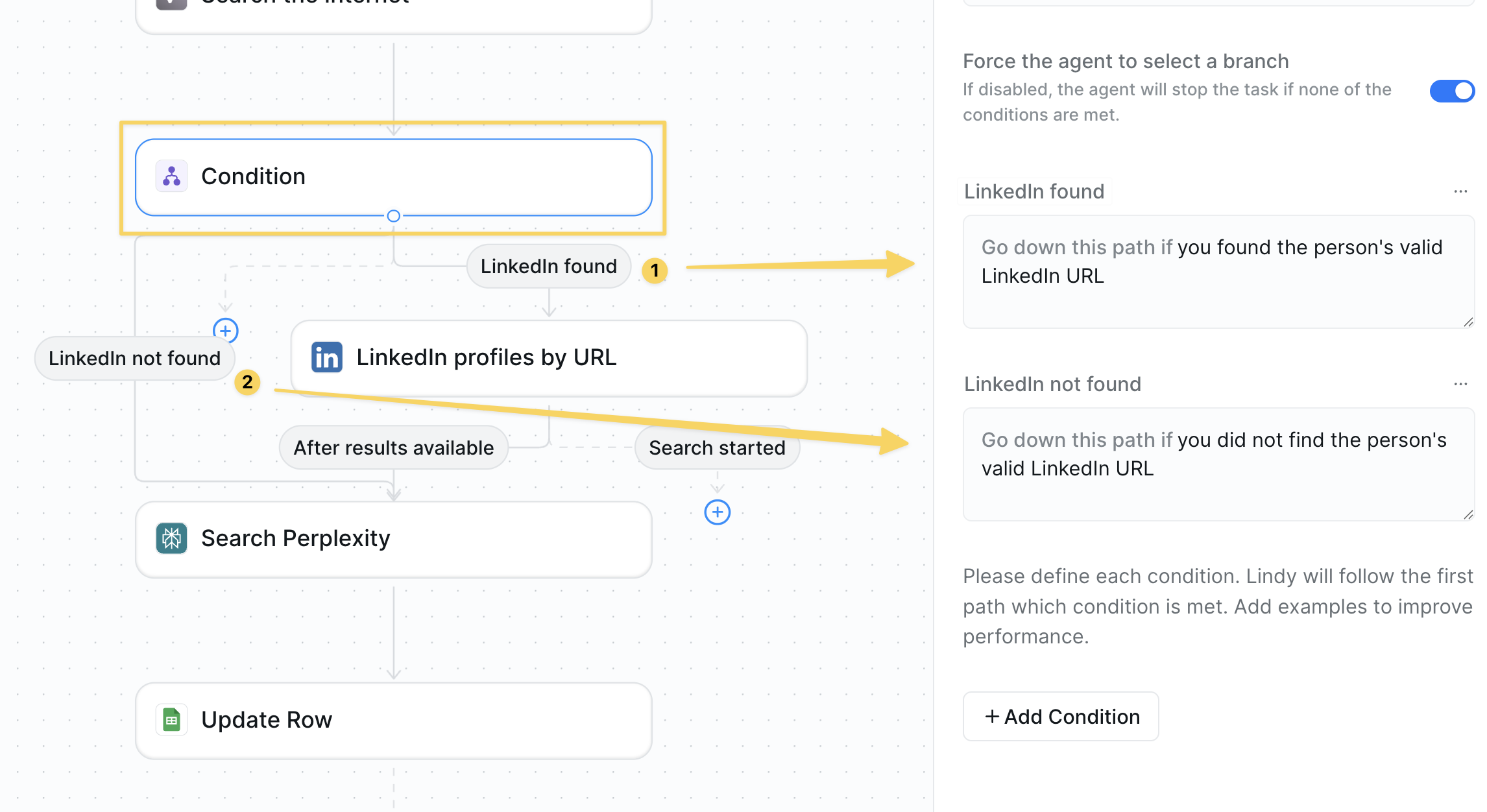 Add a `Condition` step:
* **LinkedIn found**: If we have a LinkedIn URL from either search
* **LinkedIn not found**: If both searches came up empty
This branches your flow based on whether you can scrape LinkedIn data.
### Step 5: Scrape LinkedIn Profile (If Found)
Add a `Condition` step:
* **LinkedIn found**: If we have a LinkedIn URL from either search
* **LinkedIn not found**: If both searches came up empty
This branches your flow based on whether you can scrape LinkedIn data.
### Step 5: Scrape LinkedIn Profile (If Found)
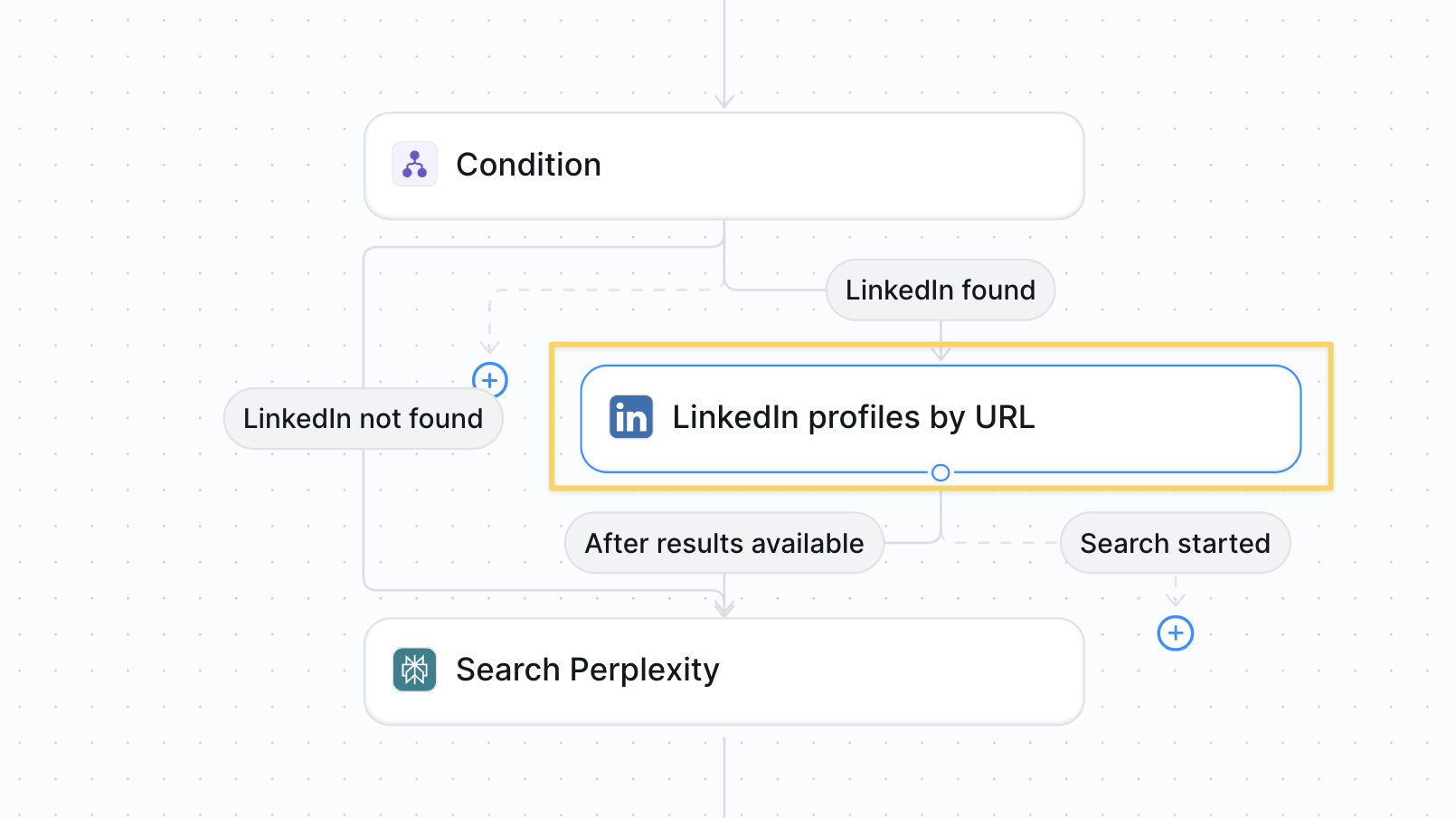 If LinkedIn was found, use `LinkedIn – Get Profile by URL`:
* Input: The LinkedIn URL from previous steps
* Extracts: Full work history, skills, education, bio
* Wait for "After results available" before proceeding
### Step 6: Research with Perplexity
If LinkedIn was found, use `LinkedIn – Get Profile by URL`:
* Input: The LinkedIn URL from previous steps
* Extracts: Full work history, skills, education, bio
* Wait for "After results available" before proceeding
### Step 6: Research with Perplexity
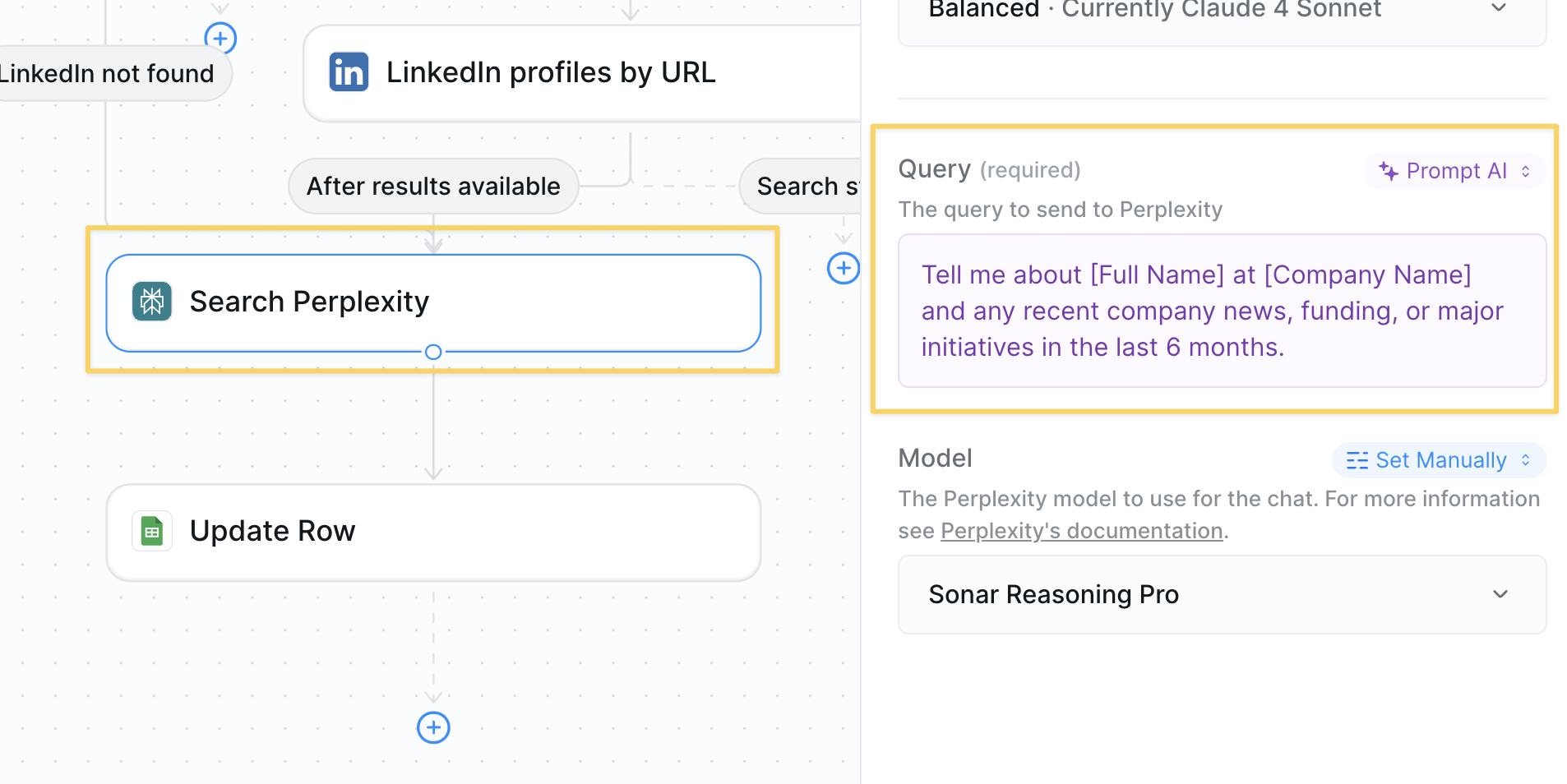 Use `Search Perplexity` for company intelligence:
```
Tell me about [Full Name] at [Company Name] and any recent company news, funding, or major initiatives in the last 6 months.
```
### Step 7: Update Your Spreadsheet
Use `Search Perplexity` for company intelligence:
```
Tell me about [Full Name] at [Company Name] and any recent company news, funding, or major initiatives in the last 6 months.
```
### Step 7: Update Your Spreadsheet
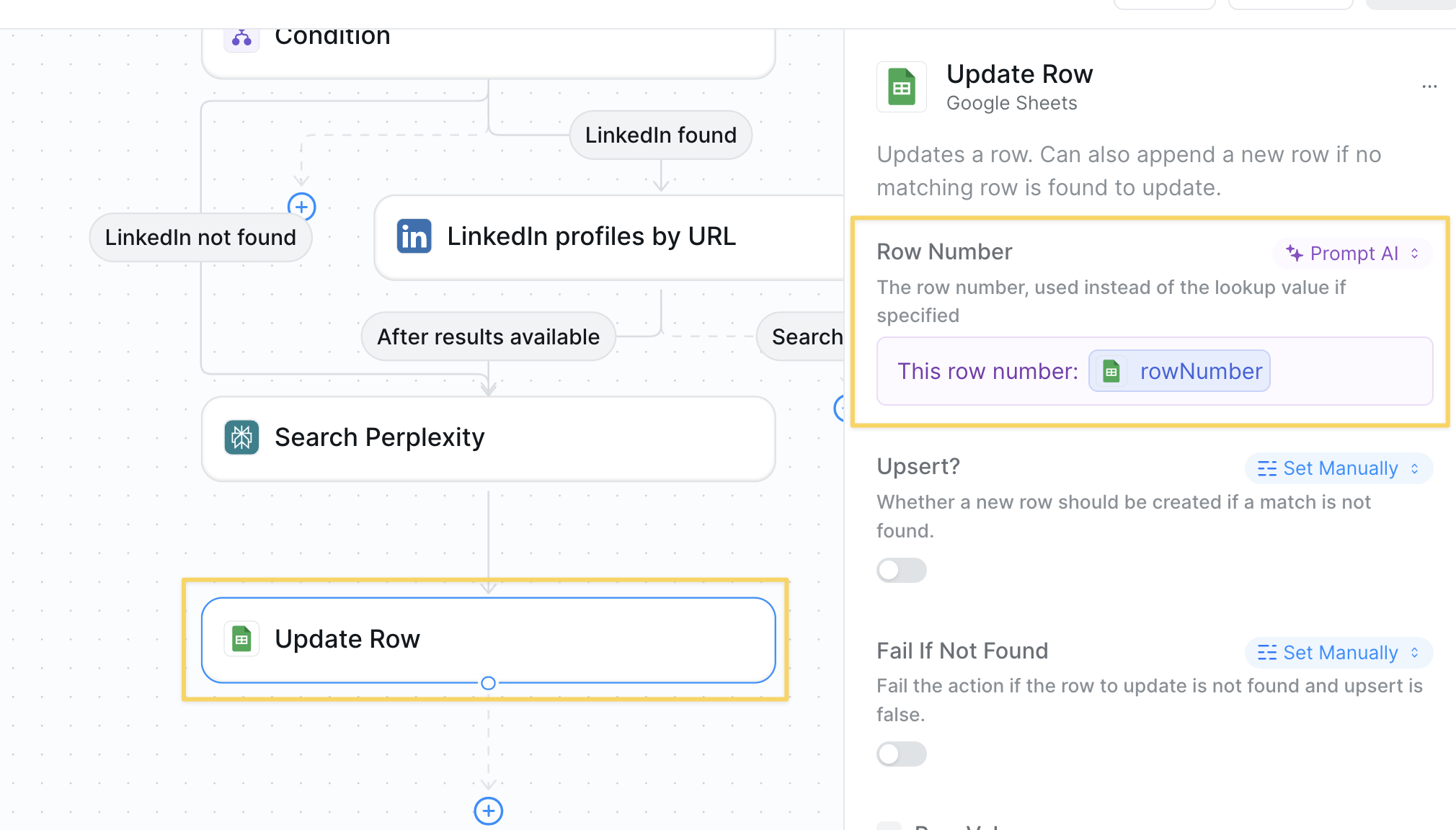 Use `Google Sheets – Update Row`:
* Match on the row from `New Row Added` trigger
* Update all enriched fields:
* Full Name (required)
* Company
* Role
* Email
* LinkedIn URL
* Background
* Company News
## Advanced Features
| Feature | What it does |
| ------------------- | ---------------------------------------------------- |
| Bulk Processing | Process group of leads by importing CSV |
| Duplicate Detection | Check if lead already exists before enriching |
| Lead Scoring | Calculate score based on seniority and company fit |
| CRM Sync | Push enriched data directly to HubSpot or Salesforce |
| Alert on Hot Leads | Slack notification for high-value prospects |
Use `Google Sheets – Update Row`:
* Match on the row from `New Row Added` trigger
* Update all enriched fields:
* Full Name (required)
* Company
* Role
* Email
* LinkedIn URL
* Background
* Company News
## Advanced Features
| Feature | What it does |
| ------------------- | ---------------------------------------------------- |
| Bulk Processing | Process group of leads by importing CSV |
| Duplicate Detection | Check if lead already exists before enriching |
| Lead Scoring | Calculate score based on seniority and company fit |
| CRM Sync | Push enriched data directly to HubSpot or Salesforce |
| Alert on Hot Leads | Slack notification for high-value prospects |
Watch the bulk CSV upload feature in action above
## Best Practices