> ## Documentation Index
> Fetch the complete documentation index at: https://docs.lindy.ai/llms.txt
> Use this file to discover all available pages before exploring further.
# Multichannel Outbound
> Execute multichannel outbound campaigns with Lindy
## Quick Overview
Let your agent act as a self-learning SDR that:
* **Triggers** when a new lead appears in Sheets or Task view
* **Crafts** personalized first-touch emails (and texts if the lead has opted in)
* **Waits** a set interval, then follows up with added value
* **Calls** qualified leads by phone to book meetings
* **Alerts** you the moment a lead replies—or after the full cadence with no response
Start from the [multichannel outbound template](https://chat.lindy.ai/home/?templateId=6875c321cb447178e1192a26) and customize.
## Setting Up Your Outbound Flow
### Step 1: Lead Trigger
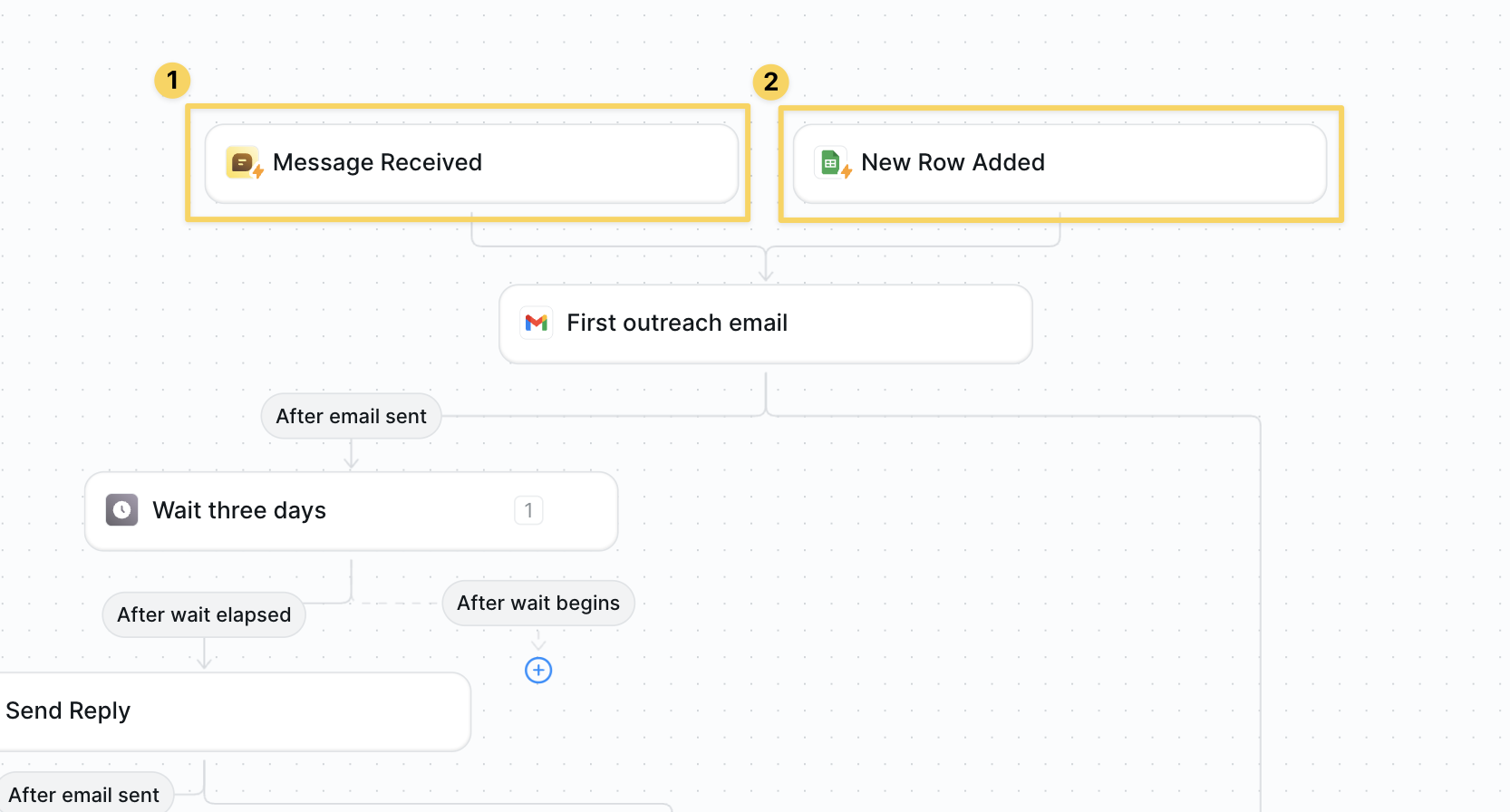 1. Add both `Google Sheets – New Row Added` *and* `Message Received` triggers.
2. **Your input must have email or phone # depending on the form of outreach.**
3. Optional: upload a CSV or DM your agent in Task view to start ad-hoc outreach.
### Step 2: Enrich the Lead (Optional)
Optionally add an enrichment step to gather additional context about your prospects for better personalization.
1. Add both `Google Sheets – New Row Added` *and* `Message Received` triggers.
2. **Your input must have email or phone # depending on the form of outreach.**
3. Optional: upload a CSV or DM your agent in Task view to start ad-hoc outreach.
### Step 2: Enrich the Lead (Optional)
Optionally add an enrichment step to gather additional context about your prospects for better personalization.
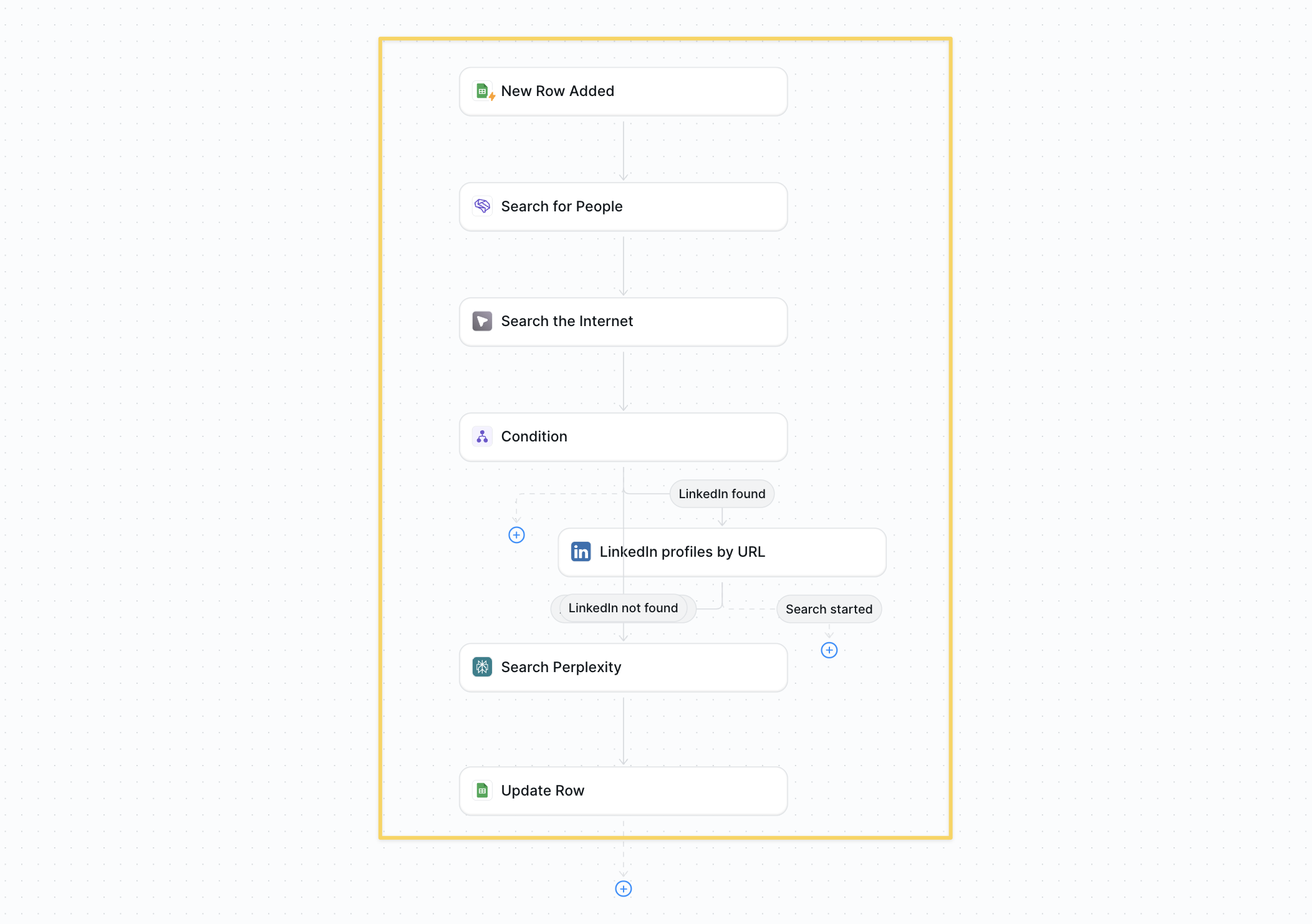 * Follow the [Lead Enrichment tutorial](/use-cases/sales/lead-enrichment) to learn how to enrich a lead.
* More context → better personalization and reply rates.
### Step 3: Wait, Then Follow-Up
* Follow the [Lead Enrichment tutorial](/use-cases/sales/lead-enrichment) to learn how to enrich a lead.
* More context → better personalization and reply rates.
### Step 3: Wait, Then Follow-Up
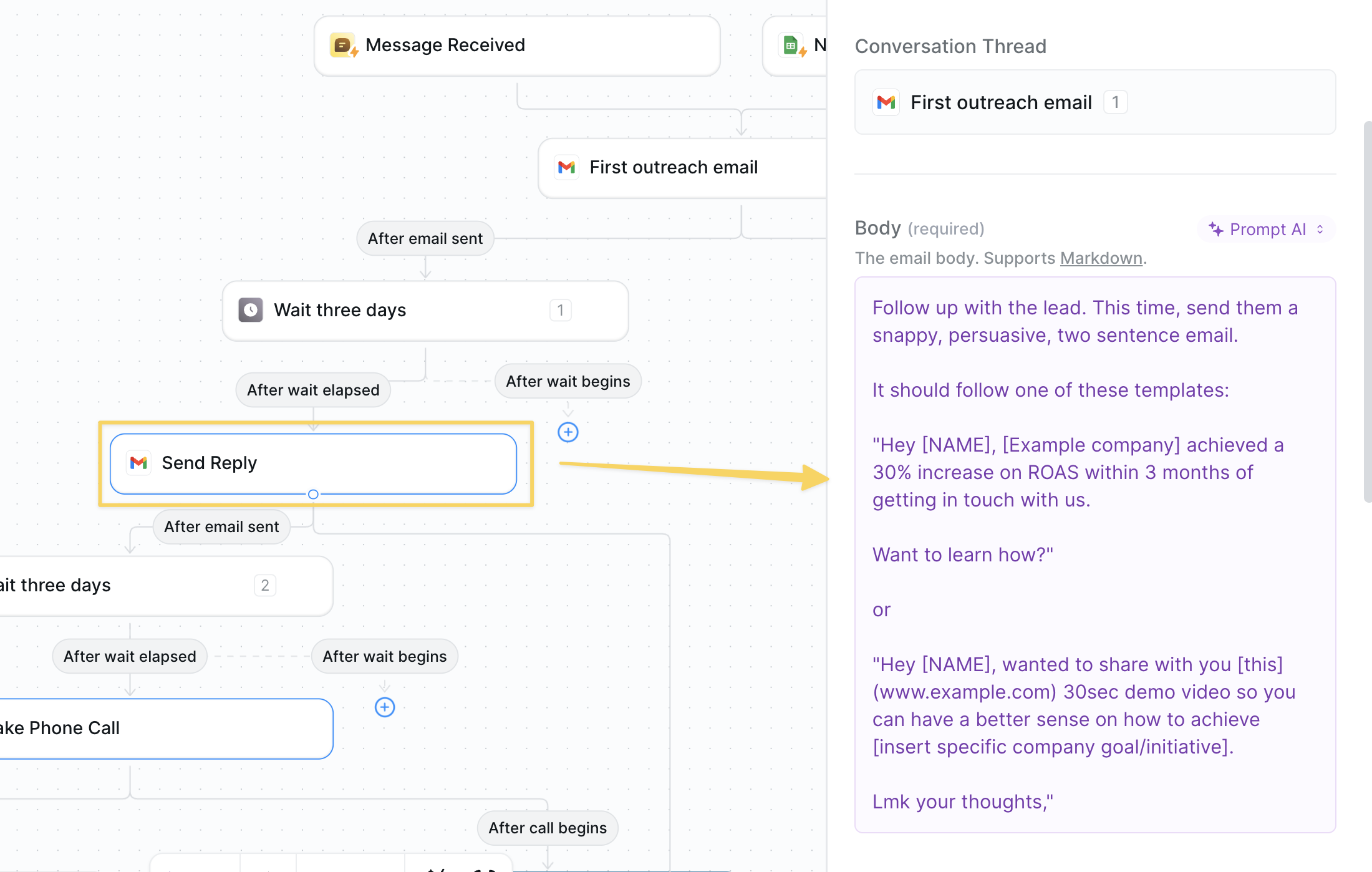 * Action: `Wait – For Minutes` set to 4320 (three days).
* Add `Gmail – Send Reply` for follow-up #1.
* Repeat Wait + Reply as many times as needed.
Example prompt:
```
Follow up with the lead. This time, send them a snappy, persuasive, two sentence email.
It should follow one of these templates:
"Hey [NAME], [Example company] achieved a 30% increase on ROAS within 3 months of getting in touch with us.
Want to learn how?"
or
"Hey [NAME], wanted to share with you [this] (www.example.com) 30sec demo video so you can have a better sense on how to achieve [insert specific company goal/initiative].
Lmk your thoughts,"
```
### Step 4: Make an Outbound Call (Optional)
* Action: `Wait – For Minutes` set to 4320 (three days).
* Add `Gmail – Send Reply` for follow-up #1.
* Repeat Wait + Reply as many times as needed.
Example prompt:
```
Follow up with the lead. This time, send them a snappy, persuasive, two sentence email.
It should follow one of these templates:
"Hey [NAME], [Example company] achieved a 30% increase on ROAS within 3 months of getting in touch with us.
Want to learn how?"
or
"Hey [NAME], wanted to share with you [this] (www.example.com) 30sec demo video so you can have a better sense on how to achieve [insert specific company goal/initiative].
Lmk your thoughts,"
```
### Step 4: Make an Outbound Call (Optional)
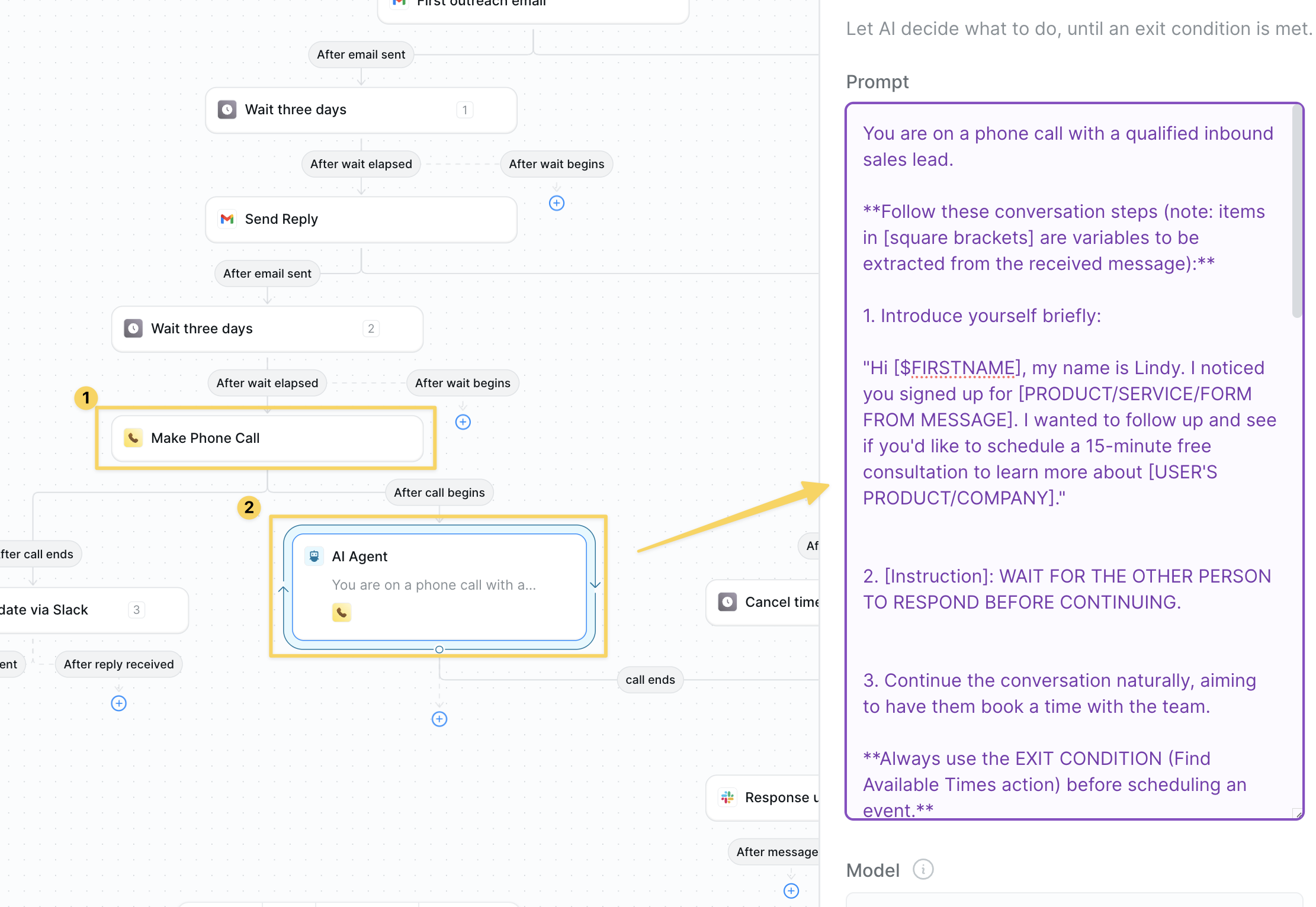 * Action: `Lindy Phone – Make Outbound Call`
Example prompt:
```
You are on a phone call with a qualified inbound sales lead.
**Follow these conversation steps (note: items in [square brackets] are variables to be extracted from the received message):**
1. Introduce yourself briefly:
"Hi [$FIRSTNAME], my name is Lindy. I noticed you signed up for [PRODUCT/SERVICE/FORM FROM MESSAGE]. I wanted to follow up and see if you'd like to schedule a 15-minute free consultation to learn more about [USER'S PRODUCT/COMPANY]."
2. [Instruction]: WAIT FOR THE OTHER PERSON TO RESPOND BEFORE CONTINUING.
3. Continue the conversation naturally, aiming to have them book a time with the team.
**Always use the EXIT CONDITION (Find Available Times action) before scheduling an event.**
**Always PAUSE and wait for the user to respond when giving times.**
4. [Instruction]: WAIT FOR THE USER ON THE PHONE TO RESPOND AFTER YOU GAVE THEM TIME OPTIONS.
**Booking the Consultation Hints:**
* WAIT after suggesting three available times *
5. When the user:
* Accepts a time: Thank them and ask them to check their calendar for the invite and accept it to confirm (do not add anything else to this statement / request)
* Declines booking: Act as a thoughtful and persuasive negotiator (e.g., ask why they're uninterested in {THE PRODUCT}) before concluding the conversation
[Instruction]: WAIT FOR THE USER ON THE PHONE TO RESPOND AFTER YOU REQUEST FOR THEM TO CONFIRM THE CALENDAR INVITE.
5. Summarize the outcome:
* If accepted: "To wrap things up, I wanted to confirm that you are booked to meet with the team at [EVENT TIME AND DATE]" (do not mention the day and time if you have already mentioned it previously)
* If declined: "Thank you for taking the time to consider connecting with the team"
[Instruction]: WAIT FOR THE OTHER PERSON TO RESPOND BEFORE PROCEEDING TO ASK IF THEY NEED HELP WITH ANYTHING ELSE.
6. Ask: "Is there anything else I can help you with?"
After they confirm nothing else is needed, thank them and end the call.
### IMPORTANT NOTES:
* If initial times don't work, don't give up. Continue using the EXIT CONDITION to Find Available Times until you find a suitable option
* Demonstrate skilled negotiation by working to find mutually agreeable times
* Always maintain a professional and helpful demeanor throughout the conversation
* Always do your best to book the consultation. If they say no initially, ensure you respond with concise rebuttals to persuade them to book a consultation.
```
### Step 6: Alert & Exit
* Action: `Lindy Phone – Make Outbound Call`
Example prompt:
```
You are on a phone call with a qualified inbound sales lead.
**Follow these conversation steps (note: items in [square brackets] are variables to be extracted from the received message):**
1. Introduce yourself briefly:
"Hi [$FIRSTNAME], my name is Lindy. I noticed you signed up for [PRODUCT/SERVICE/FORM FROM MESSAGE]. I wanted to follow up and see if you'd like to schedule a 15-minute free consultation to learn more about [USER'S PRODUCT/COMPANY]."
2. [Instruction]: WAIT FOR THE OTHER PERSON TO RESPOND BEFORE CONTINUING.
3. Continue the conversation naturally, aiming to have them book a time with the team.
**Always use the EXIT CONDITION (Find Available Times action) before scheduling an event.**
**Always PAUSE and wait for the user to respond when giving times.**
4. [Instruction]: WAIT FOR THE USER ON THE PHONE TO RESPOND AFTER YOU GAVE THEM TIME OPTIONS.
**Booking the Consultation Hints:**
* WAIT after suggesting three available times *
5. When the user:
* Accepts a time: Thank them and ask them to check their calendar for the invite and accept it to confirm (do not add anything else to this statement / request)
* Declines booking: Act as a thoughtful and persuasive negotiator (e.g., ask why they're uninterested in {THE PRODUCT}) before concluding the conversation
[Instruction]: WAIT FOR THE USER ON THE PHONE TO RESPOND AFTER YOU REQUEST FOR THEM TO CONFIRM THE CALENDAR INVITE.
5. Summarize the outcome:
* If accepted: "To wrap things up, I wanted to confirm that you are booked to meet with the team at [EVENT TIME AND DATE]" (do not mention the day and time if you have already mentioned it previously)
* If declined: "Thank you for taking the time to consider connecting with the team"
[Instruction]: WAIT FOR THE OTHER PERSON TO RESPOND BEFORE PROCEEDING TO ASK IF THEY NEED HELP WITH ANYTHING ELSE.
6. Ask: "Is there anything else I can help you with?"
After they confirm nothing else is needed, thank them and end the call.
### IMPORTANT NOTES:
* If initial times don't work, don't give up. Continue using the EXIT CONDITION to Find Available Times until you find a suitable option
* Demonstrate skilled negotiation by working to find mutually agreeable times
* Always maintain a professional and helpful demeanor throughout the conversation
* Always do your best to book the consultation. If they say no initially, ensure you respond with concise rebuttals to persuade them to book a consultation.
```
### Step 6: Alert & Exit
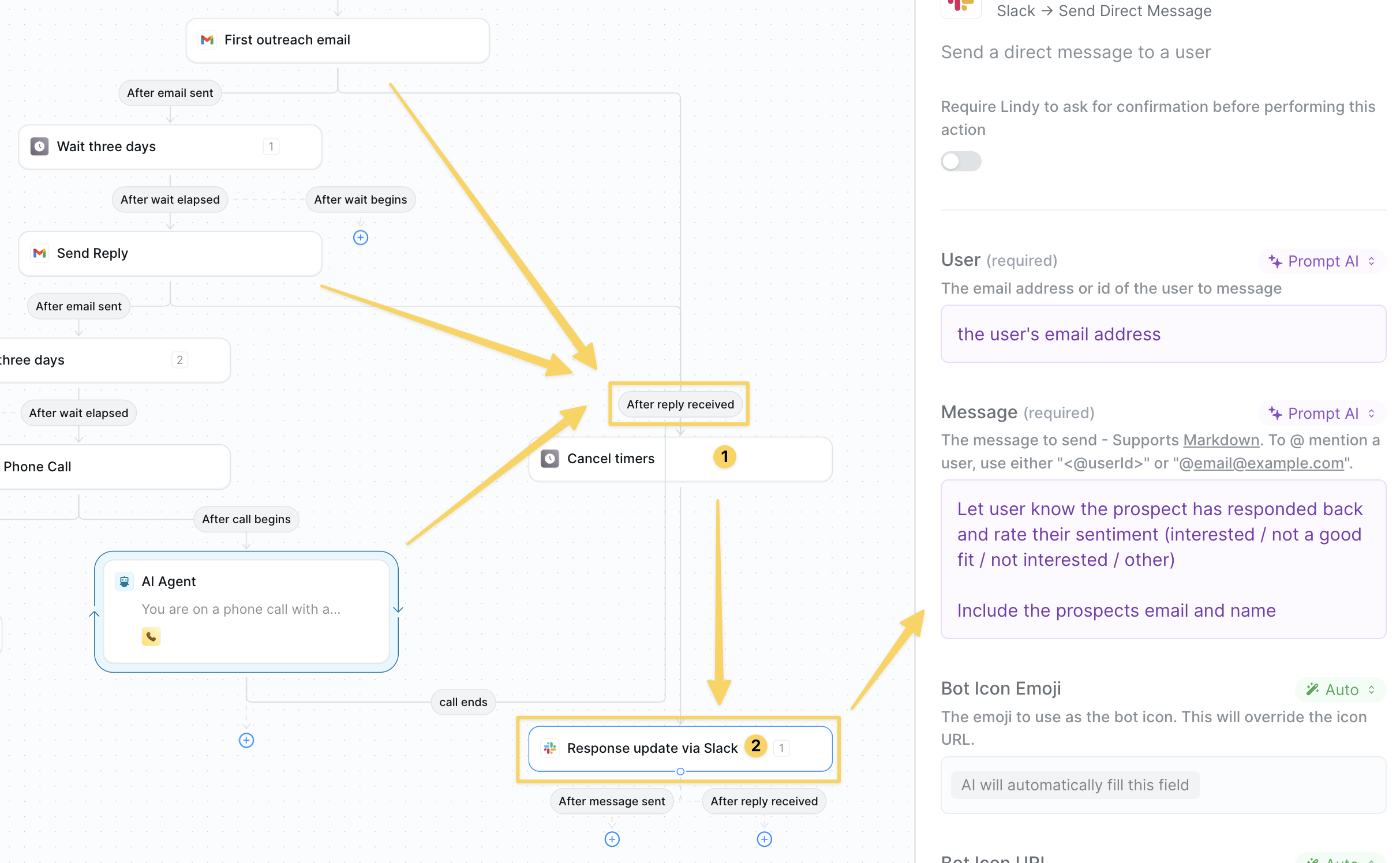 * If the lead replies at any point → `Cancel Timers` to stop the sequence and prevent future outreach
* After canceling timers send a slack update with a summary of the outcome and sentiment
* If cadence finishes with no reply → different Slack alert so you can decide next steps.
## Advanced Customizations
| Trick | What it does |
| ------------------- | --------------------------------------------------------------------- |
| A/B Subject Testing | Randomize two subjects, log open rates to Sheets. |
| Channel Rotation | Email → SMS → Call sequence or any order you define. |
| Auto-CRM Update | Create/advance deals in HubSpot or Salesforce when engagement occurs. |
## Best Practices
Only text or call leads who explicitly consented; store opt-in status in your sheet.
Limit volume to avoid rate limits from Twilio or Gmail.
Use company news or role-specific pain points in each touch.
## Next Steps
Auto-research every new prospect
Let your agent close deals in your inbox
Build voice-based outreach workflows
Store prospect research and call scripts
* If the lead replies at any point → `Cancel Timers` to stop the sequence and prevent future outreach
* After canceling timers send a slack update with a summary of the outcome and sentiment
* If cadence finishes with no reply → different Slack alert so you can decide next steps.
## Advanced Customizations
| Trick | What it does |
| ------------------- | --------------------------------------------------------------------- |
| A/B Subject Testing | Randomize two subjects, log open rates to Sheets. |
| Channel Rotation | Email → SMS → Call sequence or any order you define. |
| Auto-CRM Update | Create/advance deals in HubSpot or Salesforce when engagement occurs. |
## Best Practices
Only text or call leads who explicitly consented; store opt-in status in your sheet.
Limit volume to avoid rate limits from Twilio or Gmail.
Use company news or role-specific pain points in each touch.
## Next Steps
Auto-research every new prospect
Let your agent close deals in your inbox
Build voice-based outreach workflows
Store prospect research and call scripts