

Talk to Lindy
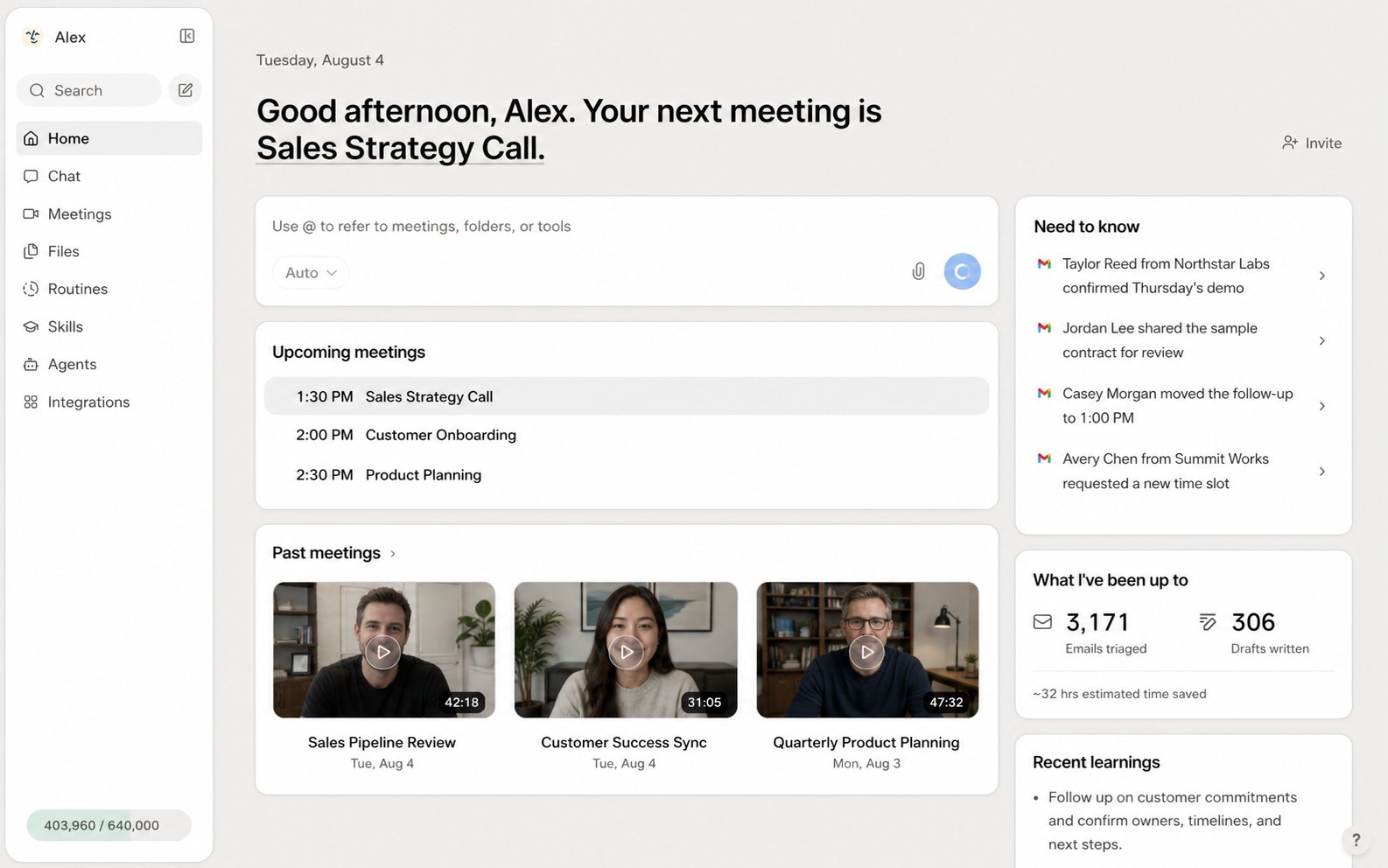
The box at the top is your personal Lindy, connected to your own integrations like email, calendar, and the other tools you’ve linked. Ask it anything and it takes the request on as a task. Type@ to point Lindy at a specific meeting, folder, or tool. Around the box, a set of cards shows what Lindy has been up to and what needs your attention.
Your activity and context cards
As Lindy starts working, these fill in. Empty cards stay hidden or show a friendly “getting to know you” state until there’s data.Upcoming meetings
Today’s meetings, with a Join button for video calls.
Past meetings
Recorded meetings with recaps. Until Lindy joins one, this stays empty.
Need to know
Top items pulled from email, Slack, and meetings that you should act on. Clickable, and dismissable.
What I've been up to
Stats like emails triaged, drafts written, and estimated time saved.
Recent learnings
Things Lindy has learned about you. Add, edit, or delete any of them.
How to reach me
Lindy’s email (lindy@lindy.ai) and your assigned Lindy phone number, ready to copy.
The sidebar
On the left: Home, Chat, Meetings, Files, Routines, Skills, and Integrations (which ones show depends on your setup), plus search, a New chat button, the workspace switcher, and your credit balance at the bottom.Make it yours
Use the Customize menu (“Show on home”) to show or hide cards, and dismiss any card with its X. Your layout preference syncs across devices, including the Chrome extension’s new-tab page.Relevant Docs
Lindy Teammate
Give your whole team a shared Lindy in Slack
Routines
Recurring work Lindy runs on a schedule
Files
Browse and manage the files Lindy uses
Meeting Library
Group and share your recorded meetings