

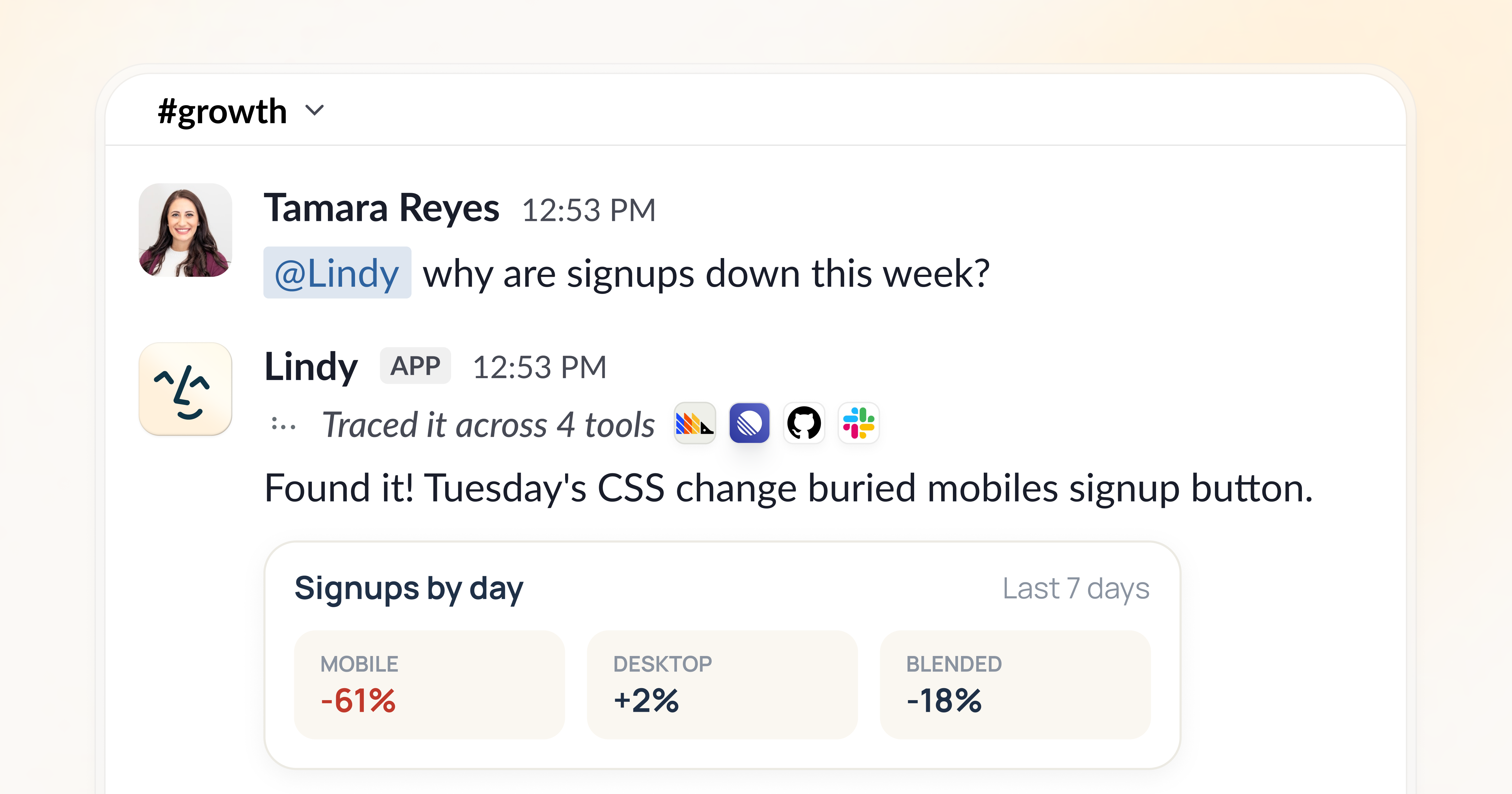
1. Set up your team
1
Install Lindy into Slack
From Lindy (signed in), open Integrations in the left sidebar. Set up Lindy Teammate in Slack sits at the top of the page. Click Install Slack app.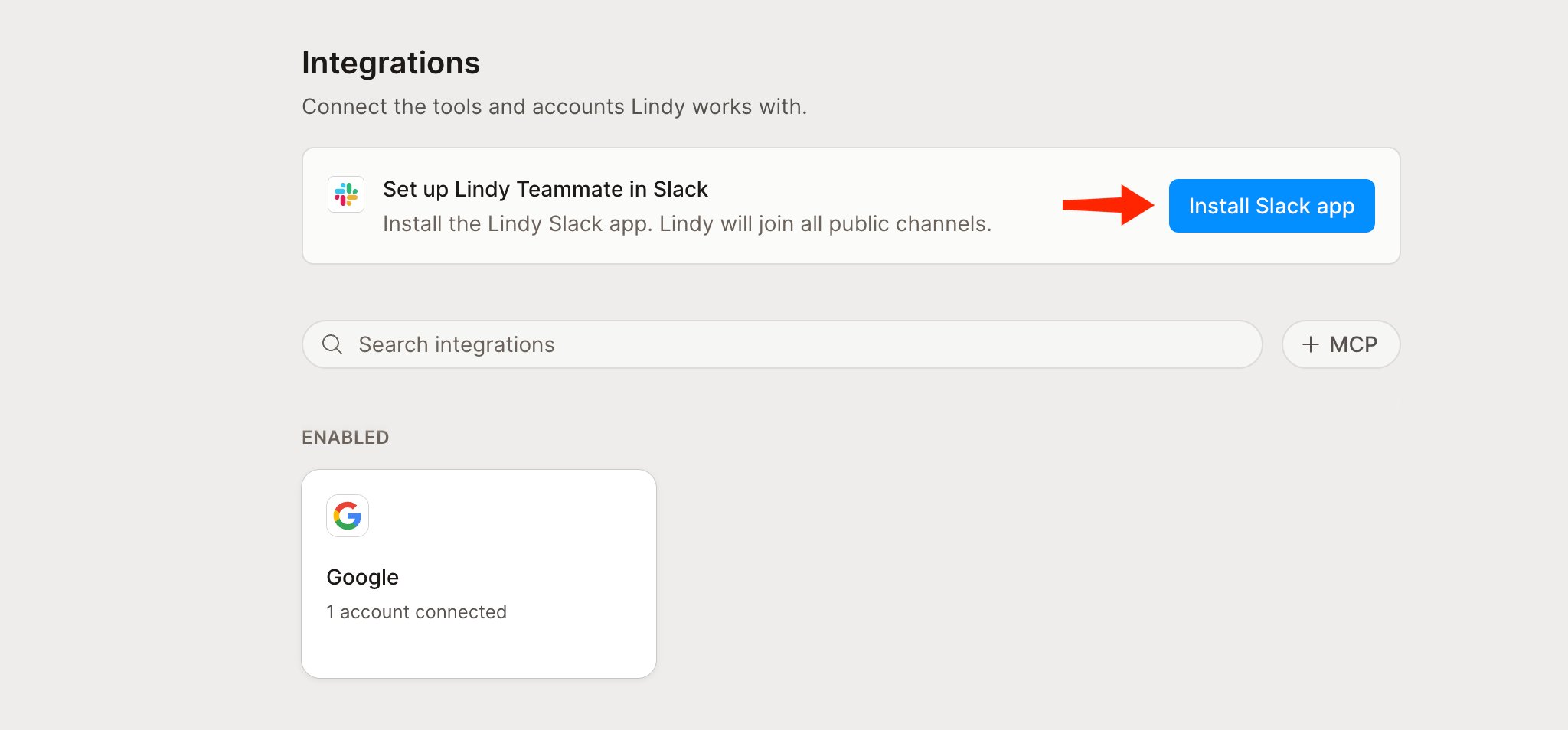
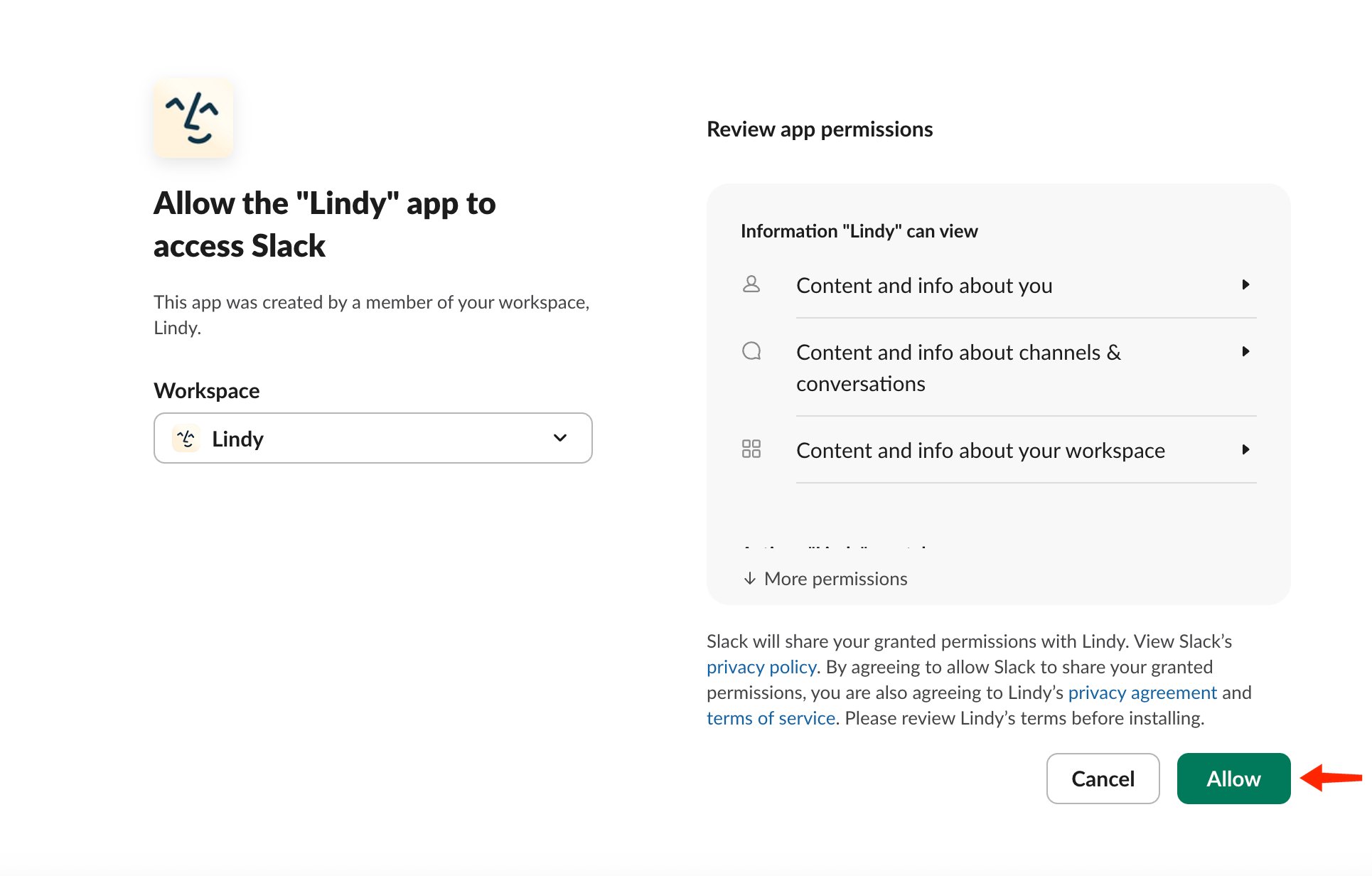
Right after install, Lindy sends you a welcome DM confirming it’s connected and explaining how to start.
2
Teammates link with one tap
Everyone else links themselves. The first time a teammate DMs or @mentions Lindy, it doesn’t start working yet, it sends one DM with a Connect Slack to Lindy button. They tap it, confirm while signed into Lindy, and their Slack identity is bound to their Lindy account. The message they sent is replayed automatically once they’re linked, so nothing is lost.
2. Set up your Lindy
Once you’re linked, connect your own tools so Lindy can work for you:1
Connect email and calendar
Connect your Google or Microsoft account so Lindy can run your inbox and schedule meetings.
2
Add your phone
Add your phone number (or connect Apple Messages) so you can text Lindy. You’ll verify with a code.
How to talk to Lindy
- DM the bot to start or continue your own rolling task. Replies come back in the DM.
- @mention Lindy in a channel or thread and it replies inside that thread, never as a new top-level message. Invite the bot to the channel first if it isn’t there. Once it’s replied, a clear follow-up can continue the thread without re-@mentioning.
- Slack’s AI sidebar works too; replies stay in that sidebar thread.
- Auto-join: the bot can join public channels when linked teammates join, and leave when the last one does. This is configurable.
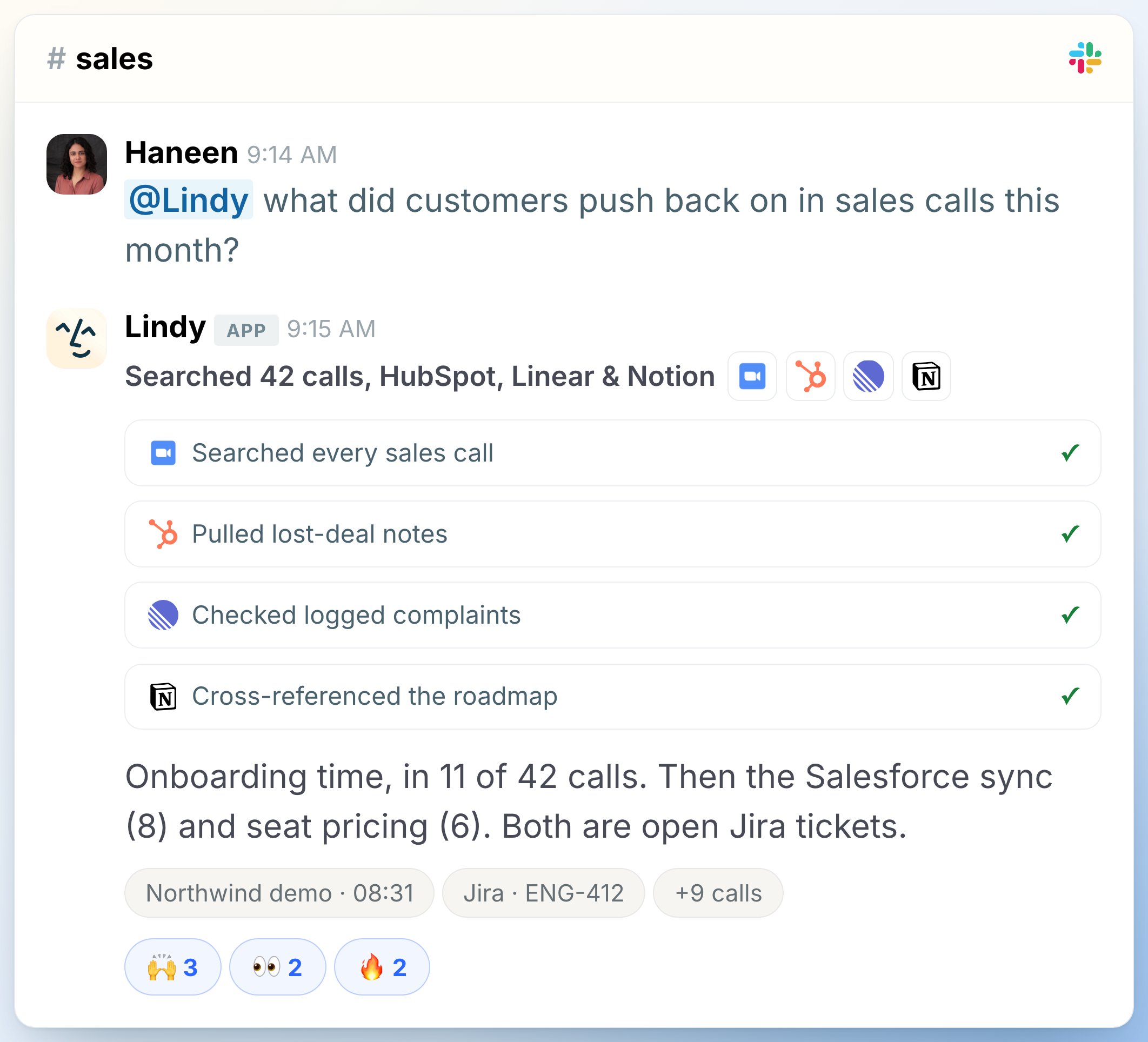
What Lindy can do
- In shared channels and threads: web search, image generation, public Slack search, and Notion (if your team has connected it). Lindy keeps answers public-safe: it summarizes rather than pasting private data into a public channel.
- In your DMs and your own threads: the full toolset, including calendar scheduling, email, SMS, reminders, and meeting reads.
- Extras: private summaries when you’re pulled into a long thread, and follow-up nudges for asks that haven’t gotten a reply.
Guardrails and approvals
Each connected account has one setting: Always allow or Ask for approval, applied to every action that writes or sends. Read-only actions never need approval. Approval is enforced in shared Slack threads; your personal DMs keep their existing confirmation behavior.Relevant Docs
Home
Where you talk to Lindy and see what it’s done
Pricing
Seats, credits, and the shared pool