

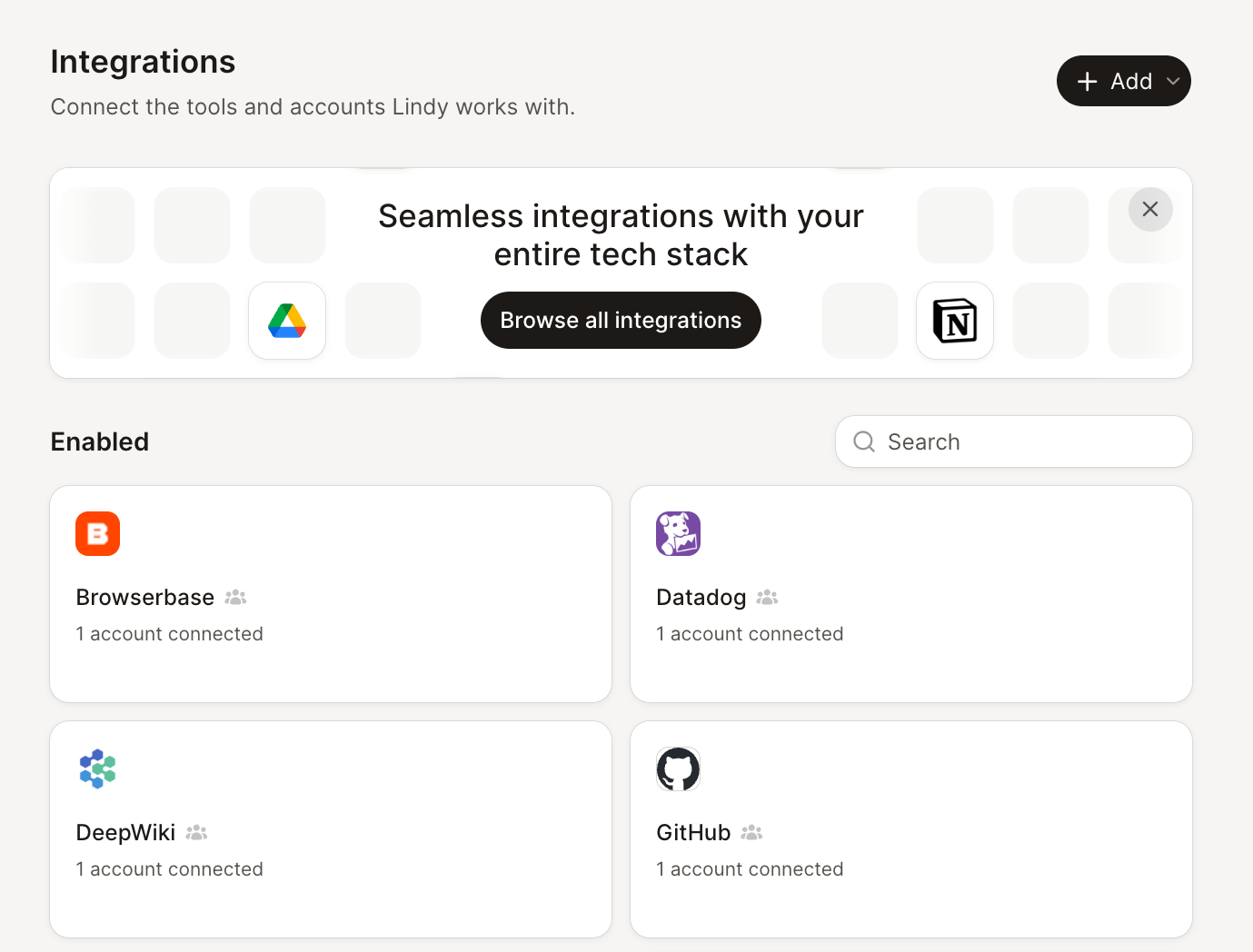
When a tool isn’t in the list
Lindy supports MCP, so any MCP server your team runs plugs straight in. If a tool has no integration and no MCP server, Lindy still isn’t stuck. It can drive the browser the way a person would, or write its own integration against the tool’s API. Two more things are worth understanding: whether a connection is yours or the team’s, and what Lindy is allowed to do with it.Personal and team connections
A personal connection is private to you. Your Lindy uses it for your own work, your DMs, and the web app.
An owner or admin can share one of their personal connections with the whole workspace. From then on, everyone’s Lindy reads that tool as that account and acts with its permissions. Members can see team connections but can’t change them.
Guardrails
Guardrails decide what Lindy can do without asking. This is the setting that matters most for Teammate. Each integration has one:
Two things to know:
- Reads are never guarded. Checking your calendar or searching your email always just works. Guardrails only cover writes.
- Guardrails apply in shared Slack threads only. Your web app chat, Slack DMs with Lindy, and iMessage and SMS aren’t guarded.
A guardrail covers every account under an integration. You can’t yet set one rule for your work Gmail and a different one for your personal Gmail.