

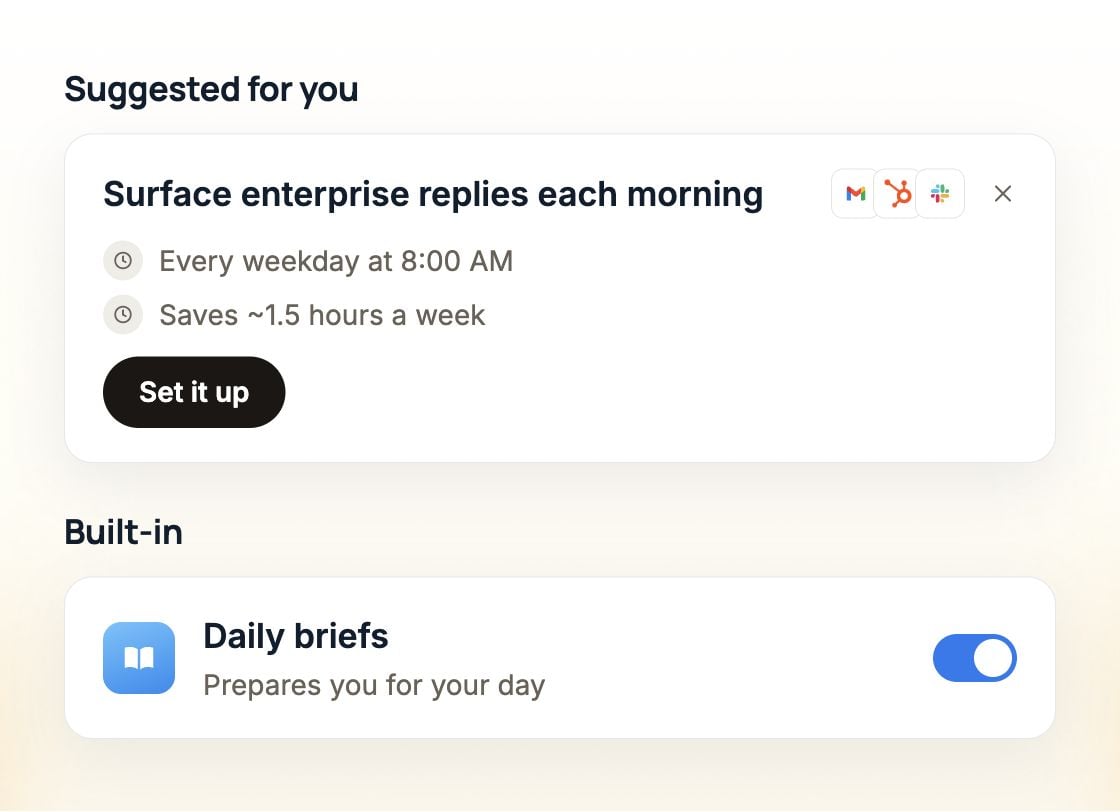
Personal, Workspace, and Discover
Three tabs at the top of the page:- Personal — run just for you, by your own Lindy. Anyone can create them.
- Workspace — run for the whole team through Lindy Teammate in Slack. Only workspace admins can create and manage these (everyone else sees them marked “Needs admin”), and Teammate has to be set up first.
- Discover — a library of ready-made templates you can add in one click.
Built-in routines
Lindy ships with a set of routines you can turn on or off with a toggle, per connected account:
Flip any of them on or off any time. Turning one off stops it without removing it.
Add a template from Discover
Discover has ready-made templates, grouped by area (Recommended, Email & comms, Calendar & meetings, Work, Workspace). Each card shows a status:- Ready — add it in one click.
- Needs setup — shows exactly what’s missing (like Gmail, Google Calendar, Slack, or meetings) with a Connect action right there.
- Needs admin — a team template you can add once a workspace admin sets it up.
- Morning briefing — preps you for the day
- End-of-day review — wraps today, preps tomorrow
- Weekly wrap — summarizes your week
- Promise tracker — tracks follow-ups you promise in email
- Post-meeting follow-ups — drafts a follow-up after client meetings
- Calendar audit — suggests meetings to decline or move on heavy days
- Channel digest — posts a combined digest of Slack channels to the team
Create your own
Click New to open the create drawer. The easiest path is to type it in the Describe your routine box, like “Every weekday at 9, summarize my unread email and Slack mentions.” Lindy fills in the name, trigger, and schedule for you. Suggestion chips and a shuffle button are there if you want ideas, and Advanced settings lets you set the trigger, schedule, delivery channel, and name by hand.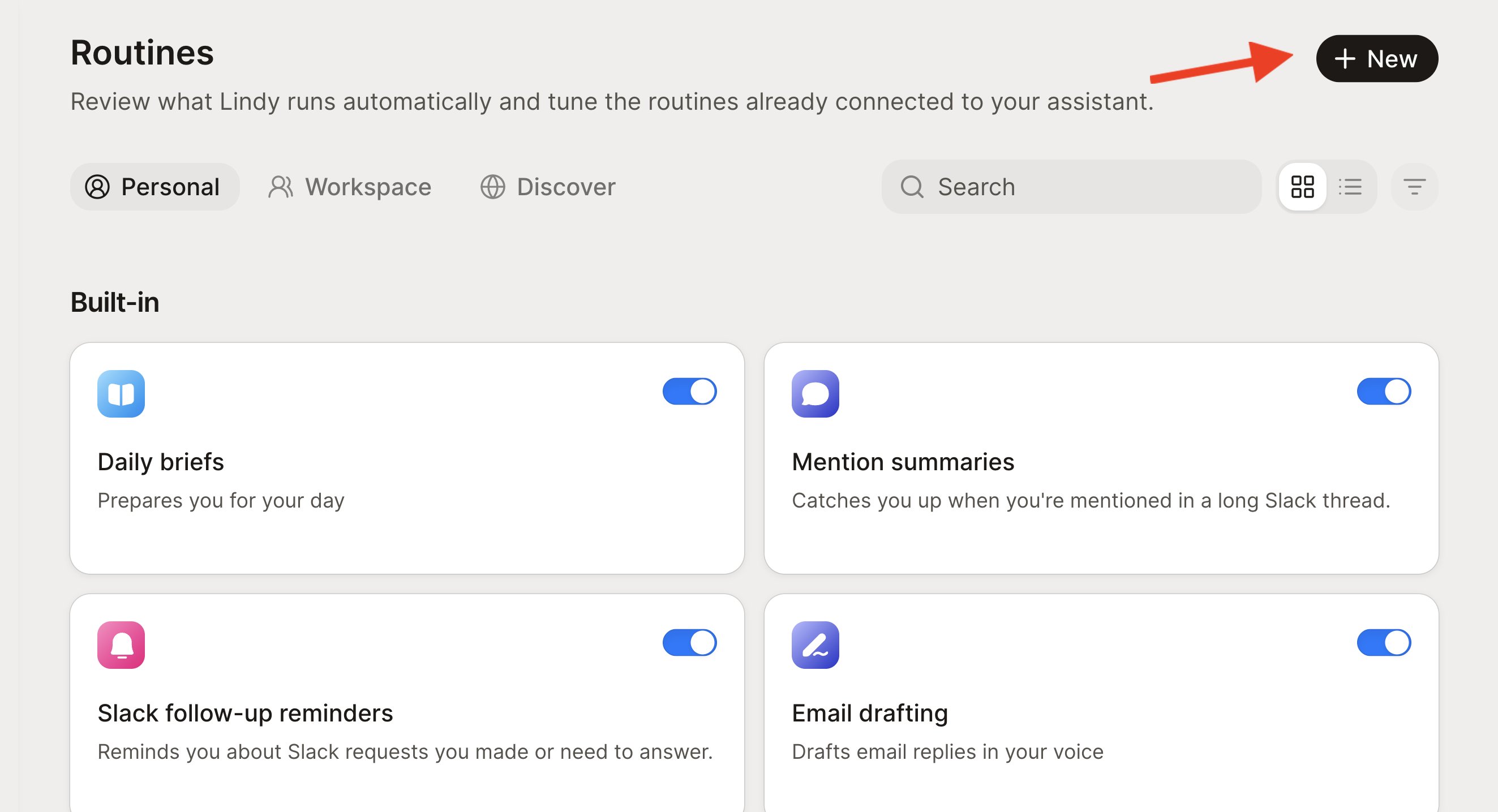
Triggers and delivery
- Triggers. Run a routine on a schedule (daily, weekly, or monthly, the most common), or on an event: an email received or sent, a Slack message, a calendar event about to start, a meeting ending, and more. A Smart Filter narrows event triggers in plain English, like “only emails that promise a follow-up,” so it doesn’t fire on everything.
- Where results go. Personal routines deliver to your default proactive channel, Lindy chat, a text message (if your phone is verified), or a Slack DM. Workspace routines post to a Slack thread reply or a specific channel.
Defaults: new routines run daily at 9:00 AM until you change it, and deliver to your default proactive channel. Team routines default to a Slack thread reply, and scheduled team digests must target a channel.
Run this as a script
A normal routine is an alarm that wakes Lindy up to think through your instructions again on every trigger. Run this as a script turns those instructions into Python that runs instead. Click Convert and Lindy writes a script from the routine’s current instructions, then switches the routine off so you can inspect and test it. Turn it back on and every trigger runs the script first. From there, each run can:- Finish on its own — the run ends without waking Lindy: faster, cheaper, predictable.
- Leave Lindy a note — Lindy wakes up, reads the original instructions plus the note, and handles the part that needs AI or tools.
- Crash — Lindy wakes up to repair and test the script, instead of blindly redoing the routine’s work.
Available for personal routines only, not workspace routines.
Test with a dry run
A dry run fires a routine end to end on your real data and shows you exactly what it would have done, without doing it. Real triggers, real reads, real judgment, and nothing sent, posted, or written. Use it before you trust a routine to run unattended. Ask Lindy in chat:- “Dry-run my morning briefing.”
- “Test my promise tracker before I turn it on.”
- The trigger matches what you meant. Event triggers and Smart Filters are easy to write too broadly. A dry run shows you what actually fired.
- The judgment is right. Read the classifications and drafts, not just the summary. A routine that picks the wrong emails will keep picking the wrong emails, quietly.
- Quiet days behave. Narrow the window to a period with nothing in it and confirm the routine stays silent instead of inventing filler.
If a routine remembers things between runs, dry-run it twice. The second run has to behave sensibly reading what the first one left behind.
What a dry run can’t cover
The delivery step itself. Sending the email, posting to the channel, or writing to a shared sheet are the actions a dry run exists to suppress, so it can’t prove they work. When you want that leg tested too, point it somewhere safe:- Deliver it to yourself instead of the real recipient.
- Write to a copy or a sheet only you use.
- Read the payload Lindy would have sent, and approve it without sending.
Script routines
A routine you converted with Run this as a script has two layers, and each is tested separately.- The script runs on its own with sends switched off. It does the real reads and the real LLM steps, then prints what it would have delivered. When something is wrong here, the fix belongs in the script, then run it dry again.
- The routine around it is what a dry run covers: the trigger firing on schedule and the instructions handing off to the script correctly. The script can look perfect and still never fire.
Edit and manage
Tune a routine from the Routines page, or just ask Lindy:- “Change my morning routine to 9am instead of 8am.”
- “Pause my follow-up bumps.”
- “What routines are active?”
Relevant Docs
Skills
Reusable playbooks Lindy picks up on its own
Home
Where you talk to Lindy and see what it’s done