There are two ways to interact with Lindy in Slack: @mention her when you want a response, or use a slash command to manage your connection.

@mention Lindy for a response

@mention Lindy in a channel or thread whenever you want an immediate response. It replies right inside that thread.
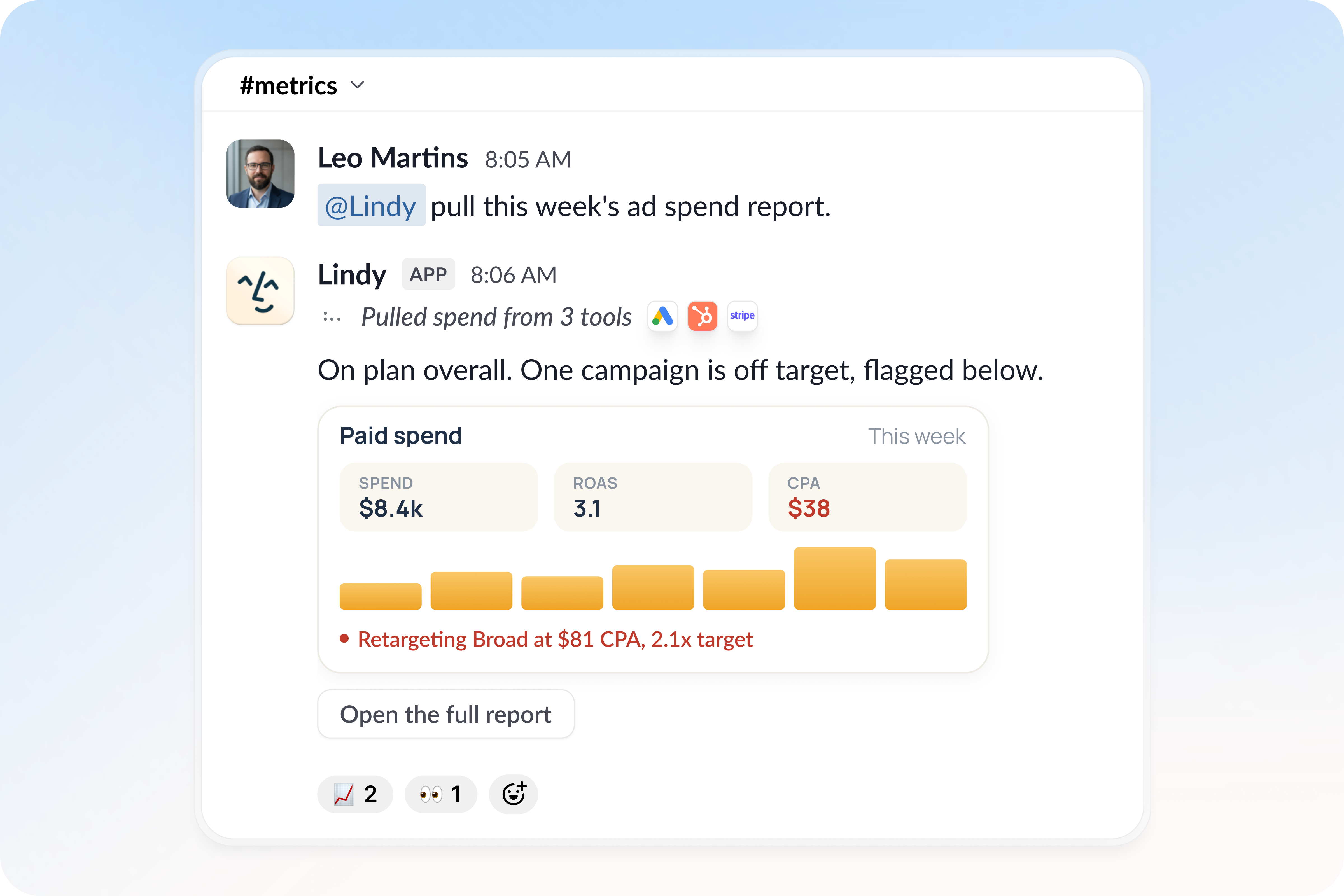
A teammate @mentions Lindy in #metrics to pull this week's ad spend report; Lindy pulls spend from three tools and replies in the channel with a Paid spend card, a flagged campaign, and a button to open the full report
Once Lindy has replied in a thread, you don’t need to keep @mentioning her. Lindy reads the thread and disambiguates whether your next message is aimed at her or at the other people in the conversation, so a natural follow-up keeps the thread going without the extra @mention.

Slash commands

Run these in any Slack message box to check your connection, tune how much context Lindy reads, or manage your account. Type the command and press enter, the response is only visible to you.

Admin commands

Workspace admins use these to check the connection and control the context lookback, how far back in a conversation Lindy reads for context when it’s brought into a channel or thread.
A longer lookback gives Lindy more of the preceding conversation as context, at the cost of pulling in older, possibly less relevant messages. reset returns to Lindy’s default window.

Personal commands

Anyone can run these for their own account.
After /lindy unlink, Lindy stops responding to your DMs and @mentions until you link again. The next time you message the bot, tap Connect Slack to Lindy to reconnect.

Run one task on a specific model

/lindy usemodel is coming soon and is not available yet. Here is how it will work.
Type /lindy usemodel in any Slack message box and press enter. A modal opens with a model dropdown. Pick the model you want and it applies to the next task you ping Lindy with. That one task runs on the model you chose, and everything after it falls back to the default. Use it to:
  • Test the same task on two different models and compare the output
  • Force a specific model for a single gnarly task
The override is one task only. It sets the model for the task started by your next Slack ping, holds for that whole task, then resets. A confirmation message shows which model was set, visible only to you.

Relevant Docs

Set up Lindy

Add Lindy to Slack and link your account

Team Setup

Invites, admin controls, and credits