

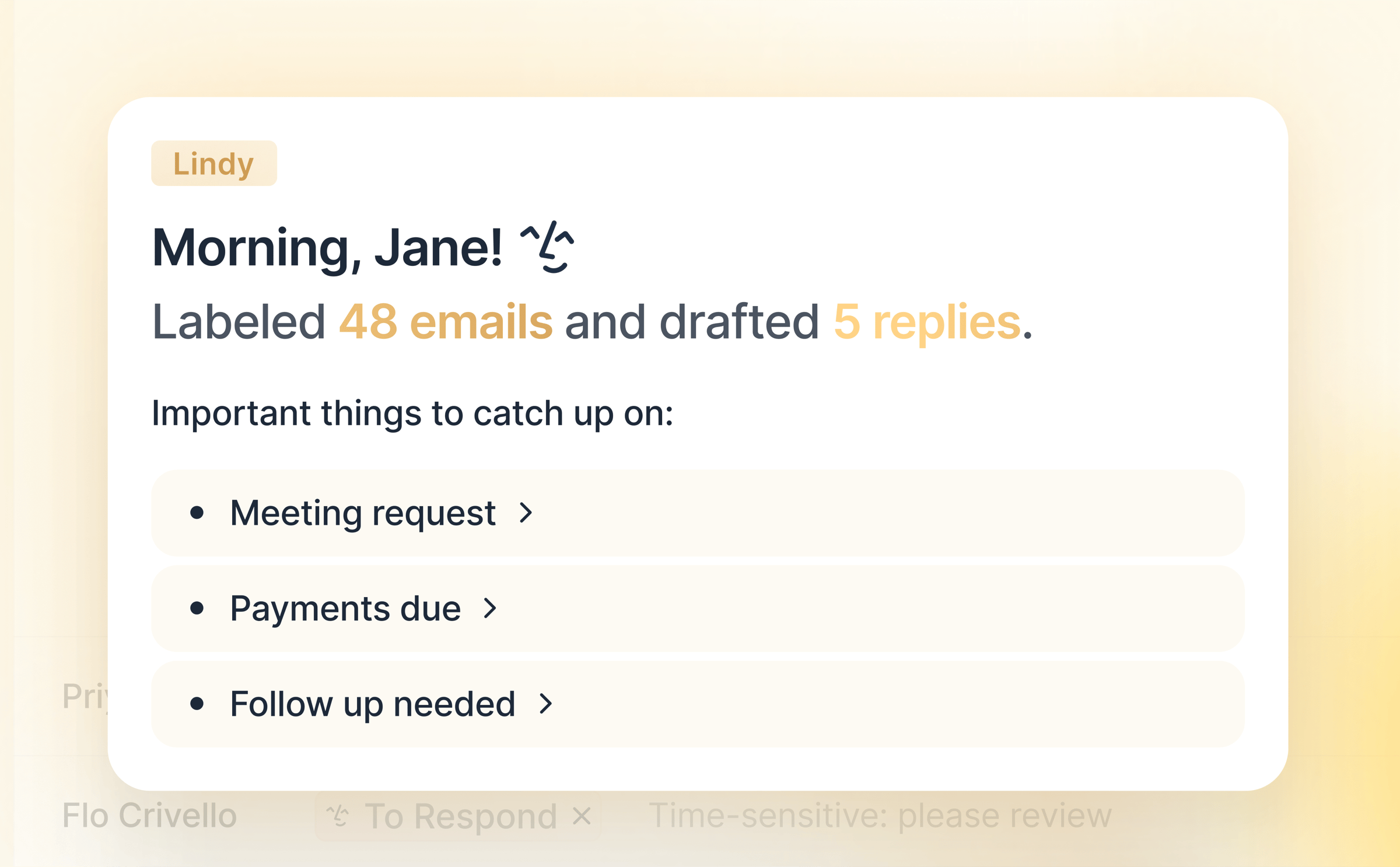
Personal routine — runs for you alone, in your own Lindy. Drafts land in your drafts folder in your voice, and nobody else sees them. Routines that run for the whole team are Workspace routines.
Replies That Sound Like You
After Email Triage sorts your inbox, Lindy drafts replies for emails that need a response. Every draft lands in your drafts folder for you to review, edit, and send. Nothing goes out without your approval.Find it in Routines
On the Routines page, email drafting shows up as two built-in routine cards:- Email drafting — “Allow Lindy to draft email responses with your tone and voice.”
- Follow-up bumps — “Draft a bump when sent emails get no reply.”
Turn it on
Flip the Email drafting toggle to enable auto-drafting. While a routine is off, its detail fields are greyed out, so turn it on first, then tune it. Each card also has a Learn more link. Once it’s on, Lindy reads incoming emails that need a response, drafts a reply in your style, and saves it to your drafts. From there you review, tweak, and send.Tune your drafts
Click the Email drafting card to open it. You’ll see:- Drafting instructions — the main box. Describe how you want replies written: tone, formality, length, and when to draft versus skip. Saves automatically when you click out of the field.
- Your signature — your sign-off, shown above the Lindy line. Markdown is supported, so you can paste your Gmail signature or write a new one. Autosaves on blur.
- Learned instructions — the style Lindy has picked up from how you actually write. This one is different: it doesn’t autosave. Edit it, then click Save learned instructions (the button stays disabled until you make a change).
- Include “Sent with Lindy” — keep or drop the Lindy footer on this inbox. This may not appear, depending on your rollout.
The more specific your drafting instructions, the better the drafts. Worth spelling out:
- Tone: formal, casual, friendly, direct.
- Length: short and punchy, or thorough.
- Sign-offs: “Best,” “Thanks,” or your custom signature.
- Rules: who never to reply to, what to escalate instead.
Follow-up bumps
A separate routine drafts a bump when a sent email gets no reply. See Follow-up Bumps.Connect another inbox
At the top of the drawer, your connected inbox shows as a chip (likeyou@company.com) with a + Add account button beside it. Click + Add account, choose Google or Outlook, and follow the prompts to grant access. You can connect as many inboxes as you like, across both providers.
Settings are per-inbox, so when you have more than one connected, select the account chip first, then edit. Drafting only works once a Gmail or Outlook account is connected.
Next Steps
Email Triage
How Lindy organizes your inbox
Routines
Manage drafting, follow-ups, and your other routines