

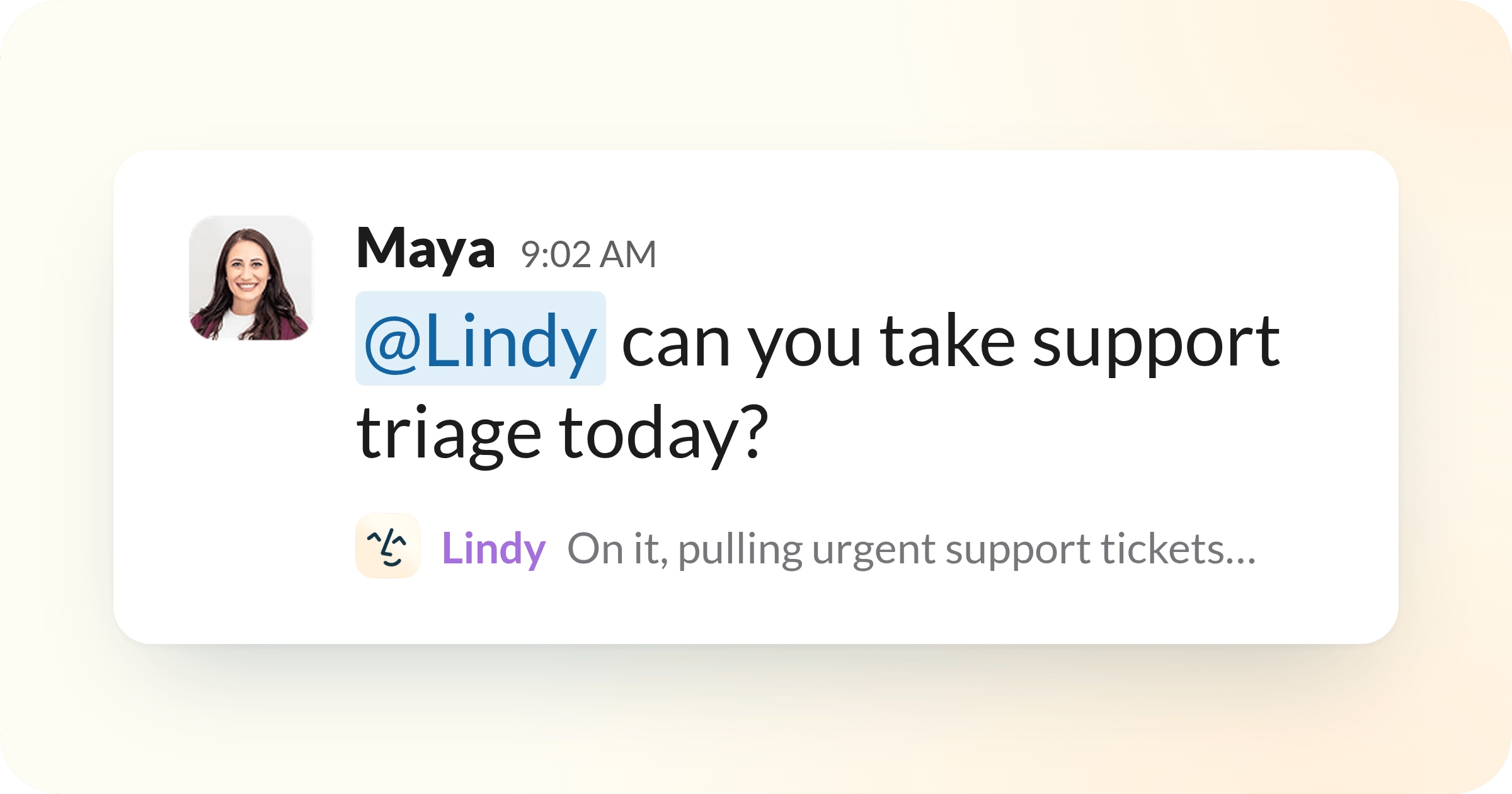
@mention, and the work it does is visible to everyone there. In your DMs, you get a private one that runs your inbox, meetings, and scheduling. Same Lindy either way.
1. Get your team on Lindy
1
Add Lindy to Slack
An admin installs Lindy from Slack’s Add to Slack screen. The installer is linked automatically.
2
Everyone links with one tap
The first time a teammate DMs or @mentions Lindy, it replies with a Connect Slack to Lindy button. Tap it, confirm, and you’re linked. Your original message runs on its own once you’re connected.
2. Set up your account
1
Connect email and calendar
Connect your Google or Microsoft account so Lindy can run your inbox, prep and take notes on meetings, and handle scheduling.
2
Add your phone
Add your phone number (or connect Apple Messages) so you can text Lindy from anywhere. You’ll verify with a code.
3
Connect your tools
Connect the tools you use, like Notion, HubSpot, Linear, and 1,000+ more, so Lindy can work across your whole stack. See Integrations.
Your data is encrypted, never sold, and never used to train models. Lindy is SOC 2 Type II, GDPR, and HIPAA compliant. Learn more about security.
Try it
Ask Lindy in Slack, a DM, or by text:- “What’s on my calendar today?”
- “Draft a reply to [name]‘s email”
- “Schedule 30 minutes with [name] next week”
- “Summarize yesterday’s meeting with [name]“
Next Steps
Set up Lindy
The full team and account setup
Home
Where you talk to Lindy and see what it’s done
Meetings
Recording, notes, and your shared library
Pricing
Seats, credits, and the shared pool